Introduction
This manual provides detailed instructions for the setup, operation, maintenance, and troubleshooting of your Gawfolk 49 Inch Curved Gaming Monitor (Model: GF490B). This monitor features a 49-inch curved DQHD (5120x1440) display with a 120Hz refresh rate, HDR10 support, and a 1500R curvature, designed for an immersive visual experience in gaming, professional work, and entertainment.

Image: Front view of the Gawfolk 49 Inch Curved Gaming Monitor, showcasing its expansive curved display.
What's in the Box
Upon opening the package, please verify that all the following components are included:
- Gawfolk Monitor
- Base Stand with Support Bracket
- Power Adapter
- Product Manual
- Screw Bag
- DisplayPort Cable
Setup
1. Assembling the Stand
- Carefully remove the monitor and stand components from the packaging.
- Attach the support bracket to the monitor panel using the provided screws. Ensure it is securely fastened.
- Connect the base stand to the support bracket. Tighten any screws necessary to secure the base.
- Place the assembled monitor on a stable, flat surface.

Image: Illustration of the monitor's ergonomic design, showing easy installation, tilt, swivel, and height adjustments. This image also depicts the stand assembly process.
2. Connecting Cables
The monitor supports various input options. Connect the appropriate cables from your computer or other devices to the monitor's input ports.
- DisplayPort (DP): For optimal performance, especially with 120Hz refresh rate and DQHD resolution, use the included DisplayPort cable. Connect one end to the monitor's DP port and the other to your computer's DP output.
- HDMI: Connect an HDMI cable from your device to one of the monitor's HDMI ports.
- Power: Connect the power adapter to the monitor's DC input port, then plug the power adapter into a wall outlet.
- Audio Out: If desired, connect external speakers or headphones to the 3.5mm audio out jack.

Image: Rear view of the monitor showing available ports including DC power, HDMI 2.1, DisplayPort 1.4, and Audio Out. Various devices like a PC, gaming console, and laptop are shown connected to the monitor.
3. Wall Mounting (Optional)
The monitor supports VESA wall mounts with a 100x100mm pattern. Ensure you use a compatible wall mount and follow the mount manufacturer's instructions for safe installation. Remove the stand before attaching the monitor to a wall mount.
Operating Instructions
Powering On/Off
Press the power button, usually located on the back or bottom of the monitor, to turn the monitor on or off. The power indicator light will illuminate when the monitor is active.
On-Screen Display (OSD) Menu Navigation
The OSD menu allows you to adjust various monitor settings. Use the joystick or buttons (depending on your model) located on the back or bottom of the monitor to navigate the menu.
- Press the joystick/button to open the OSD menu.
- Move the joystick/buttons up/down/left/right to navigate through menu options.
- Press the joystick/button again to select an option or confirm a setting.
- Use the 'Back' or 'Exit' option to return to the previous menu or exit the OSD.
Key Features and Settings
Refresh Rate (120Hz)
This monitor supports a 120Hz refresh rate for smoother motion and reduced input lag, ideal for gaming. Ensure your graphics card and connection cable (DisplayPort recommended) support this refresh rate. You may need to adjust the display settings in your operating system to enable 120Hz.

Image: Comparison showing the visual difference between 120Hz and 75Hz refresh rates, highlighting smoother gameplay at 120Hz.
DQHD (5120x1440) Resolution
The Dual Quad HD resolution provides an expansive workspace, equivalent to two 2560x1440 monitors side-by-side without a bezel. This is beneficial for multitasking, professional applications, and immersive gaming.
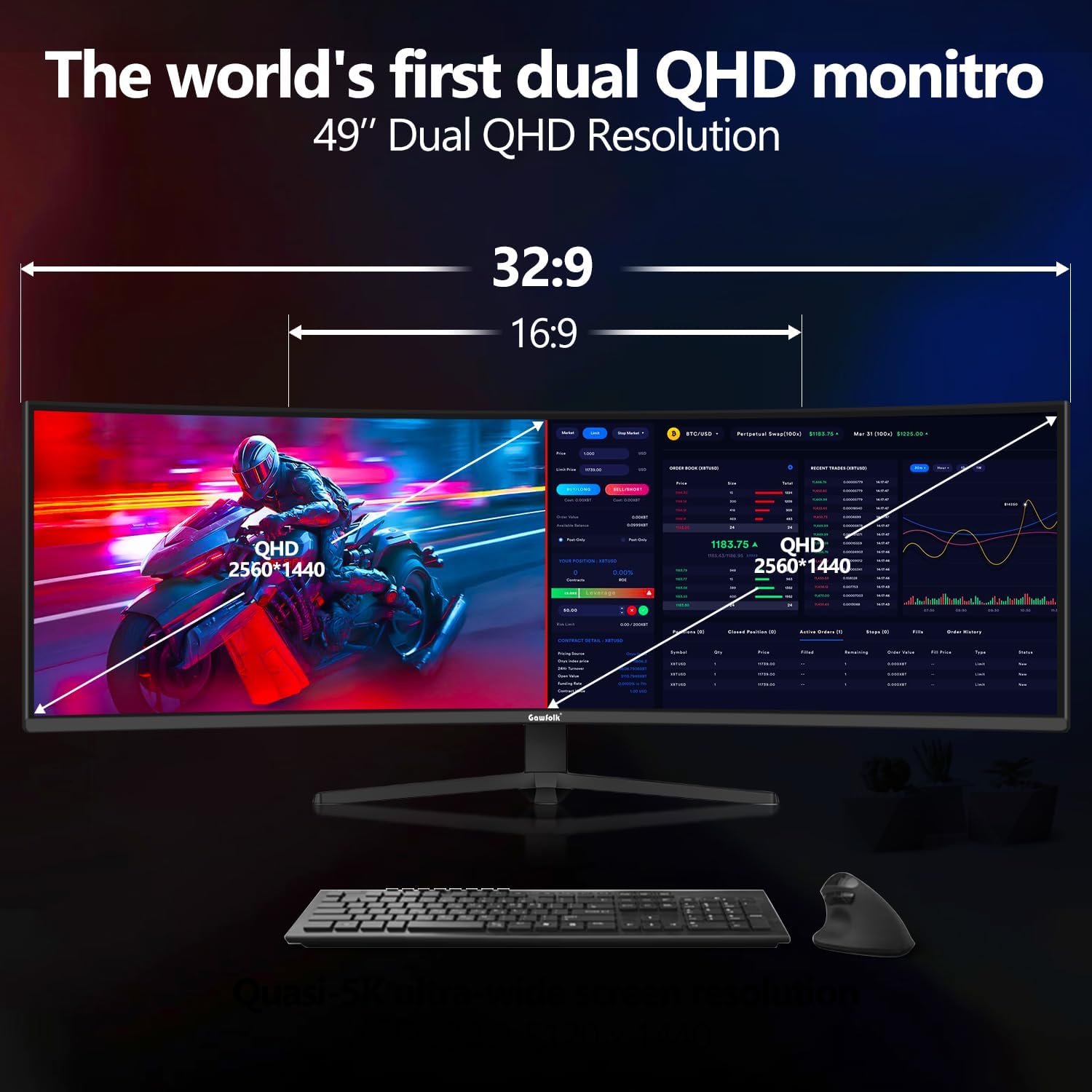
Image: Visual representation of the 49-inch Dual QHD resolution (5120x1440) compared to a standard 16:9 aspect ratio, illustrating the vast screen real estate.
HDR10 Support
High Dynamic Range (HDR10) provides a wider range of colors and contrasts, resulting in more vibrant and lifelike images. To enable HDR, ensure your content and graphics card support HDR, and activate it in your operating system's display settings.

Image: Side-by-side comparison demonstrating the visual enhancement when HDR is turned on versus off, showing richer colors and deeper contrasts.
1500R Curvature
The 1500R curvature matches the natural curve of the human eye, providing a more immersive viewing experience and reducing eye strain during extended use. This curvature enhances peripheral vision, especially in gaming and cinematic content.
Screen Split Functionality
Utilize the monitor's screen split features to efficiently manage multiple applications or input sources simultaneously. Refer to the OSD menu for specific Picture-by-Picture (PbP) or Picture-in-Picture (PiP) options, allowing you to display content from two different sources at once.

Image: Depiction of the screen split feature, showing various layouts for displaying multiple windows or input sources simultaneously on the ultrawide screen.
Maintenance
Proper maintenance ensures the longevity and optimal performance of your monitor.
- Cleaning the Screen: Gently wipe the screen with a soft, lint-free cloth. For stubborn marks, lightly dampen the cloth with water or a non-abrasive, monitor-safe cleaning solution. Avoid spraying liquid directly onto the screen.
- Cleaning the Casing: Use a soft, dry cloth to clean the monitor's casing. Do not use abrasive cleaners or solvents.
- Ventilation: Ensure the monitor's ventilation openings are not blocked to prevent overheating.
- Power Off When Not in Use: Turn off the monitor when not in use for extended periods to conserve energy and prolong its lifespan.
Troubleshooting
If you encounter issues with your monitor, refer to the following common problems and solutions:
| Problem | Possible Cause | Solution |
|---|---|---|
| No image on screen |
|
|
| Image is blurry or distorted |
|
|
| Flickering or unstable image |
|
|
| Colors appear incorrect |
|
|
Specifications
| Feature | Detail |
|---|---|
| Model Number | GF490B |
| Screen Size | 49 Inches |
| Resolution | 5120x1440 (DQHD) |
| Refresh Rate | 120Hz |
| Curvature | 1500R |
| Aspect Ratio | 32:9 |
| Brightness | 250 Candela per Square Meter (nits) |
| HDR Support | HDR10 |
| Color Accuracy | 100% sRGB |
| Connectivity | DisplayPort (DP), HDMI, Audio Out |
| Wall Mount Compatibility | 100x100mm VESA |
| Product Dimensions (L x W x H) | 1.97 x 46.6 x 19.6 inches |
| Item Weight | 23.9 pounds |
| Manufacturer | Gawfolk |
Warranty and Support
Gawfolk is committed to providing high-quality products and customer satisfaction. For any concerns, issues, or technical support regarding your Gawfolk 49 Inch Curved Gaming Monitor, please contact Gawfolk customer service. Refer to the product packaging or the official Gawfolk website for the most current contact information and warranty details.
Note: Specific warranty terms and conditions may vary by region and retailer. Please retain your proof of purchase for warranty claims.


