
1. Product Overview
The RAWM MH01 is a high-performance wireless gaming mouse designed for precision and comfort. It features a PAW3395 optical sensor, multiple connectivity options, and programmable buttons to enhance your gaming and productivity experience.

Image 1.1: The RAWM MH01 Wireless Gaming Mouse shown with its accompanying USB receiver. The mouse is white with a sleek, ergonomic design, featuring a scroll wheel and primary buttons.
Key Features:
- PAW3395 Optical Sensor: Up to 26000 DPI for precise tracking.
- Tri-mode Connectivity: Supports 2.4G wireless, Bluetooth 5.3, and wired (USB Type-C) connections.
- Lightweight Design: Optimized for swift and comfortable movement.
- Hot-Swappable Switches: Allows for personalized click feel and extended lifespan.
- 7 Programmable Buttons: Customizable via RAWM Hub software.
- 600mAh Rechargeable Battery: Provides extended usage time.
2. Setup
2.1 Package Contents
Verify that all items are present in the package:

Image 2.1: An illustration showing the contents included in the RAWM MH01 package. These include the MH01 mouse, gift box, Type-C cable, manual, grip tape, PTFE skates, 1K receiver, and an adapter.
- RAWM MH01 Wireless Gaming Mouse
- USB Type-C Charging/Data Cable
- USB 2.4G Wireless Receiver
- USB-A to USB-C Adapter
- User Manual
- Grip Tape (optional)
- PTFE Skates (optional)
2.2 Charging the Mouse
The MH01 mouse is equipped with a 600mAh rechargeable battery. For optimal performance, fully charge the mouse before first use.
- Connect the supplied USB Type-C cable to the mouse's charging port.
- Connect the other end of the cable to a USB power source (e.g., computer USB port, USB wall adapter).
- The LED indicator on the mouse will show charging status. A full charge typically takes approximately 2.5 to 3 hours.
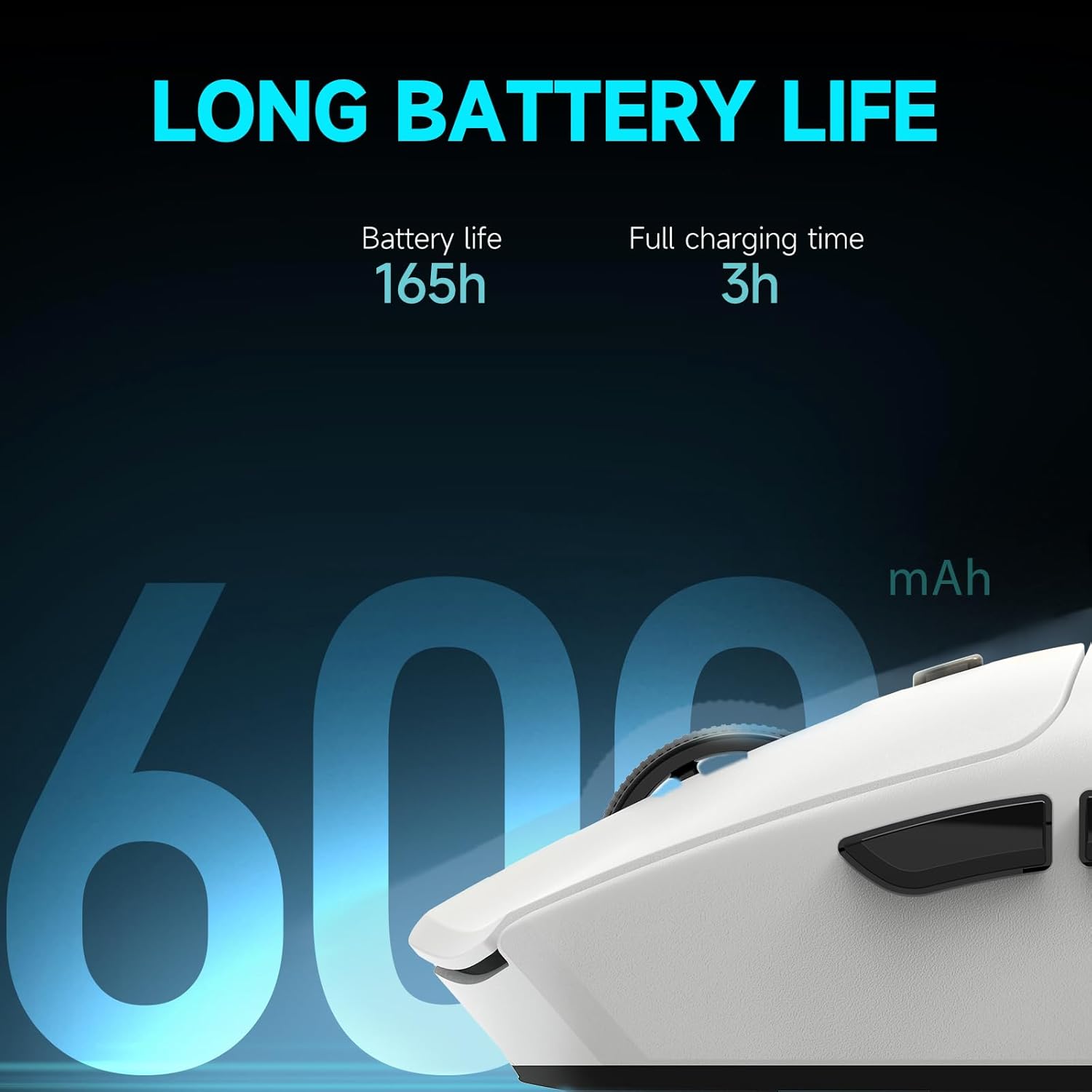
Image 2.2: An image highlighting the long battery life of the RAWM MH01 mouse, indicating 165 hours of battery life and a 3-hour full charging time for its 600mAh battery.
2.3 Connection Modes
The RAWM MH01 supports three connection modes:

Image 2.3: An illustration depicting the three connection modes of the RAWM MH01 mouse: Type-C Wired Mode, Wireless USB 2.4G, and Bluetooth 5.3.
- 2.4G Wireless Mode:
- Insert the USB 2.4G wireless receiver into an available USB port on your computer.
- Turn on the mouse using the switch on the bottom and select the 2.4G mode.
- The mouse should connect automatically.
- Bluetooth 5.3 Mode:
- Turn on the mouse and select the Bluetooth mode using the switch on the bottom.
- On your computer, open Bluetooth settings and search for new devices.
- Select "RAWM MH01" from the list of available devices to pair.
- Wired Mode:
- Connect the mouse to your computer using the supplied USB Type-C cable.
- The mouse will automatically switch to wired mode and can be used while charging.
2.4 Software Installation (RAWM Hub)
To unlock the full customization potential of your RAWM MH01 mouse, download and install the RAWM Hub software from the official RAWM website. The software is available as both a desktop application and a web-based hub.

Image 2.4: A screenshot of the RAWM Hub software interface, displaying various customization options for the mouse, including DPI settings, polling rate, button assignments, and advanced performance modes.
- Visit the official RAWM website.
- Navigate to the support or downloads section for the MH01 mouse.
- Download and install the RAWM Hub application for your operating system.
- Launch the application to access settings for DPI, button mapping, polling rate, and more.
3. Operating Instructions
3.1 DPI Control
The RAWM MH01 features an on-mouse DPI button located on the bottom of the mouse for quick adjustments. Default DPI stages are 400/800/1600/3200.

Image 3.1: A close-up of the RAWM MH01 mouse highlighting the DPI switch button located on its underside. The image also shows a software interface for detailed DPI adjustment, including setting X/Y values separately and up to 8 DPI stages.
- On-mouse Adjustment: Press the DPI button on the bottom of the mouse to cycle through the preset DPI stages.
- Software Adjustment: Use the RAWM Hub software to customize DPI settings, including setting up to 8 DPI stages, adjusting DPI in 1-DPI increments (50-26000), and setting X/Y DPI values independently.
3.2 Programmable Buttons
The mouse features 7 programmable buttons that can be customized using the RAWM Hub software.

Image 3.2: A screenshot of the RAWM Hub software's button mapping interface. It illustrates how to assign keys, macros, and functions to the mouse's buttons, including the R-Plus Key for secondary mappings.
- Open the RAWM Hub software.
- Navigate to the "Mapping Type" or "Buttons" section.
- Select the button you wish to customize.
- Assign a key, macro, or function from the available options.
- Save your changes to the mouse's onboard memory.
3.3 Hot-Swappable Switches
The RAWM MH01 features a hot-swappable switch design, allowing users to change the mechanical switches for the main left and right click buttons. This enables customization of click feel and extends the mouse's lifespan.

Image 3.3: An exploded view of the RAWM MH01 mouse demonstrating the hot-swappable switch mechanism. It shows the HUANO Pink Dots switches and mentions compatibility with other 3-pin switches like Kailh GM8.0 Black Mamba and HUANO Silent micro switches.
- Ensure the mouse is powered off and disconnected.
- Carefully remove the mouse shell or access the switch area (refer to detailed diagrams on the RAWM website if needed).
- Gently pull out the existing switch using a switch puller (not included).
- Align the pins of the new 3-pin mechanical switch with the sockets and press it firmly into place.
- Reassemble the mouse.
Note: Only use compatible 3-pin mechanical switches. Improper installation may damage the mouse.
3.4 Ergonomics and Grip Style
The RAWM MH01 is designed to accommodate various grip styles, particularly optimized for palm and claw grips, suitable for medium to large hand sizes.

Image 3.4: An illustration demonstrating different mouse grip styles (Palm, Claw, Fingertip) and indicating that the RAWM MH01 is best suited for palm and claw grips for big and medium-sized hands.
4. Maintenance
4.1 Cleaning
- Ensure the mouse is powered off and disconnected from all cables.
- Use a soft, lint-free cloth lightly dampened with water or a mild cleaning solution to wipe the surface of the mouse.
- Avoid using harsh chemicals, abrasives, or solvents.
- Use a can of compressed air to clear dust and debris from crevices and around buttons.
- Clean the optical sensor on the bottom of the mouse periodically with a cotton swab to ensure accurate tracking.
4.2 Battery Care
- Avoid fully discharging the battery frequently to prolong its lifespan.
- Store the mouse in a cool, dry place when not in use for extended periods.
- If storing for a long time, charge the battery to approximately 50% before storage.
5. Troubleshooting
Common Issues and Solutions:
| Issue | Possible Solution |
|---|---|
| Mouse not responding in 2.4G wireless mode |
|
| Mouse not connecting via Bluetooth |
|
| DPI settings not changing |
|
| Buttons not responding or double-clicking |
|
| Mouse cursor erratic or lagging |
|
6. Technical Specifications

Image 6.1: A detailed diagram outlining the technical specifications of the RAWM MH01 mouse, including its dimensions, sensor type, polling rate, DPI range, acceleration, click lifespan, battery capacity, battery life, charging time, and weight.
| Feature | Specification |
|---|---|
| Model | MH01 |
| Sensor | PAW3395 Optical Sensor |
| DPI Range | 50 - 26000 DPI (Adjustable) |
| Polling Rate | 125Hz, 250Hz, 500Hz, 1000Hz (up to 8000Hz with separate dongle) |
| Acceleration | Up to 50G |
| Tracking Speed | 650 IPS (Inches Per Second) |
| Connectivity | 2.4G Wireless, Bluetooth 5.3, USB Type-C Wired |
| Buttons | 7 Programmable Buttons |
| Switch Type | Hot-swappable 3-pin mechanical switches (e.g., HUANO Pink Dots) |
| Switch Lifespan | 80 Million Clicks (HUANO Pink Dots) |
| Battery Type | Rechargeable Lithium Battery |
| Battery Capacity | 600mAh |
| Battery Life | Up to 165 hours (approximate, varies with usage) |
| Charging Time | Approx. 2.5 - 3 hours |
| Dimensions (L x W x H) | 127.2mm x 66mm x 40.1mm (5 x 2.6 x 1.58 inches) |
| Weight | Approx. 70g ± 1g (2.47 oz) |
| Cable Length | 5 ft (1.5 meters) Type-C |
| Compatible OS | PC, Laptop, Mac |
7. Warranty and Support
RAWM products are manufactured to high quality standards. For specific warranty information, including duration and terms, please refer to the warranty card included in your product packaging or visit the official RAWM website.
For technical support, troubleshooting assistance, or to download the latest RAWM Hub software and firmware updates, please visit the RAWM official support page or contact customer service through the contact information provided on their website.
Manufacturer: Shenzhen Renmo Electronic Technology Co., Ltd

