
HP 255 G10
HP 255 G10 Laptop User Manual
Model: AD1W3ET
1. Introduction
Welcome to the user manual for your new HP 255 G10 laptop. This guide provides essential information to help you set up, operate, maintain, and troubleshoot your device. Please read this manual thoroughly to ensure optimal performance and longevity of your laptop.
1.1 Package Contents
Please check the package for the following items:
- HP 255 G10 Laptop
- AC Power Adapter and Power Cord
- Quick Start Guide and Warranty Information
If any items are missing or damaged, please contact your retailer or HP support.
2. Setup
2.1 Connecting the Power Adapter
- Connect the AC adapter to the power connector on the side of your laptop.
- Plug the power cord into the AC adapter.
- Plug the other end of the power cord into a grounded electrical outlet.
It is recommended to fully charge the battery before initial use.
2.2 First Power On
Press the power button, usually located on the keyboard deck, to turn on your laptop. Since this laptop comes with FreeDOS, you will see a command-line interface. You may need to install a preferred operating system (e.g., Windows, Linux) to utilize the laptop's full functionality.
2.3 Connecting Peripherals
You can connect external devices such as a mouse, keyboard, external monitor, or USB drives to the available ports on your laptop. Refer to the 'Operating' section for port details.
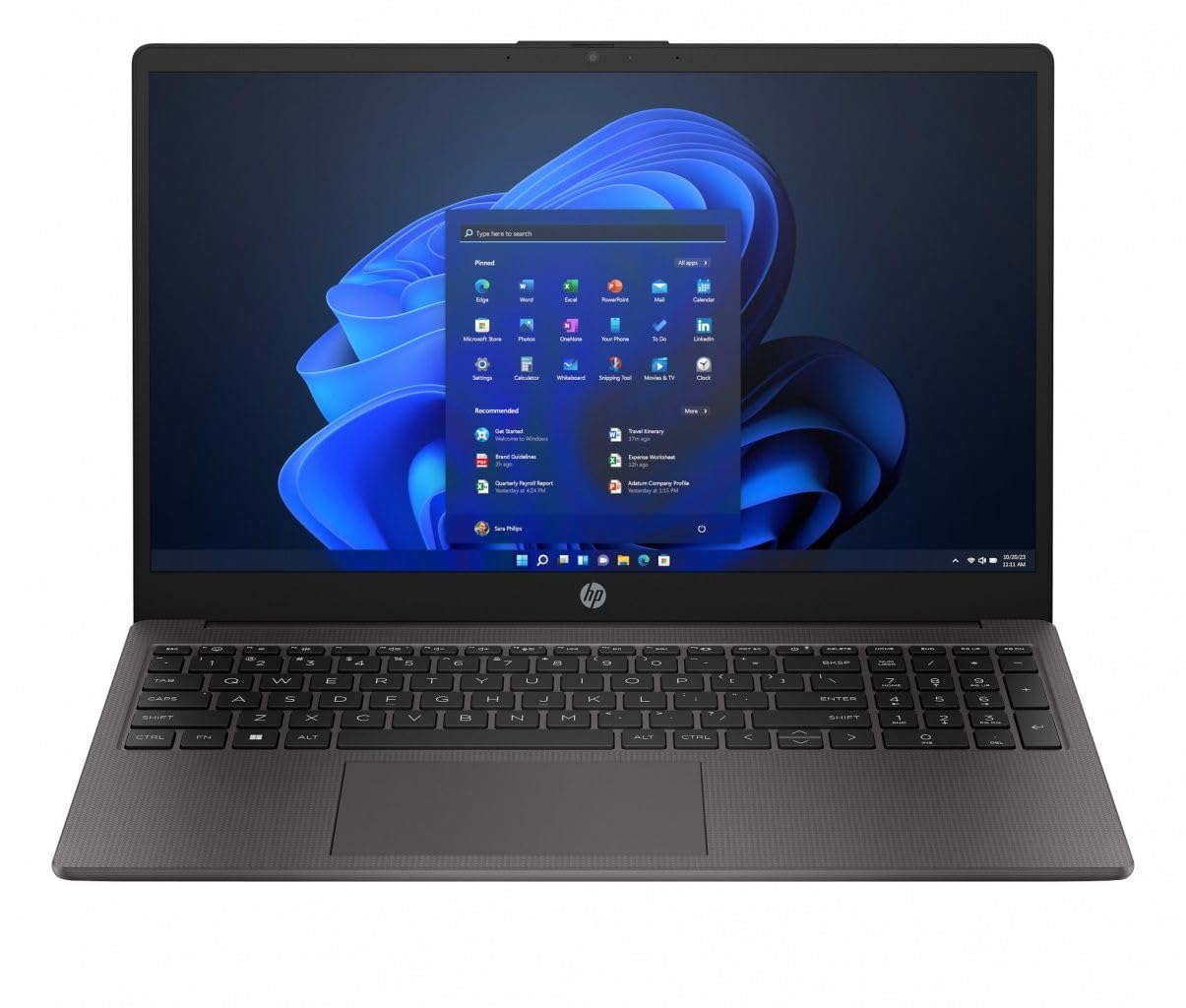
Image: The HP 255 G10 laptop displayed with its screen open, showcasing the keyboard, touchpad, and the overall design. This image provides a visual reference for the product's appearance.
3. Operating
3.1 Power On/Off
- To Power On: Press the power button.
- To Power Off: If an operating system is installed, use the shutdown option within the OS. If using FreeDOS, you can typically type
shutdownor simply press and hold the power button for several seconds as a last resort.
3.2 Keyboard and Touchpad
Your laptop features a full-size keyboard and a multi-touch touchpad. Function keys (F1-F12) often have secondary functions (e.g., volume control, screen brightness) accessible by pressing the Fn key in combination with the desired function key.
3.3 Ports and Connectors
The HP 255 G10 laptop includes various ports for connectivity:
- USB Ports: For connecting USB devices like external drives, mice, or keyboards.
- HDMI Port: For connecting to external displays or projectors.
- Audio Jack: For connecting headphones or external speakers.
- Power Connector: For connecting the AC power adapter.
- Ethernet Port (RJ-45): For wired network connections (if available on your specific configuration).
3.4 Wireless Connectivity
Your laptop supports Wi-Fi for wireless internet access and Bluetooth for connecting wireless peripherals. Configuration of these features typically occurs within your installed operating system's network settings.
4. Maintenance
4.1 Cleaning Your Laptop
- Screen: Use a soft, lint-free cloth lightly dampened with water or a screen cleaner. Do not spray liquid directly onto the screen.
- Chassis and Keyboard: Use a soft, dry cloth. For stubborn dirt, a slightly damp cloth can be used. Avoid harsh chemicals.
- Vents: Periodically clean dust from the ventilation grilles using compressed air to ensure proper airflow and prevent overheating.
4.2 Battery Care
- Avoid extreme temperatures.
- For optimal battery life, avoid constantly discharging the battery to 0% or keeping it at 100% for extended periods.
- If storing the laptop for a long time, charge the battery to about 50-60%.
4.3 Software Updates
Regularly update your operating system, drivers, and applications to ensure security, stability, and optimal performance. Visit the official HP support website for the latest drivers for your model.
5. Troubleshooting
5.1 No Power
- Ensure the AC adapter is securely connected to both the laptop and a working power outlet.
- Check if the power outlet is functional by plugging in another device.
- Try a different power outlet.
5.2 Screen Issues
- No Display: Ensure the laptop is powered on. Try connecting an external monitor to see if there's output.
- Dim Display: Adjust screen brightness using the function keys (e.g., Fn + F2/F3).
5.3 Wi-Fi Connectivity Problems
- Ensure Wi-Fi is enabled in your operating system settings.
- Restart your router and modem.
- Check for updated wireless drivers on the HP support website.
5.4 Slow Performance
- Close unnecessary applications.
- Ensure your operating system and drivers are up to date.
- Check for malware or viruses.
- Ensure adequate free space on your storage drive.
6. Specifications
| Feature | Specification |
|---|---|
| Brand | HP |
| Model Name | HP 255 G10 |
| Model Number | AD1W3ET |
| Processor | AMD Ryzen 7 7730U |
| RAM | 8GB |
| Storage | 512GB SSD |
| Display | 15.6-inch Full HD (FHD) |
| Operating System | FreeDOS |
| Connectivity | Wi-Fi, Bluetooth |
7. Warranty and Support
Your HP 255 G10 laptop comes with a standard manufacturer's warranty. Please refer to the warranty documentation included in your package for specific terms and conditions, including warranty period and coverage details.
For technical support, driver downloads, and additional product information, please visit the official HP support website:
When contacting support, please have your laptop's serial number and model number (AD1W3ET) ready.
Related documents255 G10


Ask a question about this manual
Ask about setup, troubleshooting, compatibility, parts, safety, or missing instructions. Manuals+ will review the question and use this page’s manual context to help answer it.