
Introduction
This manual provides detailed instructions for the installation, operation, and maintenance of your ASURE 10.1" Android 15 Car Stereo Radio. This unit is designed to enhance your driving experience with advanced features such as Wireless CarPlay, Android Auto, GPS navigation, Bluetooth 5.4, and Wi-Fi 6.0 connectivity.
Vehicle Compatibility
This car stereo is custom-fit for Nissan Sentra MK7 models from 2016 to 2017. It supports OEM BOSE amplifier systems. Important Note: If your vehicle is a 2018 or 2019 Nissan Sentra, additional wiring kits may be required. Please contact ASURE support for further assistance.

Image: ASURE 10.1 inch Android 15 Car Stereo installed in a Nissan Sentra dashboard, showing the modern interface with app icons. The image also shows a comparison of the dashboard before and after installation, highlighting the upgrade.
What's in the Box
Verify that all components are present before beginning installation:
- 1x Car Stereo Radio Unit
- 1x Installation Panel/Frame
- 1x Wiring Kit (High-End Power Harnesses, Low-End Power Harnesses)
- 1x USB Cable
- 1x Microphone
- 1x User Manual (this document)
- Audio Video Ports (RCA cables)
- WiFi/Bluetooth Antenna
- Reversing Camera Input Cable
- 1x GPS Cable
- 1x Can bus (if applicable for your vehicle model)
- Adaptor for OEM USB Port
- Adaptor for OEM AUX Port
- 1x Reversing Camera (if included with your package)

Image: All included accessories for the ASURE car stereo, detailing the screen, frame, various wiring harnesses, USB cables, microphone, audio/video ports, WiFi/BT antenna, reversing camera input, GPS cable, Can bus, and OEM adaptors.
Setup and Installation
Professional installation is recommended. Ensure the vehicle's battery is disconnected before starting any electrical work.
1. Wiring Connections
Carefully connect the provided wiring harnesses to the car stereo and the vehicle's existing wiring. Refer to the wiring diagrams below for specific connections.
- Power Harness: Connect the high-end and low-end power harnesses to the corresponding ports on the stereo and the vehicle's factory plugs.
- Antennas: Connect the radio aerial plug, GPS antenna, and WiFi/Bluetooth antenna. Ensure the white plug for the WiFi/Bluetooth antenna is securely connected to the main device for proper signal reception.
- USB & AUX: Connect the USB cables and OEM AUX port adaptor as needed.
- Steering Wheel Control (SWC): Connect the 8-Pin plug (integrated in the power harness) to the radio's rear 8-Pin socket to enable steering wheel controls.
- CAN-BUS Box: Connect the CAN-BUS box if your vehicle requires it for features like steering wheel controls or reverse camera integration.

Image: Detailed wiring diagram for the ASURE car stereo, illustrating connections for power, audio, video, USB, GPS, and antennas. This diagram helps identify each cable and its corresponding port.

Image: Close-up of the wiring harness connections, specifically showing the white plug that must be connected for Bluetooth and WiFi signals, and the 8-pin plug for steering wheel control functionality.
2. Reversing Camera Installation
If your package includes a reversing camera, follow these steps for installation:
- Connect the black power plug to the red socket.
- Connect the negative wire to your car's reversing lamp power negative.
- Connect the two red wires to the positive (+) of your car's reversing lamp power.
- Connect the RCA female to the RCA male.
- Connect the RCA male to the RCA female.
- Connect the trigger wire (usually PINK or BROWN) to your head unit's "BACK"/"REVERSE" wire. If your radio has a CAN-BUS box, it may automatically detect the reverse signal.
- Connect to your radio's rear 10-Pin socket.

Image: Wiring diagram for the AHD reversing camera, illustrating how to connect it to the car's reverse light power and the main stereo unit's input.
Video: Backup Camera Installation Guide. This video provides a visual walkthrough of the backup camera installation process.
Operating Instructions
Android 15 System
Your car stereo runs on the Android 15 operating system, offering a familiar and intuitive interface. With 4GB RAM and 64GB ROM, it provides smooth performance for apps and media. You can download applications from Google Play and customize your user interface with launchers like AGAMA Car Launcher.

Image: Android 15 logo, representing the operating system of the car stereo.

Image: Comparison image illustrating the difference between 1GB+16GB storage and the upgraded 4GB+64GB storage, highlighting improved performance.
Wireless CarPlay & Android Auto
Connect your smartphone wirelessly via Bluetooth for seamless integration with Apple CarPlay or Android Auto. This allows access to navigation, calls, messages, and music directly from the stereo's display.
- CarPlay: For iPhone users (iPhone 5 and above).
- Android Auto: For Android smartphone users (Android 9 system and above).

Image: Screenshots of the car stereo displaying wireless CarPlay and Android Auto interfaces, illustrating navigation, music playback, and voice command integration.

Image: Diagram illustrating wireless connection options for CarPlay, Android Auto, and Screen Mirroring, specifying connection methods via Bluetooth and WiFi.
GPS Navigation & Wi-Fi
The unit features built-in GPS for navigation. Connect to Wi-Fi 6.0 for online maps, app updates, and other internet-dependent functions. You can also download offline maps from the Play Store.
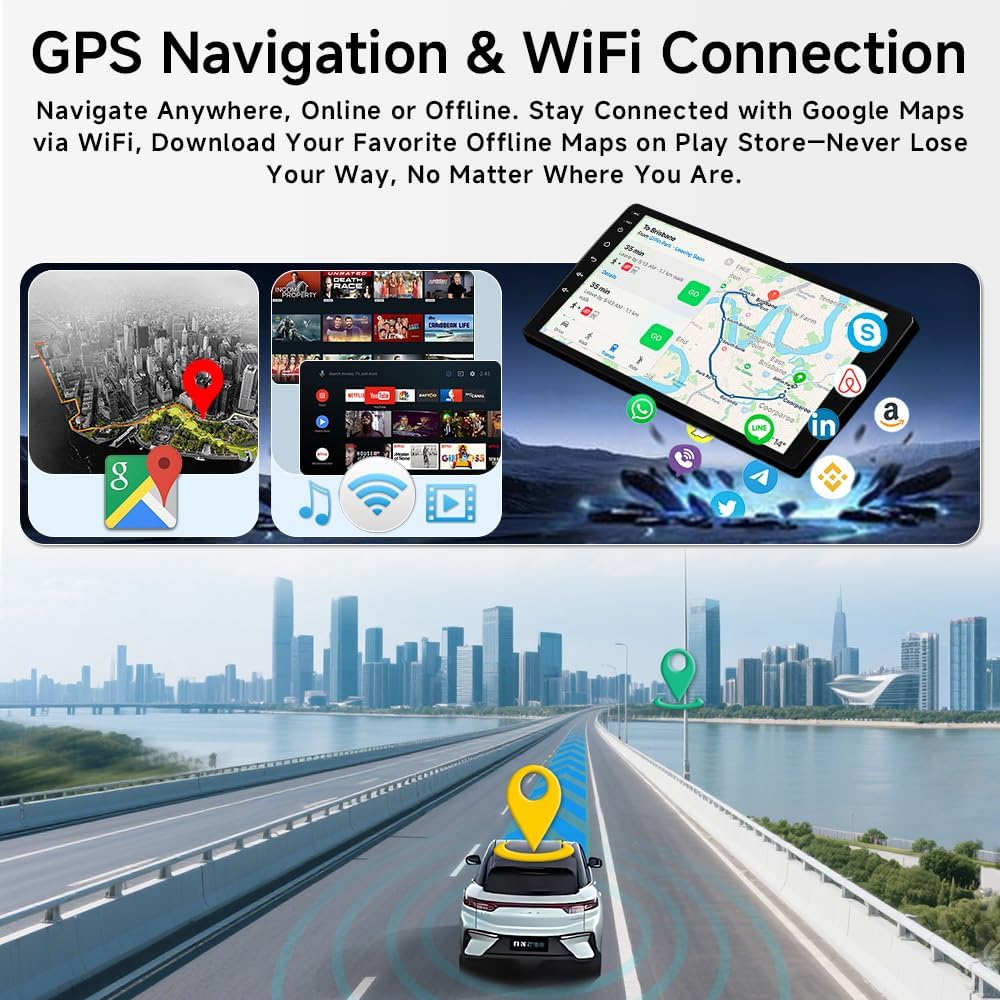
Image: The car stereo display showing GPS navigation with a map and a car driving on a road, demonstrating the navigation capabilities.
Bluetooth & FM/RDS Radio
Utilize Bluetooth 5.4 for hands-free calling and audio streaming. The integrated FM/RDS radio allows you to listen to your favorite stations with clear reception.

Image: The car stereo displaying both the FM radio interface and the Bluetooth phone call interface, highlighting audio and communication features.
Display & Audio
The 10.1-inch HD IPS touchscreen (1280x800 resolution) provides clear visuals. The built-in Digital Sound Processor (DSP) allows for customizable EQ settings, delivering enhanced audio quality.

Image: Comparison image illustrating a standard 1024x600 screen versus an upgraded 1280x800 IPS screen, emphasizing improved visual clarity.
Video: ASURE Car Stereo Radio Settings. This video demonstrates how to navigate and adjust various settings on the ASURE car stereo radio.
Reversing Camera Features
The optional AHD reversing camera provides clear visibility with features designed for safe maneuvering:
- Night Vision: Enhanced visibility in low-light conditions.
- 170° Wide Angle: Provides a broad view of the area behind your vehicle.
- Waterproof Design: Ensures durability and reliable performance in various weather conditions.
- F1.4 Aperture: Captures more light for a brighter image.
- Distance Level Warning: Visual guides to assist with parking and obstacle avoidance.

Image: Diagram illustrating AHD reversing camera features including night vision, 170-degree wide angle, waterproof design, F1.4 aperture, and distance level warnings.
Maintenance
- Screen Cleaning: Use a soft, lint-free cloth to clean the touchscreen. For stubborn smudges, lightly dampen the cloth with water or a screen-safe cleaner. Avoid abrasive materials or harsh chemicals.
- Software Updates: Periodically check for system updates via the Wi-Fi connection to ensure optimal performance and access to new features.
- General Care: Keep the unit free from dust and debris. Avoid exposing it to extreme temperatures or direct sunlight for prolonged periods when the vehicle is parked.
Troubleshooting
| Problem | Possible Cause | Solution |
|---|---|---|
| No Power | Incorrect wiring, blown fuse, vehicle battery issue. | Check all power connections. Verify vehicle fuses. Ensure battery is charged. |
| No Sound | Speaker wiring incorrect, volume too low, audio settings misconfigured. | Check speaker connections. Adjust volume. Reset audio settings in DSP. |
| Bluetooth/Wi-Fi Issues | Antenna not connected, interference, software glitch. | Ensure WiFi/Bluetooth antenna is securely connected. Restart the unit. Check device compatibility. |
| CarPlay/Android Auto Not Connecting | Incorrect phone settings, app issues, Bluetooth connection unstable. | Ensure Bluetooth is enabled on phone and stereo. Check phone's CarPlay/Android Auto settings. Update phone OS and apps. |
| Backup Camera Not Displaying | Incorrect wiring, trigger wire issue, camera malfunction. | Verify camera power and video input connections. Check trigger wire connection. Ensure camera is functional. |
| Steering Wheel Controls Not Working | SWC wiring incorrect, CAN-BUS not connected/configured. | Check 8-Pin SWC connection. Ensure CAN-BUS box is correctly installed and configured in settings. |
Specifications
| Feature | Detail |
|---|---|
| Brand | ASURE |
| Model Number | Android Car Wireless Carplay |
| Screen Size | 10.1 inches |
| Display Type | IPS Touchscreen |
| Resolution | 1280x800 |
| Operating System | Android 15 |
| RAM | 4GB |
| Internal Storage (ROM) | 64GB |
| Connectivity | Bluetooth 5.4, Wi-Fi 6.0, USB |
| Special Features | Wireless Apple CarPlay, Wireless Android Auto, Built-In GPS Navigation, DSP Audio Processor, HD Backup Camera Input |
| Audio Output Mode | Stereo (2 Channels) |
| Video Encoding | H.264, H.265/HEVC |
| Dimensions (D x W x H) | 1.6"D x 5.7"W x 9.4"H |
Warranty Information
ASURE provides a 30-day free return and replacement policy from the date of purchase. Additionally, the product is covered by a 1-year repair warranty. Please retain your proof of purchase for warranty claims.
Customer Support
For technical assistance, troubleshooting, or warranty inquiries, please contact ASURE customer support. You can find contact information on the official ASURE website or through your purchase platform.
Visit the ASURE Store on Amazon for more information and support resources.

