
1. Introduction
Thank you for purchasing the Hodozzy A4076 1-DIN Android Car Stereo. This device integrates advanced features such as a 7-inch flip-out touchscreen, Android 15 operating system, wireless CarPlay, Android Auto, Bluetooth 5.0, FM/RDS radio, and GPS navigation. This manual provides essential information for proper installation, operation, and maintenance to ensure optimal performance and user satisfaction.
2. Safety Information
- Read all instructions carefully before installation and use.
- Professional installation is recommended for wiring to prevent damage to the vehicle or the unit.
- Do not operate the device in a way that distracts you from driving. Always prioritize road safety.
- Ensure all connections are secure to prevent short circuits or electrical hazards.
- Keep the unit away from water and excessive moisture.
- Do not attempt to repair the unit yourself. Contact qualified service personnel for assistance.
3. Package Contents
Verify that all items listed below are included in your package:
- 1 x Android Player Unit
- 1 x Reverse Camera
- 1 x Microphone
- 1 x Power Cable
- 1 x USB Cable
- 1 x GPS Antenna
- 1 x Rear Camera Cable
- 1 x RCA Cable
- 1 x User Manual (this document)
- 2 x Mounting Brackets
- 1 x Radio Antenna
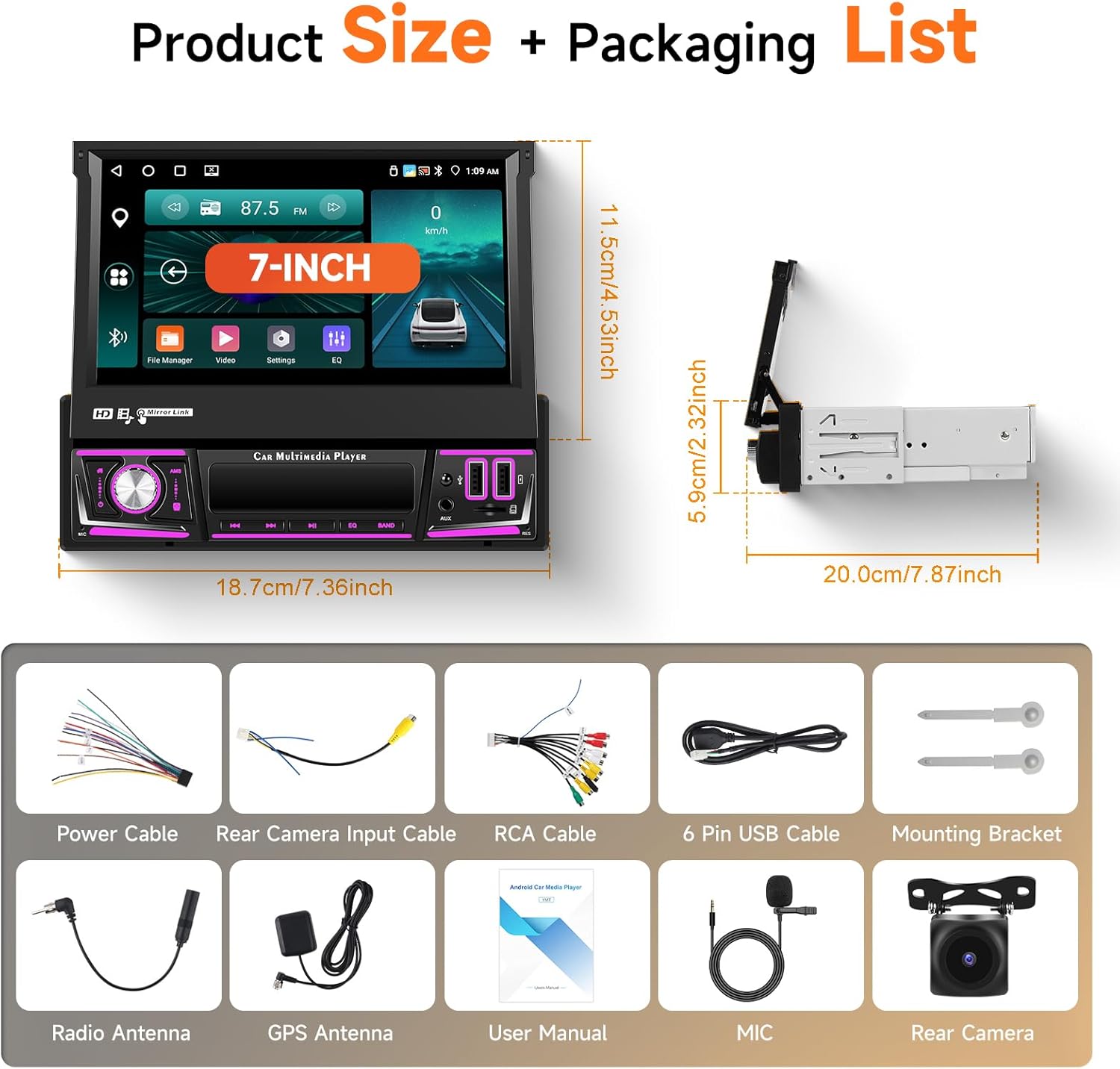
Image: Hodozzy A4076 package contents and product dimensions. This image displays the main unit with its 7-inch screen extended, alongside various included accessories such as power cables, USB cables, GPS antenna, microphone, rear camera, RCA cables, mounting brackets, and the user manual. Dimensions for the unit are also shown.
4. Product Overview
The Hodozzy A4076 is a versatile car multimedia player designed to enhance your driving experience with its comprehensive features.
4.1 Key Features
- Android 15 System: Provides a fast, smooth interface with access to millions of apps via Wi-Fi.
- Wireless CarPlay & Android Auto: Seamlessly integrates your smartphone for navigation, calls, and messaging.
- 7-inch Flip-Out Touchscreen: Manual retractable screen with 1024*600 resolution for optimal viewing and space-saving.
- GPS Navigation: Supports offline and online maps with voice guidance and real-time traffic information (internet connection required for data download).
- Bluetooth 5.0: For hands-free calling and wireless audio streaming.
- FM/RDS Radio: Clear reception for various stations, news, and traffic updates.
- Rear View Camera Support: Includes a rear camera for safe parking and obstacle avoidance.
- Steering Wheel Control: Compatible with original steering wheel buttons for convenient operation.
- Multiple Input Methods: Dual USB ports, AUX input, and TF card slot for media playback and device charging.
4.2 Visual Overview

Image: The Hodozzy A4076 unit demonstrating wireless CarPlay, Android Auto, and Mirror Link functionality. A smartphone screen is mirrored on the car stereo display, showing navigation, music, and communication apps.

Image: Features of the Hodozzy A4076 including FM/RDS radio and Bluetooth 5.0. The top panel shows radio frequency selection and RDS information. The bottom panel illustrates hands-free calling and Bluetooth music streaming from a smartphone.

Image: Hodozzy A4076 demonstrating Wi-Fi connectivity for online navigation and app downloads. The screen shows a map application and various app icons, highlighting the 4GB RAM and 64GB ROM specifications.

Image: Hodozzy A4076 showcasing various input methods including USB, AUX, and TF card. The main screen displays video playback. The bottom section illustrates the manual folding mechanism of the screen, allowing it to be adjusted or stored.

Image: Hodozzy A4076 demonstrating backup camera functionality and steering wheel control. The car stereo screen displays a rear view with parking guidelines. The bottom panel shows the interface for programming steering wheel controls.
5. Setup
5.1 Installation Guidelines
- Power Disconnection: Before starting installation, disconnect the vehicle's negative battery terminal to prevent electrical shorts.
- Mounting: Install the 1-DIN unit into your vehicle's dashboard using the provided mounting brackets. Ensure it is securely fastened.
- Wiring: Connect the power cable, speaker wires, GPS antenna, radio antenna, rear camera input, and any other auxiliary inputs according to the wiring diagram provided in the included user manual. Pay close attention to positive and negative terminals.
- Rear Camera: Mount the rear camera in a suitable location on your vehicle's rear and connect its video and power cables to the main unit.
- Microphone: Connect the external microphone for improved hands-free call quality.
- Testing: Before fully reassembling the dashboard, reconnect the battery and perform a basic function test to ensure all components are working correctly.
5.2 Initial Power-On
After successful installation, turn on your vehicle's ignition. The unit should power on automatically. Follow any on-screen prompts for initial setup, such as language selection and time zone settings.
6. Operating Instructions
6.1 Basic Operation
- Power On/Off: Press the power button (usually a knob or dedicated button) to turn the unit on or off.
- Volume Control: Rotate the volume knob or use the on-screen controls to adjust audio levels.
- Screen Adjustment: The 7-inch screen can be manually flipped out and adjusted to your preferred viewing angle. When not in use, it can be retracted to protect the screen and enhance dashboard aesthetics.
- Home Screen: Tap the home icon to return to the main menu, which displays various applications and functions.
6.2 Wireless CarPlay & Android Auto
This unit supports wireless connection for both Apple CarPlay and Android Auto.
- Ensure your smartphone's Wi-Fi and Bluetooth are enabled.
- On the car stereo, navigate to the CarPlay or Android Auto application.
- Follow the on-screen instructions to pair your phone via Bluetooth first.
- Once Bluetooth is paired, the system will prompt you to connect via Wi-Fi for the CarPlay/Android Auto functionality.
- Accept the connection on your phone. Your phone's interface will then appear on the car stereo screen.
6.3 Bluetooth 5.0
To pair your phone for hands-free calls and music streaming:
- Go to the Bluetooth menu on the car stereo.
- Enable Bluetooth on your smartphone and search for available devices.
- Select "Hodozzy A4076" (or similar name) from your phone's list.
- Confirm the pairing code on both devices.
- Once connected, you can make/receive calls and play music wirelessly.
6.4 FM/RDS Radio
Access the Radio application from the main menu.
- Scan: Use the auto-scan function to find and save available radio stations.
- Manual Tuning: Manually adjust the frequency to tune into specific stations.
- RDS: When available, Radio Data System (RDS) will display station information, song titles, or traffic announcements.
6.5 GPS Navigation
The unit comes with pre-installed offline maps. For online navigation and real-time traffic updates, connect to Wi-Fi.
- Open the Navigation app from the home screen.
- Enter your destination using the on-screen keyboard.
- Select your preferred route.
- Follow the voice-guided directions and on-screen map.
6.6 Mirror Link
The wireless mirror link function allows you to display your smartphone screen on the car stereo.
- Ensure your smartphone's Wi-Fi is enabled.
- Open the Mirror Link app on the car stereo.
- Follow the instructions to connect your phone. This usually involves scanning a QR code or connecting to a specific Wi-Fi network broadcast by the head unit.
6.7 Media Playback
Insert a USB drive into one of the dual USB ports or a TF card into the designated slot. Open the Music or Video player app to browse and play your media files. The unit supports various audio (APE, FLAC, WAV, MP3, WMA) and video (MKV, RMVB, AVI, MP4, MDV) formats.
7. Maintenance
- Screen Cleaning: Use a soft, lint-free cloth to gently wipe the touchscreen. Avoid abrasive cleaners or solvents.
- Software Updates: Periodically check for software updates from the manufacturer to ensure optimal performance and access to new features. Updates can usually be performed via Wi-Fi.
- General Care: Keep the unit free from dust and debris. Avoid exposing it to extreme temperatures or direct sunlight for prolonged periods.
8. Troubleshooting
If you encounter issues with your Hodozzy A4076, refer to the following common problems and solutions:
| Problem | Possible Cause | Solution |
|---|---|---|
| Unit does not power on. | Incorrect wiring, blown fuse, loose power connection. | Check power cable connections, inspect vehicle fuse box, ensure battery is connected. Consult a professional if unsure. |
| Wireless CarPlay/Android Auto not connecting. | Bluetooth/Wi-Fi off on phone, incorrect pairing, phone software issue. | Ensure phone's Bluetooth and Wi-Fi are on. Re-pair Bluetooth. Restart both phone and car stereo. Some users report success by switching the AP frequency band to 2.4GHz in settings if available. |
| No sound from speakers. | Incorrect speaker wiring, volume too low, mute activated. | Check speaker connections. Increase volume. Ensure unit is not muted. |
| GPS signal weak or inaccurate. | GPS antenna not properly installed or obstructed. | Ensure GPS antenna is mounted in a clear location with an unobstructed view of the sky. |
| Touchscreen unresponsive. | Temporary software glitch, screen dirty. | Restart the unit. Clean the screen with a soft cloth. |
9. Specifications
| Feature | Specification |
|---|---|
| System | Android 15 |
| CPU | RK3326S Quad-Core |
| Screen Size | 7 inches |
| Screen Material | IPS |
| RAM | 4GB |
| ROM | 64GB |
| Screen Resolution | 1024*600 |
| Wireless Chip | UMW2652 |
| Power Output | 4*45W |
| Bluetooth Version | 5.0 |
| Operating Temperature | -20℃ to 75℃ |
| Steering Wheel Control | Supported |
| Power Amplifier Chip | YD7388 |
| Radio Band | FM/RDS |
| Reverse Input | AHD/CVBS |
| External Microphone | Supported |
| Split Screen | Supported |
| Maps | Built-in offline maps (internet required for data download) |
| Wi-Fi | Supported |
| CarPlay/Android Auto | Wireless connection only |
| Mirror Link | Wireless connection only |
| USB Interface | Dual USB ports |
| Audio Formats | APE, FLAC, WAV, MP3, WMA, etc. |
| Video Formats | MKV, RMVB, AVI, MP4, MDV, etc. |
| Image Formats | PNG, JPEG, JPG, GIF, WBMP, BNP, etc. |
| Supported Languages | Chinese, English, French, Italian, Korean, Japanese, Arabic, Spanish, Portuguese, Russian, Turkish, Vietnamese, Hebrew, Polish, German |
10. Warranty and Support
The Hodozzy A4076 comes with a 2-year warranty from the date of purchase, covering manufacturing defects. This warranty does not cover damage caused by improper installation, misuse, accidents, or unauthorized modifications.
For technical support, warranty claims, or any questions regarding your product, please contact Hodozzy customer service through the retailer where you purchased the unit or visit the official Hodozzy website for contact information.
Please retain your proof of purchase for warranty purposes.
