1. Product Overview
The ASUS PCE-BE90BT is a cutting-edge WiFi 7 PCIe card designed to upgrade your PC to the latest wireless standard. It offers a total solution for WiFi 7, ensuring optimized capabilities and performance through carefully designed engineering and supporting software. This card provides ultrafast speeds, improved connection efficiency, and enhanced network security, leveraging the new 6 GHz band and 4096-QAM modulation for less congestion and larger network capacity.
Key Features:
- Ultrafast WiFi 7: Experience 1.2X faster speeds, improved connection efficiency, and better network security.
- All-new 6 GHz Band and 4096-QAM Modulation: Benefit from less congestion, reduced interference, and larger network capacity for WiFi connections.
- Latest Bluetooth 5.4: Enjoy enhanced security, reliability, and energy efficiency compared to previous Bluetooth versions.
- Reducing Dead Zones with External Antenna: The freestanding transceiver and connecting cable allow for flexible positioning to achieve optimal reception.

Image: The ASUS PCE-BE90BT WiFi 7 PCIe card shown with its external antenna base.

Image: Visual representation of upgrading a PC to WiFi 7 standard using the PCE-BE90BT.
2. Package Contents
Please verify that all items are present in your package:
- PCE-BE90BT WiFi 7 PCIe Card
- Low Profile Bracket
- Motherboard USB Cable
- Warranty Card
- Quick Start Guide
- Antenna Base with 0.8m RF Cable
Image: The main components included in the PCE-BE90BT package.
3. Setup Instructions
3.1. Hardware Installation
- Power Off PC: Ensure your computer is completely powered off and unplugged from the power outlet.
- Open Case: Remove the side panel of your computer case to access the motherboard.
- Locate PCIe Slot: Find an available PCI-Express x1 slot (or larger, as the card is compatible with x4, x8, x16 slots) on your motherboard.
- Install Card: Gently insert the PCE-BE90BT card into the chosen PCIe slot until it is firmly seated. Secure it with the case screw. If using a small form factor PC, you may need to replace the standard bracket with the included low-profile bracket.
- Connect USB Cable: Connect one end of the provided USB cable to the card's USB header and the other end to an available USB 2.0 header on your motherboard. This connection is necessary for Bluetooth functionality.
- Connect Antennas: Attach the RF cables from the external antenna base to the corresponding connectors on the PCE-BE90BT card. Position the antenna base in an optimal location for signal reception, away from obstructions.
- Close Case: Replace the side panel of your computer case and reconnect all cables.

Image: A detailed view of the PCE-BE90BT PCIe card, showing its connectors.
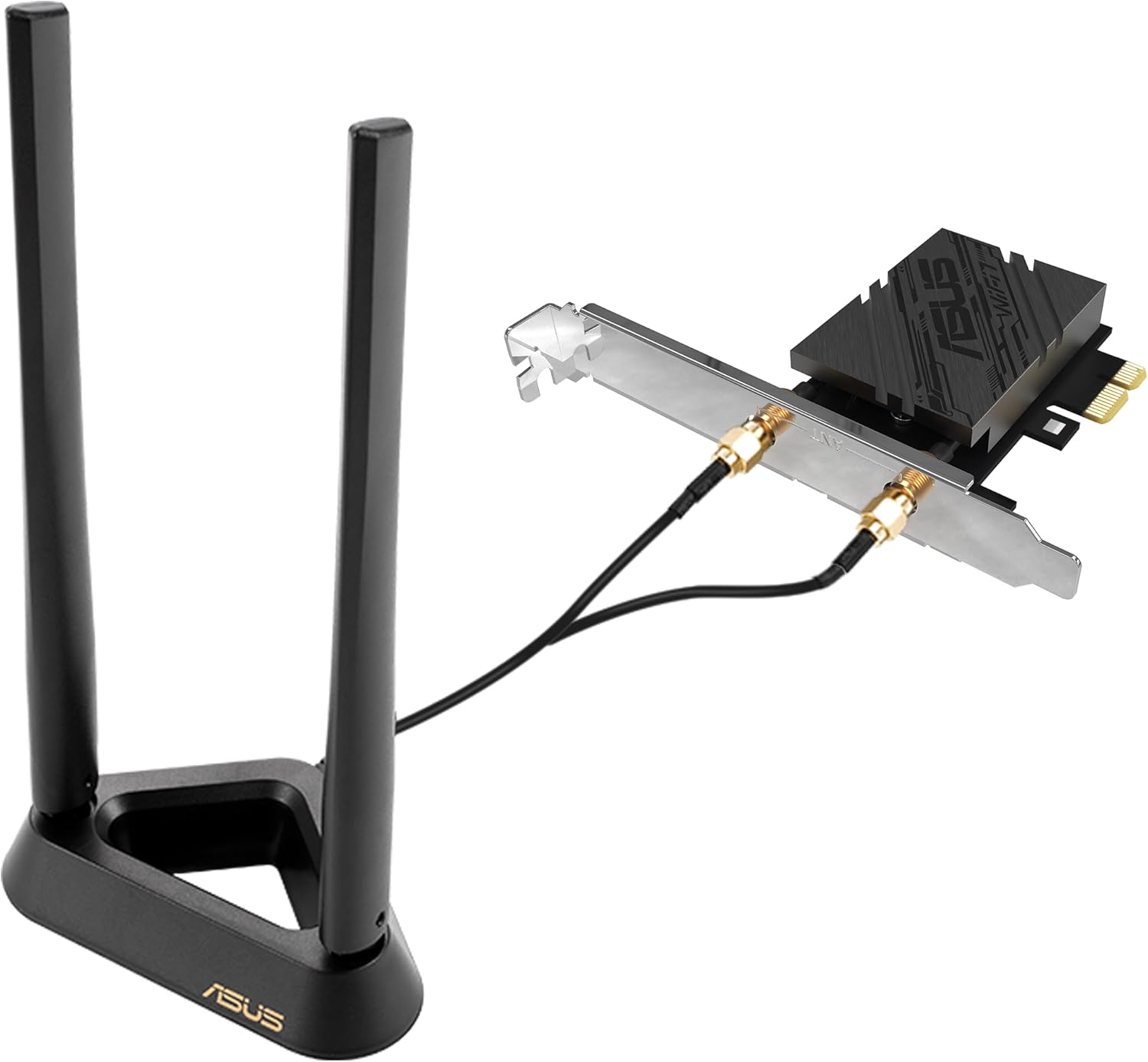
Image: The PCE-BE90BT card connected to its external antenna base, illustrating the cable connection.
3.2. Driver Installation
- Power On PC: Turn on your computer.
- Install Drivers: Insert the driver CD (if included) or download the latest drivers from the official ASUS support website. Follow the on-screen instructions to install both the Wi-Fi and Bluetooth drivers.
- Restart PC: After driver installation is complete, restart your computer for the changes to take effect.
4. Operating Instructions
4.1. Connecting to Wi-Fi
- Enable Wi-Fi: Ensure Wi-Fi is enabled in your operating system settings.
- Select Network: Click on the Wi-Fi icon in your system tray (Windows) or menu bar (macOS) to view available networks.
- Connect: Select your desired Wi-Fi network (including 6 GHz networks if your router supports it) and enter the password if prompted. The PCE-BE90BT supports WPA3 for enhanced security.

Image: An illustration showing the dedicated 6GHz band for WiFi 6E/7 devices, reducing congestion.

Image: A visual emphasizing the WPA3 network security feature of the PCE-BE90BT.
4.2. Using Bluetooth
- Enable Bluetooth: Ensure Bluetooth is enabled in your operating system settings.
- Pair Device: Go to your Bluetooth settings and search for new devices. Select the device you wish to pair (e.g., headphones, mouse, keyboard) and follow the pairing instructions.
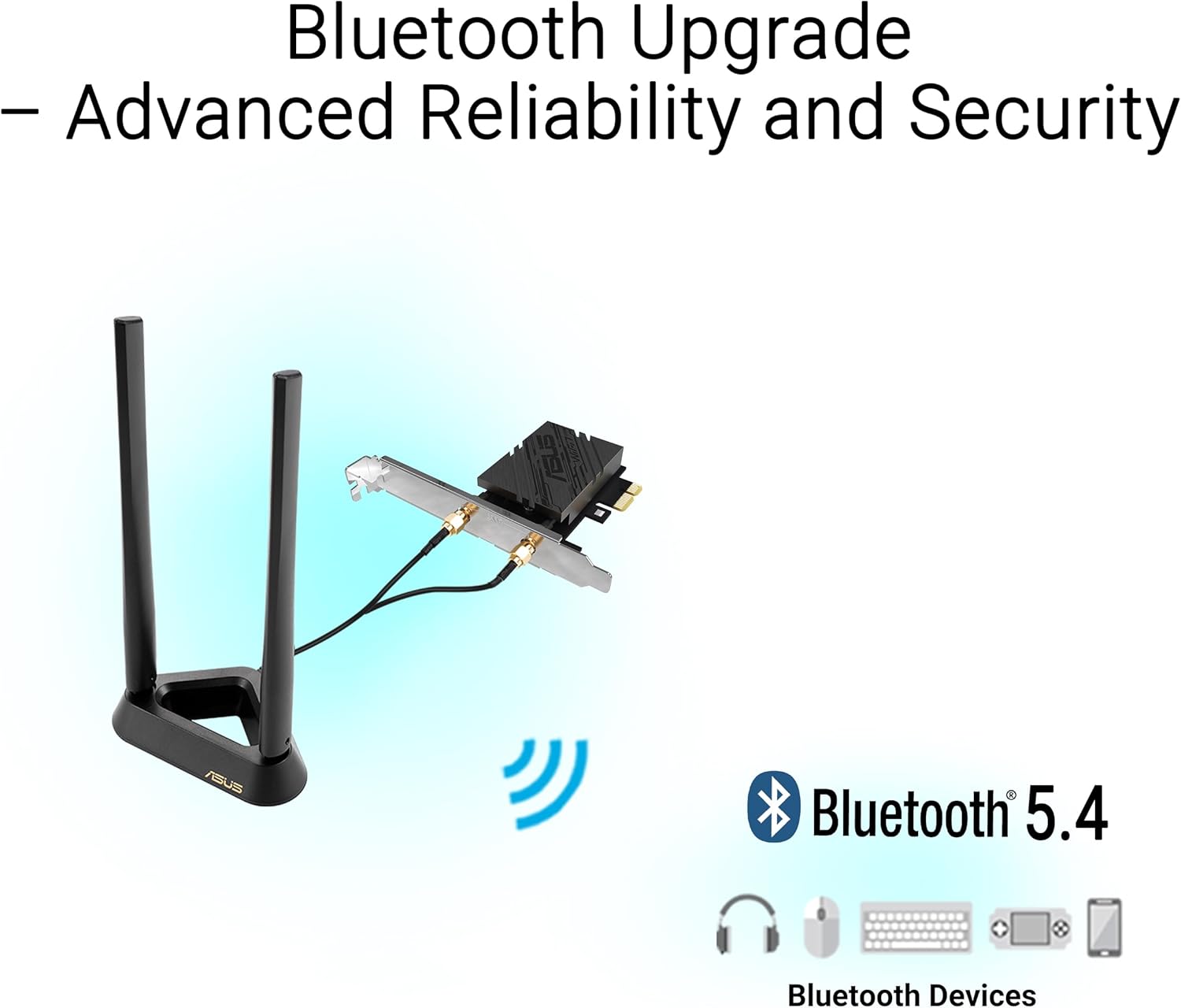
Image: A graphic illustrating the Bluetooth 5.4 capabilities of the PCE-BE90BT, connecting to various devices.
5. Maintenance
- Keep Drivers Updated: Regularly check the ASUS support website for the latest Wi-Fi and Bluetooth drivers to ensure optimal performance and security.
- Cleanliness: Ensure your PC case and the card itself are free from dust buildup, which can affect performance and longevity.
- Antenna Placement: Periodically check the antenna placement to ensure it is in the best possible position for signal reception.
6. Troubleshooting
Common Issues and Solutions:
- No Wi-Fi or Bluetooth Connection:
- Ensure drivers are correctly installed.
- Check if the card is properly seated in the PCIe slot.
- Verify the USB cable for Bluetooth is connected to the motherboard.
- Check if Wi-Fi/Bluetooth is enabled in your operating system.
- Slow Wi-Fi Speeds:
- Ensure your router supports WiFi 7 (802.11be) and the 6 GHz band.
- Update your router's firmware.
- Reposition the external antenna for better signal strength.
- Reduce interference from other electronic devices.
- Bluetooth Device Not Pairing:
- Ensure the Bluetooth device is in pairing mode.
- Check if the motherboard USB cable is securely connected.
- Restart your computer and try again.
7. Technical Specifications
| Feature | Specification |
|---|---|
| Wireless Type | 802.11be (WiFi 7) |
| Bluetooth Version | Bluetooth 5.4 |
| Series | PCE-BE90BT |
| Item Model Number | PCE-BE90BT |
| Item Weight | 6.4 ounces |
| Product Dimensions | 3.5 x 0.9 x 4.7 inches (8.89 x 2.29 x 11.94 cm) |
| Color | BLACK |
| Hardware Interface | PCI Express |
| Compatible Devices | Desktop PC |
| Data Transfer Rate | Up to 688 Megabits Per Second (Bluetooth) |
| UPC | 197105733602 |
8. Warranty and Support
The ASUS PCE-BE90BT is covered by a manufacturer's warranty. For specific warranty terms, duration, and conditions, please refer to the warranty card included in your package or visit the official ASUS support website.
For technical support, driver downloads, FAQs, and further assistance, please visit the official ASUS support portal:
Always ensure you are downloading drivers and firmware from the official ASUS website to maintain product integrity and security.


