1. Important Safety Information
Please read all safety instructions carefully before using your Thunderobot Zero 18 Pro gaming laptop to prevent damage and ensure safe operation. Keep this manual for future reference.
- Power Adapter: Use only the original power adapter provided with your laptop. Using an incompatible adapter may cause damage or fire.
- Ventilation: Ensure proper ventilation by keeping all vents clear of obstructions. Do not operate the laptop on soft surfaces like beds or sofas that can block airflow.
- Liquid Exposure: Keep the laptop away from liquids. In case of accidental spills, immediately power off the device and disconnect the power adapter.
- Temperature: Avoid operating the laptop in extreme temperatures (below 0°C or above 35°C) or high humidity.
- Battery: Do not attempt to replace the battery yourself. Contact authorized service personnel for battery replacement.
2. Getting Started
2.1 Unboxing and Initial Setup
Carefully remove your Thunderobot Zero 18 Pro laptop and its accessories from the packaging. Inspect for any visible damage. The package should include the laptop, power adapter, and this user manual.

Image: Front view of the Thunderobot Zero 18 Pro Gaming Laptop, showcasing its large display and keyboard.
2.2 Connecting the Power Adapter
Connect the power adapter to the charging port on the laptop and then plug the power cable into a wall outlet. The laptop can be used while charging, and it is recommended to fully charge the battery before first use.
2.3 First Boot and Operating System Setup
Press the power button to turn on your laptop. Follow the on-screen instructions to complete the initial setup of Windows 11 Home. This process typically involves selecting your region, language, connecting to a network, and creating a user account.
2.4 Network Connection
During the Windows setup, you will be prompted to connect to a Wi-Fi network. The Thunderobot Zero 18 Pro supports Wi-Fi 6E for high-speed wireless connectivity. Alternatively, you can connect via an Ethernet cable to the RJ-45 port.
3. Product Overview
3.1 Ports and Connectors
The Thunderobot Zero 18 Pro offers a variety of ports for connectivity. Refer to the diagram below for port locations and descriptions:
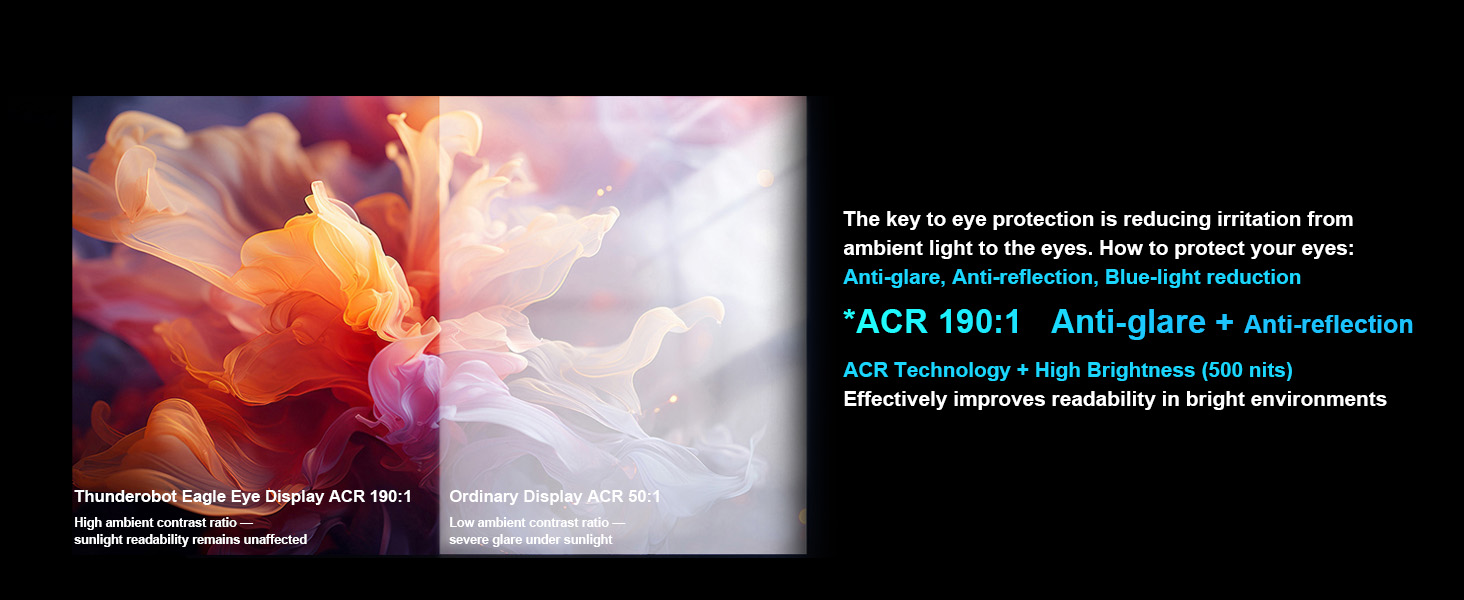
Image: Diagram illustrating the various ports and connectors on the Thunderobot Zero 18 Pro laptop, including USB, HDMI, RJ-45, and Thunderbolt 5.
- RJ-45: For wired Ethernet network connection.
- USB 3.2 Gen2 Type-A (x2): High-speed USB ports for peripherals.
- HDMI 2.1: For connecting external displays.
- Thunderbolt 5 Type-C: High-bandwidth port for data, display, and power delivery.
- Power Port: For connecting the AC adapter.
- USB 3.2 Gen1 Type-A (x1): Standard USB port.
- UHS-II SD Card Reader: For high-speed memory card access.
- USB 3.2 Gen1 Type-C: Versatile USB port.
- 3.5mm Audio Jack: For headphones or external speakers.
3.2 Keyboard and Touchpad
The laptop features a full-size keyboard with a dedicated numeric keypad and Per-Key RGB backlighting. The touchpad supports multi-touch gestures for intuitive navigation.
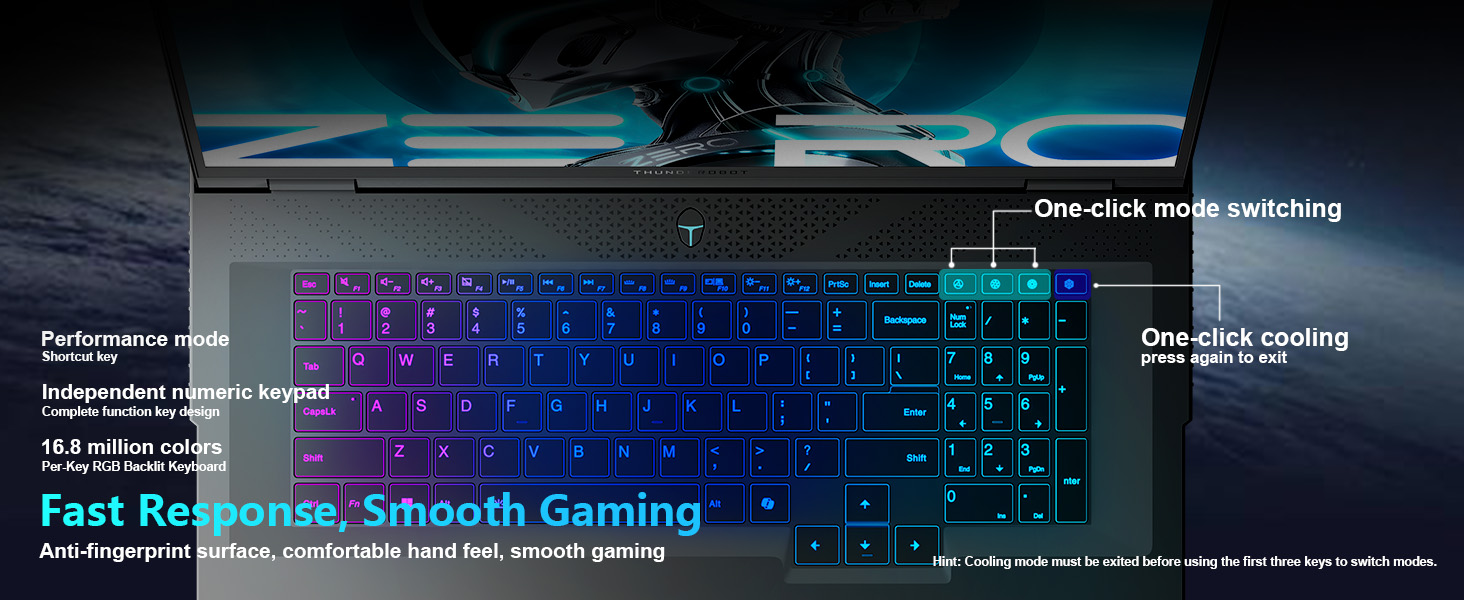
Image: Close-up of the Thunderobot Zero 18 Pro keyboard, highlighting the Per-Key RGB lighting and numeric keypad.
3.3 Display
Experience visuals on the 18-inch QHD+ (2560x1600) Bionic Hummingbird Eye-Care Display with a 240Hz refresh rate. This display features anti-glare, anti-reflection, and anti-blue light technologies for enhanced viewing comfort.

Image: The 18-inch QHD+ display of the Thunderobot Zero 18 Pro, emphasizing its high resolution, refresh rate, and eye-care features.
3.4 Webcam
The integrated FHD IR Camera supports Windows Hello for secure facial recognition login and provides clear video for communication.
4. Operating Your Laptop
4.1 Powering On/Off
- Power On: Press the power button located on the laptop chassis.
- Power Off: Click the Start button in Windows, then select Power > Shut down. Alternatively, press and hold the power button for a few seconds to force a shutdown (use only when necessary).
4.2 Adjusting Display Settings
To adjust resolution, refresh rate, or brightness:
- Brightness: Use the dedicated function keys (Fn + Fx) or Windows Display Settings.
- Resolution/Refresh Rate: Right-click on the desktop, select 'Display settings', then navigate to 'Advanced display settings' to change resolution and refresh rate (up to 2560x1600 at 240Hz).
4.3 Audio Settings
The laptop features 4 speakers with Smart AMP technology and Nahimic audio enhancements. Adjust volume using the function keys or the Windows sound settings. Nahimic software can be accessed for advanced audio customization.
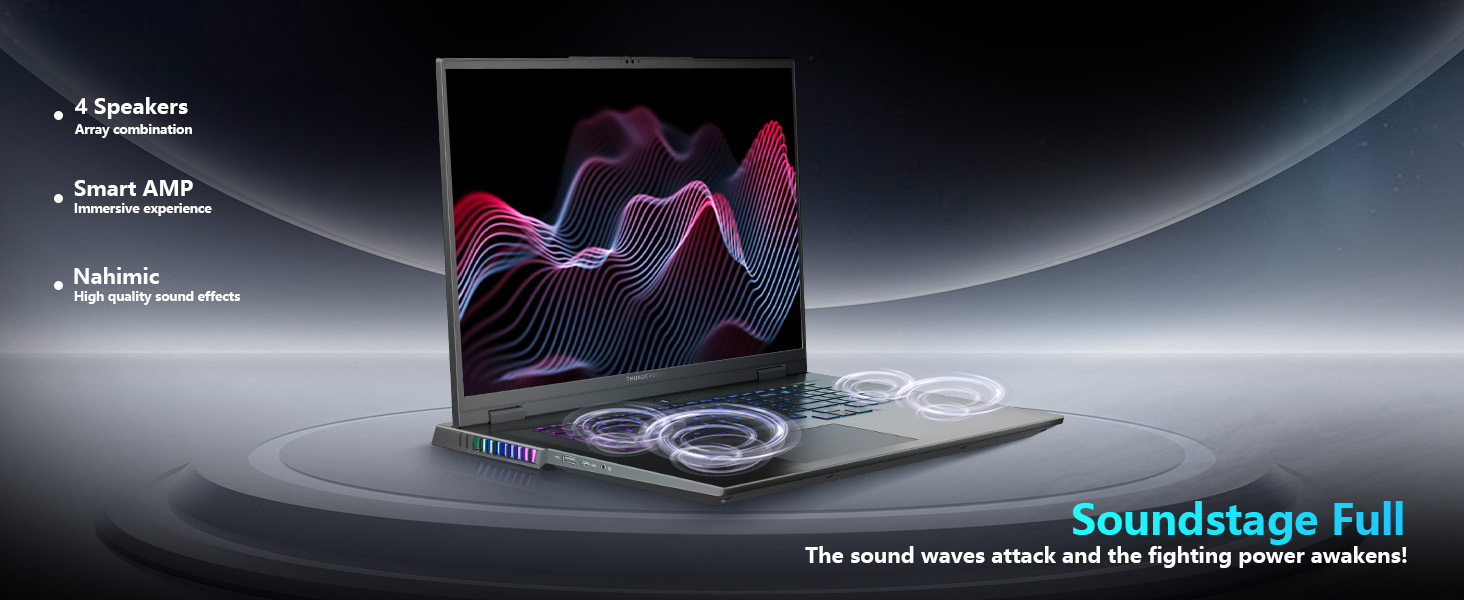
Image: Visual representation of the laptop's audio system, emphasizing the 4 speakers and sound quality features.
4.4 Using the AI Intelligent Control Center
The Thunderobot Control Center software allows you to manage performance modes, lighting, and system monitoring. Access it via the desktop shortcut or Start Menu.
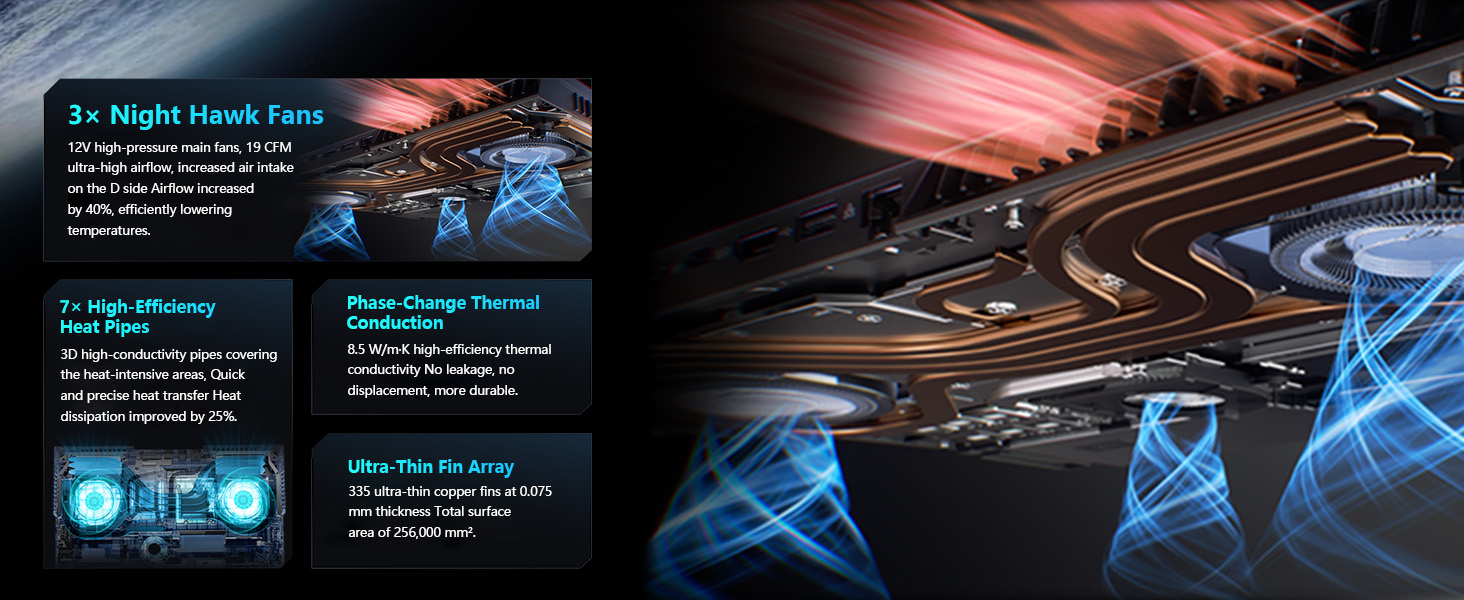
Image: Screenshot of the Thunderobot Control Center interface, showing options for performance tuning, intelligent light adjustment, and comprehensive system adjustments.
- Performance Modes: Switch between Quiet Mode, Balance Mode, and Turbo Mode to optimize performance and fan noise. Note: System mode switching requires the device to be connected to a power source.
- Lighting Control: Customize the Per-Key RGB keyboard and other Spectra RGB lighting zones.
- System Monitoring: View real-time CPU/GPU temperatures, fan speeds, and resource usage.
5. Maintenance and Care
5.1 Cleaning the Laptop
- Screen: Use a soft, lint-free cloth lightly dampened with water or a screen cleaner. Do not spray cleaner directly onto the screen.
- Keyboard and Chassis: Use a soft brush or compressed air to remove dust and debris. Wipe surfaces with a slightly damp, soft cloth. Avoid harsh chemicals.
5.2 Battery Management
To prolong battery life:
- Avoid fully discharging the battery frequently.
- If storing the laptop for an extended period, charge the battery to about 50-60%.
- Avoid exposing the laptop to high temperatures, which can degrade battery performance.
5.3 Optimizing Cooling System
The Thunderobot Zero 18 Pro features an advanced cooling system with 3 Night Owl fans and 7 high-efficiency heat pipes. To ensure optimal cooling performance:
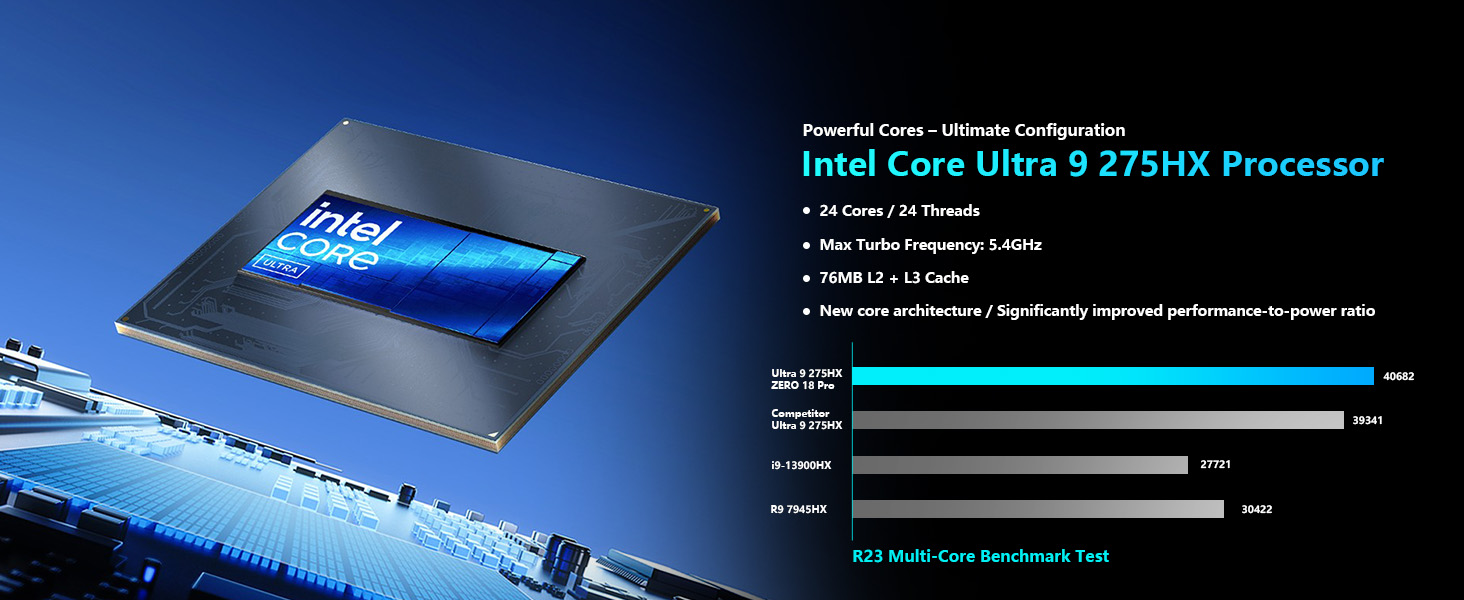
Image: Detailed diagram of the Thunderobot Zero 18 Pro's cooling system, showing the fans, heat pipes, and fin set for efficient heat dissipation.
- Always operate the laptop on a hard, flat surface to allow unrestricted airflow to the bottom vents.
- Regularly check and clean the air vents to prevent dust buildup, which can impede cooling efficiency.
- Utilize the 'Turbo Mode' in the Control Center for maximum cooling during intensive tasks.
5.4 Software and Driver Updates
Regularly update your operating system, drivers, and Thunderobot Control Center software to ensure optimal performance, security, and compatibility.
6. Troubleshooting
If you encounter issues with your laptop, try the following solutions before contacting support:
- Laptop Not Powering On: Ensure the power adapter is securely connected to both the laptop and a working power outlet. Check if the power indicator light is on.
- No Display: Connect an external monitor to verify if the issue is with the laptop's display. Try restarting the laptop.
- Network Connection Issues: Check Wi-Fi settings in Windows. Ensure your router is functioning correctly. For wired connections, verify the Ethernet cable is properly connected.
- Performance Slowdown: Close unnecessary applications. Check system resource usage in Task Manager. Ensure the laptop is in an appropriate performance mode via the Control Center.
- Overheating: Ensure vents are clear. Use the Control Center to monitor temperatures and activate 'Turbo Mode' if needed.
For more detailed diagnostics, use the Thunderobot Control Center's system monitoring features.
7. Specifications
Below are the detailed technical specifications for the Thunderobot Zero 18 Pro 5070 Ti Gaming Laptop:
| Feature | Specification |
|---|---|
| Processor | Intel Core Ultra 9 275HX (24 Cores, 24 Threads, up to 5.40GHz) |
| Graphics | NVIDIA GeForce RTX 5070 Ti (Dedicated) |
| RAM | 64 GB DDR5 (4800 MHz) |
| Storage | 4 TB PCIe M.2 SSD |
| Display | 18-inch QHD+ (2560x1600) 240Hz Bionic Hummingbird Eye-Care Display |
| Operating System | Windows 11 Home |
| Wireless Connectivity | Wi-Fi 6E, Bluetooth |
| Ports | 3x USB 3.0 Type-A, 2x USB Type-C (including Thunderbolt 5), 1x HDMI 2.1, 1x RJ-45, 1x Audio Port |
| Webcam | FHD IR Camera |
| Keyboard | Per-Key RGB Backlit, Numeric Keypad |
| Dimensions (LxWxH) | 16.04 x 11.78 x 1.41 inches |
| Weight | 15 pounds |
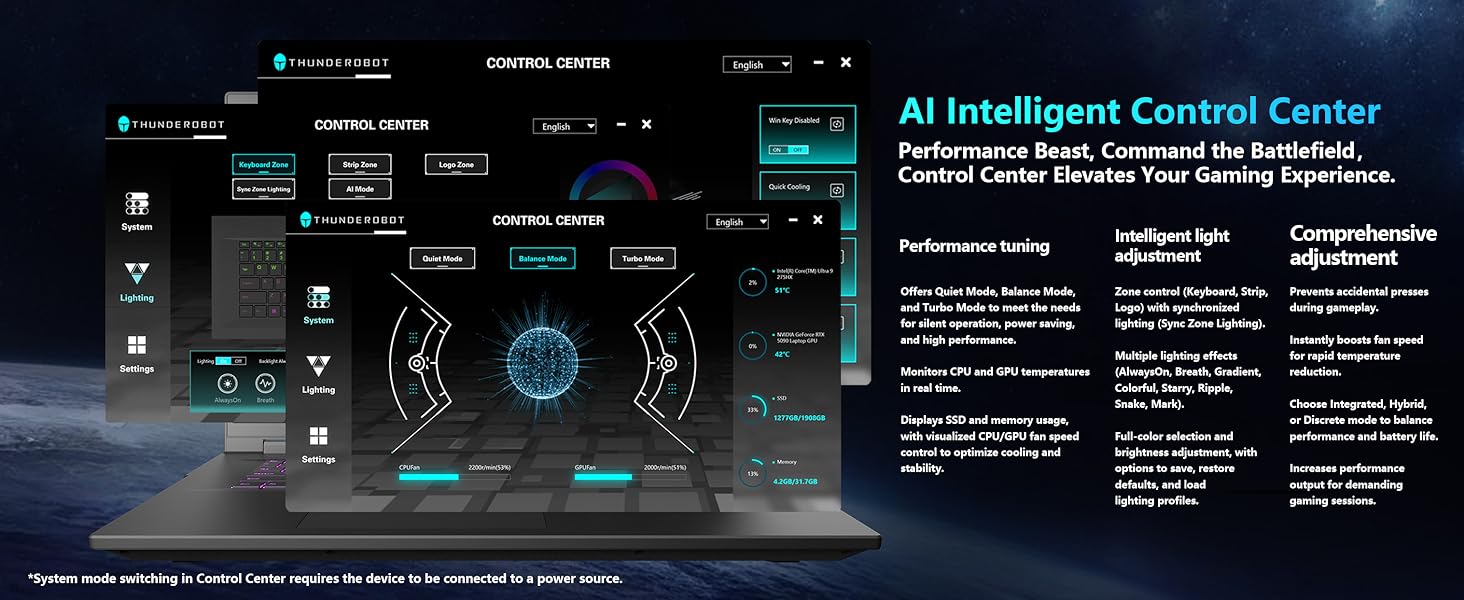
Image: Detailed specifications of the NVIDIA GeForce RTX 5070 Ti GPU, including CUDA Cores, memory, and AI computing power.
Image: Overview of the Intel Core Ultra 9 275HX Processor, detailing its core count, threads, and turbo frequency.
8. Warranty and Support
Every Thunderobot laptop includes a 12-month warranty, offering expert support, thorough diagnostics, and genuine parts if a repair is needed. Additionally, a 90-day warranty is provided on all warranty replacement parts, ensuring hassle-free repairs. Your complete satisfaction is our commitment.
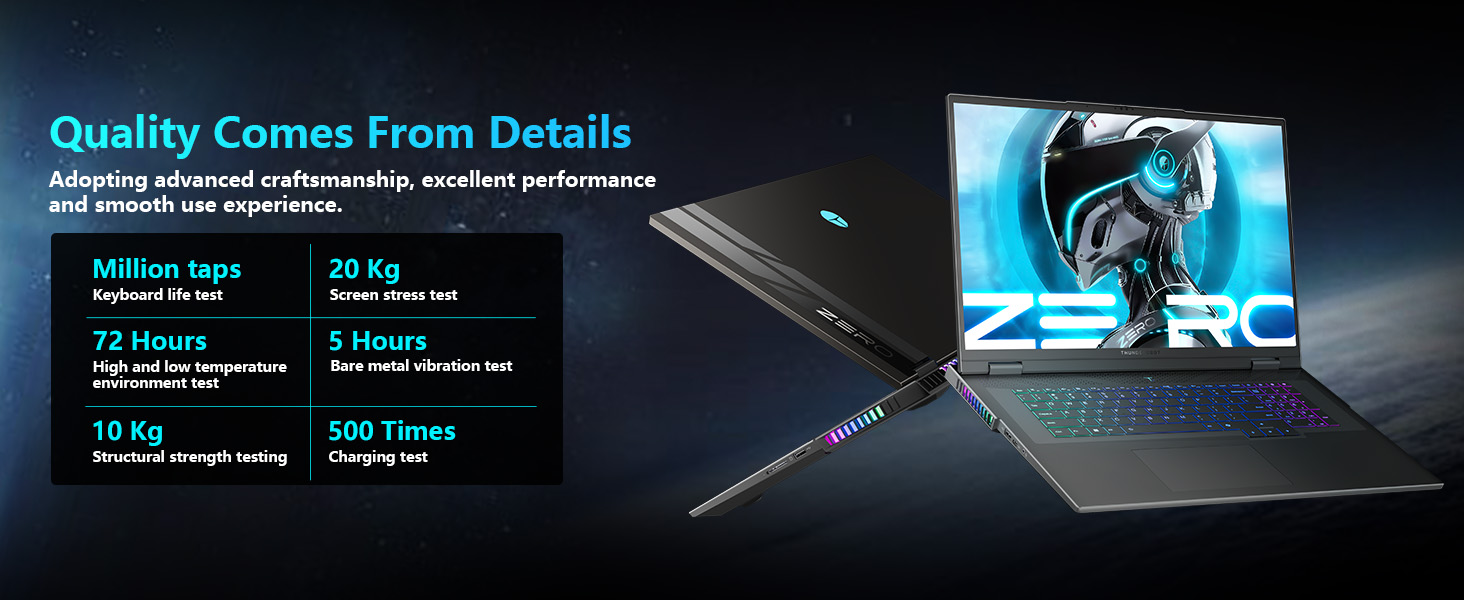
Image: Illustration of various quality assurance tests performed on Thunderobot laptops, including keyboard life, screen stress, and environmental tests.
8.1 Obtaining Support
For technical assistance, warranty claims, or service inquiries, please contact your retailer or visit the official Thunderobot support website for detailed contact information and resources.


