
Introduction
This manual provides comprehensive instructions for the SVITOO P1300 13-inch Android 15 Tablet. It covers setup, operation, maintenance, troubleshooting, and detailed specifications to help you maximize your device's potential. Please read this manual carefully before using your tablet.
1. Getting Started (Setup)
1.1 Package Contents
Ensure all items are present in the package:
- SVITOO P1300 Tablet
- Protective Case
- Charging Adapter
- USB-C Cable
- User Manual
1.2 Tablet Layout
Familiarize yourself with the physical components of your SVITOO P1300 tablet.

Image: Tablet Component Overview. This image illustrates the various ports and buttons on the SVITOO P1300 tablet, including the power button, volume controls, front and rear cameras, microphone, flashlight, 3.5mm headphone jack, SIM/TF card slot, speaker, and USB Type-C charging port.
- Power Button: Located on the top edge (when held horizontally), used to power on/off or wake/sleep the device.
- Volume Buttons: Adjacent to the power button, for adjusting audio levels.
- Front Camera: 8MP camera, located on the top bezel for video calls and selfies.
- Rear Cameras: 13MP + 2MP cameras, located on the back for photography and video recording.
- Microphone: For audio input.
- Flashlight: Integrated with the rear camera module.
- 3.5mm Headphone Jack: For connecting wired headphones.
- Cart Slot: For inserting SIM and TF cards.
- Speaker: For audio output.
- Type-C Port: For charging and data transfer.
1.3 Inserting SIM and TF Cards
The tablet supports dual SIM cards and a TF (microSD) card for expandable storage.
- Locate the SIM/TF card tray on the side of the tablet.
- Use the provided SIM ejector tool to open the tray.
- Carefully place the Nano-SIM card(s) and/or TF card into the designated slots. Ensure correct orientation.
- Gently push the tray back into the tablet until it clicks into place.

Image: SIM and TF Card Insertion. This image demonstrates the proper way to insert a SIM card and a TF (microSD) card into the tablet's card tray for cellular connectivity and expanded storage.
1.4 Initial Power On and Setup
- Press and hold the Power Button until the SVITOO logo appears.
- Follow the on-screen prompts to select your language, connect to a Wi-Fi network, and set up your Google account.
- Complete the initial setup process to access the Android 15 operating system.
2. Basic Operation
2.1 Power On/Off and Screen Lock
- Power On: Press and hold the Power Button until the device vibrates and the logo appears.
- Power Off: Press and hold the Power Button, then select "Power Off" from the options.
- Restart: Press and hold the Power Button, then select "Restart" from the options.
- Screen Lock/Unlock: Briefly press the Power Button to lock or unlock the screen.
2.2 Screen Navigation
The SVITOO P1300 features a 13-inch FHD display with a 90Hz refresh rate for smooth interaction.

Image: Vivid 13-inch FHD Display. This image showcases the tablet's large, high-resolution screen, emphasizing its visual clarity and smooth performance features like 90Hz refresh rate and Widevine L1 support.
- Tap: Select items or activate functions.
- Swipe: Navigate through screens, menus, or scroll content.
- Pinch-to-Zoom: Enlarge or reduce content on the screen.
- Long Press: Access contextual menus or move icons.
2.3 Connectivity
- Wi-Fi: Go to Settings > Network & internet > Wi-Fi to connect to available networks. The tablet supports dual-band 2.4G/5G Wi-Fi.
- 4G LTE: If a SIM card is inserted, enable mobile data in Settings > Network & internet > Mobile network.
- Bluetooth: Go to Settings > Connected devices > Bluetooth to pair with Bluetooth accessories like headphones or keyboards.
- GPS: The integrated GPS provides accurate location services for navigation and location-based applications.
2.4 Charging the Tablet
Connect the USB-C cable to the tablet's Type-C port and the other end to the charging adapter. Plug the adapter into a power outlet. The tablet supports 18W PD fast charging.
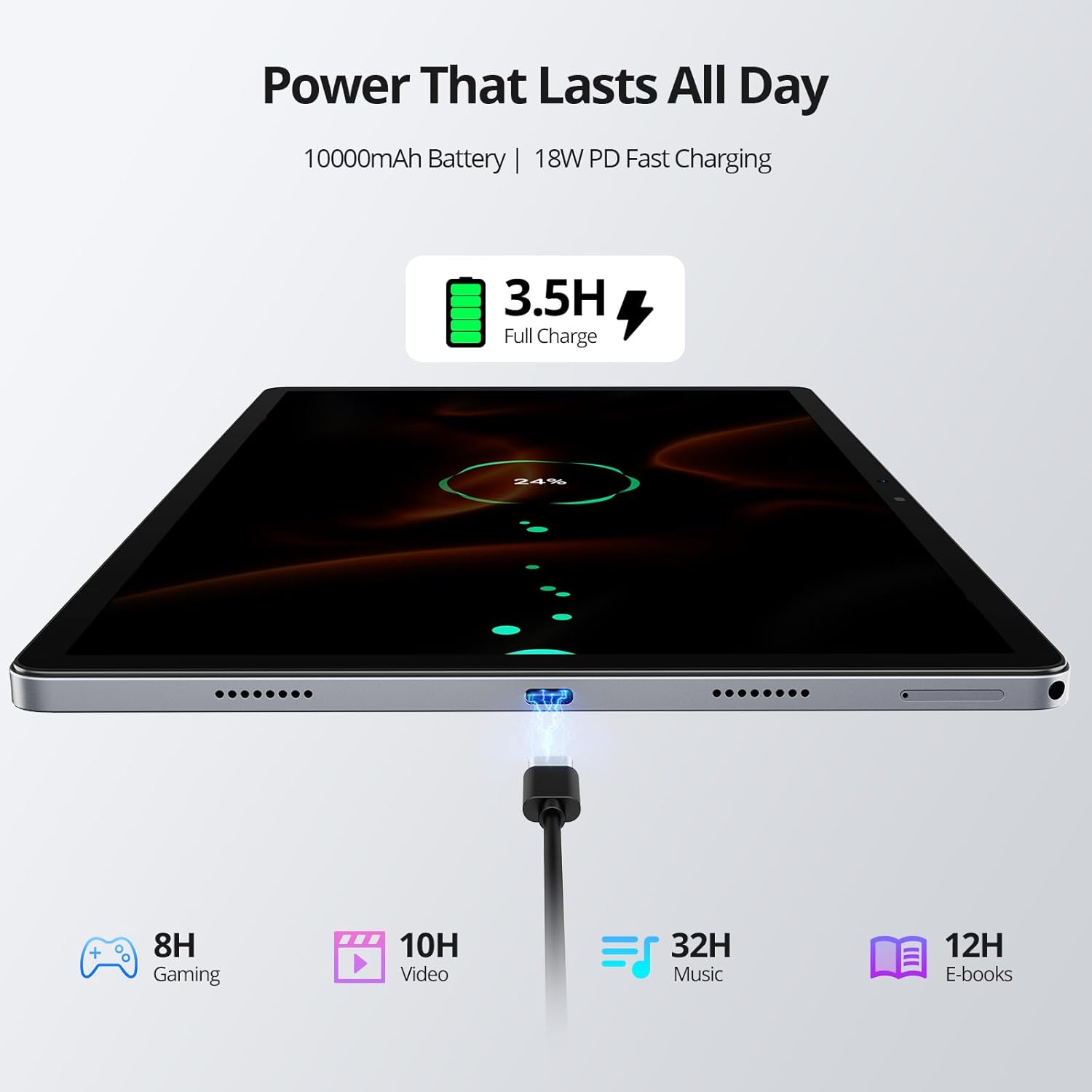
Image: Tablet Charging and Battery Life. This image illustrates the tablet connected to a charger, showing the 18W PD fast charging capability and estimated usage times for various activities on a full 10,000mAh battery.
A full charge provides approximately 12 hours of video playback. The 10,000 mAh battery ensures extended usage.
2.5 Camera Usage
The tablet is equipped with an 8MP front camera and 13MP + 2MP rear cameras.
- Open the Camera application from the home screen or app drawer.
- Select between photo, video, or other modes.
- Tap the shutter button to capture images or start/stop video recording.
- Use the front camera for video calls and selfies, and the rear cameras for higher-quality photos.
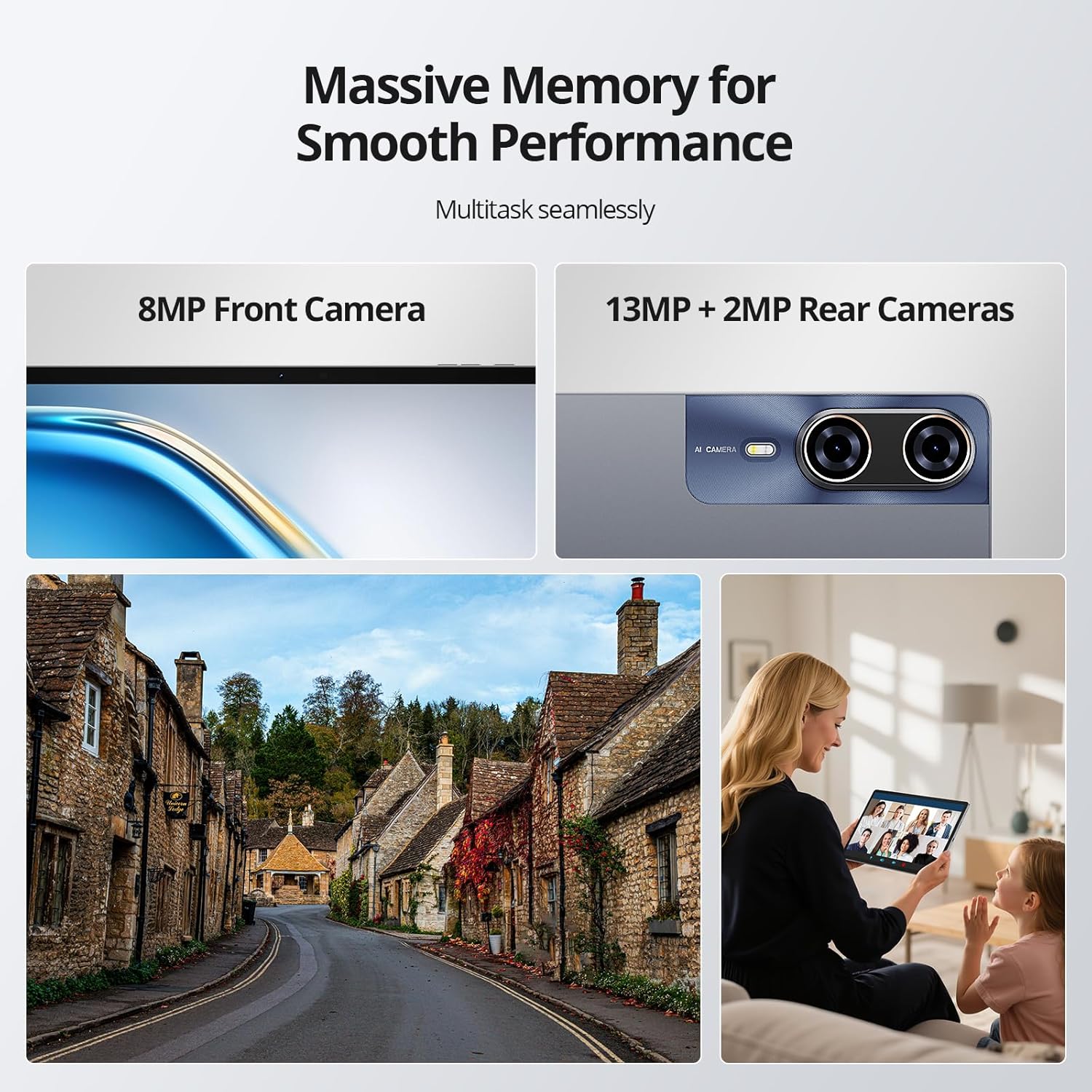
Image: Tablet Cameras in Use. This image highlights the tablet's front and rear camera specifications and provides visual examples of their application, such as capturing outdoor scenes and participating in video conferences.
2.6 Memory Management and Multitasking
The tablet features 8GB of physical RAM with an additional 24GB of adjustable virtual RAM, totaling 32GB, and 256GB of internal storage (ROM). This ample memory supports smooth multitasking and efficient app usage.

Image: Multitasking Performance. This image demonstrates the tablet's ability to run multiple applications smoothly, supported by its substantial RAM and storage.
- RAM: The 8GB physical RAM ensures smooth multitasking. The 24GB virtual RAM can be adjusted to further enhance performance for demanding applications.
- ROM: The 256GB internal storage provides ample space for apps, photos, videos, and documents. This can be expanded further using a TF card.
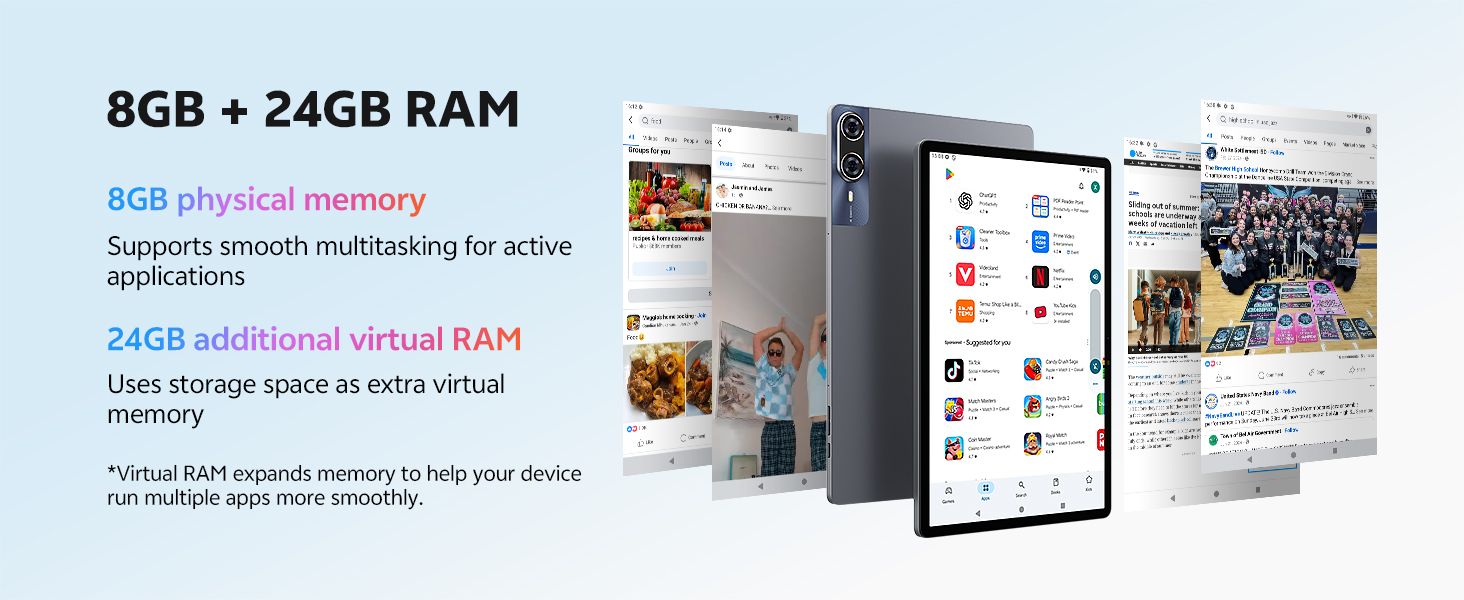
Image: RAM Configuration. This diagram illustrates the tablet's 8GB physical RAM and the additional 24GB of virtual RAM, explaining how virtual memory enhances multitasking capabilities.
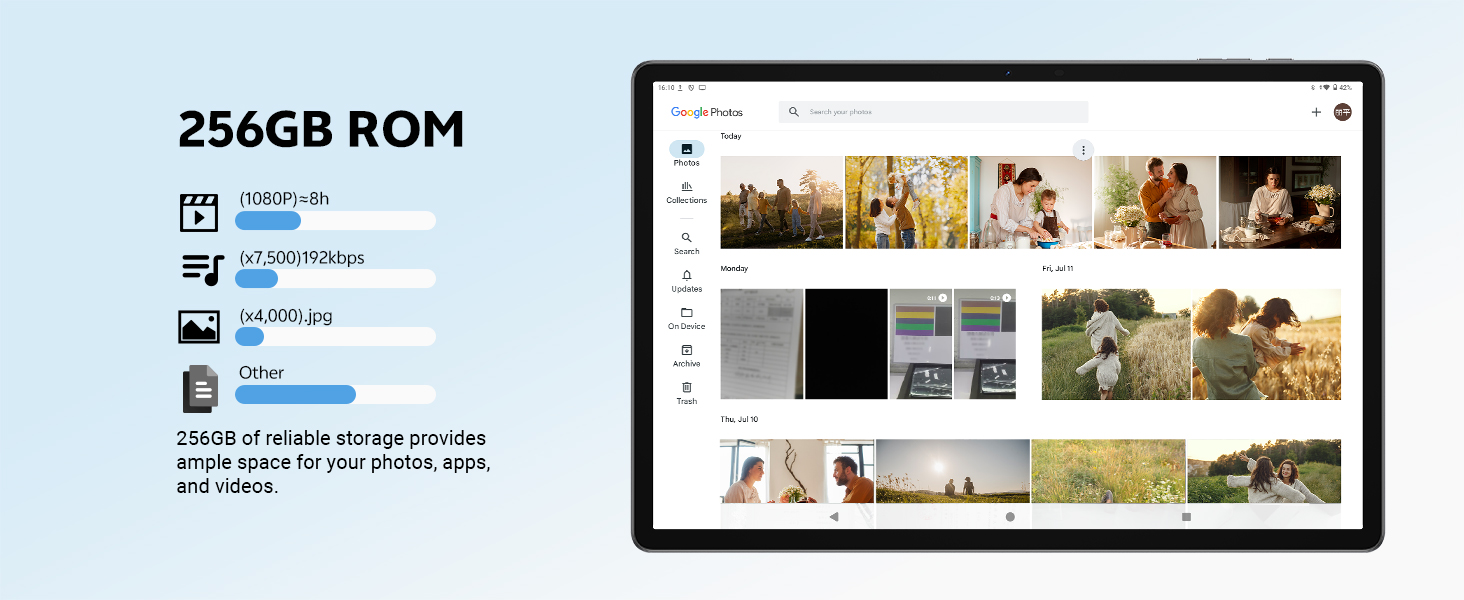
Image: 256GB ROM Storage. This image details the 256GB internal storage, providing context on its capacity for various media types and showing a typical gallery interface.
3. Maintenance
3.1 Cleaning Your Tablet
- Use a soft, lint-free cloth to clean the screen and body of the tablet.
- For stubborn smudges, slightly dampen the cloth with water or a screen cleaner.
- Avoid using harsh chemicals, abrasive materials, or excessive moisture.
3.2 Software Updates
Regularly check for and install software updates to ensure optimal performance and security. Go to Settings > System > System update.
3.3 Battery Care
- Avoid exposing the tablet to extreme temperatures.
- Do not let the battery completely drain frequently.
- For long-term storage, charge the battery to around 50% and power off the device.
4. Troubleshooting
4.1 Tablet Not Turning On
- Ensure the battery is charged. Connect the charger and wait a few minutes before attempting to power on.
- Press and hold the Power Button for at least 10-15 seconds to perform a forced restart.
4.2 Screen Unresponsive
- Restart the tablet.
- Ensure the screen is clean and free of debris.
4.3 Wi-Fi/4G Connectivity Issues
- Toggle Wi-Fi/Mobile Data off and on.
- Restart your router (for Wi-Fi).
- Ensure your SIM card is correctly inserted and activated (for 4G).
4.4 Apps Crashing or Freezing
- Close and reopen the app.
- Clear the app's cache (Settings > Apps > [App Name] > Storage & cache > Clear cache).
- Ensure the app is updated to the latest version.
- Restart the tablet.
5. Specifications
Detailed technical specifications for the SVITOO P1300 tablet.
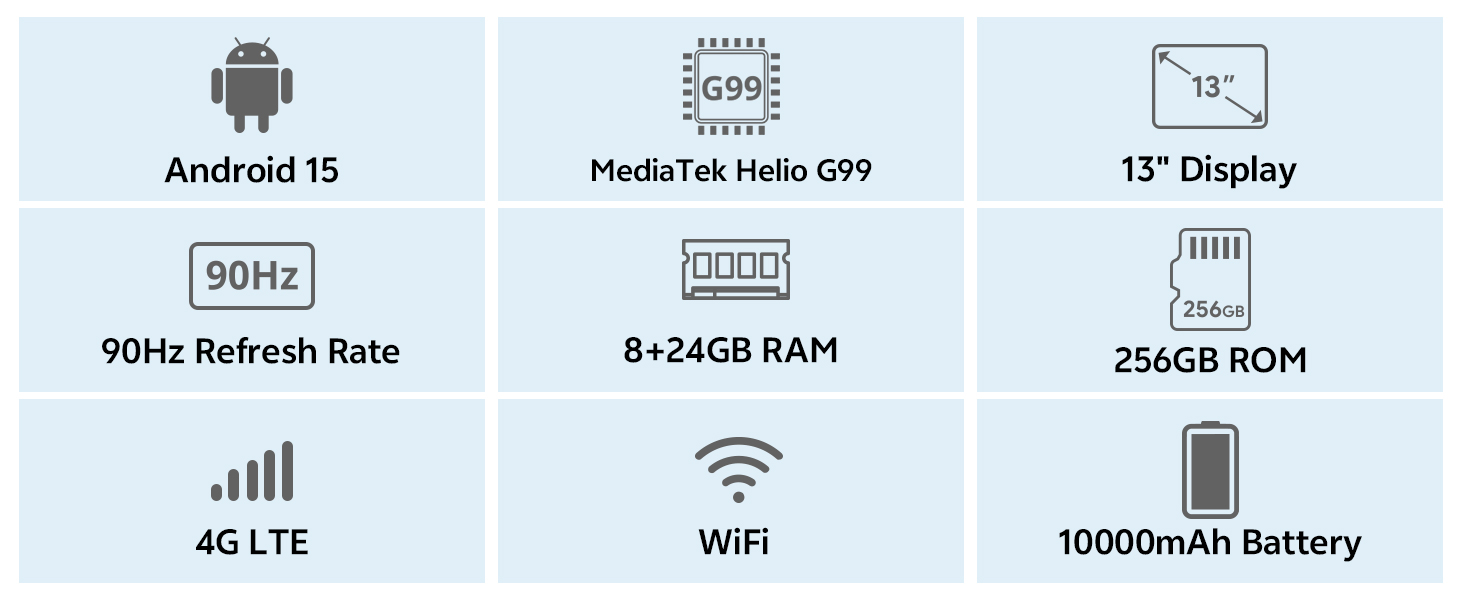
Image: Key Specifications Overview. This infographic provides a quick summary of the SVITOO P1300 tablet's main features and technical specifications.
| Feature | Specification |
|---|---|
| Brand | SVITOO |
| Model Number | P1300 |
| Operating System | Android 15 |
| Processor | MediaTek Helio G99 Octa-Core (2.2 GHz) |
| GPU | ARM G52 MC2 (Integrated) |
| Display Size | 13 Inches |
| Display Resolution | 1920 x 1200 pixels (FHD) |
| Refresh Rate | 90Hz |
| RAM | 32 GB (8GB Physical + 24GB Virtual) |
| Internal Storage (ROM) | 256 GB |
| Expandable Storage | Yes, via TF card |
| Connectivity | 4G LTE, 5G Wi-Fi (802.11ac/ax/g/n), Bluetooth 5, GPS |
| Front Camera | 8 MP |
| Rear Camera | 13 MP + 2 MP |
| Battery Capacity | 10,000 mAh |
| Battery Life | Up to 12 hours (video playback) |
| Charging | 18W PD Fast Charge (USB Type-C) |
| Special Features | Widevine L1 Certification, GPS |
| Dimensions (L x W x H) | 30.21 x 19.75 x 0.8 cm |
| Weight | 1.66 kilograms |
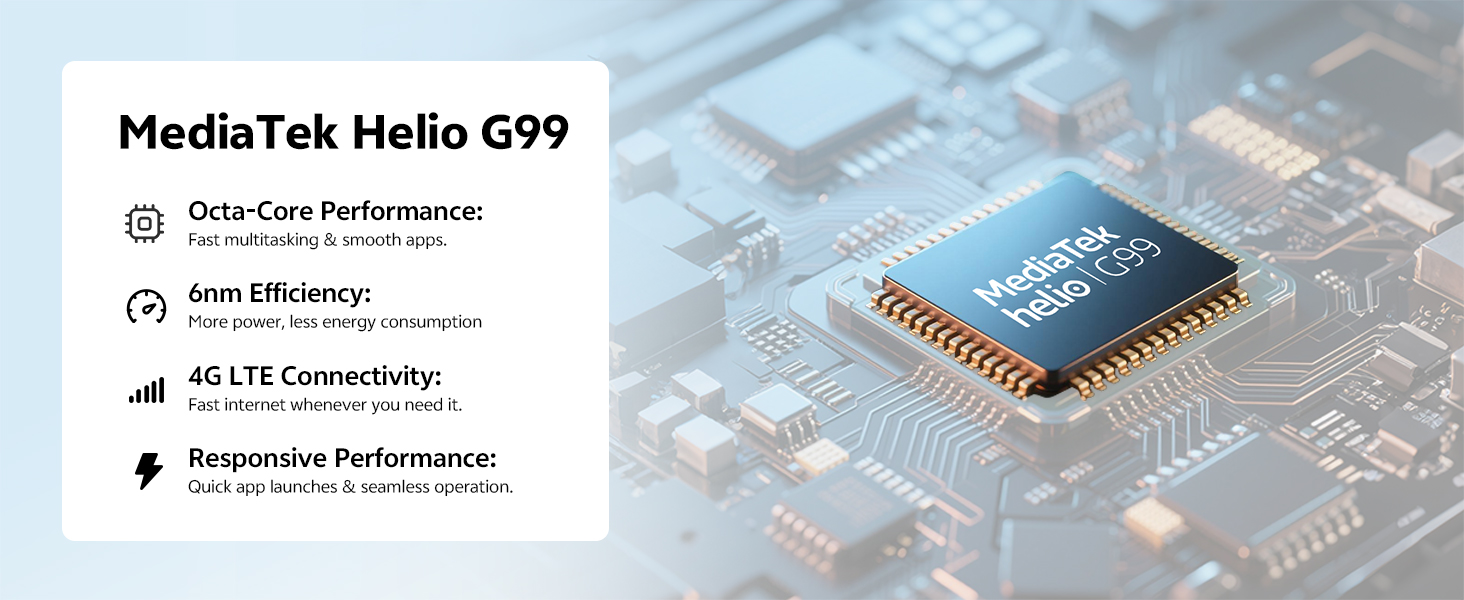
Image: MediaTek Helio G99 Processor. This image provides a detailed view of the MediaTek Helio G99 processor, highlighting its role in the tablet's performance.
6. Warranty and Support
The SVITOO P1300 tablet comes with a reliable support system.
- Warranty: The product is backed by a one-year manufacturer's warranty.
- Customer Service: 24/7 customer service is available for any inquiries or assistance.
- Contact: For support, please refer to the contact information provided with your purchase or visit the official SVITOO website.
For specific warranty claims or technical assistance, please contact SVITOO TABLET, the seller, directly through your purchase platform.