1. Product Overview
The Bmax B4 Turbo Mini PC is a compact and powerful desktop computer designed for various applications, including office work, business tasks, web browsing, streaming, and light gaming. It features the new Intel 13th Gen N150 processor, ample memory, and fast storage, all within a small form factor.
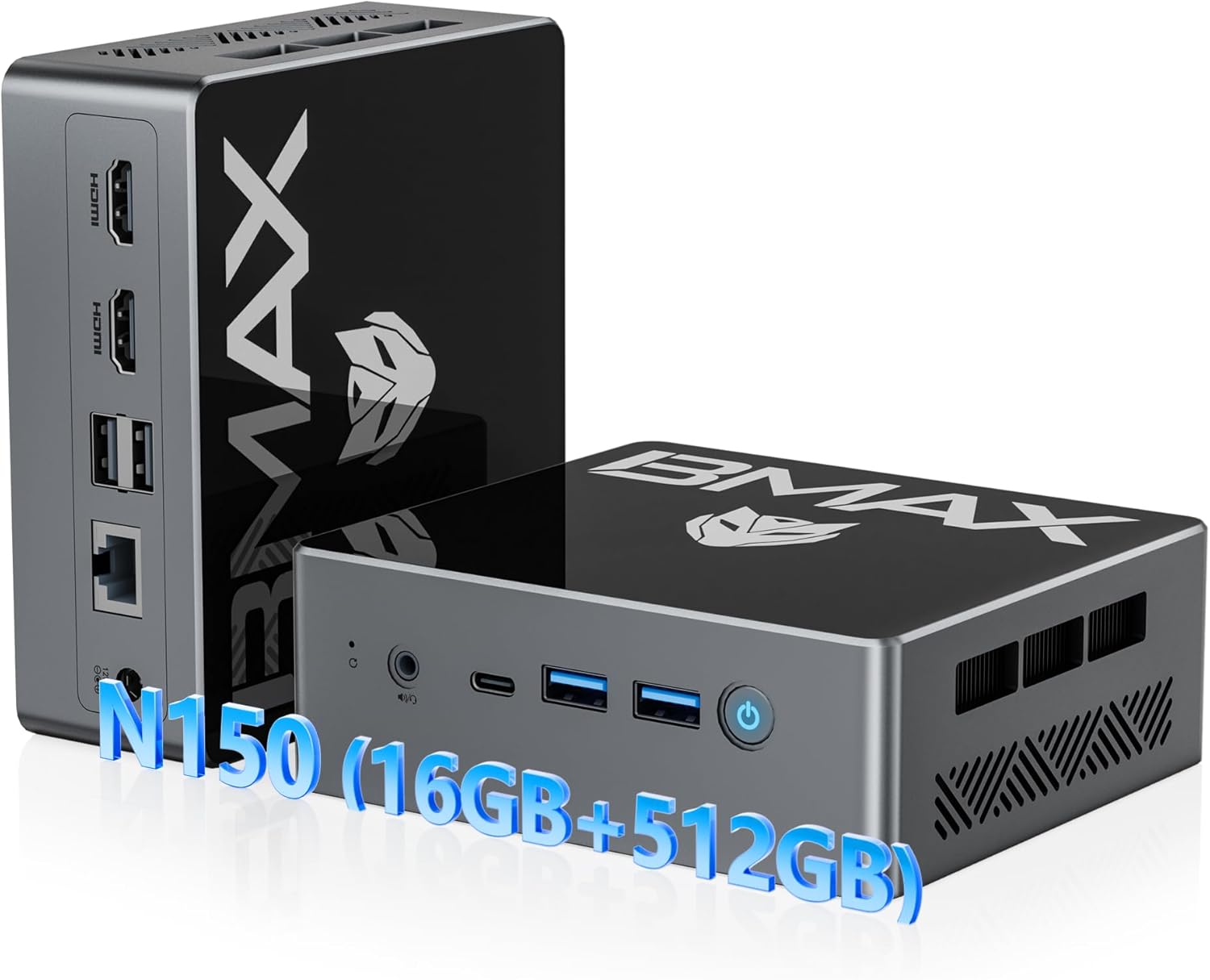
Figure 1: Bmax B4 Turbo Mini PC and its primary components.
Key Features:
- Processor: New 13th Gen Intel N150 CPU (4-core, 4-thread, up to 3.6 GHz)
- Memory: 16GB DDR4 RAM
- Storage: 512GB M.2 SSD (upgradable to 2TB)
- Graphics: Intel UHD Graphics with 4K@60Hz triple-screen display support
- Connectivity: Dual-band Wi-Fi 5 (2.4GHz/5GHz), Bluetooth 5.0, RJ45 Ethernet
- Ports: 2x HDMI 2.0, 1x Full-featured Type-C (10Gbps), 2x USB 3.0, 2x USB 2.0, 1x 3.5mm Audio Jack
- Form Factor: Ultra-compact and portable design with VESA mount compatibility
2. Setup
2.1 Package Contents
Before you begin, please verify that all items are present in the package:
- 1 x Bmax B4 Turbo Mini PC
- 1 x HDMI Cable
- 1 x US Power Adapter
- 1 x User Manual (this document)
- 1 x Mount with Screws (for VESA mounting)

Figure 2: All items included in the Bmax Mini PC package.
2.2 Connecting Your Mini PC
- Connect to Power: Insert the DC12V/2A power adapter into the power port on the Mini PC and plug the adapter into a wall outlet.
- Connect to Display: Use the provided HDMI cable to connect the Mini PC to your monitor or TV. The Mini PC supports dual HDMI 2.0 ports and one full-featured Type-C port for triple-screen display.
- Connect Peripherals: Plug in your USB keyboard and mouse into the available USB 3.0 or USB 2.0 ports.
- Network Connection (Optional): For a wired connection, connect an Ethernet cable to the RJ45 port. For wireless, the device supports Wi-Fi 5 (2.4GHz/5GHz).
Video 1: A demonstration of connecting the Bmax Mini PC and its various features, including video playback, web browsing, office work, and gaming. This video highlights the device's compact size and rich interface options.
2.3 First Boot
After connecting all necessary components, press the power button on the front of the Mini PC. The device comes with a pre-installed operating system (OS) and supports Linux and Ubuntu. Follow the on-screen instructions for initial setup of the operating system.
3. Operating Instructions
3.1 Power On/Off
- Power On: Press the power button located on the front panel. The power indicator light will illuminate.
- Power Off: To safely shut down the system, use the operating system's shutdown function. Alternatively, press and hold the power button for a few seconds for a forced shutdown (not recommended for regular use).
3.2 Display Configuration
The Bmax B4 Turbo Mini PC supports up to three displays simultaneously, offering 4K@60Hz resolution. This is achieved through its two HDMI 2.0 ports and one full-featured Type-C port.

Figure 3: Example of a triple-screen 4K display setup using the Mini PC's HDMI and Type-C ports.
To configure multiple displays, access your operating system's display settings. You can extend your desktop across multiple screens or duplicate the display.
3.3 Network and Bluetooth Connectivity
- Wi-Fi: The Mini PC supports dual-band 2.4GHz/5GHz Wi-Fi 5. To connect, navigate to your operating system's network settings, select your desired Wi-Fi network, and enter the password.
- Bluetooth: Bluetooth 5.0 is integrated for connecting wireless peripherals such as keyboards, mice, and headphones. Enable Bluetooth in your OS settings and pair with your devices.
- Ethernet: For a stable wired connection, plug an Ethernet cable into the RJ45 port.
3.4 Performance and Usage
The Bmax B4 Turbo Mini PC is equipped with an Intel N150 processor, 16GB of RAM, and a 512GB SSD, providing efficient performance for a variety of tasks:
- Office Productivity: Smooth operation for office software like Microsoft Office Suite, enabling efficient document creation, spreadsheets, and presentations.
- Web Browsing and Streaming: Enjoy seamless web browsing and high-definition video streaming.
- Content Creation: Capable of handling light photo and video editing tasks.
- Light Gaming: Provides a satisfactory experience for casual and light gaming titles.

Figure 4: The Mini PC efficiently runs various applications, including productivity software and media playback.

Figure 5: The N150 GPU provides enhanced graphics performance, supported by a silent built-in fan for optimal cooling.
4. Maintenance
4.1 Storage Expansion
The 512GB M.2 SSD can be upgraded to a larger capacity (up to 2TB) if needed. The Mini PC also features a 2.5-inch laptop hard drive slot for additional storage. Please refer to the detailed upgrade instructions in the full user manual or contact support for assistance.

Figure 6: Internal view highlighting the 16GB SO-DIMM DDR4 RAM and 512GB M.2 2280 SATA(AHCI) SSD, along with the 2.5-inch hard drive slot for expansion.
4.2 Cooling System
The Bmax B4 Turbo Mini PC incorporates an efficient cooling system with a silent built-in fan to maintain optimal operating temperatures for the SSD and RAM. Ensure proper airflow around the device by keeping vents clear of obstructions.
4.3 Cleaning
To maintain performance and longevity, regularly clean the exterior of the Mini PC with a soft, dry cloth. Avoid using liquid cleaners or abrasive materials. Periodically, gently clear dust from the ventilation openings using compressed air.
5. Troubleshooting
5.1 Common Issues and Solutions
| Issue | Possible Cause | Solution |
|---|---|---|
| No display on monitor | Loose display cable, incorrect input source, power issue. | Check HDMI/Type-C cable connections. Ensure monitor is on and set to correct input. Verify power adapter is securely connected. |
| No network connection | Wi-Fi disabled, incorrect password, Ethernet cable disconnected. | Check Wi-Fi settings and password. Ensure Ethernet cable is properly connected to both PC and router. Restart router/modem. |
| Slow performance | Too many background applications, low storage space, outdated drivers. | Close unnecessary applications. Free up disk space. Update operating system and drivers. |
| Peripheral not recognized | Loose USB connection, driver issue, faulty peripheral. | Try a different USB port. Reinstall or update peripheral drivers. Test peripheral on another device. |
5.2 Clear CMOS Button
The Mini PC includes a "Clear CMOS Button" (often a small pinhole button) which can be used to reset BIOS settings to their default values. This can be useful for resolving boot issues or configuration problems. Consult the full user manual for the exact location and procedure, or contact technical support.
6. Specifications
| Feature | Detail |
|---|---|
| Brand | Bmax |
| Model | B4 Turbo |
| Processor | Intel 13th Gen Twin Lake N150 (4 Cores, 4 Threads, up to 3.6 GHz) |
| RAM | 16GB DDR4 SDRAM |
| Storage | 512GB M.2 SSD (Expandable up to 2TB) |
| Graphics | Intel UHD Graphics (Integrated) |
| Video Output | 2x HDMI 2.0, 1x Type-C (supports 4K@60Hz triple display) |
| USB Ports | 2x USB 3.0, 2x USB 2.0 |
| Network | RJ45 Ethernet, Wi-Fi 5 (2.4GHz/5GHz) |
| Bluetooth | Bluetooth 5.0 |
| Audio | 1x 3.5mm Headset Jack |
| Operating System | Pre-installed OS (supports Linux, Ubuntu) |
| Dimensions (LxWxH) | 4.92 x 4.4 x 1.73 inches |
| Weight | 1.61 pounds |
| Special Features | Wake On LAN, PXE Boot, RTC Wake, Auto Power On, VESA Mount Kit included |
7. Warranty and Support
BMAX is committed to providing high-quality products and excellent customer service. Your B4 Turbo Mini PC comes with comprehensive support and warranty coverage.
7.1 Warranty Information
- 1-Year Limited Warranty: BMAX offers a 1-year limited warranty for each Mini PC, effective from the date of purchase.
- 12-Month Warranty or Replacement: For quality defects, a 12-month warranty or replacement is provided.
- 30-Day Free Return: Enjoy a 30-day free return period from the date of purchase.


Figure 7: BMAX's commitment to product quality and customer satisfaction, including warranty and return policies.
7.2 Technical Support
BMAX provides lifetime technical support for your Mini PC. If you encounter any issues, have questions about system updates, or require troubleshooting assistance, please contact our professional after-sales team.
How to Contact Support:
- Login to your Amazon account.
- Navigate to "Your Account" then "Your Orders".
- Locate your Bmax B4 Turbo Mini PC order and click on "Ask Product Question".

Figure 8: Instructions for accessing after-sales support through your Amazon account.


