
1. Introduction
Thank you for choosing the JONSBO V12 Black Micro ATX Mid Tower PC Case. This manual provides detailed instructions for the proper assembly, installation, and maintenance of your new PC chassis. The V12 combines a unique hyperboloid glass design with a separated cabinet structure and natural walnut wood accents, offering both aesthetic appeal and functional performance for your desktop computer build.

An assembled JONSBO V12 PC case, showcasing its compact form factor and the hyperboloid glass panel revealing internal components like the GPU and CPU cooler.
2. Safety Information
- Always disconnect the power supply from the wall outlet before installing or removing any components.
- Handle all components with care to prevent damage.
- Wear an anti-static wrist strap to prevent electrostatic discharge (ESD) damage to sensitive components.
- Keep small parts and tools away from children.
- Ensure proper ventilation around the PC case to prevent overheating.
3. Package Contents
Please verify that all items are present in your package:
- JONSBO V12 Black Micro ATX Mid Tower PC Case
- Accessory Box (screws, cable ties, standoffs, etc.)
- User Manual (this document)
- Pre-installed 120mm Front Fans (x2)
4. Specifications
| Model No. | V12 |
| Color | Black |
| Material | SGCC 1.0mm / Wood 8mm / Glass 4mm |
| Product Dimensions (W x D x H) | 280mm x 301mm x 275.5mm |
| Motherboard Compatibility | M-ATX / ITX |
| Max. CPU Cooler Height | ≤140mm |
| PSU Support | ATX ≤140-220mm |
| Max. Display Card Length | ≤ 260mm |
| Drive Bays | 3.5" HDD*2 + 2.5" SSD*1 / 3.5" HDD*1 + 2.5" SSD*2 |
| Fan Support | Front: 120mm*2 (Built-in), Rear: 92mm*1 + 80mm*1 (Optional) |
| Front I/O Ports | USB3.2 Gen2 Type-C*1 / USB3.0*1 / AUDIO*1 + MIC*1 (2 IN 1) |
| Net Weight | 5.52kg |

An illustration detailing the compact dimensions of the JONSBO V12 PC case, measuring 280mm in width, 301mm in depth, and 275.5mm in height, suitable for desktop placement.
5. Setup Guide
5.1. Panel Removal
- Carefully place the case on a flat, stable surface.
- Locate the screws securing the hyperboloid glass side panel. Unscrew them.
- Gently lift and remove the glass panel. Note: The glass panel has a 2H hardness protective film; it does not need to be removed during use.
- Repeat for any other panels requiring removal for component installation.

A visual guide demonstrating how the 270-degree dual-curved glass panel can be detached from the chassis, facilitating easy access for component installation and maintenance. Note the protective film on the glass.
5.2. Motherboard Installation
- Install the I/O shield (if applicable) into the motherboard tray opening.
- Align your M-ATX or ITX motherboard with the standoffs in the case.
- Secure the motherboard using the provided screws.
5.3. PSU Installation
- Locate the power supply mounting area (bottom mount).
- Install your ATX power supply (up to 220mm in length, or 140mm if using front-mounted hard drive bays) and secure it with screws.
5.4. GPU Installation
- Remove the necessary PCI-E slot covers from the rear of the case.
- Insert your graphics card (up to 260mm in length) into the PCI-E slot on the motherboard.
- Secure the graphics card with screws.
5.5. Storage Installation
- Utilize the flexible drive bays to install your 3.5" HDDs and 2.5" SSDs. The case supports either two 3.5" HDDs and one 2.5" SSD, or one 3.5" HDD and two 2.5" SSDs.
- Secure the drives using the provided screws.

An exploded view demonstrating the flexible drive bay options, supporting either two 3.5-inch HDDs and one 2.5-inch SSD, or one 3.5-inch HDD and two 2.5-inch SSDs.
5.6. Fan/Cooling Installation
- The front panel comes standard with two 120mm fans.
- Optional rear fans (92mm*1 + 80mm*1) can be installed for enhanced cooling.
- Ensure your CPU cooler height does not exceed 140mm.
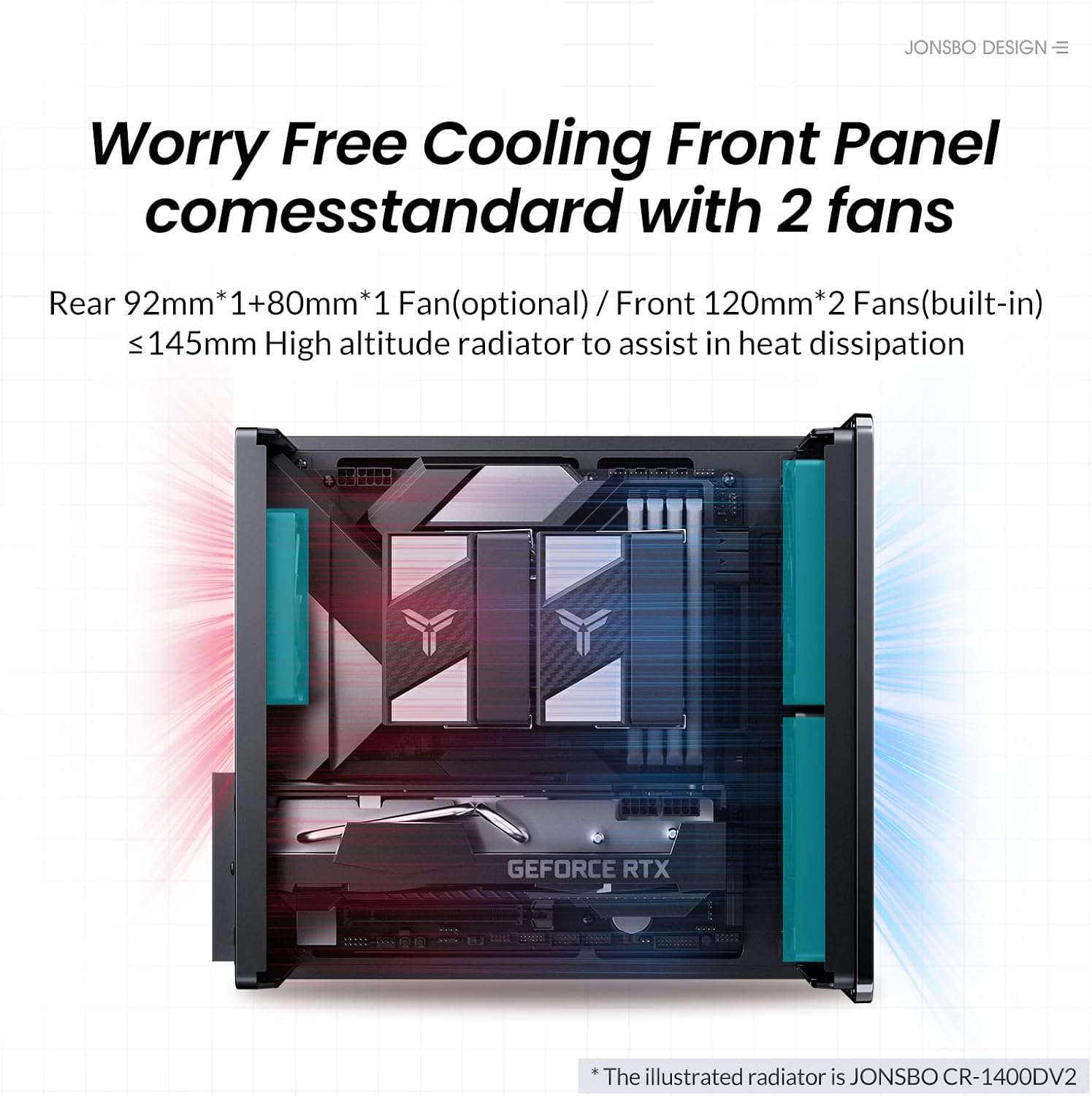
An internal diagram illustrating the cooling system, showing two built-in 120mm front fans and potential rear fan placements (92mm*1 + 80mm*1 optional) for efficient heat dissipation.
5.7. Cable Management
Utilize the separated cabinet structure to route and manage cables efficiently, ensuring optimal airflow and a clean interior aesthetic.

An empty internal view of the JONSBO V12 chassis, highlighting the separated cabinet structure designed for organized component placement and airflow.
5.8. Reattaching Panels
- Once all components are installed and cables are managed, carefully reattach the side panels.
- Secure the panels with the screws removed earlier.
5.9. Front I/O Ports
The front panel includes convenient access to USB3.2 Gen2 Type-C*1, USB3.0*1, and AUDIO*1+MIC*1 (2 IN 1) ports.

The front of the JONSBO V12 PC case, featuring the natural walnut wood decorative panel and accessible I/O ports including USB 3.2 Gen2 Type-C, USB 3.0, and audio jacks.
6. Operating
After successful assembly, connect your peripherals and power cable. Press the power button on the front panel to start your computer. Ensure all connections are secure for stable operation.
7. Maintenance
7.1. Cleaning
- Regularly clean the exterior of the case with a soft, damp cloth. Avoid abrasive cleaners.
- For internal cleaning, disconnect power and use compressed air to remove dust from fans and components.
7.2. Dust Filter
The JONSBO V12 features a magnetic dust-proof bottom mesh. This filter can be easily removed for cleaning to maintain optimal airflow and prevent dust buildup inside the case.

The underside of the JONSBO V12 PC case, featuring a magnetic dust-proof mesh filter for easy cleaning and improved airflow.
8. Troubleshooting
- No Power: Ensure all power cables are securely connected to the PSU, motherboard, and wall outlet. Check the PSU switch.
- No Display: Verify that the graphics card is properly seated and connected to the monitor. Check monitor input source.
- Overheating: Ensure all fans are spinning correctly and are not obstructed. Clean dust filters and internal components. Verify CPU cooler installation.
- Component Not Detected: Re-seat the component (e.g., RAM, GPU, storage drive). Check all power and data connections.
9. Official Product Video
Official product video showcasing the JONSBO V12 Micro ATX PC Case, highlighting its design, features, and internal layout.
10. Warranty and Support
For warranty information and technical support, please refer to the official JONSBO website or contact your retailer. Keep your proof of purchase for any warranty claims.


