
1. Introduction
Thank you for choosing the ProtoArc EM15 Bluetooth Wireless Mouse. This manual provides detailed instructions for setting up, operating, and maintaining your new mouse. Please read this manual thoroughly before use to ensure optimal performance and longevity of your device.
2. Product Overview
The ProtoArc EM15 is a versatile wireless mouse designed for enhanced productivity and comfort. It offers multiple connectivity options and a compact, ergonomic design.
- Multi-Device Connectivity: Connects to up to three devices simultaneously via Bluetooth, USB, and Type-C.
- Rechargeable & Energy Saving: Features a built-in Lithium-Ion battery, rechargeable via USB-C, offering extended use and standby times.
- Adjustable DPI: Three DPI levels (1000/1600/2400) for precise and smooth tracking across various surfaces.
- Quiet Click: Designed for silent operation, minimizing disturbance (note: scroll wheel is not silent).
- Ergonomic & Slim Design: Provides maximum hand support and comfort, ideal for travel.
- Wide Compatibility: Compatible with Windows 7/8/10/XP, Vista, Mac OS X 10.10 or later, and all Type-C devices.

Figure 1: ProtoArc EM15 Wireless Mouse (Gray)
3. Getting Started (Setup)
The ProtoArc EM15 mouse offers flexible connection options to suit your devices.
3.1. Unpacking and Components
Inside the package, you will find the ProtoArc EM15 mouse, a USB-C charging cable, a USB receiver, and a Type-C receiver. The USB and Type-C receivers are conveniently stored in a dedicated compartment on the back of the mouse.
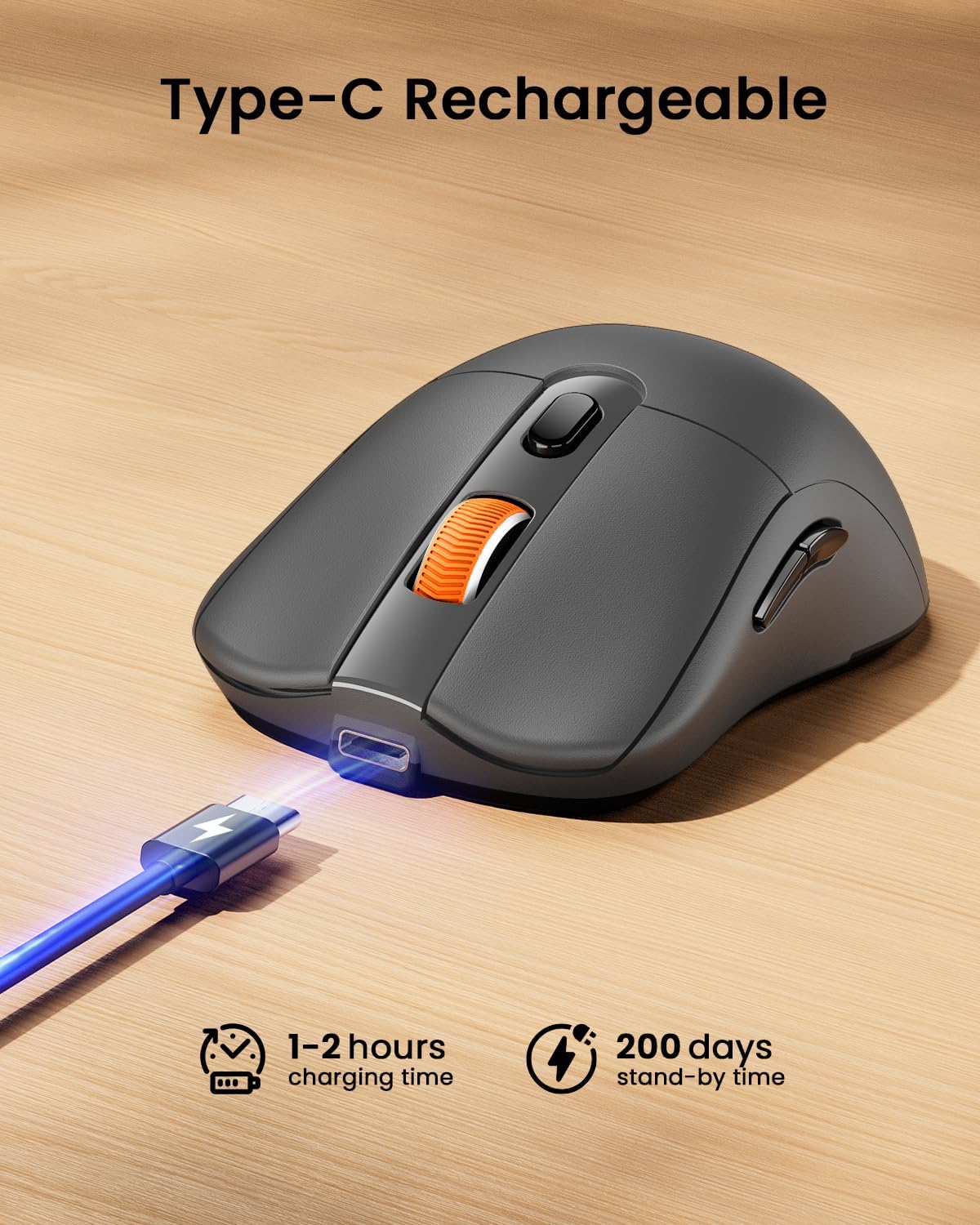
Figure 2: Mouse with integrated USB and Type-C receivers.
3.2. Connecting to Your Device
The EM15 mouse supports three connection modes: 2.4G USB Wireless, Type-C Wireless, and Bluetooth. You can switch between connected devices using the mode switch button on the bottom of the mouse.
Video 1: Demonstrates connecting the EM15 mouse via Bluetooth and 2.4G wireless receivers to multiple devices.
3.2.1. 2.4G USB or Type-C Wireless Connection
- Open the receiver compartment on the back of the mouse.
- Remove the appropriate receiver (USB or Type-C) for your device.
- Plug the receiver into an available USB or Type-C port on your computer, laptop, or tablet.
- Turn on the mouse using the power switch on the bottom.
- The mouse should automatically connect to your device.
3.2.2. Bluetooth Connection
- Turn on the mouse using the power switch on the bottom.
- Press the mode switch button on the bottom of the mouse until the Bluetooth indicator light flashes.
- On your device (laptop, tablet, PC), go to Bluetooth settings.
- Search for new devices and select "ProtoArc EM15" from the list.
- Follow any on-screen prompts to complete the pairing process.

Figure 3: Multi-device connection setup with the EM15 mouse.
4. Operating Instructions
Familiarize yourself with the mouse's controls for efficient use.
4.1. Buttons and Functions

Figure 4: Key buttons and features of the ProtoArc EM15 mouse.
- Left/Right Click: Standard mouse functions.
- Scroll Wheel: For vertical scrolling.
- DPI Switch: Press to cycle through DPI settings (1000/1600/2400).
- Forward/Backward Buttons: Navigate web pages or documents (not compatible with Mac OS).
- Mode Switch Button: Located on the bottom, cycles between Bluetooth, 2.4G USB, and Type-C connections.
- Power Switch: On/Off control for the mouse.
4.2. DPI Adjustment
The mouse features three adjustable DPI levels: 1000, 1600, and 2400. Press the DPI switch button located near the scroll wheel to change the sensitivity. A higher DPI provides faster cursor movement, while a lower DPI offers more precise control.
4.3. Quiet Click Feature
The left and right click buttons are designed for quiet operation, reducing noise in quiet environments. Please note that the middle scroll wheel does not have this silent click feature.
4.4. Ergonomic Design
The mouse is shaped to provide maximum support and comfort for your hand, reducing strain during prolonged use. Its slim profile also makes it convenient for portability.
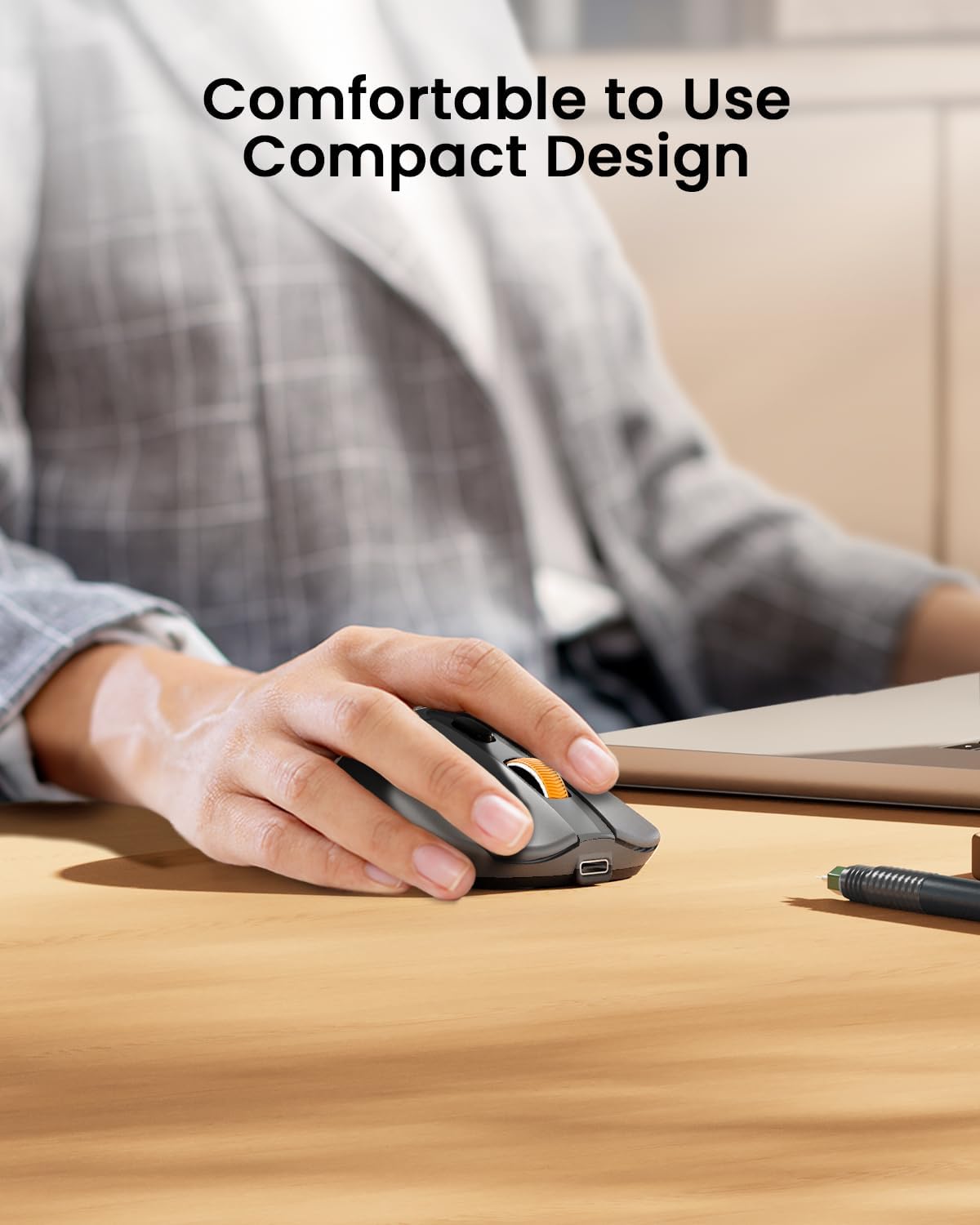
Figure 5: The ergonomic design of the mouse provides comfortable hand support.
5. Charging and Power Management (Maintenance)
The ProtoArc EM15 mouse is equipped with a built-in rechargeable Lithium-Ion battery.
5.1. Charging the Mouse
- Locate the Type-C charging port at the front of the mouse.
- Connect the included USB-C charging cable to the mouse and a power source (e.g., computer USB port, USB wall adapter).
- A full charge typically takes 1-2 hours.

Figure 6: Charging the EM15 mouse with the Type-C cable.
5.2. Battery Life and Energy Saving
Once fully charged, the mouse can be used for approximately 15 days. It features an energy-saving sleep mode, which it enters after a few minutes of inactivity, extending its standby time up to 200 days.
6. Troubleshooting
If you encounter issues with your ProtoArc EM15 mouse, please refer to the following common solutions:
- Mouse Not Responding: Ensure the mouse is powered on and fully charged. Check the connection mode (Bluetooth, USB, Type-C) and ensure it matches your device's connection. For wireless connections, ensure the receiver is properly plugged in.
- Bluetooth Connection Issues: Make sure your device's Bluetooth is enabled. Try unpairing and re-pairing the mouse in your device's Bluetooth settings. Ensure the mouse is in Bluetooth pairing mode (flashing indicator light).
- Cursor Movement Issues: Adjust the DPI settings using the DPI switch button. Ensure the mouse is used on a suitable surface.
- Forward/Backward Buttons Not Working on Mac OS: These buttons are not compatible with Mac OS systems.
- Charging Problems: Verify the Type-C cable is securely connected to both the mouse and the power source. Try a different USB port or charging adapter.
7. Specifications
| Feature | Detail |
|---|---|
| Model | EM15 |
| Brand | ProtoArc |
| Connectivity Technology | 2.4G USB Wireless, Bluetooth, Type C Wireless |
| Movement Detection Technology | Optical |
| DPI Levels | 1000/1600/2400 |
| Special Features | Ergonomic Design, Lightweight, Portable, Rechargeable, Soundless |
| Battery Type | Built-in Lithium Ion |
| Charging Port | Type-C |
| Item Weight | 7 ounces |
| Package Dimensions | 7.24 x 5.31 x 2.83 inches |
| Compatibility | Windows 7/8/10/XP, Vista, Mac OS X 10.10+, Type-C devices |
8. Warranty and Support
For warranty information and customer support, please refer to the documentation included with your product or visit the official ProtoArc website. Keep your purchase receipt for warranty claims.


