
Introduction
This manual provides comprehensive instructions for the setup, operation, maintenance, and troubleshooting of your DeckTok Smart Floor Lamp, Model DP69-4. This 2800LM RGBWW standing lamp offers smart app and voice control capabilities, adjustable color temperature, and brightness to enhance your lighting experience.
Important Safety Information
- Read all instructions carefully before assembly and use.
- Ensure the power adapter is disconnected before cleaning or maintenance.
- This product is designed for indoor use only.
- Do not expose the lamp to water or excessive moisture.
- Keep out of reach of children and pets to prevent tipping.
- Use only the provided power adapter.
Package Contents
Verify that all components are present before proceeding with assembly:
- Floor Lamp (Light Head, Pole Sections, Base)
- Power Adapter
- User Manual
Assembly Instructions
The DeckTok Smart Floor Lamp is designed for easy assembly. No additional tools are required.
- Install the Light Head: Carefully screw the light head onto the top pole section.
- Connect Pole Sections: Screw the remaining pole sections together, ensuring they are securely tightened.
- Install the Base: Attach the assembled pole to the sturdy metal base by screwing it clockwise until firm.
- Connect Power: Plug the power adapter into the lamp and then into a standard electrical outlet.
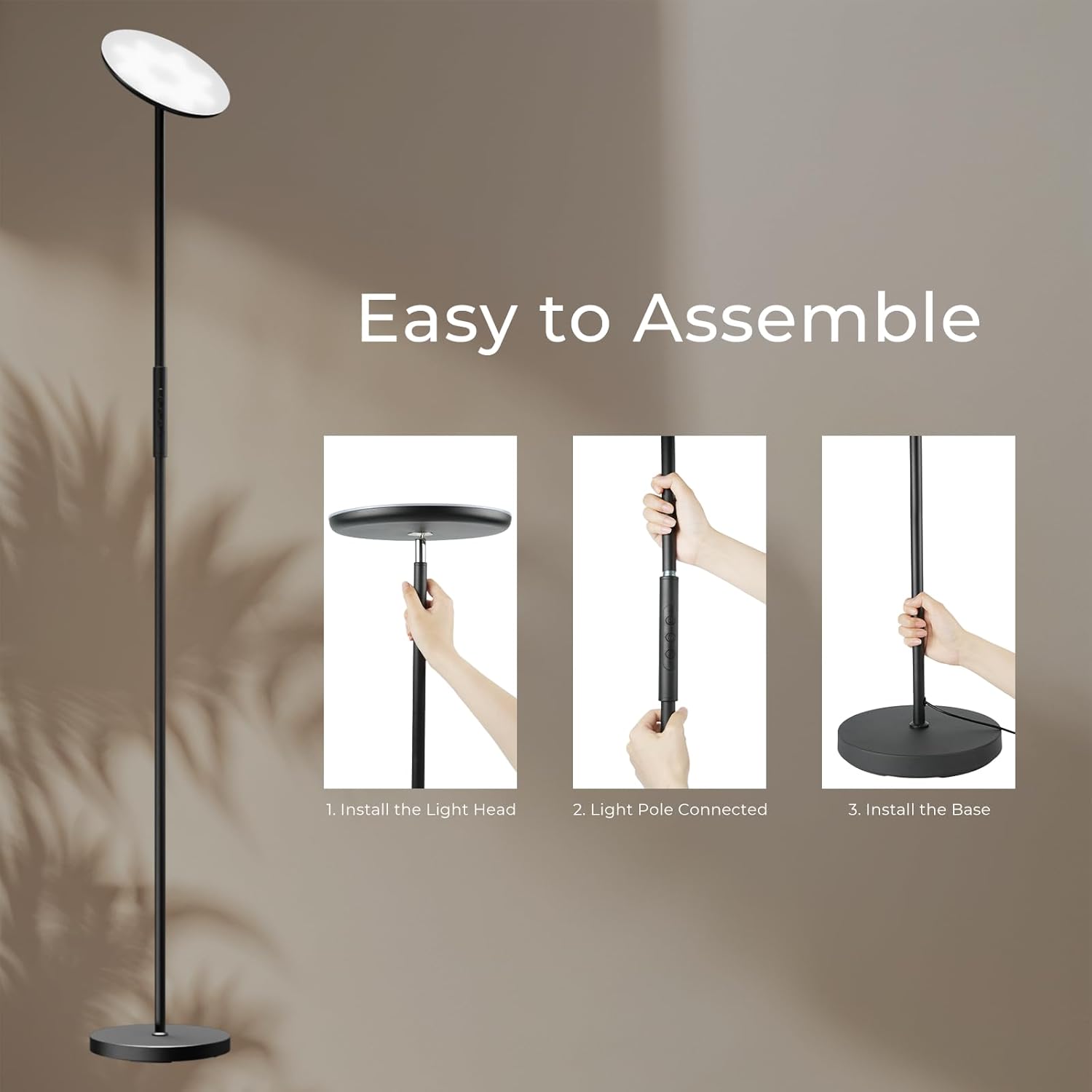
Image: Step-by-step assembly guide for the DeckTok Smart Floor Lamp.

Image: Visual guide for the easy installation process of the lamp.
Operation
1. Touch Control
The lamp features integrated touch buttons on the pole for direct control.
- Power Button: Click to switch the lamp On/Off. Long press for 3 seconds to adjust brightness.
- Mode Button (M): Click to adjust the color temperature.
- Color Button (C): Click to adjust the light color (RGB).
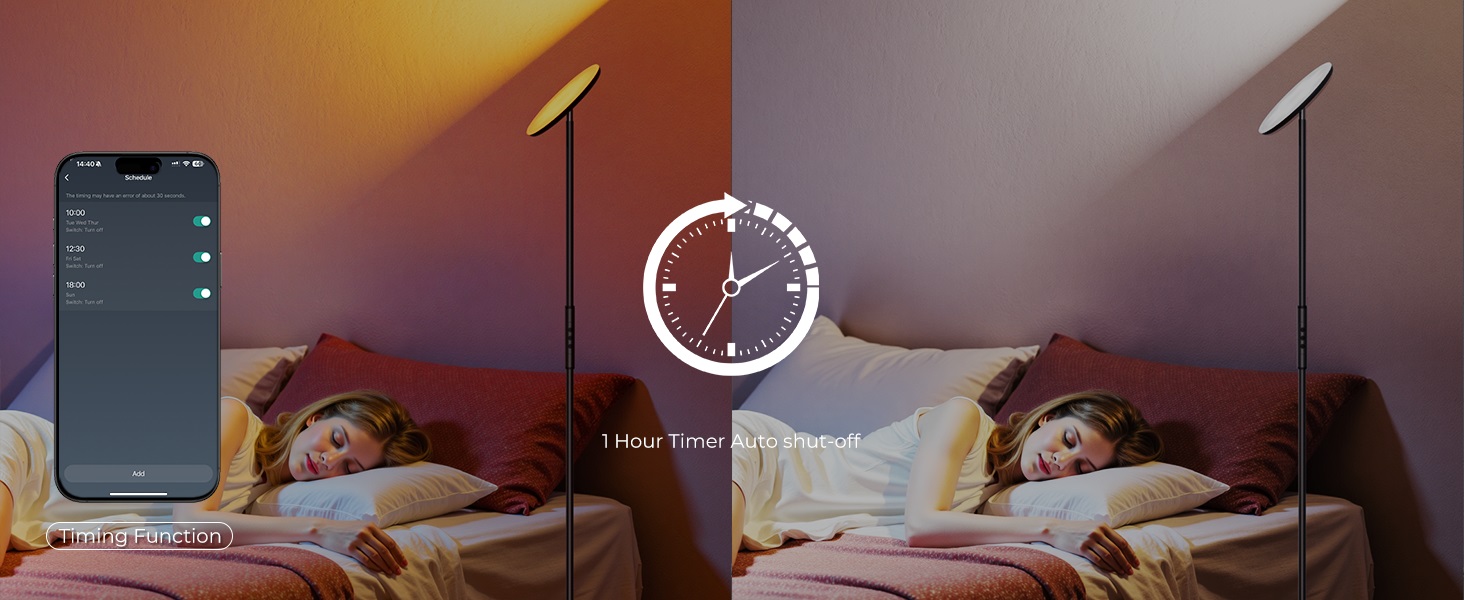
Image: Touch control buttons on the lamp pole.
2. Smart App Control
Control your lamp using the dedicated smart application (Smart Life APP or Tuya Smart APP). The app allows for advanced customization and features.
App Connection and Pairing Instructions:
- Ensure your mobile device is connected to a 2.4GHz Wi-Fi network.
- Initiate Pairing Mode:
- If the floor lamp is already flashing, it indicates APP Pairing Mode is active.
- If the lamp is not flashing, unplug and replug the power adapter 6 times consecutively. The lamp will begin flashing, indicating it is in pairing mode.
- Open the Smart Life or Tuya Smart APP, and follow the on-screen instructions to add a new device.
- Once successfully paired, the lamp's button functions will activate, and you can control it via the app.
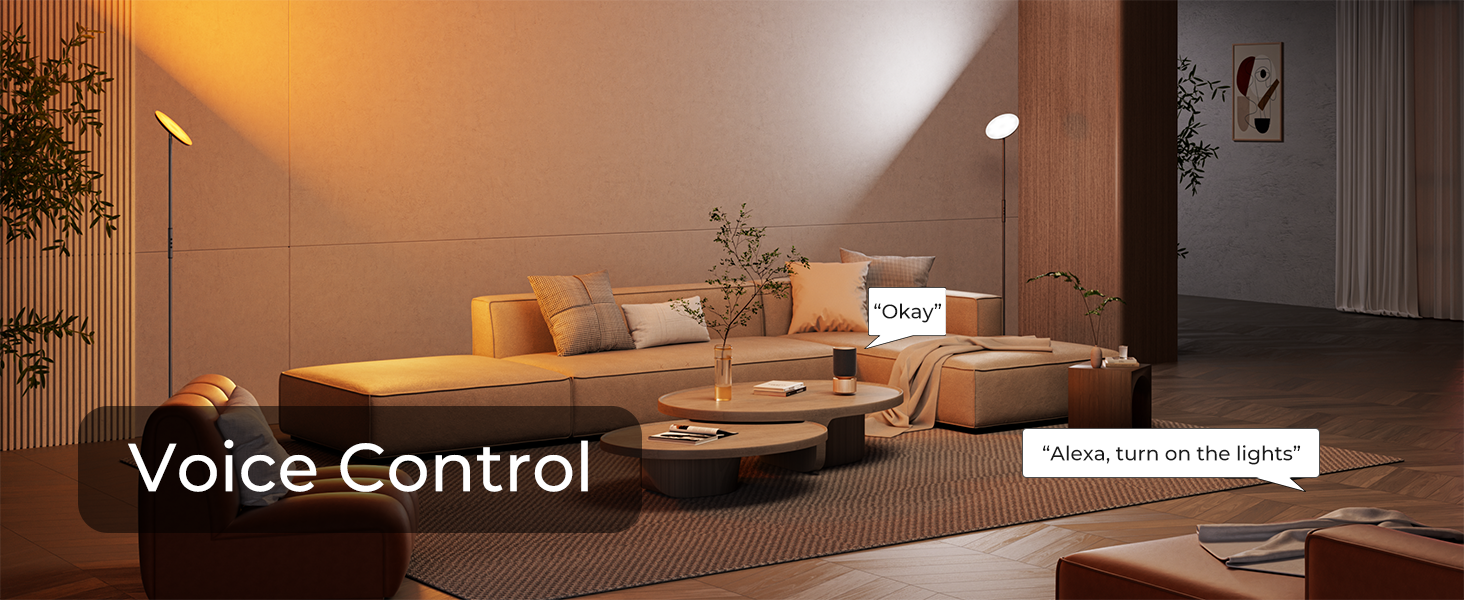
Image: Overview of smart app and voice control options.
App Features:
- Color Adjustment: Access 16 million colors (RGB) and dynamic modes.
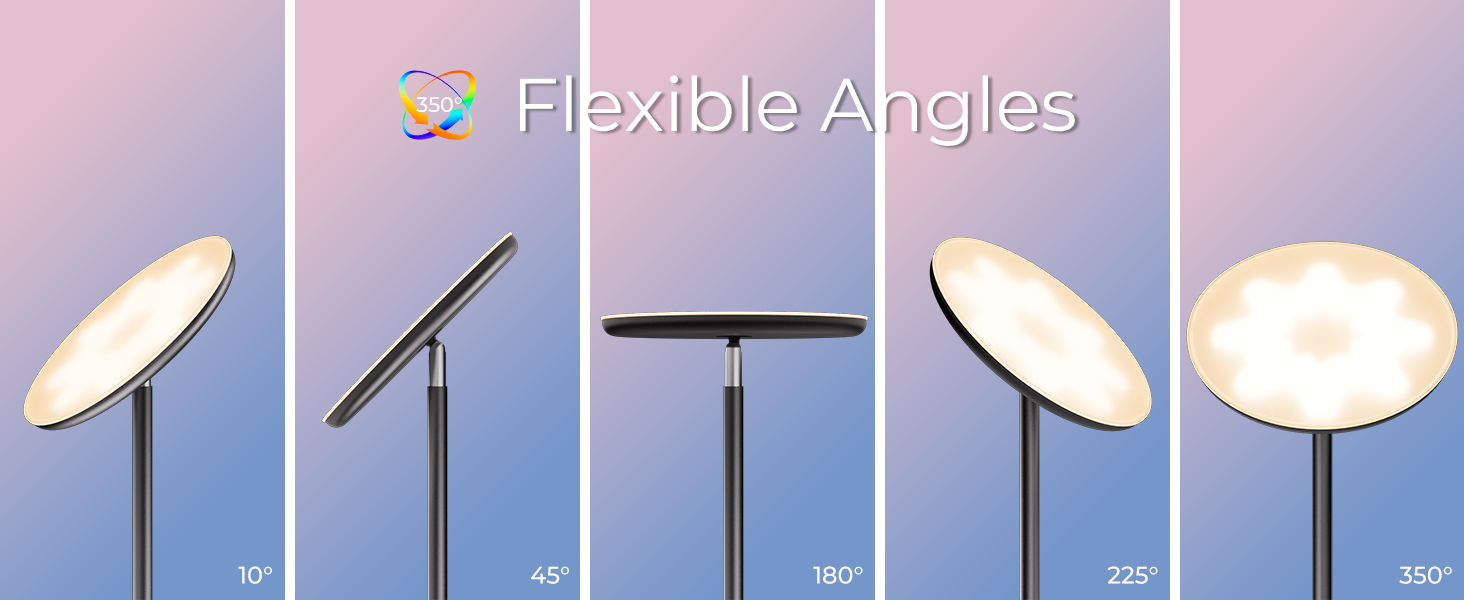
Image: RGB color selection via the smart app.
- Color Temperature & Brightness: Adjust color temperature from 2700K (warm white) to 6500K (cool white) and brightness from 1% to 100%.
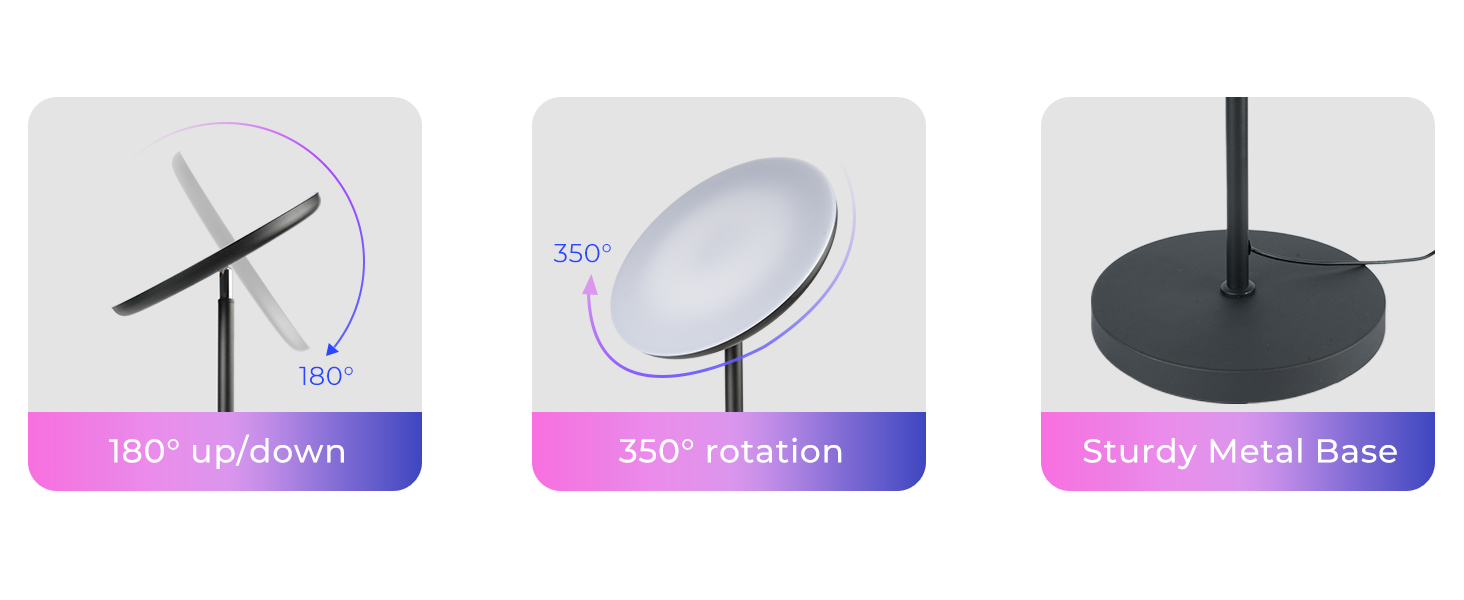
Image: Color temperature and brightness control via the smart app.
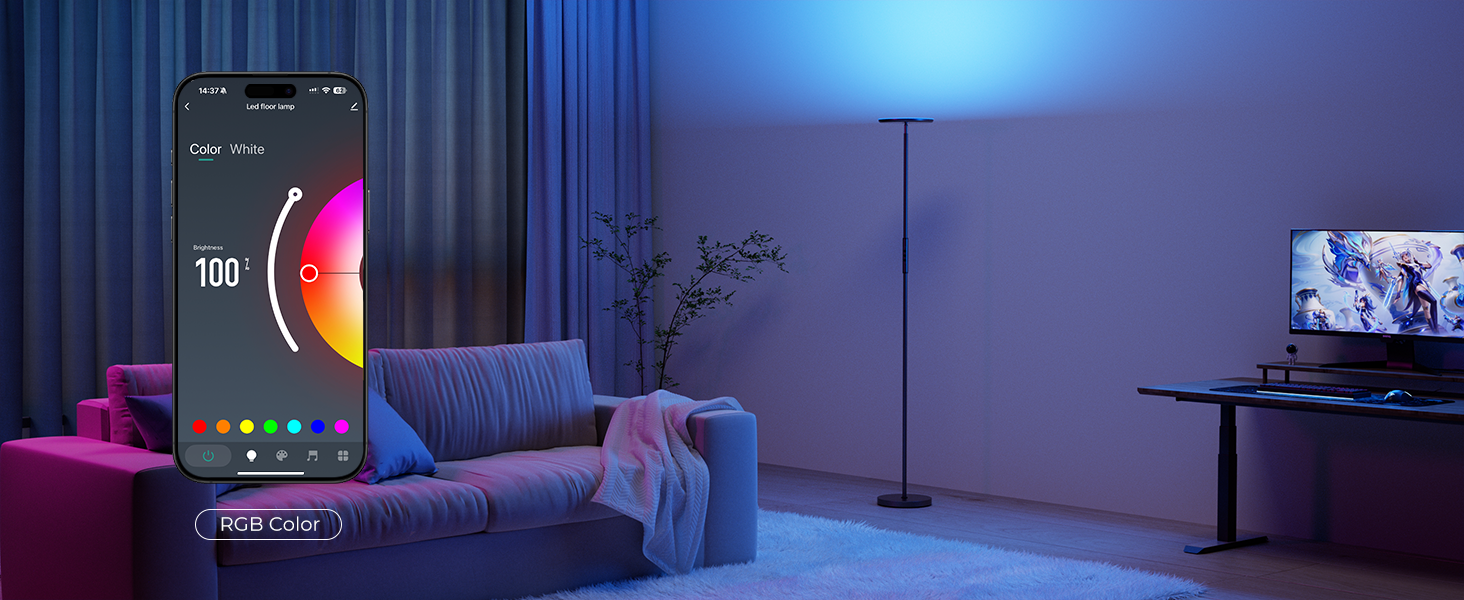
Image: Visual representation of adjustable color temperature and brightness.
- Scene Modes: Select from 32 preset scene modes or create 10 DIY custom scenes.
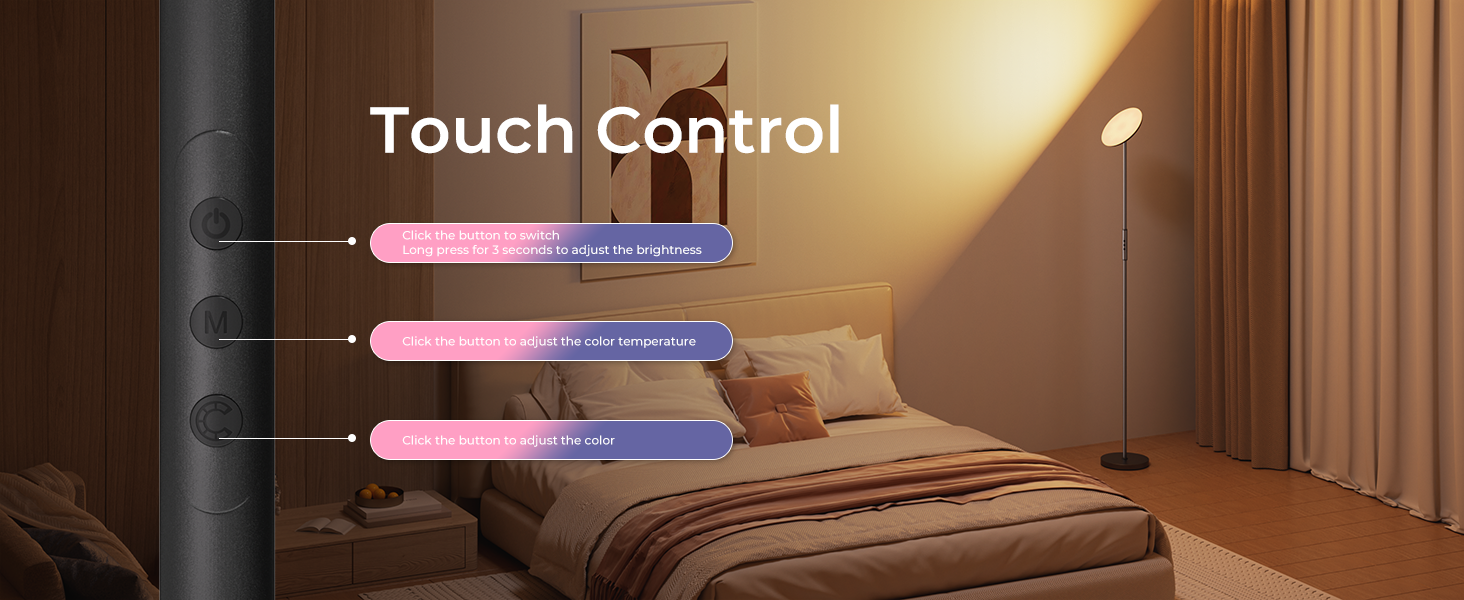
Image: Smart app interface for selecting scene modes.
- Music Sync: Synchronize the lamp's lighting effects with music.
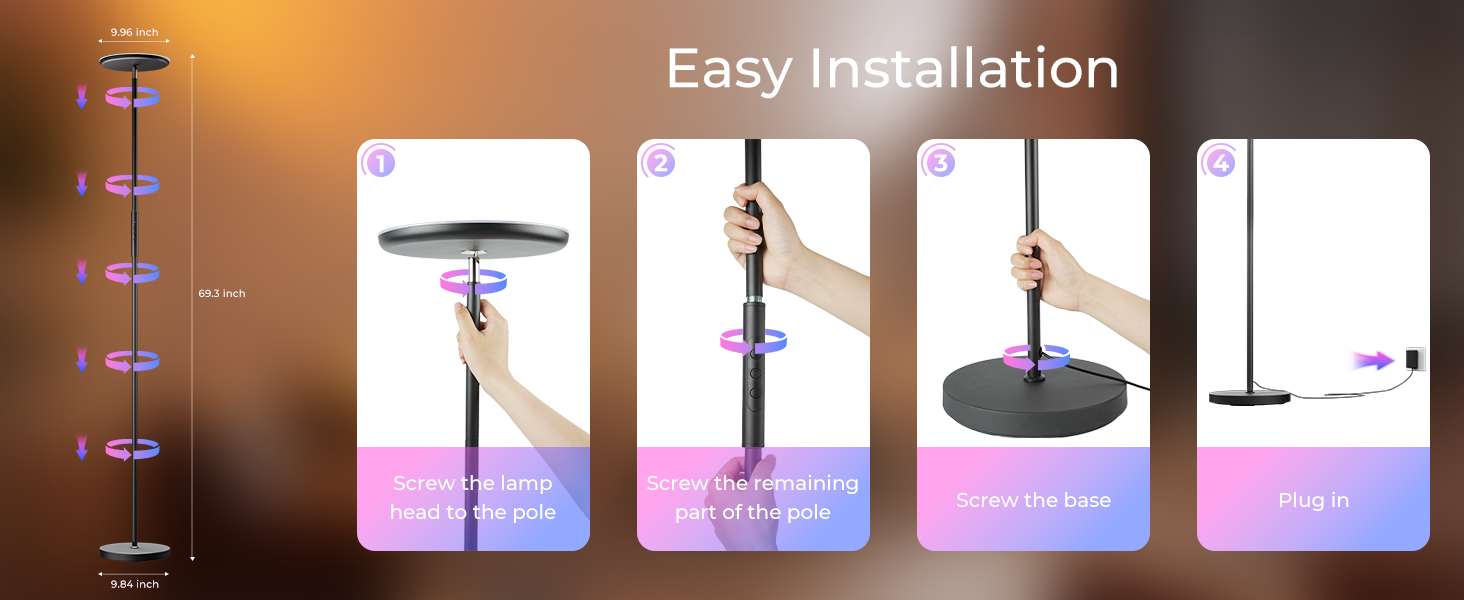
Image: Music synchronization feature in action.
- Timing Function: Set schedules for the lamp to turn on or off automatically.
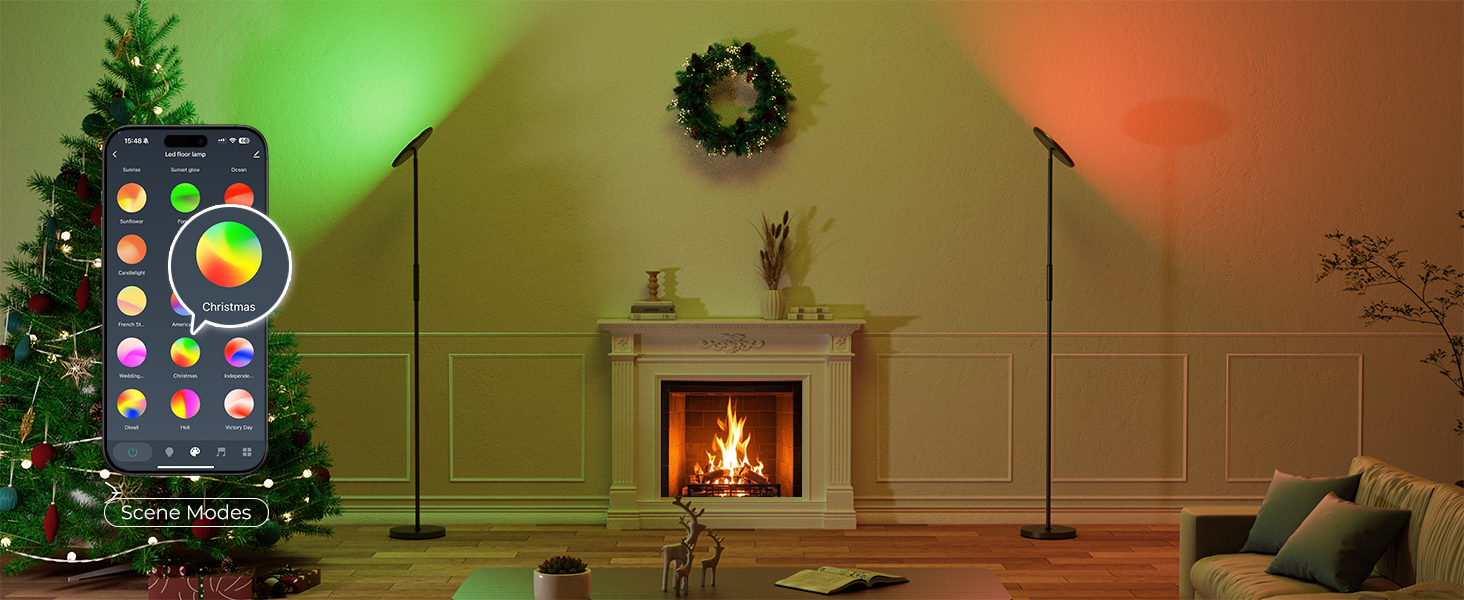
Image: Setting timers for automatic lamp operation.
3. Voice Control
The lamp is compatible with Alexa and Google Assistant for convenient voice commands (2.4GHz WiFi only).
- Ensure your lamp is successfully paired with the smart app and linked to your Alexa or Google Assistant account.
- Use simple commands such as:
- "Alexa, turn on the lights."
- "Hey Google, set the lamp to warm white."
- "Alexa, dim the floor lamp to 50%."
Image: Demonstrating voice control functionality with smart assistants.
4. Adjustable Lamp Head
The lamp head offers flexibility for directing light:
- Rotation: The lamp head can rotate 350 degrees horizontally.
- Tilting: The lamp head can flip 180 degrees up/down.

Image: Lamp head adjustment capabilities.
Maintenance
- Cleaning: Disconnect the power before cleaning. Use a soft, dry cloth to wipe the lamp. Do not use abrasive cleaners or solvents.
- Storage: If storing the lamp, disassemble it and pack it in its original packaging in a dry place.
Troubleshooting
| Problem | Possible Cause | Solution |
|---|---|---|
| Lamp does not turn on. | Power adapter not connected; power outlet issue. | Ensure the power adapter is securely plugged into the lamp and a working electrical outlet. |
| Cannot connect to the smart app. | Incorrect Wi-Fi band; lamp not in pairing mode. | Ensure your phone is on a 2.4GHz Wi-Fi network. Follow the "App Connection and Pairing Instructions" to put the lamp into pairing mode (flashing light). |
| Voice control not working. | Lamp not linked to smart assistant; incorrect Wi-Fi. | Verify the lamp is linked to your Alexa or Google Assistant account through the smart app. Confirm your Wi-Fi is 2.4GHz. |
| Lamp flashes repeatedly when plugged in. | This is normal behavior when entering pairing mode or after a power cycle. | If not intending to pair, simply wait for the flashing to stop or proceed with app pairing if desired. |
Specifications
| Feature | Detail |
|---|---|
| Model Number | DP69-4 |
| Brand | DeckTok |
| Power | 36W |
| Lumen Output | 2800LM |
| Color Temperature | 2700K - 6500K (Adjustable) |
| Color Options | RGB (16 Million Colors), Warm White, Cool White |
| Brightness | 1% - 100% (Stepless Dimmable) |
| Control Methods | Touch, Smart App (Smart Life/Tuya Smart), Voice (Alexa/Google Assistant) |
| Wireless Connectivity | 2.4GHz Wi-Fi only |
| Lamp Head Adjustment | 350° Rotation, 180° Up/Down Flip |
| Height | 69.3 inches |
| Base Material | Metal |
| Product Dimensions (D x W x H) | 9.96"D x 9.84"W x 69.3"H |
| Item Weight | 10.67 pounds |
| UPC | 797457927782 |
Warranty and Support
For warranty information or technical support, please refer to the contact details provided with your purchase or visit the official DeckTok website. Keep your purchase receipt for warranty claims.

