
Introduction
Thank you for choosing the PIX-LINK LV-AC27Q AC2800Mbps Dual Band Wireless Wi-Fi Repeater. This device is engineered to extend your existing Wi-Fi network coverage, eliminate dead zones, and provide a stable, high-speed internet connection throughout your home or office. This manual provides detailed instructions for setup, operation, and troubleshooting to ensure optimal performance.
Please read this manual carefully before using the device and retain it for future reference.
Product Overview
The PIX-LINK LV-AC27Q is a high-performance dual-band Wi-Fi repeater capable of delivering combined speeds up to 2800Mbps. It supports both 2.4GHz and 5GHz bands, offering flexibility for various network needs. Its compact design and multiple operating modes make it a versatile solution for enhancing your wireless network.
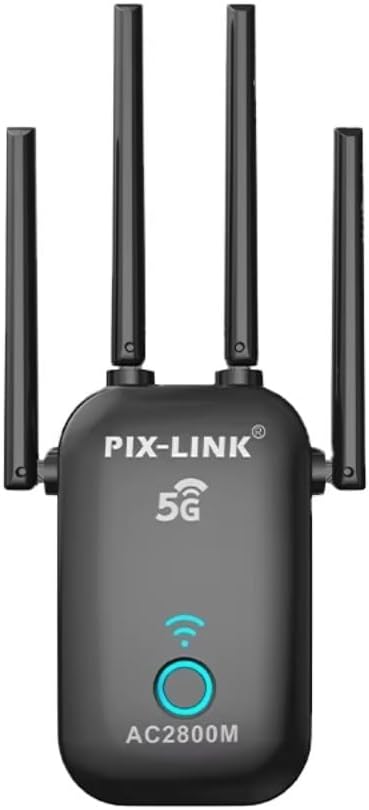
Image 1: Front view of the PIX-LINK LV-AC27Q Wi-Fi Repeater, showing its compact black design with four external antennas, a 5G indicator, and a circular LED button.
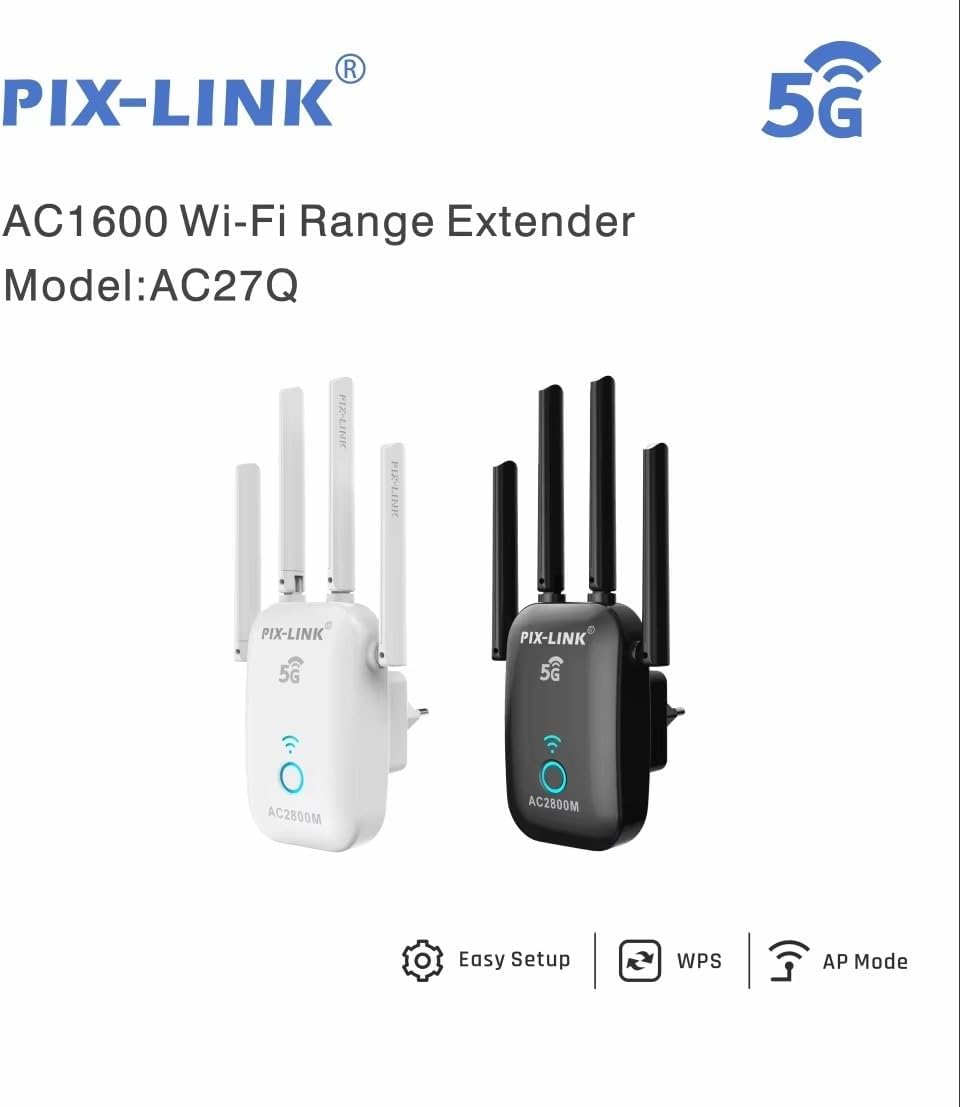
Image 2: Two PIX-LINK AC27Q Wi-Fi Range Extenders, one in black and one in white, illustrating the available color options. The image also highlights features like Easy Setup, WPS, and AP Mode.
Key Features
- High-Speed Performance: Achieves Wi-Fi speeds up to 2800Mbps, supporting smooth streaming, gaming, and browsing.
- Dual Band Technology: Operates on both 2.4GHz and 5GHz bands, minimizing interference and providing stable connections.
- Easy Setup: Designed for quick and straightforward installation with clear LED indicators.
- Wide Coverage: Extends Wi-Fi signal to eliminate dead zones in your home or office.
- Multiple Working Modes: Supports Repeater, Access Point (AP), Router, and WISP modes for versatile network solutions.
- Enhanced Signal Reliability: Features 4 Independent FEMs (Front-End Modules) for improved signal strength and reception.

Image 3: Illustration comparing 5GHz and 2.4GHz Wi-Fi bands. 5GHz offers higher speeds (1200 Mbps) for activities like VR and 4K streaming, while 2.4GHz provides longer transmission distance, better penetration, and greater compatibility (300 Mbps).
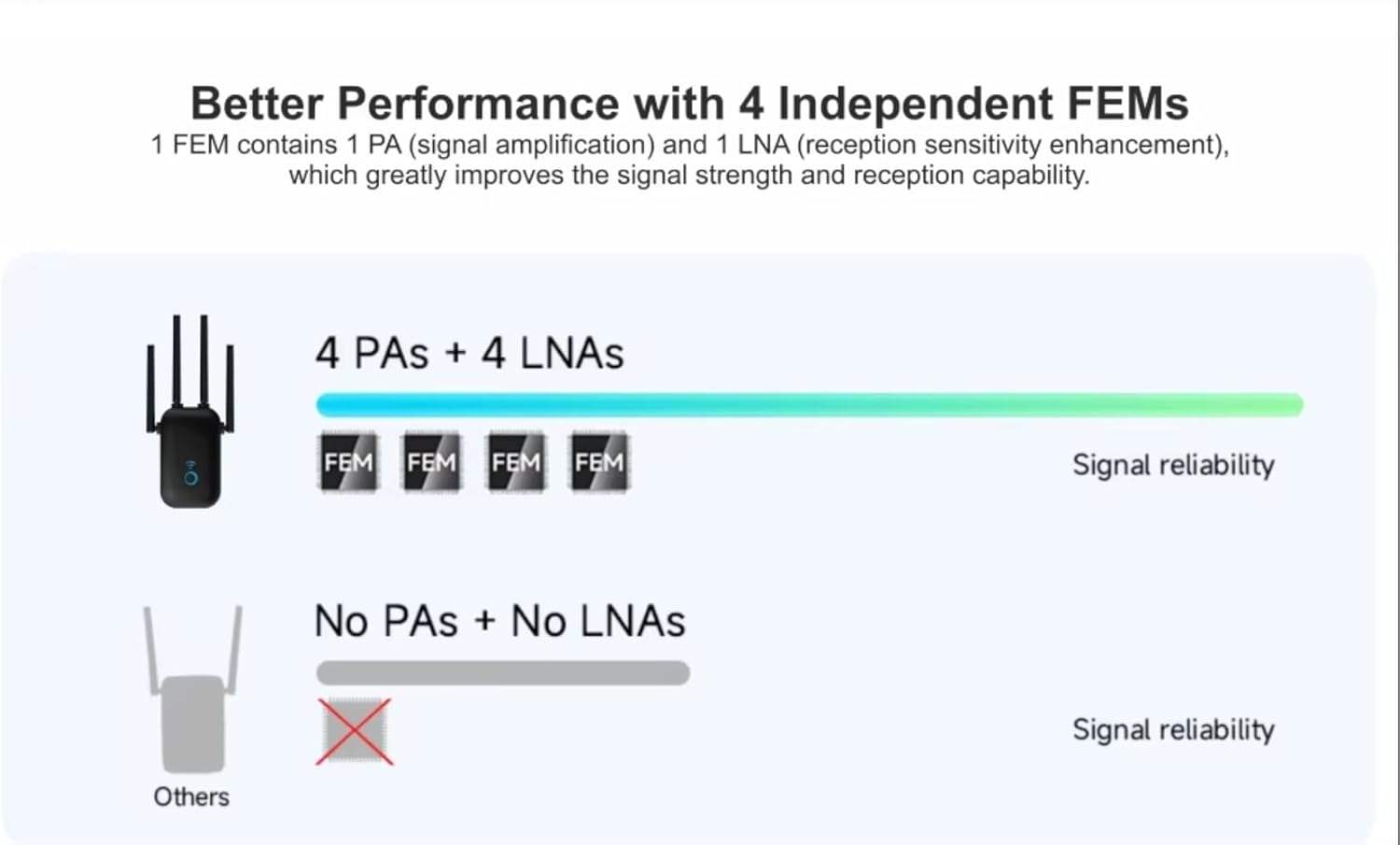
Image 4: Diagram illustrating the enhanced signal reliability of the PIX-LINK LV-AC27Q with 4 Independent FEMs (Front-End Modules), each containing a Power Amplifier (PA) and a Low Noise Amplifier (LNA), compared to devices without these components.
Package Contents
Please check the package carefully for the following items:
- PIX-LINK LV-AC27Q AC2800Mbps Wi-Fi Repeater
- Ethernet Cable
- Quick Installation Guide
- Warranty Card (if applicable)
If any item is missing or damaged, please contact your retailer or customer support.
Setup and Installation
1. Powering On the Device
- Plug the PIX-LINK LV-AC27Q into a power outlet near your existing router.
- Wait for the power LED indicator to light up, indicating the device is ready.
2. Connecting to the Repeater
You can connect to the repeater using a wired or wireless connection.
Wireless Connection:
- On your computer or mobile device, search for available Wi-Fi networks.
- Connect to the network named "PIX-LINK_XXXX" (XXXX will be the last four digits of the device's MAC address).
- No password is required for the initial connection.
Wired Connection:
- Connect one end of an Ethernet cable to the LAN port of the repeater.
- Connect the other end of the Ethernet cable to your computer's Ethernet port.
3. Configuration via Web Browser
- Open a web browser (e.g., Chrome, Firefox, Edge).
- Type 192.168.1.1 or repeater.net into the address bar and press Enter.
- Enter the default username and password (usually admin for both).
- Follow the on-screen instructions to select your desired operating mode and configure network settings.
4. WPS Setup (Wi-Fi Protected Setup)
WPS offers a quick way to connect the repeater to your existing router without manual configuration.
- Plug the repeater into a power outlet near your router.
- Press the WPS button on your existing router.
- Within two minutes, press the WPS button on the PIX-LINK LV-AC27Q repeater.
- The repeater's signal LED will flash and then turn solid, indicating a successful connection.
- You can now unplug the repeater and move it to a desired location within your router's Wi-Fi range.
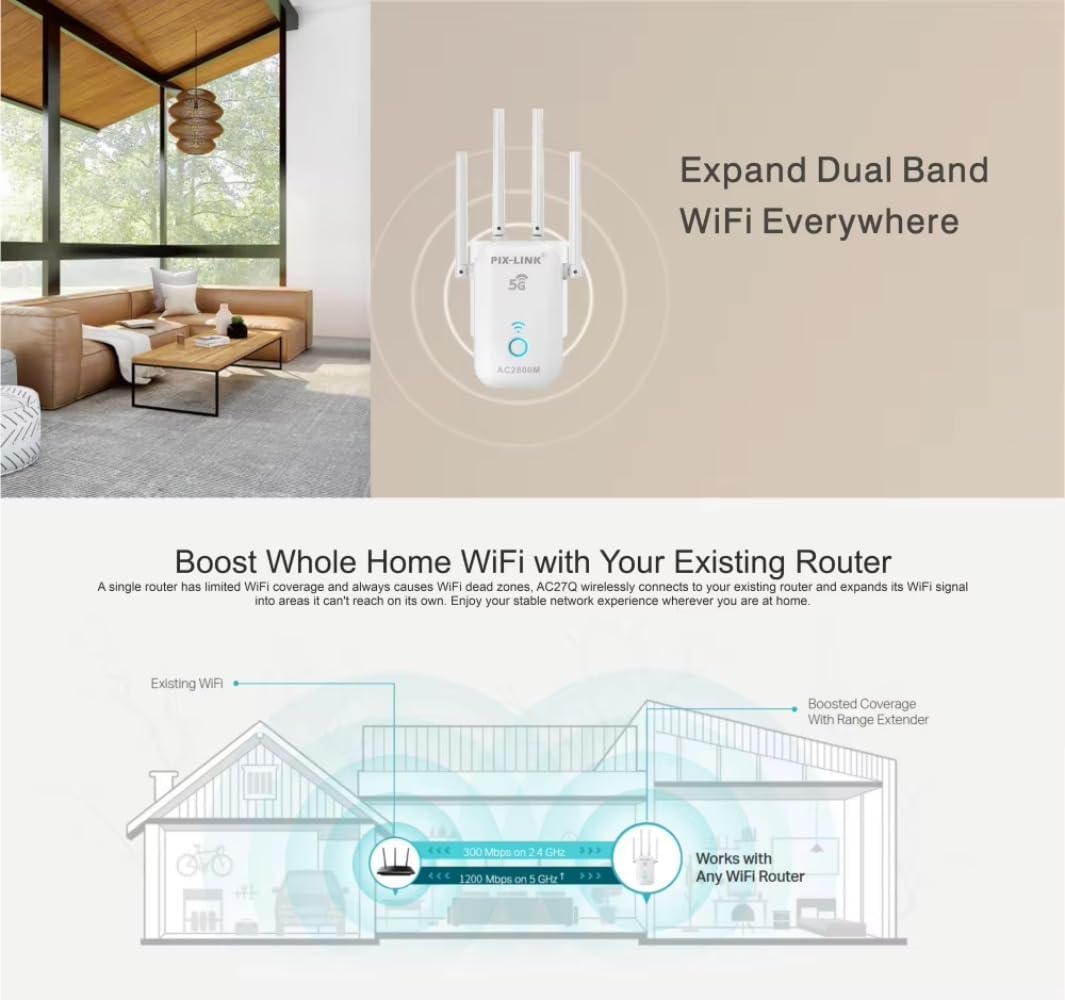
Image 5: A diagram illustrating how the Wi-Fi repeater boosts whole-home Wi-Fi coverage by extending the signal from an existing router to areas previously unreachable, showing signal strength for both 2.4 GHz and 5 GHz bands.
Operating Modes
The PIX-LINK LV-AC27Q supports four primary operating modes to suit various networking requirements:

Image 6: Visual representation of the four working modes of the PIX-LINK LV-AC27Q: Router Mode (with NAT Firewall), Repeater Mode (extending existing Wi-Fi), Access Point Mode (converting wired to wireless), and WISP Mode (connecting to a wireless ISP).
1. Repeater Mode (Range Extender)
In this mode, the device extends the coverage of an existing wireless network. It receives the wireless signal from your main router and re-transmits it, effectively eliminating Wi-Fi dead zones.
- Use Case: Expanding Wi-Fi coverage in large homes or offices.
- Setup: Connect to the repeater, access the web interface, select "Repeater Mode," scan for your existing Wi-Fi network, enter its password, and apply settings.
2. Access Point (AP) Mode
AP Mode transforms your wired network connection into a wireless one. The repeater connects to your router via an Ethernet cable and broadcasts a new Wi-Fi network.
- Use Case: Adding wireless capability to a wired-only network or creating a new Wi-Fi hotspot.
- Setup: Connect the repeater's LAN port to your router's LAN port with an Ethernet cable. Access the web interface, select "AP Mode," configure the new Wi-Fi network name (SSID) and password, and apply settings.
3. Router Mode
In Router Mode, the device acts as a primary router, connecting directly to your modem via an Ethernet cable to create a new private network with its own IP address range and firewall protection.
- Use Case: When you only have a modem and need to create a new wireless network.
- Setup: Connect the repeater's WAN/LAN port to your modem with an Ethernet cable. Access the web interface, select "Router Mode," and follow the prompts for internet connection type (e.g., PPPoE, Dynamic IP, Static IP) and Wi-Fi settings.
4. WISP Mode (Wireless Internet Service Provider)
WISP Mode allows the device to connect wirelessly to an ISP's access point and then share that internet connection with multiple devices, acting as a client router.
- Use Case: Sharing a public Wi-Fi hotspot or connecting to a wireless ISP.
- Setup: Access the web interface, select "WISP Mode," scan for the wireless ISP's network, connect to it, and then configure your local Wi-Fi network settings.
Maintenance
- Firmware Updates: Regularly check the manufacturer's website for firmware updates to ensure optimal performance and security.
- Cleaning: Use a soft, dry cloth to clean the device. Do not use liquid cleaners or aerosols.
- Placement: Ensure the device is placed in a well-ventilated area, away from direct sunlight, heat sources, and moisture.
- Restart: If you experience network issues, try restarting the device by unplugging it from the power outlet for 10 seconds and then plugging it back in.
Troubleshooting
| Problem | Solution |
|---|---|
| No power LED indicator. | Ensure the device is properly plugged into a working power outlet. Try a different outlet. |
| Cannot access the web management page (192.168.1.1). |
|
| Repeater is connected but no internet access. |
|
| Slow Wi-Fi speed after connecting to the repeater. |
|
| Forgot the repeater's login password. | Perform a factory reset by pressing and holding the reset button (usually a small hole) for 5-10 seconds until the LEDs flash. The device will revert to default settings (admin/admin). |
Specifications
| Model | LV-AC27Q |
| Wireless Standards | IEEE 802.11ac/a/b/g/n |
| Frequency | 2.4GHz & 5GHz (Dual Band) |
| Data Rate | Up to 2800Mbps (Combined) |
| Antennas | 4 x External Antennas |
| Ports | 1 x 10/100Mbps Ethernet Port (LAN/WAN) |
| Operating Modes | Repeater, AP, Router, WISP |
| Security | WPA-PSK/WPA2-PSK, WPA/WPA2 |
| Power Supply | AC 100-240V, 50/60Hz |
| Batteries Required | No |
Safety Information
- Do not expose the device to water or moisture.
- Do not open or attempt to repair the device yourself.
- Use only the power adapter provided or specified by the manufacturer.
- Keep the device away from extreme temperatures and direct sunlight.
- Ensure proper ventilation around the device to prevent overheating.
Warranty and Support
For warranty information and technical support, please refer to the warranty card included in your package or visit the official PIX-LINK website. You may also contact your retailer for assistance.
Website: www.pix-link.com (Note: This is a placeholder URL, please refer to actual product documentation for correct support information.)


