
1. Introduction
This manual provides detailed instructions for the MOKiN Thunderbolt 4 Dock, a versatile 16-port docking station designed to expand the connectivity and display capabilities of your laptop. It supports dual and triple monitor setups for various operating systems, including macOS and Windows, and offers high-speed data transfer and power delivery.
Please read this manual thoroughly before using the product to ensure proper setup and operation.
2. Product Overview
2.1. Package Contents
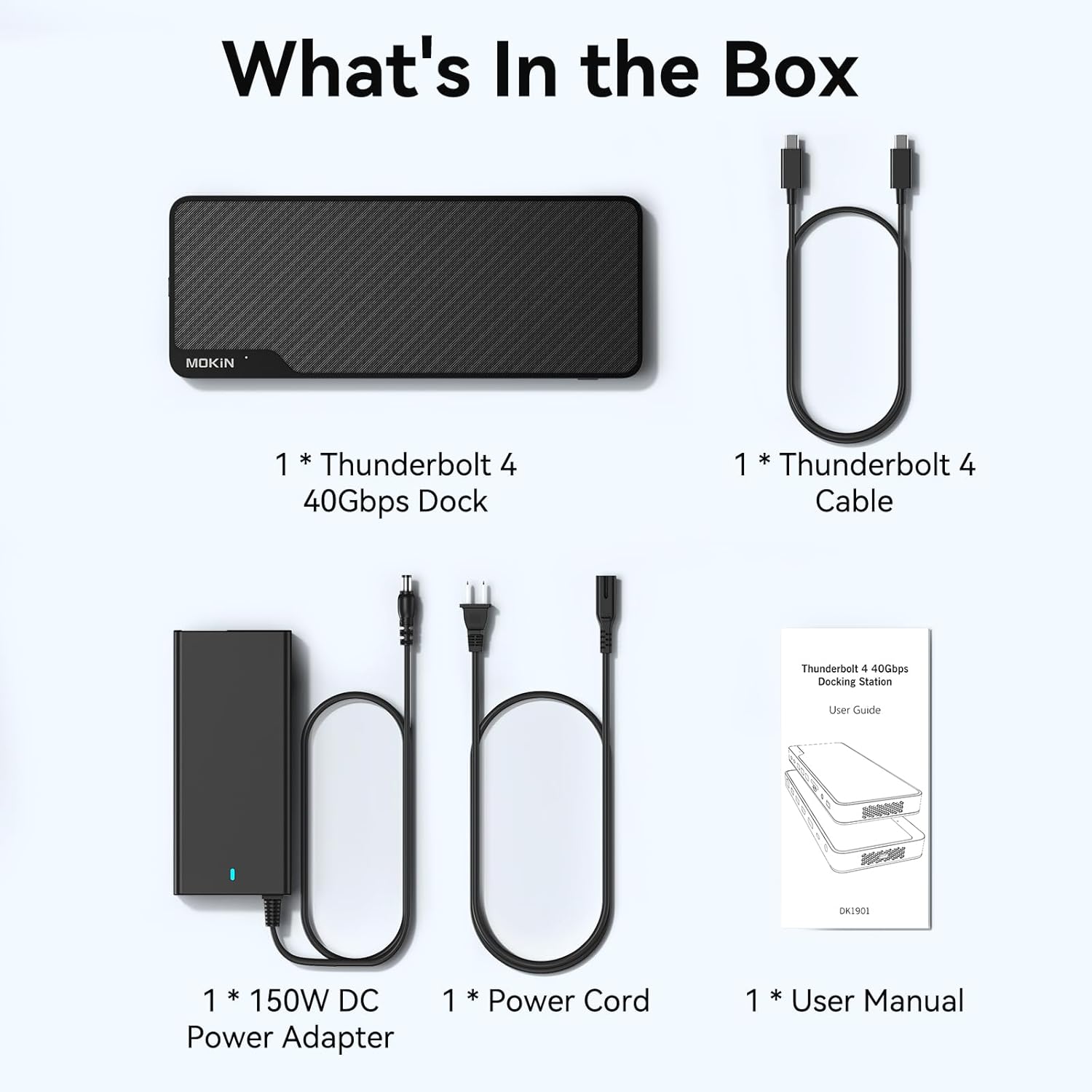
Figure 2.1: Package Contents
The MOKiN Thunderbolt 4 Dock package includes:
- 1 x MOKiN Thunderbolt 4 USB-C Docking Station
- 1 x Thunderbolt 4 Cable
- 1 x 150W DC Power Adapter
- 1 x Power Cord
- 1 x User Guide
2.2. Dock Layout and Ports

Figure 2.2: Front and Rear Port Layout
The docking station features a comprehensive array of ports for various connectivity needs:
- Front Ports: Audio In/Out (3.5mm), Micro SD/SD Card Reader (250MB/s), 2 x USB A 5Gbps, Thunderbolt 4 (40Gbps, 15W, 8K 30Hz), To Host (Up to 100W/96W Certified), Power Button.
- Rear Ports: DC Power Input (150W), 2 x DisplayPort (8K 30Hz), 1 x HDMI (8K 30Hz), 2 x USB A 10Gbps, 1 x USB C 10Gbps, 2.5 Gigabit Ethernet, Security Lock Slot.
3. Setup Instructions
3.1. Power Connection
- Connect the 150W DC Power Adapter to the DC Power Input port on the rear of the docking station.
- Plug the power cord into the power adapter and then into a wall outlet.
3.2. Host Connection
- Use the provided Thunderbolt 4 cable to connect your laptop's Thunderbolt 4 or fully functional USB-C port to the 'To Host' Thunderbolt 4 port on the front of the docking station.
- Ensure your computer is compatible with the Thunderbolt protocol or has fully functional USB-C ports. Refer to the compatibility diagram below.

Figure 3.1: Verify Laptop's USB-C Port Type
Text Description: This diagram illustrates different USB-C port types. For full functionality with the MOKiN Thunderbolt 4 Dock, your laptop's USB-C port must be 'Full Function' (supporting data, video, and power) or 'Data+Video Output' (supporting DisplayPort Alt Mode). Ports that are 'Only Charging' or 'Only Data Transfer' will not support all dock features.
3.3. Display Connection
Connect your external monitors to the DisplayPort and HDMI ports on the rear of the docking station. The dock supports various display configurations:
- Single 8K Display: Connect one monitor to a DisplayPort or HDMI port for up to 8K@30Hz resolution.
- Dual 4K Displays (macOS): For Intel and M1 Pro/Max, M2 Pro/Max, and M3 Pro/Max MacBook models, dual 4K@60Hz displays are supported. For base M1/M2 chips, only mirroring mode is supported. M3 users must close the laptop screen to enable dual-screen extension.
- Triple 4K Displays (Windows): The dock supports triple 4K displays when using two DisplayPort outputs and one HDMI output simultaneously.
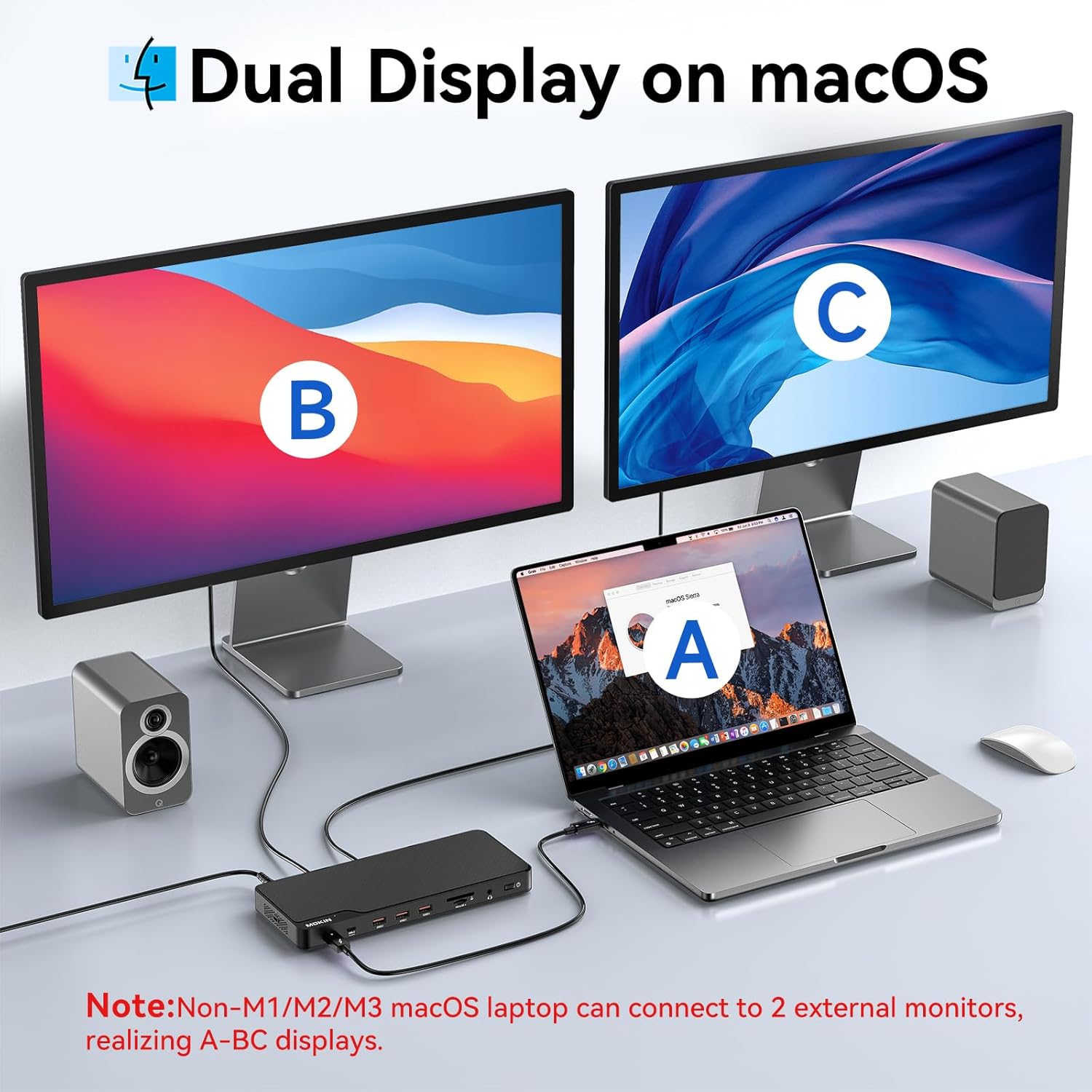
Figure 3.2: Dual Display Setup on macOS
Text Description: An image showing a MacBook connected to the MOKiN Thunderbolt 4 Dock, which then connects to two external monitors, demonstrating a dual display setup on macOS.

Figure 3.3: Triple Display Setup on Windows
Text Description: An image showing a Windows laptop connected to the MOKiN Thunderbolt 4 Dock, which then connects to three external monitors, demonstrating a triple display setup on Windows.
3.4. Peripheral Connection
Connect your USB devices (keyboard, mouse, external drives, etc.) to the available USB-A and USB-C ports on the front and rear of the dock. Insert SD or Micro SD cards into the dedicated card reader slots.
4. Operating Instructions
4.1. Power On/Off
Press the Power Button on the front of the docking station to turn it on or off. The LED indicator will show the power status.
4.2. Display Configuration
After connecting your monitors, your operating system should automatically detect them. You may need to adjust display settings (resolution, arrangement, mirroring/extension) within your computer's display preferences.
4.3. Data Transfer
The dock supports high-speed data transfer:
- Thunderbolt 4 ports: Up to 40Gbps.
- USB 3.1 ports (rear): Up to 10Gbps.
- USB 3.0 ports (front): Up to 5Gbps.
- SD/Micro SD Card Reader: Up to 250MB/s.
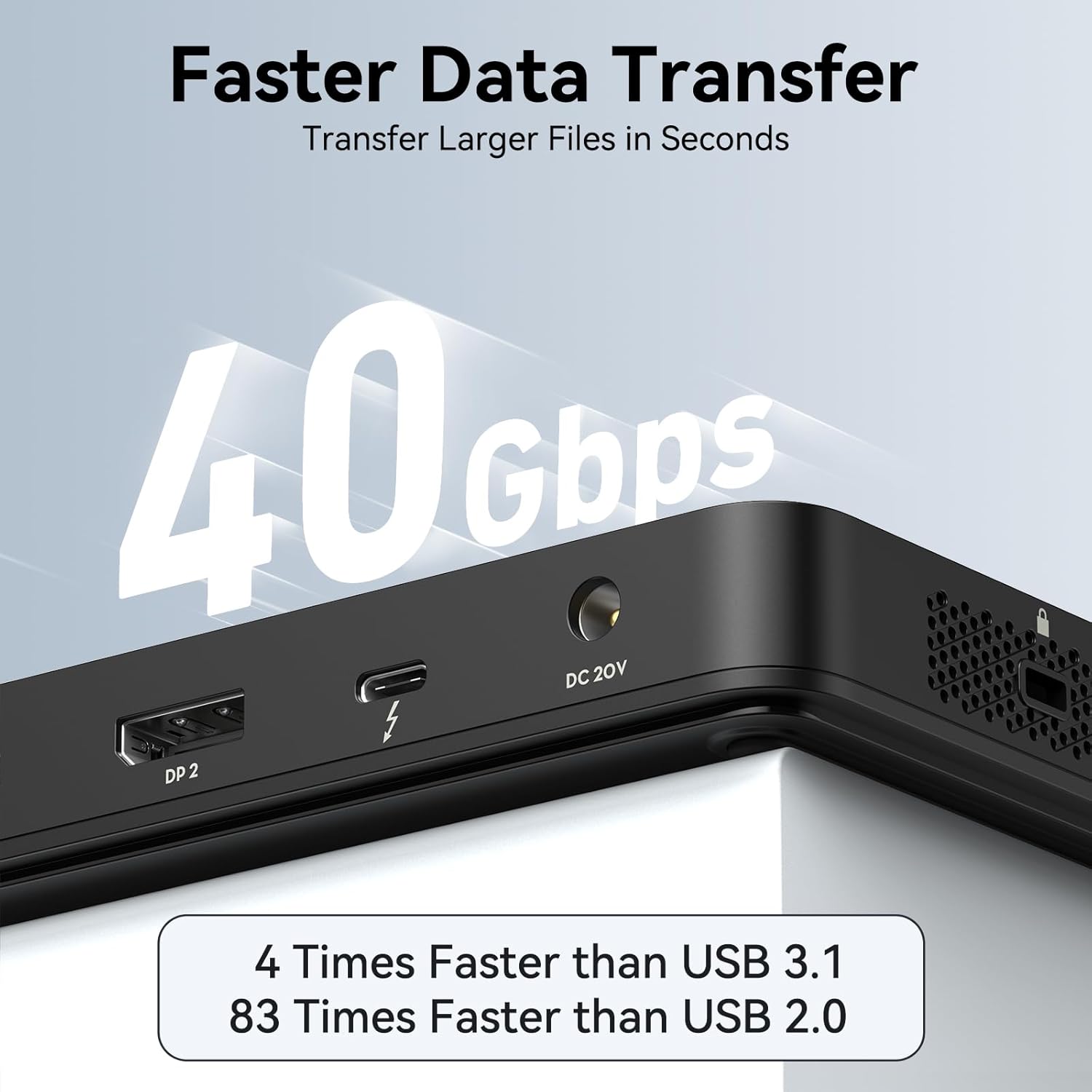
Figure 4.1: Data Transfer Speeds
Text Description: An image highlighting the 40Gbps data transfer speed of the Thunderbolt 4 port, noting it is 4 times faster than USB 3.1 and 83 times faster than USB 2.0.

Figure 4.2: USB Data Transfer Speeds
Text Description: A diagram illustrating the data transfer speeds of various USB ports on the dock: 1*USB 3.1 C + 4*USB 3.1 A at 10Gbps, and 1*USB 2.0 at 480Mbps.

Figure 4.3: SD/Micro SD UHS II Card Reader
Text Description: A diagram showing the SD/Micro SD UHS II card reader with a maximum read/write speed of 250MB/s, enabling seamless data transfer.
4.4. Charging Capabilities
The dock provides power delivery to connected devices:
- Host Charging: Up to 100W (96W certified) to your laptop via the 'To Host' Thunderbolt 4 port.
- Downstream Thunderbolt 4 port: Up to 15W for mobile devices.
- USB-C PD Charging Combo: 10Gbps & 30W charging.
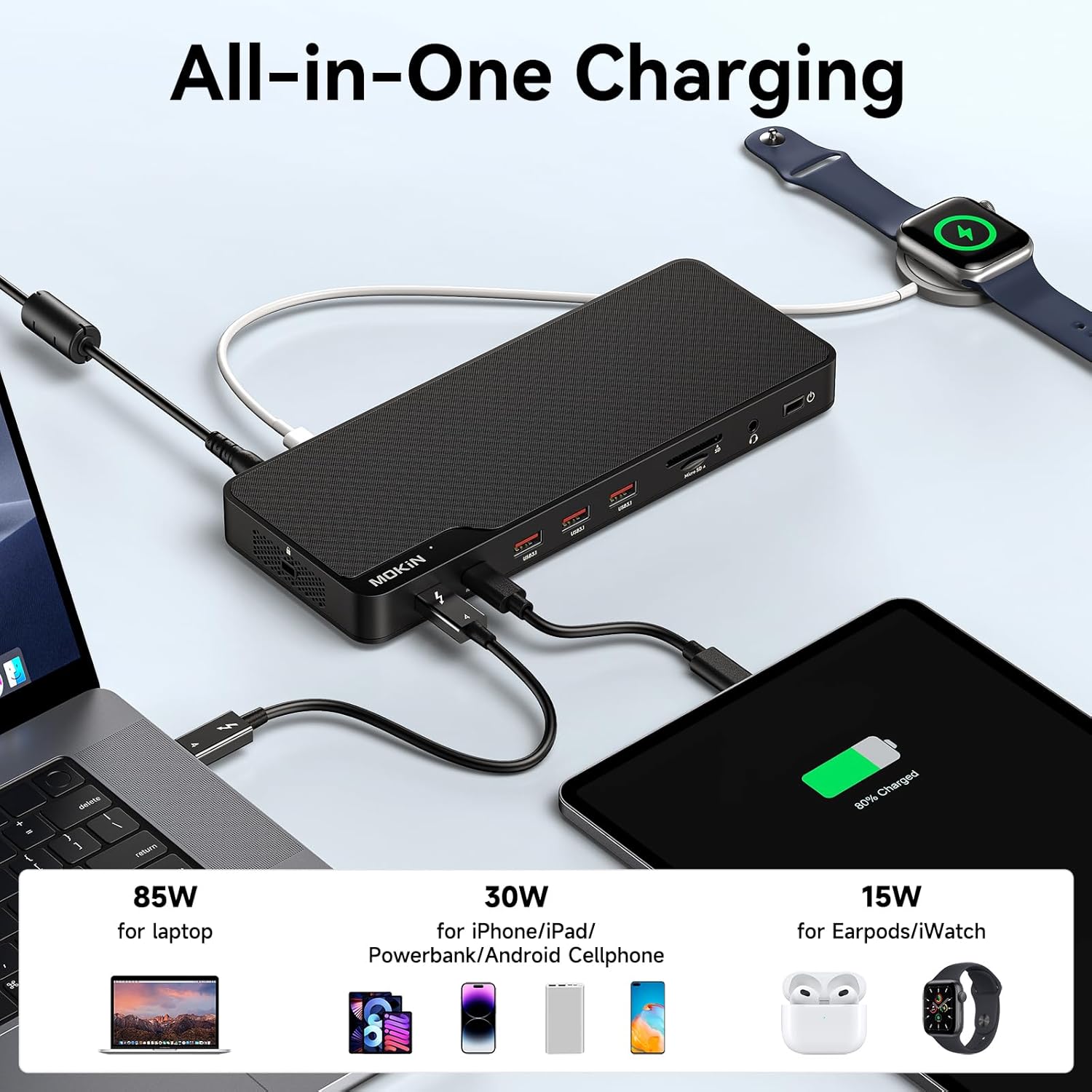
Figure 4.4: All-in-One Charging
Text Description: An image illustrating the charging capabilities of the dock, providing 85W for laptops, 30W for phones/tablets/power banks, and 15W for earbuds/smartwatches.
4.5. Ethernet Connection
Connect an Ethernet cable to the 2.5 Gigabit Ethernet port for a stable and high-speed wired network connection.

Figure 4.5: 2.5 Gigabit Ethernet
Text Description: A diagram showing a laptop connected to the dock via a USB-C cable, with an Ethernet cable plugged into the dock, illustrating 2500Mbps high-speed and stable Ethernet connectivity.
5. Maintenance
To ensure the longevity and optimal performance of your MOKiN Thunderbolt 4 Dock, follow these maintenance guidelines:
- Cleaning: Use a soft, dry cloth to clean the exterior of the dock. Avoid liquid cleaners or solvents.
- Handling: Handle the dock with care. Avoid dropping it or subjecting it to strong impacts.
- Ventilation: Ensure the dock is placed in a well-ventilated area to prevent overheating. Do not block the ventilation holes.
- Storage: When not in use for extended periods, store the dock in a cool, dry place away from direct sunlight.
6. Troubleshooting
If you encounter issues with your MOKiN Thunderbolt 4 Dock, refer to the following common troubleshooting steps:
- No Display Output:
- Ensure the dock is powered on and the host cable is securely connected.
- Verify that your laptop's USB-C port supports video output (DisplayPort Alt Mode or Thunderbolt).
- Check monitor input settings and cable connections.
- For M3 MacBooks, ensure the laptop lid is closed for dual-screen extension.
- Intermittent Connectivity:
- Ensure all cables are securely connected.
- Try restarting your laptop and the docking station.
- Ensure no other devices are causing interference.
- Slow Data Transfer:
- Ensure you are using the correct ports for high-speed devices (Thunderbolt 4 or USB 3.1 10Gbps).
- Check the specifications of your connected devices and cables.
- No Charging:
- Verify the power adapter is correctly connected and receiving power.
- Ensure your laptop supports charging via its Thunderbolt/USB-C port.
7. Specifications
| Feature | Specification |
|---|---|
| Model Number | MODK1901 |
| Ports | 16 (1x Thunderbolt 4 Host, 1x Thunderbolt 4 Downstream, 1x USB-C 10Gbps, 2x USB-A 10Gbps, 2x USB-A 5Gbps, 2x DisplayPort, 1x HDMI, 2.5G Ethernet, SD/Micro SD, Audio In/Out, DC Power Input, Security Lock) |
| Power Delivery (Host) | Up to 100W (96W Certified) |
| Power Adapter | 150W DC |
| Data Transfer Speed | Thunderbolt 4: 40Gbps; USB 3.1: 10Gbps; USB 3.0: 5Gbps; SD/Micro SD: 250MB/s |
| Ethernet | 2.5 Gigabit |
| Display Output | Single 8K@30Hz; Dual 4K@60Hz (MacBook Intel/M1 Pro/Max/M2 Pro/Max/M3 Pro/Max); Triple 4K (Windows) |
| Compatible Devices | Windows 11 Thunderbolt 4 hosts and Thunderbolt 4 Macs with macOS 11+ (including M4 MacBook Pro/Air, M1/M2/M3 Pro/Max, base M3 with clamshell mode for dual displays), HP ProBook/EliteBook/Spectre x360, Dell XPS/Latitude/Inspiron, Lenovo ThinkPad/IdeaPad/Yoga, Framework (Intel), Microsoft Surface Pro 9/8/Laptop Studio/Laptop 5. |
| Dimensions | 11.65 x 7.72 x 2.01 inches |
| Item Weight | 2.07 pounds |
8. Official Product Videos
MOKiN Thunderbolt Docking Station Overview
Text Description: A short video providing an overview of the MOKiN Thunderbolt Docking Station's features and connectivity.
MOKiN Thunderbolt 4 Dock Features
Text Description: A video showcasing the key features and benefits of the MOKiN Thunderbolt 4 Dock.
MOKiN Thunderbolt 4 Dock Unboxing and Setup
Text Description: An unboxing video demonstrating the contents of the MOKiN Thunderbolt 4 Dock package and initial setup steps.
9. Warranty and Support
For warranty information and customer support, please refer to the User Guide included in your package or contact MOKiN customer service directly. MOKiN is committed to providing friendly customer service and support.


