
1. Introduction
This manual provides detailed instructions for the installation, configuration, and operation of the PIX-LINK LV-AC27Q AC2800Mbps Dual Band Wireless Wi-Fi Repeater. This device is designed to extend your existing Wi-Fi network coverage, eliminate dead zones, and improve wireless signal strength and reliability throughout your home or office.
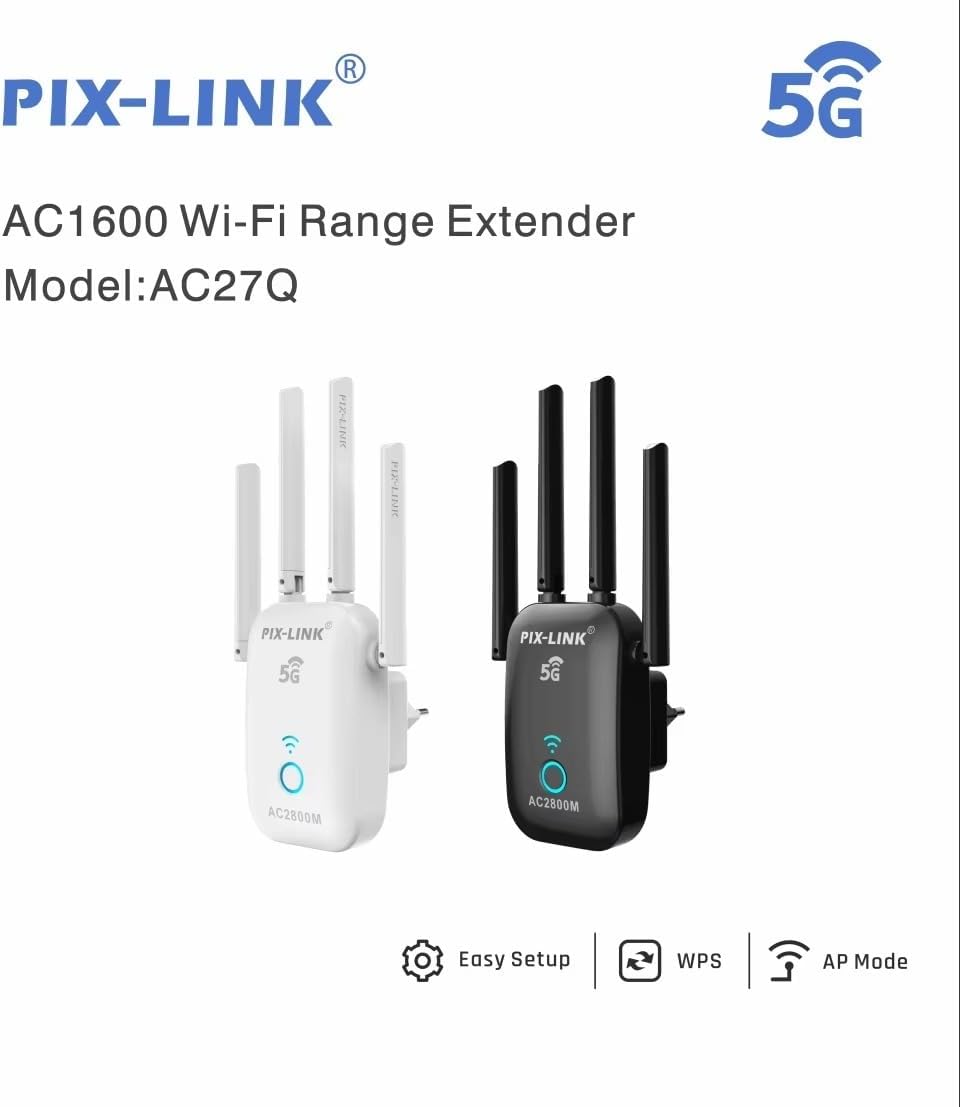
Image 1.1: PIX-LINK AC1600 Wi-Fi Range Extender, Model AC27Q. This image displays both black and white versions of the device, highlighting its key features such as easy setup, WPS functionality, and AP mode support. The device is shown with four external antennas.
2. Product Features
- High-Speed Performance: The PIX-LINK LV-AC27Q AC2800Mbps dual-band wireless Wi-Fi signal booster offers Wi-Fi speeds up to 2800 Mbps, supporting smooth streaming, gaming, and browsing.
- Dual-Band Technology: Advanced dual-band capabilities (2.4 GHz and 5 GHz) minimize interference, providing a stable and reliable connection.
- Easy Setup: Designed for user-friendly installation, allowing Wi-Fi coverage extension within minutes, featuring clear LED indicators and a simple interface.
- Multiple Operating Modes: Supports Router, Repeater, Access Point (AP), and WISP modes to suit various network requirements.
- Enhanced Signal Reliability: Equipped with 4 independent FEMs (Front-End Modules), each containing a Power Amplifier (PA) and a Low Noise Amplifier (LNA), to significantly improve signal strength and reception capability.

Image 2.1: Dual-Band Wi-Fi Capabilities. This illustration explains the benefits of dual-band operation, showing that 5GHz offers higher speeds, better stability, and anti-interference, while 2.4GHz provides longer transmission distance, better penetration, and greater compatibility.
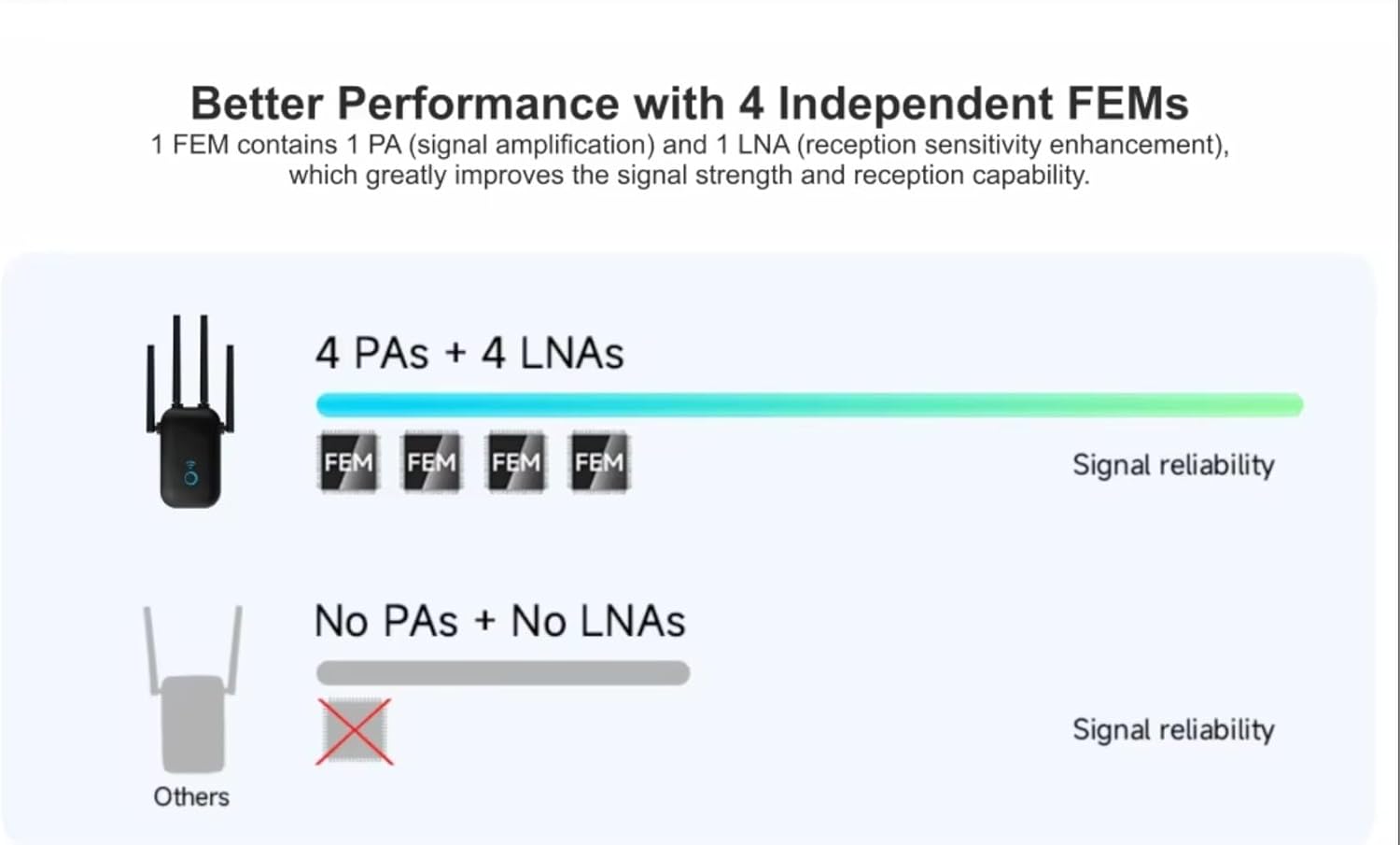
Image 2.2: Enhanced Performance with FEMs. This diagram compares the signal reliability of the device with 4 independent FEMs (each containing a Power Amplifier and a Low Noise Amplifier) against other devices lacking these components, demonstrating superior signal strength and reception.
3. Hardware Overview
The PIX-LINK LV-AC27Q features a compact design with external antennas for optimal signal coverage. Key components include:
- Antennas: Four external, adjustable antennas for improved signal transmission and reception.
- LED Indicator: A central LED light indicates the device's status (e.g., power, Wi-Fi signal strength).
- WPS Button: For quick and secure connection to your router using Wi-Fi Protected Setup.
- Ethernet Port: For wired connections in AP or Router mode.
- Power Plug: Integrated into the device for direct wall outlet connection.
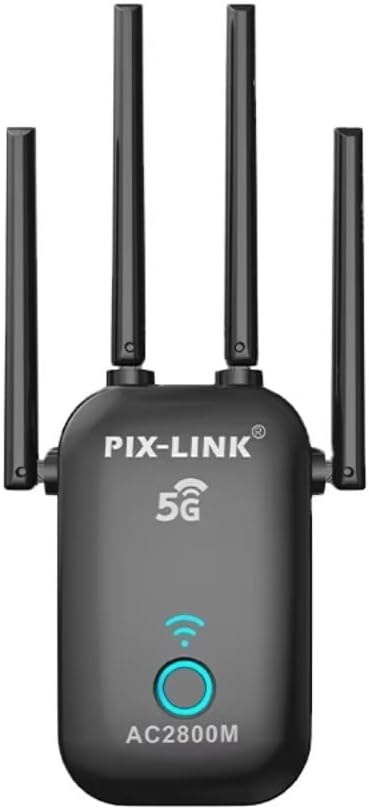
Image 3.1: Front View of the PIX-LINK LV-AC27Q. This image shows the front of the black Wi-Fi repeater, featuring the PIX-LINK logo, a "5G" indicator, a circular LED button that illuminates for Wi-Fi signal status, and the "AC2800M" model designation at the bottom. Four antennas are visible.
4. Setup and Installation
The PIX-LINK LV-AC27Q supports multiple operating modes. Choose the mode that best suits your network requirements.
4.1. Operating Modes

Image 4.1: Four Working Modes. This diagram illustrates the four operational modes of the device: Router Mode (protected by NAT Firewall), Repeater Mode (extending an existing Wi-Fi signal), Access Point Mode (converting wired to wireless), and WISP Mode (connecting to a wireless ISP).
- Repeater Mode: Extends the coverage of an existing wireless network. Ideal for eliminating Wi-Fi dead zones.
- Access Point (AP) Mode: Converts a wired network connection into a wireless access point.
- Router Mode: Functions as a primary router, creating a new private network.
- WISP Mode: Connects wirelessly to an Internet Service Provider (ISP) and shares the connection with local devices.
4.2. General Setup Steps (Repeater Mode Example)
- Power On: Plug the repeater into an electrical outlet near your existing router. Wait for the power LED to stabilize.
- Connect: On your computer or mobile device, connect to the repeater's default Wi-Fi network (e.g., "PIX-LINK_XXXX"). No password is required initially.
- Access Web UI: Open a web browser and enter the default IP address (usually
192.168.1.1or192.168.0.1) or domain name (e.g.,wifi.repeater) provided in the quick start guide. - Log In: Enter the default username and password (typically
adminfor both). - Select Mode: Follow the on-screen wizard to select "Repeater Mode".
- Scan for Networks: The repeater will scan for available Wi-Fi networks. Select your home Wi-Fi network from the list.
- Enter Password: Enter the password for your existing Wi-Fi network.
- Configure Extended Network: You can choose to keep the same SSID (network name) as your main router or create a new one for the extended network.
- Apply Settings: Save the settings. The repeater will restart.
- Relocate: Once configured, unplug the repeater and move it to a location halfway between your router and the Wi-Fi dead zone. Ensure the signal LED indicates a good connection to your main router.
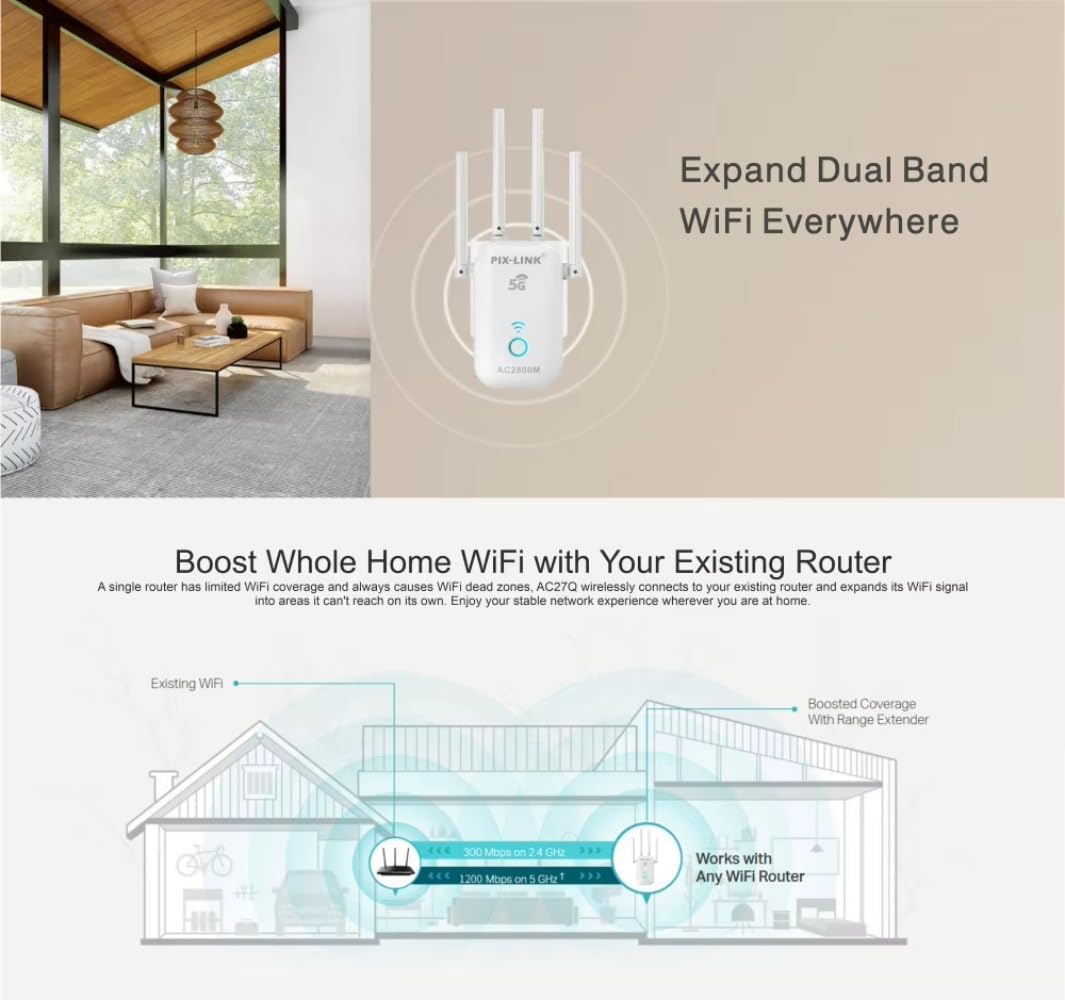
Image 4.2: Boosting Whole Home Wi-Fi. This diagram illustrates how the PIX-LINK LV-AC27Q extends Wi-Fi coverage from an existing router, showing signal paths and improved coverage areas within a house, indicating compatibility with any Wi-Fi router.
5. Operation
Once the PIX-LINK LV-AC27Q is successfully set up, it will operate automatically according to the chosen mode. For optimal performance:
- Signal Strength: Observe the LED indicator on the device. A strong, stable light typically indicates a good connection to your main router. If the light is weak or blinking, consider relocating the repeater closer to your router.
- Connecting Devices: Devices in the extended coverage area should automatically connect to the stronger signal provided by the repeater if you used the same SSID. If you created a new SSID, connect to that network.
- Accessing Settings: To change settings or switch modes, access the web management interface using the IP address or domain name you used during initial setup.
6. Maintenance
Regular maintenance helps ensure the longevity and optimal performance of your Wi-Fi repeater.
- Firmware Updates: Periodically check the manufacturer's website for firmware updates. Updating firmware can improve performance, add new features, and fix security vulnerabilities.
- Cleaning: Gently wipe the device with a soft, dry cloth. Do not use liquid cleaners or abrasive materials. Ensure the device is unplugged before cleaning.
- Placement: Avoid placing the repeater in enclosed spaces, near large metal objects, or away from direct line of sight to your main router, as these can interfere with signal transmission.
- Reset: If the device becomes unresponsive or you forget the login credentials, you can perform a factory reset using the reset button (usually a small pinhole button). Refer to the quick start guide for specific instructions.
7. Troubleshooting
If you encounter issues with your PIX-LINK LV-AC27Q, refer to the following common problems and solutions:
| Problem | Solution |
|---|---|
| Cannot access the web management page. |
|
| No internet access after setup. |
|
| Weak or unstable extended Wi-Fi signal. |
|
| Forgot login password for the repeater. |
|
8. Specifications
| Feature | Detail |
|---|---|
| Brand | PIX-LINK (RTHCNB) |
| Model | LV-AC27Q |
| Wireless Standard | AC2800Mbps (Dual Band) |
| Frequency Bands | 2.4 GHz and 5 GHz |
| Operating Modes | Repeater, AP, Router, WISP |
| Antennas | External, adjustable |
| Power Source | Integrated AC plug |
| Batteries Required | No |
| ASIN | B0F7R21Z7V |
9. Warranty and Support
Specific warranty information and detailed support contact details are not provided within the product data. Please refer to the documentation included with your purchase or contact your retailer for warranty terms and technical support.


