
1. Introduction
This manual provides comprehensive instructions for the ATTACK SHARK X82 PRO HE Wireless Mechanical Gaming Keyboard. Designed for high-performance gaming, this keyboard features a 75% layout, Hall Effect magnetic switches with rapid trigger functionality, tri-mode connectivity, and customizable RGB lighting. Please read this manual thoroughly to ensure proper setup, operation, and maintenance of your device.
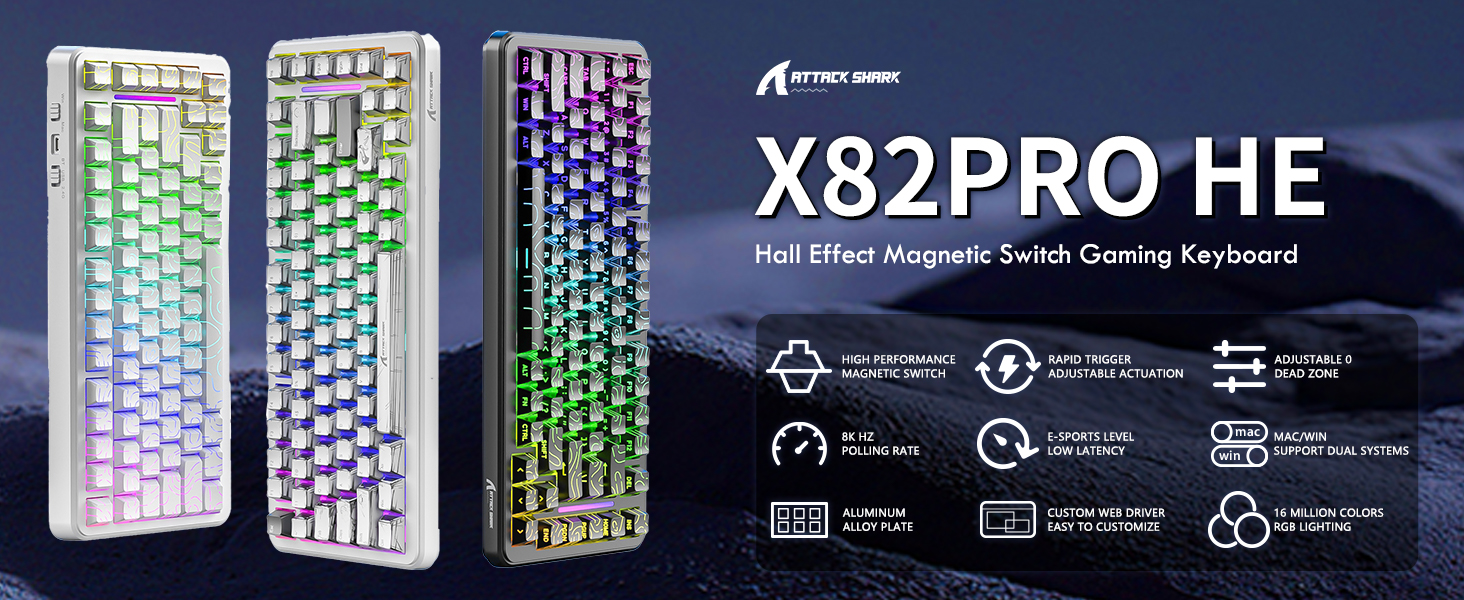
Image 1.1: Overview of the ATTACK SHARK X82 PRO HE Keyboard features.
2. Package Contents
- ATTACK SHARK X82 PRO HE Wireless Mechanical Gaming Keyboard
- USB-C to USB-A Cable
- 2.4GHz Wireless Receiver
- Keycap Puller (may vary by package)
- User Manual
3. Key Features
- 75% Layout with Pro-Level Responsiveness: Features an 83-key layout with an 8000Hz polling rate, 0.1ms ultra-low latency, and 128K scanning rate for precise and instant keystroke registration.
- Tri-Mode Connectivity: Supports Type-C wired, 2.4GHz wireless, and Bluetooth 5.0 connections. Equipped with a 5000mAh battery for extended wireless use. Includes a switch for Windows and Mac operating systems.
- Top Mounted & Hot-Swappable Design: Constructed with a top-mounted structure and an aluminum alloy positioning plate. Features dual-layer PORON foam for improved acoustics. Equipped with self-developed Hall Effect magnetic switches, offering 0.01mm actuation precision and full DIY adjustability. Supports hot-swapping with N-pole downward magnetic switches.
- Cloud-Powered Customization: Utilizes a web-based software (qmk.top) for advanced customization, including Rapid Trigger (RT), SOCD (Snap Tap), DKS/MT/TGL functions, lighting control, macro programming, and deadzone adjustments.
- RGB Lighting & PBT Keycaps: Features south-facing RGB lighting with over 20 dynamic backlight effects and side-bar effects, offering 16.8 million customizable colors via software. Includes double-shot PBT keycaps for durability and a premium feel. Supports full N-Key Rollover.
4. Setup
4.1 Initial Charging
Before first use, it is recommended to fully charge the keyboard. Connect the provided USB-C cable to the keyboard's USB-C port and the other end to a powered USB port on your computer or a USB wall adapter. The charging indicator will show the charging status.
4.2 Connectivity Modes
The X82 PRO HE keyboard supports three connection modes: Wired (USB-C), 2.4GHz Wireless, and Bluetooth 5.0. Use the mode switch located on the side of the keyboard to select your desired connection type.

Image 4.1: Triple Mode Connection options and switches.
4.2.1 Wired Mode
- Set the mode switch on the keyboard to the "USB" position.
- Connect the USB-C cable from the keyboard to your computer's USB port.
- The keyboard will be automatically recognized by your computer.
4.2.2 2.4GHz Wireless Mode
- Locate the 2.4GHz wireless receiver (usually stored in a compartment on the keyboard or in the packaging).
- Plug the 2.4GHz receiver into an available USB port on your computer.
- Set the mode switch on the keyboard to the "2.4G" position.
- The keyboard should connect automatically. If not, press FN + 4 to initiate pairing.
4.2.3 Bluetooth Mode
- Set the mode switch on the keyboard to the "BT" position.
- On your device (computer, phone, tablet), enable Bluetooth and search for new devices.
- On the keyboard, press and hold FN + 1, FN + 2, or FN + 3 for 3-5 seconds to enter pairing mode for one of the three available Bluetooth channels. The indicator light will flash rapidly.
- Select "ATTACK SHARK X82 PRO HE" from the list of available Bluetooth devices on your host device to complete pairing.
4.3 Operating System Switch
Use the dedicated switch on the side of the keyboard to toggle between Windows (WIN) and Mac (MAC) compatibility modes. This ensures correct key mapping for your operating system.
5. Operating Instructions
5.1 Basic Functions
The keyboard functions as a standard QWERTY layout keyboard. Many functions are accessible via the FN key combined with other keys.
5.2 RGB Lighting Control
The X82 PRO HE features customizable RGB lighting. Use the following FN key combinations to adjust lighting effects directly on the keyboard:
- FN + \ |: Switch between different backlight modes.
- FN + Enter: Switch between different backlight colors within the current mode.
- FN + ↑: Increase backlight brightness.
- FN + ↓: Decrease backlight brightness.
- FN + ←: Decrease backlight speed.
- FN + →: Increase backlight speed.
- FN + A: Switch light bar color.
- FN + Caps: Switch light bar mode.
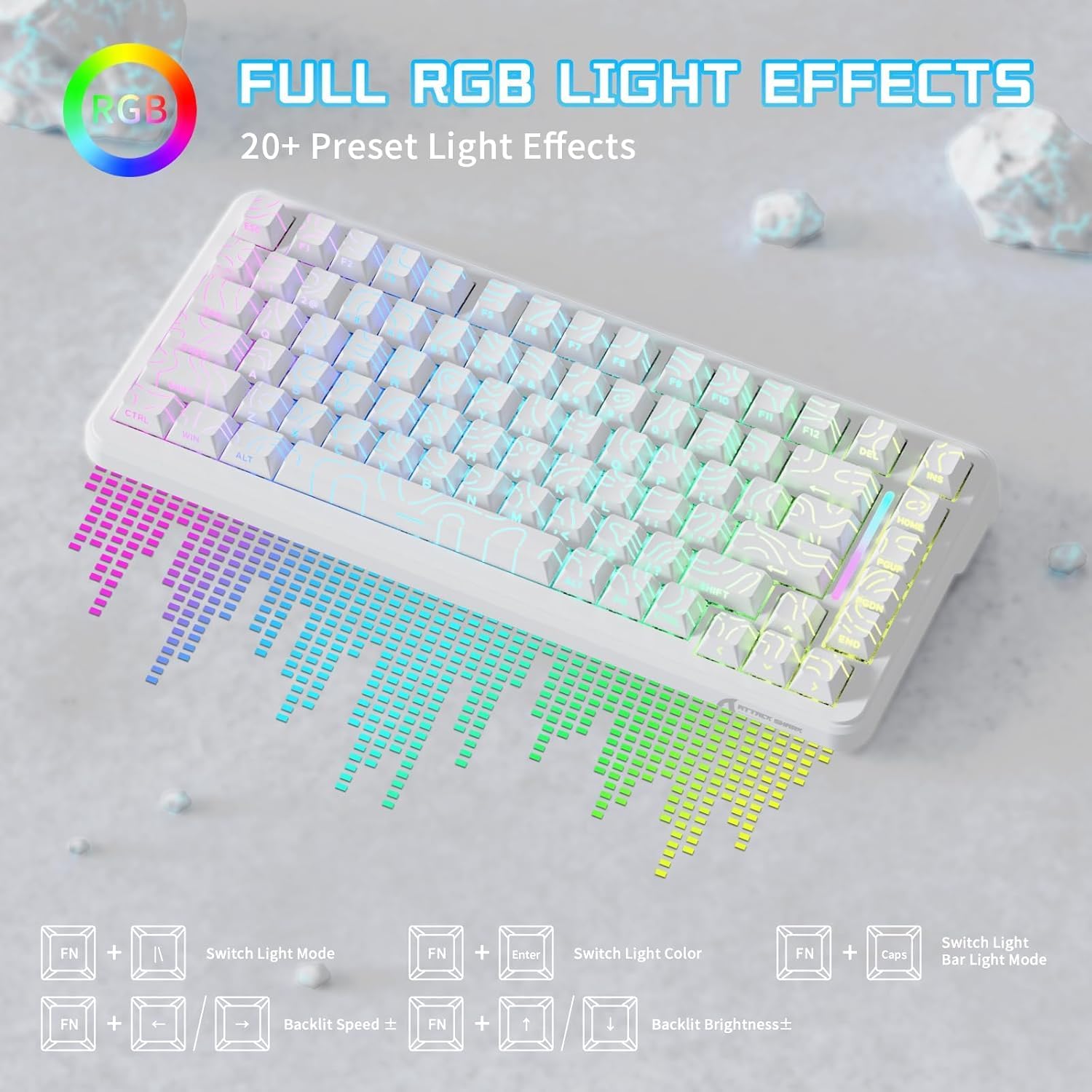
Image 5.1: On-keyboard RGB lighting controls.

Image 5.2: FN key combinations for lighting adjustments.
6. Customization
The ATTACK SHARK X82 PRO HE keyboard offers extensive customization options through its web-based software. This allows for fine-tuning performance and aesthetics to suit individual preferences.
6.1 Web Driver Software
Access the customization software via your web browser at qmk.top. This platform provides a graphical interface for adjusting various keyboard settings.

Image 6.1: Web-based customization software interface.
6.1.1 Rapid Trigger (RT) & Adjustable Actuation
The Hall Effect magnetic switches allow for precise control over actuation and rapid trigger settings. Use the software to:
- Adjust the actuation point of each key from 0.1mm to 3.4mm.
- Enable and configure Rapid Trigger, allowing keys to reactivate instantly upon reset, without needing to return to the full reset point. This feature is particularly beneficial for competitive gaming.
- Configure SOCD (Simultaneous Opposite Cardinal Directions) cleaning for specific gaming scenarios.

Image 6.2: Rapid Trigger functionality explanation.

Image 6.3: Details of the adjustable actuation point and Hall Effect magnetic switches.
6.1.2 Key Remapping and Macros
The software allows you to remap individual keys and create complex macros for enhanced productivity or gaming commands. Multiple profiles can be saved and switched between for different applications.
6.1.3 Advanced Lighting Customization
Beyond the on-keyboard controls, the web software provides granular control over RGB lighting, including per-key lighting, custom effects, and synchronization options.
7. Maintenance
7.1 Cleaning the Keyboard
- Keycaps: Use the provided keycap puller to carefully remove keycaps. Clean them with a soft cloth dampened with mild soap and water. Ensure keycaps are completely dry before reattaching.
- Chassis: Wipe the keyboard chassis with a soft, dry, or slightly damp cloth. Avoid using harsh chemicals or abrasive materials.
- Under Keycaps: Use compressed air to remove dust and debris from between the switches.
7.2 Battery Care
- To prolong battery life, avoid fully discharging the keyboard frequently.
- Store the keyboard in a cool, dry place when not in use for extended periods.
- If storing for a long time, charge the battery to about 50% capacity.
8. Troubleshooting
8.1 Keyboard Not Responding
- Wired Mode: Ensure the USB-C cable is securely connected to both the keyboard and the computer. Try a different USB port or cable.
- 2.4GHz Wireless Mode: Ensure the 2.4GHz receiver is plugged in and the keyboard is set to "2.4G" mode. Try re-pairing by pressing FN + 4.
- Bluetooth Mode: Ensure Bluetooth is enabled on your device and the keyboard is in "BT" mode. Re-enter pairing mode (FN + 1/2/3 for 3-5 seconds) and re-pair with your device.
- Battery: Check if the keyboard battery is charged. Connect the USB-C cable to charge.
8.2 RGB Lighting Not Working
- Ensure the lighting is not turned off or set to minimum brightness using FN + ↑/↓.
- Try cycling through lighting modes with FN + \ |.
- Check the web software for lighting settings and ensure no custom profile has disabled RGB.
8.3 Keys Not Registering Correctly
- Clean under the keycaps to remove any debris that might be obstructing the switches.
- If using the web software, ensure no key remapping or macro is interfering with the expected key output. Reset to default settings if necessary.
- For Hall Effect switches, ensure the actuation point is set appropriately in the software.
9. Specifications
| Feature | Detail |
|---|---|
| Brand | ATTACK SHARK |
| Model | X82 PRO HE |
| Layout | 75% (83 Keys) |
| Connectivity | USB-C Wired, 2.4GHz Wireless, Bluetooth 5.0 |
| Polling Rate | 8000Hz (Wired), 1000Hz (Wireless) |
| Latency | 0.1ms (Wired) |
| Switches | Hall Effect Magnetic Switches |
| Actuation | Adjustable (0.1-3.4mm), 0.01mm precision |
| Battery Capacity | 5000mAh |
| Keycaps | Double-shot PBT |
| Backlighting | RGB (South-facing), 20+ effects, 16.8M colors |
| Material | Aluminum (Enclosure and Positioning Plate) |
| Compatible Devices | PC |
| Special Features | Rapid Trigger, Adjustable Actuation, 8K Hz Polling Rate, Programmable Web Driver, Top Mounted, RGB Backlit, Hot-Swappable, N-Key Rollover |

Image 9.1: Polling rate and latency details.
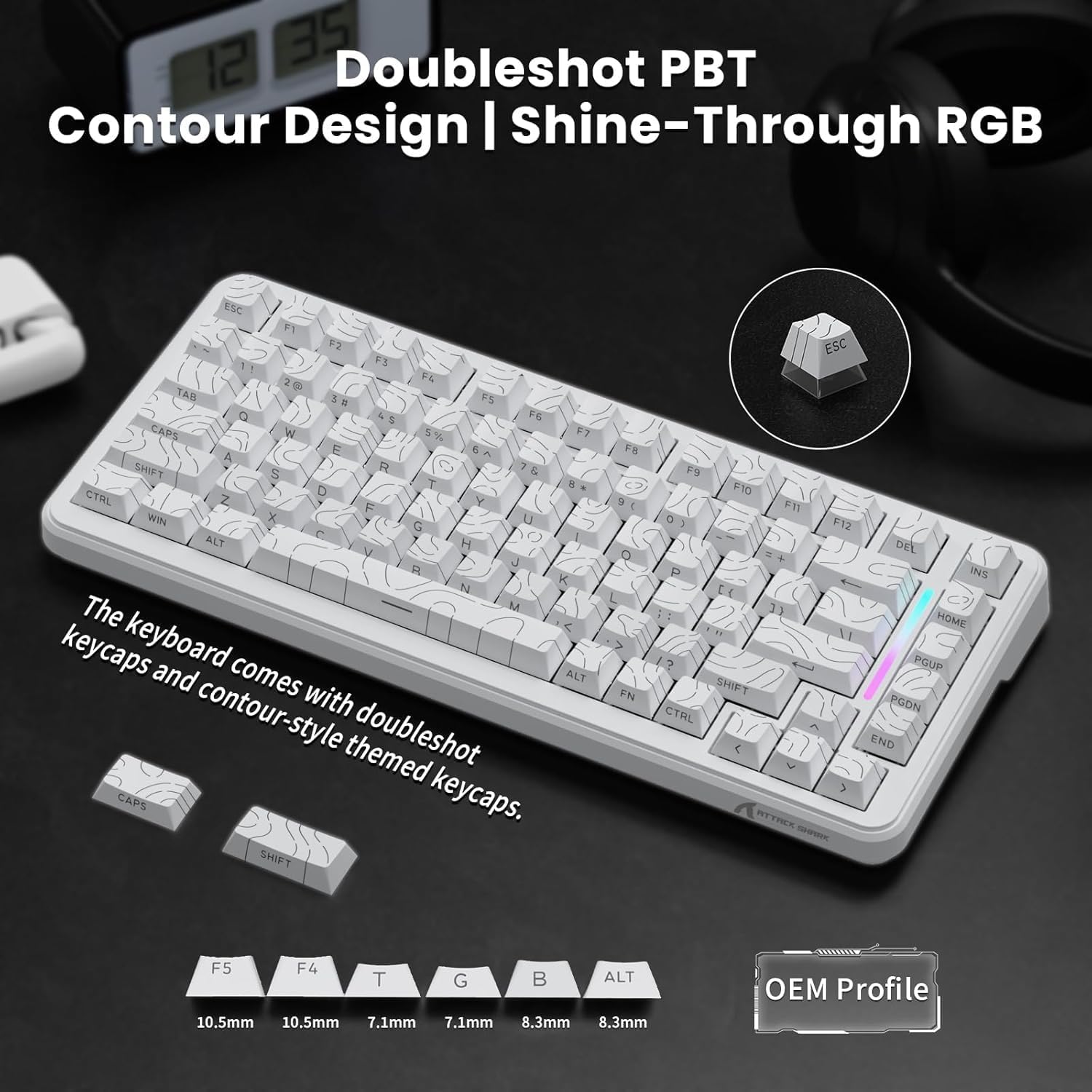
Image 9.2: Doubleshot PBT keycaps and OEM profile.
10. Warranty and Support
ATTACK SHARK products are designed for quality and performance. For warranty information, please refer to the warranty card included with your product or visit the official ATTACK SHARK website.
For technical support, troubleshooting assistance, or further inquiries, please contact ATTACK SHARK customer service through their official channels or visit the ATTACK SHARK Store on Amazon.
11. Product Video
Video 11.1: Official product video showcasing the ATTACK SHARK X82 PRO HE Wireless RT Mechanical Keyboard. This video highlights the design and features of the keyboard.


