
1. Introduction
This manual provides detailed instructions for the installation, operation, and maintenance of your new Fortdows 10.4 Inch Car Radio. Please read this manual thoroughly before installation and use to ensure proper functionality and to maximize your user experience.
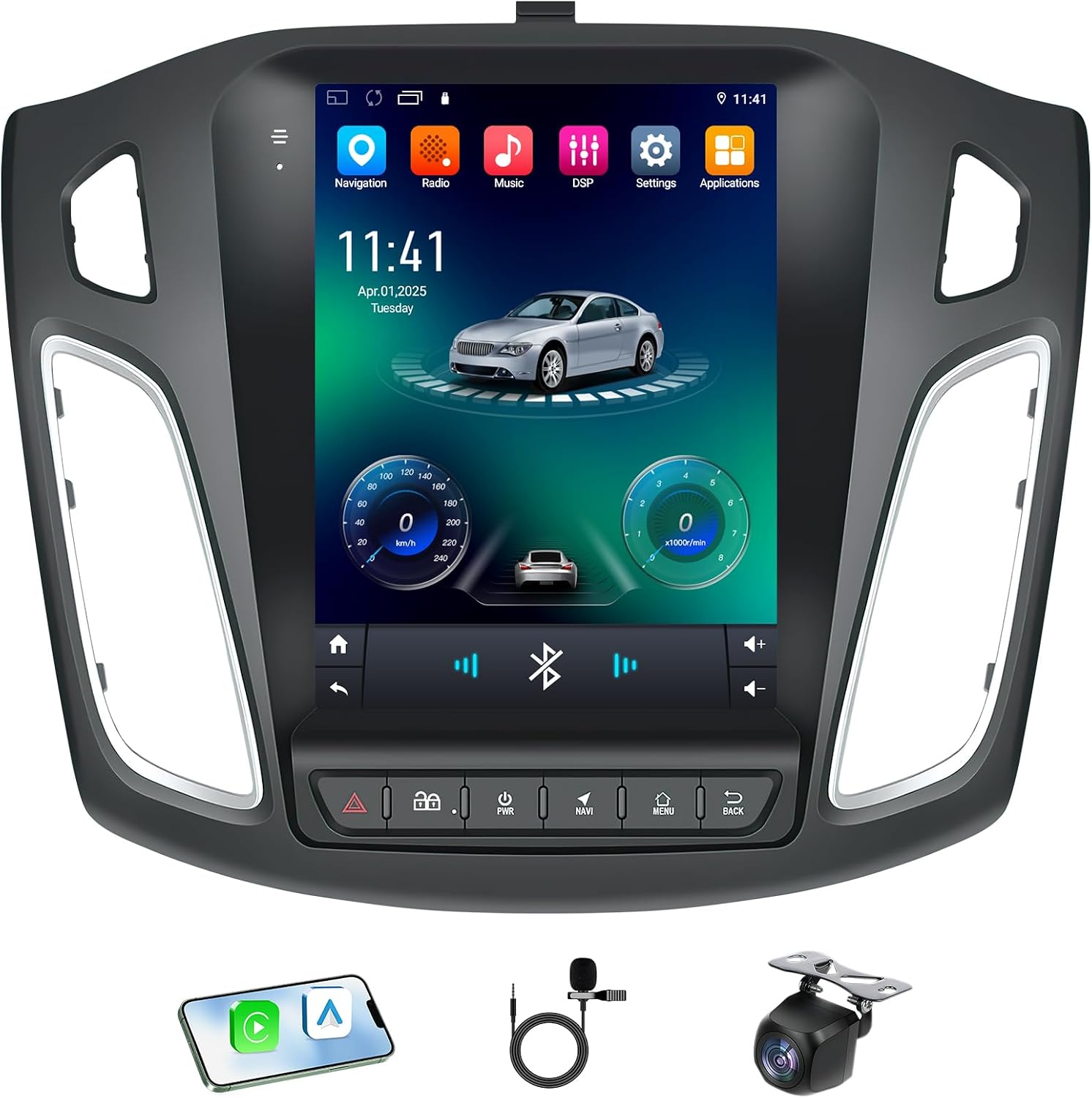
Image 1.1: Fortdows 10.4 Inch Car Radio and included components.
1.1 Package Contents
Verify that all items listed below are present in your package:
- 10.4 Inch Car Radio Main Unit
- Power Cable
- Original USB Adapter
- GPS Antenna
- RCA Cable Set
- CanBus Decoder
- USB Cable (x2)
- Reversing Line Cable
- Backup Camera
- External Microphone
- Crowbar Tool
- Radio Antenna

Image 1.2: Visual representation of package contents.
2. Compatibility and Installation
2.1 Vehicle Compatibility
This car radio is specifically designed for Ford Focus models manufactured between 2012 and 2018. It features a plug-and-play design for simplified integration with your vehicle's existing systems.

Image 2.1: Compatibility diagram for Ford Focus dashboards (2012-2018).
2.2 Pre-Installation Checklist
- Ensure your vehicle is turned off and the battery is disconnected before starting installation.
- Gather all necessary tools (e.g., screwdriver set, trim removal tools, wire cutters/strippers).
- Review your vehicle's specific wiring diagram if available.
2.3 Physical Installation Steps
- Carefully remove the original car radio and dashboard trim using appropriate trim removal tools to avoid damage.
- Connect the provided power cable, RCA cables, and USB cables to the new head unit.
- Install the GPS antenna in a location with a clear view of the sky, typically on the dashboard or under the windshield.
- Connect the CanBus decoder to integrate with your vehicle's steering wheel controls and other factory features.
- Route the backup camera cable from the rear of the vehicle to the head unit, connecting it to the 'Reversing Line' input.
- Connect the external microphone for improved call quality.
- Carefully mount the new Fortdows car radio into the dashboard opening.
- Reconnect the vehicle battery and test the unit's functionality before reassembling the dashboard trim.

Image 2.2: Comparison of original dashboard and installed Fortdows car radio.
3. Operating Instructions
3.1 Power On/Off and Basic Interface
To power on the unit, start your vehicle. The unit will typically boot automatically. The 10.4-inch HD IPS touchscreen provides a responsive interface for navigating through applications and settings.
Image 3.1: Main user interface of the car radio.
3.2 Wireless CarPlay & Android Auto
The unit supports wireless CarPlay and Android Auto via Bluetooth connection. This allows for hands-free access to navigation, music, calls, messages, and voice assistants like Siri or Google Assistant.
- Ensure Bluetooth is enabled on your smartphone and the car radio.
- Pair your smartphone with the car radio via Bluetooth.
- Select the CarPlay or Android Auto icon on the radio's display to initiate the connection.

Image 3.2: Wireless CarPlay and Android Auto functionality.
3.3 GPS Navigation
The unit comes preloaded with Google Maps and supports real-time online navigation. Connect to a Wi-Fi network for map updates and live traffic information.

Image 3.3: GPS Navigation interface.
3.4 Bluetooth 5.4 Connectivity
Bluetooth 5.4 ensures quick smartphone pairing for hands-free calls, music streaming, and voice control, enhancing driving safety and connectivity.

Image 3.4: Bluetooth 5.4 pairing interface.
3.5 FM/RDS Radio
The integrated QN8035 tuner provides stable FM signals and real-time RDS (Radio Data System) station information.

Image 3.5: FM/RDS Radio interface.
3.6 Audio Settings (DSP & EQ)
Customize your audio experience with the built-in Digital Sound Processor (DSP) and a 32-band equalizer. The premium amplifier chip delivers a 4x45W output for rich sound.

Image 3.6: DSP and Equalizer settings interface.
3.7 Steering Wheel Controls (SWC)
The unit supports your vehicle's original steering wheel controls, allowing you to manage audio, calls, and other functions without taking your hands off the wheel.

Image 3.7: Steering Wheel Control integration.
3.8 Backup Camera
The included 1080P waterproof AHD reversing camera with night vision and a 170° wide-angle lens automatically displays the rear view when the vehicle is in reverse gear.

Image 3.8: Backup Camera display.
4. Maintenance
4.1 Cleaning the Unit
- Use a soft, dry cloth to clean the screen and exterior surfaces.
- For stubborn smudges, lightly dampen the cloth with water or a screen-safe cleaner. Avoid harsh chemicals.
- Do not spray cleaning solutions directly onto the unit.
4.2 Software Updates
Periodically check for software updates through the unit's settings menu or the manufacturer's website. Updates can improve performance, add new features, and resolve bugs.
5. Troubleshooting
This section addresses common issues you might encounter. If a problem persists, please contact customer support.
| Problem | Possible Cause | Solution |
|---|---|---|
| Unit does not power on | Incorrect wiring; Blown fuse; Vehicle battery disconnected. | Check power connections; Inspect vehicle fuses; Ensure battery is connected. |
| No sound output | Volume too low; Mute activated; Speaker wiring issue. | Increase volume; Check mute status; Verify speaker connections. |
| Wireless CarPlay/Android Auto not connecting | Bluetooth not paired; Wi-Fi interference; Software glitch. | Ensure Bluetooth is paired; Restart phone and unit; Check for software updates. |
| GPS signal weak or inaccurate | GPS antenna obstructed or improperly installed. | Relocate GPS antenna to a clearer position; Check antenna connection. |
| Poor microphone quality during calls | External microphone not connected or positioned incorrectly. | Ensure external microphone is securely connected and positioned optimally. |
| Touchscreen unresponsive | Temporary software issue; Screen calibration needed. | Restart the unit; Perform a factory reset if necessary (data will be lost). |
6. Specifications
Detailed technical specifications for the Fortdows 10.4 Inch Car Radio.
| Feature | Specification |
|---|---|
| Model | 4G RAM 64G ROM Car Radio for Ford Focus 2012-2018 |
| Operating System | Android 12/13 |
| RAM | 4GB |
| Internal Storage (ROM) | 64GB |
| Display Size | 10.4 Inches |
| Display Type | HD IPS Capacitive Touchscreen |
| Resolution | 1024x768 pixels |
| Bluetooth Version | 5.4 |
| Wi-Fi | Dual-band (2.4G/5G) |
| Audio Output Power | 4x45W |
| Equalizer | 32-band EQ with DSP |
| Navigation | Built-in GPS, supports online/offline maps |
| Backup Camera | 1080P AHD, 170° wide-angle, night vision |
| Connectivity | USB, Bluetooth |
| Item Weight | 4.88 pounds |
| Package Dimensions | 15.27 x 13.5 x 5.04 inches |
7. Warranty and Support
7.1 Warranty Information
For specific warranty terms and conditions, please refer to the warranty card included with your product or contact the seller directly. Warranty coverage typically includes defects in materials and workmanship under normal use.
7.2 Customer Support
If you require technical assistance, have questions about installation, or need to report an issue, please contact Fortdows customer support through the retailer where the product was purchased or visit the official Fortdows website for contact information.