
1. Introduction
This manual provides comprehensive instructions for the Sceptre 27-Inch FHD 1080p 100Hz Gaming Monitor, Model E275W-FW100T Series. It covers essential information regarding product setup, operation, maintenance, troubleshooting, and technical specifications to ensure optimal performance and user experience.
Key Features:
- 27-Inch FHD 1080p Display: Enjoy a vibrant and clear visual experience on a spacious 27-inch screen with Full High Definition resolution.
- 100Hz Refresh Rate & 1ms Response Time: Experience smooth, fluid motion and rapid response, crucial for fast-paced gaming.
- Multi-port Connectivity: Features DisplayPort and two HDMI inputs for versatile connection to various devices.
- AMD FreeSync: Synchronizes the monitor's refresh rate with your GPU for tear-free and stutter-free gaming.
- Eye Care Technology: Includes Blue Light Shift and Flicker-Free features to reduce eye strain during extended use.
- Integrated Speakers: Built-in speakers provide audio without requiring external devices, keeping your workspace clutter-free.
- Frameless Design: A slim bezel design maximizes screen space and is ideal for multi-monitor setups.
2. Setup Instructions
2.1 Package Contents
Before proceeding with the setup, ensure all components are present in the package:
- Sceptre 27-Inch Monitor
- Monitor Stand (Base and Neck)
- Power Adapter
- HDMI Cable
- User Manual
- Screws for Stand Assembly
2.2 Assembling the Stand
- Carefully place the monitor face down on a soft, clean surface to prevent screen damage.
- Attach the stand neck to the monitor's rear panel using the provided screws. Ensure it is securely fastened.
- Connect the stand base to the stand neck, tightening any screws as necessary to ensure stability.
- Once assembled, carefully lift the monitor and place it on a stable, flat surface.
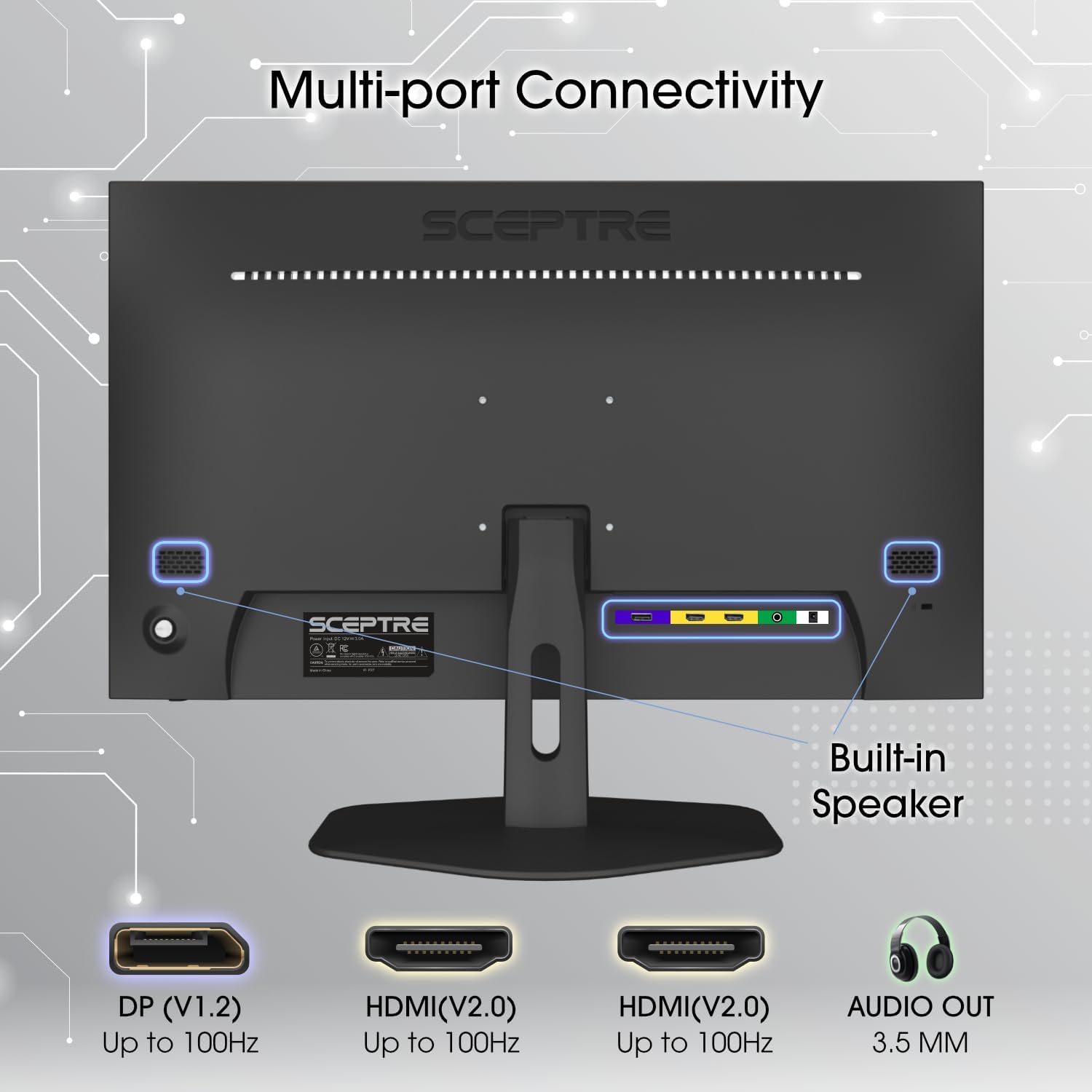
Figure 2.2: Rear view of the monitor showing the stand attachment area. Ensure screws are tightened for stability.
2.3 Connecting to a Device
The monitor supports multiple input options. Choose the appropriate cable for your device.
- HDMI Connection: Connect one end of the HDMI cable to an HDMI port on your computer or gaming console and the other end to one of the HDMI (V2.0) ports on the monitor.
- DisplayPort Connection: Connect one end of the DisplayPort cable to the DisplayPort (V1.2) on your computer and the other end to the DisplayPort on the monitor.
- Audio Output: For external audio devices, connect a 3.5mm audio cable from your speakers or headphones to the AUDIO OUT port on the monitor.

Figure 2.3: Detailed view of the monitor's rear ports, including DisplayPort, HDMI, and Audio Out. Connect your devices here.
2.4 Power Connection
Connect the power adapter to the monitor's power input port, then plug the other end into a power outlet.
3. Operating Instructions
3.1 Powering On/Off
Press the power button, usually located on the back or bottom right of the monitor, to turn the display on or off. The power indicator light will illuminate when the monitor is active.
3.2 On-Screen Display (OSD) Menu
The OSD menu allows you to adjust various monitor settings. Access it using the buttons located on the back or bottom of the monitor.
- Navigation: Use the directional buttons (up/down/left/right) to navigate through menu options.
- Selection: Press the 'Menu' or 'OK' button to select an option or confirm a setting.
- Exit: Use the 'Exit' or 'Back' button to return to the previous menu or exit the OSD.
Common OSD settings include brightness, contrast, color temperature, input source selection, and gaming features like FreeSync.
3.3 Eye Care Features
The monitor includes features designed to reduce eye strain:
- Blue Light Shift: This technology reduces harmful blue light emissions. You can typically adjust the blue light filter level through the OSD menu.
- Flicker-Free: The monitor is designed to eliminate screen flickering, which can contribute to eye fatigue.

Figure 3.3: Monitor in use, highlighting the Eye Care and Blue Light Shift features for comfortable viewing.
3.4 AMD FreeSync
For compatible AMD graphics cards, enable AMD FreeSync in your graphics card settings and through the monitor's OSD menu to synchronize refresh rates and eliminate screen tearing and stuttering during gaming.
4. Maintenance
Proper maintenance ensures the longevity and optimal performance of your monitor.
- Cleaning the Screen: Gently wipe the screen with a soft, lint-free cloth. For stubborn marks, use a monitor-specific cleaning solution applied to the cloth, not directly to the screen.
- Cleaning the Casing: Use a soft, dry cloth to clean the monitor casing. Avoid abrasive cleaners or solvents.
- Ventilation: Ensure the monitor's ventilation openings are clear and not obstructed to prevent overheating.
- Storage: If storing the monitor, keep it in a cool, dry place, ideally in its original packaging to protect it from dust and physical damage.
5. Troubleshooting
If you encounter issues with your monitor, refer to the following common troubleshooting steps:
| Problem | Possible Solution |
|---|---|
| No Power | Ensure the power cable is securely connected to both the monitor and a working power outlet. Check if the power adapter is functioning correctly. |
| No Signal / Blank Screen | Verify that the video cable (HDMI or DisplayPort) is securely connected to both the monitor and your computer/device. Select the correct input source via the monitor's OSD menu. Ensure your computer/device is powered on and outputting a signal. |
| Image Flickering / Distorted Image | Check the video cable for damage or loose connections. Ensure your graphics card drivers are up to date. Adjust the refresh rate settings on your computer. |
| No Audio from Built-in Speakers | Check the volume settings on both the monitor (via OSD) and your computer/device. Ensure the audio output is correctly configured on your computer. If using an external audio device, ensure it's connected to the AUDIO OUT port. |
| Buttons Not Responding | Unplug the monitor's power cable, wait 30 seconds, and then plug it back in to perform a soft reset. |
6. Specifications
| Feature | Detail |
|---|---|
| Brand | Sceptre |
| Model Name | E275W-FW100T Series |
| Screen Size | 27 inches |
| Resolution | FHD 1080p (1920 x 1080 pixels) |
| Refresh Rate | 100 Hz |
| Response Time | 1 ms (BR) |
| Aspect Ratio | 16:9 |
| Contrast Ratio | 2000:1 |
| Display Technology | LED |
| Screen Surface | Matte |
| Color Gamut | 100% sRGB |
| Connectivity | 2 x HDMI (V2.0), 1 x DisplayPort (V1.2), Audio Out (3.5mm) |
| Adaptive Sync | AMD FreeSync |
| Special Features | Blue Light Filter, Built-In Speakers, Flicker-Free, Frameless Design |
| Color | Machine Black |
| Item Dimensions (D x W x H) | 7.6"D x 24.1"W x 17.2"H |
7. Warranty and Support
This Sceptre monitor comes with a 1 Year Manufacturer Warranty. For warranty claims or technical support, please contact Sceptre customer service.
For further assistance, visit the official Sceptre support website or refer to the contact information provided in your product packaging.


