1. Safety Information
Please read all safety instructions carefully before using your iFFALCON TV. Retain this manual for future reference.
- Electrical Safety: Do not expose the TV to rain or moisture. Ensure the power cord is securely plugged into a grounded outlet. Do not overload electrical outlets.
- Placement: Place the TV on a stable, level surface or mount it securely to a wall. Ensure adequate ventilation around the TV to prevent overheating. Do not block ventilation openings.
- Cleaning: Unplug the TV before cleaning. Use a soft, dry cloth. Do not use liquid cleaners or aerosol cleaners.
- Children: Supervise children to prevent them from climbing on the TV or stand. Small parts can be a choking hazard.
- Servicing: Do not attempt to service the TV yourself. Refer all servicing to qualified service personnel.
2. What's in the Box
Verify that all components are present upon unpacking:
- iFFALCON 85-Inch U85 Series QD-Mini LED 4K UHD Google Smart TV
- Power cable
- 2 x AAA batteries for remote
- 6 x Stand screws
- Table stands (2 pieces)
- 5 x Cable clips
- Quick Start Guide
- TV remote
3. Setup
3.1 Physical Setup
Before powering on, ensure the TV is securely placed or mounted.
- Stand Installation: If using the table stands, carefully attach them to the designated slots at the bottom of the TV using the provided stand screws. Ensure they are tightened securely.
- Wall Mounting: If wall mounting, follow the instructions provided with your wall mount kit. Ensure the mount is compatible with VESA standards for the 85U85 model.
- Power Connection: Connect the power cable to the TV's power input and then to a wall outlet.
- External Devices: Connect any external devices (e.g., cable box, gaming console, Blu-ray player) to the appropriate HDMI or other input ports on the TV.

Image: The iFFALCON 85-Inch U85 Series TV, showcasing its slim design and vibrant display.
3.2 Initial Power On and Google TV Setup
After connecting power, press the power button on the remote control or TV to turn it on.
- Remote Control Pairing: If the remote does not respond, insert the AAA batteries and follow on-screen instructions to pair it via Bluetooth.
- Language Selection: Choose your preferred language.
- Network Connection: Select your Wi-Fi network and enter the password. A stable internet connection is required for Google TV features.
- Google Account Sign-in: Sign in with your Google account to access Google TV features, personalized recommendations, and app downloads.
- Google Assistant Setup: Follow prompts to set up Google Assistant for voice control.

Image: A user interacting with the iFFALCON TV using hands-free voice control, demonstrating the integrated Google TV interface.
4. Operating Your TV
4.1 Remote Control Functions
The provided remote control allows full navigation and control of your iFFALCON TV.
- Power Button: Turns the TV on or off.
- Navigation Pad: Use the directional buttons to move through menus and the OK button to select.
- Volume +/-: Adjusts the volume level.
- Channel +/-: Changes TV channels.
- Input: Selects the input source (HDMI 1, HDMI 2, etc.).
- Google Assistant Button: Activates voice control. Press and speak your command.
- Home Button: Returns to the Google TV home screen.
- App Shortcut Buttons: Quick access to popular streaming services.
4.2 Smart Features and Google TV
Your iFFALCON U85 Series TV runs on Google TV, offering a personalized and integrated smart experience.
- Google TV Home Screen: Provides access to movies, shows, and apps from all your subscriptions, organized for easy discovery.
- Voice Control: Use Google Assistant or Alexa (via compatible devices) to search for content, control smart home devices, and manage TV settings hands-free.
- App Library: Download and install a wide range of applications from the Google Play Store.
- Chromecast Built-in: Cast content from your compatible smartphone, tablet, or computer directly to the TV.
4.3 Picture and Sound Settings
Customize your viewing and listening experience through the TV's settings menu.
- Picture Modes: Select from various preset picture modes (e.g., Standard, Vivid, Movie, Game) or customize settings like brightness, contrast, color, and sharpness.
- Mini LED Precision: The TV features 352 local dimming zones and 1000 nits peak brightness for enhanced contrast and detail.
- Dolby Vision IQ: Automatically adjusts HDR brightness based on the room's ambient light for optimal viewing.
- Sound Modes: Choose from sound presets (e.g., Standard, Music, Movie, Speech) or adjust equalizer settings.
- Dolby Atmos & DTS Virtual X: Experience immersive spatial audio with the integrated 2.1-channel 50W sound system.

Image: Visual comparison illustrating the superior contrast and detail of Mini LED technology compared to conventional TVs.

Image: Depiction of the immersive audio experience with the TV's 2.1 speaker system and Dolby Atmos technology.
4.4 Gaming Features
The iFFALCON U85 Series TV is equipped with features designed for an enhanced gaming experience.
- 144Hz Game Mode Pro: Provides a high refresh rate for smooth, responsive gameplay.
- 288Hz DLG Acceleration: Further enhances motion clarity for competitive gaming.
- FreeSync Premium Pro: Reduces screen tearing and stuttering for fluid visuals.
- Auto Low Latency Mode (ALLM): Automatically switches to a low-latency mode when a gaming console is detected.
- Game Bar: Access and adjust key gaming settings quickly during gameplay.
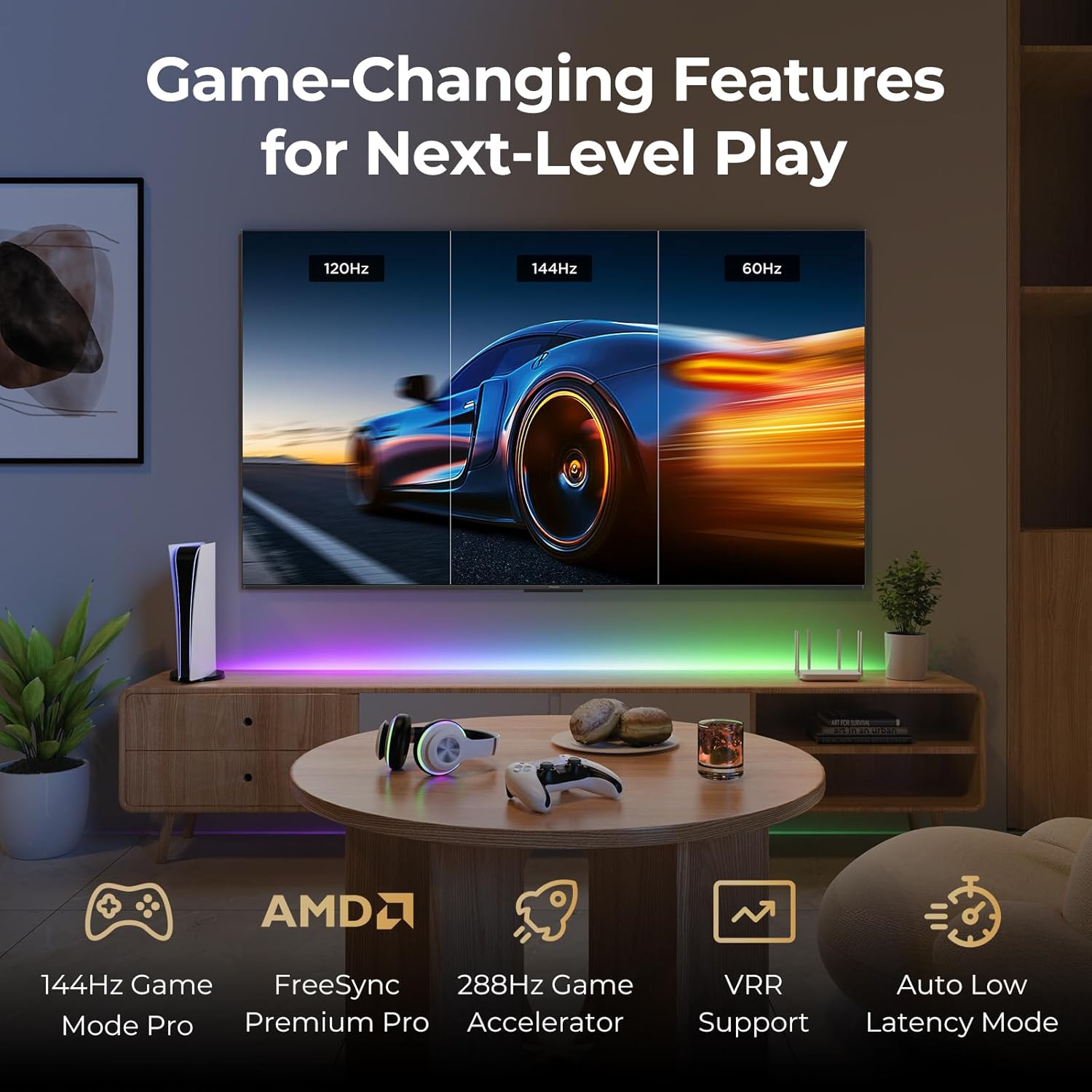
Image: A gaming setup featuring the iFFALCON TV, illustrating its high refresh rate and gaming-specific features for an optimized experience.
5. Maintenance
5.1 Cleaning the TV
Regular cleaning helps maintain the TV's appearance and performance.
- Screen: Gently wipe the screen with a soft, lint-free cloth. For stubborn marks, lightly dampen the cloth with water or a screen-specific cleaning solution (do not spray directly on the screen).
- Body: Use a soft, dry cloth to wipe the TV's frame and back panel. Avoid abrasive materials or harsh chemicals.
- Ports: Ensure ports are free of dust. Use compressed air if necessary, holding the can upright.
5.2 Software Updates
Your TV may receive automatic software updates to improve performance and add new features. Ensure your TV is connected to the internet for these updates.
- You can check for updates manually in the TV's settings menu under System > About > System update.
6. Troubleshooting
If you encounter issues, try these common solutions before contacting support.
- No Power: Ensure the power cable is securely plugged into both the TV and the wall outlet. Test the outlet with another device.
- No Picture/Sound: Check the selected input source. Ensure all cables to external devices are connected correctly. Restart the TV and connected devices.
- Remote Not Working: Replace the batteries. Ensure there are no obstructions between the remote and the TV. Re-pair the remote if it uses Bluetooth.
- Network Connection Issues: Restart your Wi-Fi router. Check TV network settings to ensure correct Wi-Fi password and connection.
- Picture Quality Issues: Adjust picture settings (brightness, contrast, color). Ensure the content source is high quality.
- Factory Reset: If problems persist, a factory reset can resolve many software-related issues. Navigate to Settings > System > About > Reset. Warning: This will erase all personal data and settings.
7. Specifications
| Feature | Description |
|---|---|
| Brand | iFFALCON |
| Model Number | 85U85 |
| Screen Size | 85 Inches |
| Display Technology | QD-Mini LED |
| Resolution | 4K UHD (3840 x 2160) |
| Refresh Rate | 144 Hz (Native), 288Hz DLG |
| Peak Brightness | Up to 1000 nits |
| Contrast Ratio | Up to 6500:1 |
| Local Dimming Zones | 352 |
| Processor | AiPQ Pro Processor |
| Operating System | Google TV |
| Voice Assistant | Google Assistant, Alexa compatible |
| Audio System | 2.1-channel 50W, Dolby Atmos, DTS Virtual X |
| HDR Support | HDR10+, Dolby Vision IQ |
| Gaming Features | 144Hz VRR, FreeSync Premium Pro, ALLM, Game Bar |
| Connectivity | Bluetooth, Wi-Fi |
| Product Dimensions (D x W x H) | 15.2 x 74.4 x 45.5 inches |
| Item Weight | 76.7 Pounds |
8. Warranty and Support
Your iFFALCON U85 Series TV is covered by a manufacturer's warranty. Please refer to the warranty card included with your product for specific terms and conditions.
For technical support, service inquiries, or additional information, please visit the official iFFALCON support website or contact their customer service. Keep your purchase receipt and product serial number handy for warranty claims.
You can find more information and support resources by visiting the iFFALCON Store on Amazon.


