
1. Introduction
This manual provides detailed instructions for the installation, operation, and maintenance of your PUTORSEN Laptop Arm Mount. Please read this manual thoroughly before installation and retain it for future reference. This mount is designed to securely hold one monitor and one laptop, enhancing your workspace ergonomics and organization.

Image 1.1: The PUTORSEN Laptop Arm Mount in a typical setup, supporting a monitor on the left arm and a laptop on the right arm, both elevated above the desk surface.
2. Safety Information
Observe the following safety precautions during installation and use:
- Do not exceed the maximum weight capacity of 9 kg (19.8 lbs) per arm.
- Ensure the mounting surface (desk) is stable and capable of supporting the combined weight of the mount and attached devices.
- Tighten all screws and bolts securely during installation. Periodically check for tightness.
- Keep children and pets away during installation.
- Use appropriate personal protective equipment if necessary.
3. Package Contents
Verify that all components are present before beginning installation:
- Main Pole
- Monitor Arm (x1)
- Laptop Arm with Tray (x1)
- C-clamp Mounting Base
- Grommet Mounting Base
- VESA Plates (x2)
- Hardware Kit (screws, washers, spacers)
- Allen Keys
- Cable Management Clips
- Instruction Manual (this document)
4. Specifications
| Mounting Type | Tabletop Mount (C-clamp or Grommet) |
| Movement Type | Articulating |
| Material | Aluminum |
| Color | Black |
| Monitor Compatibility | 17-35 inches |
| Laptop Compatibility | 12-18 inches |
| Maximum Weight Capacity (per arm) | 9 kg (19.8 lbs) |
| VESA Compatibility | 75x75mm, 100x100mm |
| Desktop Thickness (C-clamp) | 10-80mm (0.39-3.14 inches) |
| Desktop Thickness (Grommet) | 10-40mm (0.39-1.57 inches) |
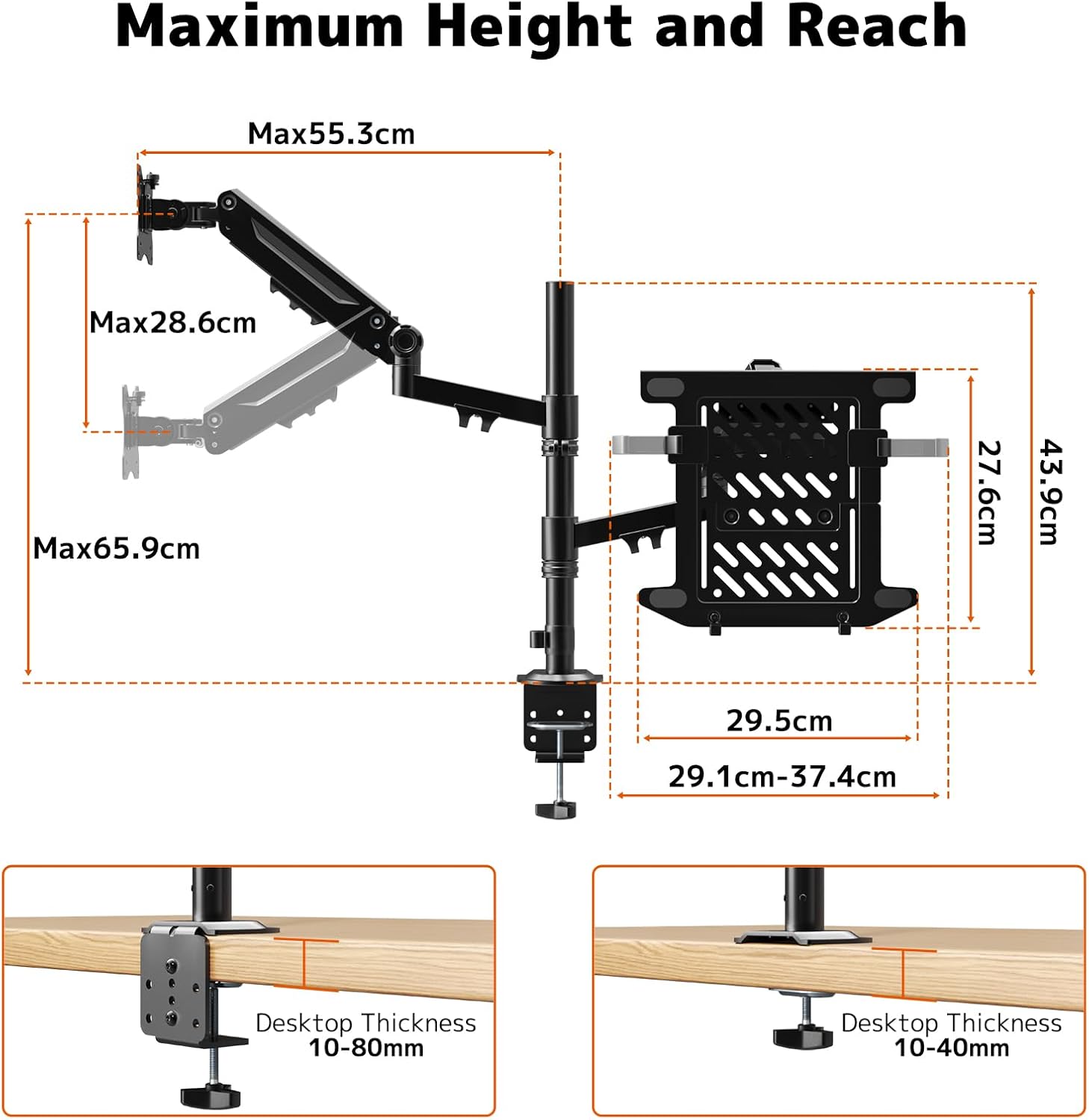
Image 4.1: Detailed dimensions for the mount's height and reach, including desktop thickness compatibility for both C-clamp and grommet installation methods.
5. Setup and Installation
Follow these steps to install your PUTORSEN Laptop Arm Mount:
5.1 Choose Mounting Method
The mount supports two installation methods: C-clamp or grommet mount. Select the method suitable for your desk.
- C-clamp: Ideal for desks without pre-drilled holes. Attaches to the edge of the desk. Compatible with desk thickness 10-80mm.
- Grommet Mount: Requires a pre-drilled hole in your desk. Compatible with desk thickness 10-40mm and hole diameter 10-40mm.

Image 5.1: Visual guide for C-clamp and grommet mounting, showing the required desktop thickness for each option.
5.2 Assemble the Pole and Base
Attach the main pole to your chosen mounting base (C-clamp or grommet) and secure it to your desk. Ensure the base is firmly tightened to prevent movement.
5.3 Attach Arms to the Pole
Slide the monitor arm and laptop arm onto the main pole. Adjust their height as desired and secure them with the provided fasteners.
5.4 Prepare VESA Plates and Laptop Tray
Attach the VESA plates to the back of your monitor using the appropriate screws from the hardware kit. For the laptop tray, ensure the protective padding is in place and adjust the width to fit your laptop. The laptop tray also features a ventilated design for heat dissipation.

Image 5.2: Details of the laptop tray, highlighting its adjustable width, protective padding, ventilated surface, and integrated cable management features.
5.5 Mount Monitor and Laptop
Slide the monitor (with VESA plate attached) onto the monitor arm. Place your laptop onto the laptop tray and secure it with the included strap if desired. The removable VESA plate design allows for easy installation and removal of your monitor.

Image 5.3: Illustration of how to attach both a monitor and a laptop to the respective arms, demonstrating the secure mounting points.
5.6 Cable Management
Route all cables through the integrated cable management clips along the arms and pole to maintain a tidy workspace.
5.7 Installation Video Guide
For a visual guide on the installation process, please refer to the official installation video:
Video 5.1: An official installation guide video demonstrating the step-by-step assembly and setup of the PUTORSEN Laptop Arm Mount.
6. Operating Instructions
The PUTORSEN Laptop Arm Mount offers extensive adjustability for optimal ergonomic positioning.
6.1 Adjusting Height
The arms can be moved up or down along the 43.9cm pole to achieve your desired viewing height, whether sitting or standing. Loosen the securing collar, adjust the arm, and re-tighten.
6.2 Adjusting Tilt, Swivel, and Rotation
Each arm features multiple pivot points allowing for tilt, swivel, and rotation adjustments:
- Tilt: Adjust the screen angle up or down (up to ±55°).
- Swivel: Rotate the screen horizontally (up to ±180°).
- Rotation: Rotate the screen from landscape to portrait orientation (up to ±180°).

Image 6.1: Visual representation of the mount's flexibility, showing the possible tilt, swivel, and rotation angles for both the monitor and laptop arms.
6.3 Tension Adjustment
The arms are equipped with gas springs for smooth movement. If an arm is too stiff or sags, adjust the tension using the provided Allen key:
- Lower your device (clockwise): Reduce tension.
- Raise your device (counter-clockwise): Increase tension.
Tip: Keep the arm level when turning the adjustment screw to prevent damage.

Image 6.2: Instructions for adjusting the arm's tension using an Allen key, indicating the direction for lowering or raising the device.
6.4 Multiple Layout Options
The flexible design allows for various configurations to suit your workflow, including side-by-side, stacked, or angled setups for both monitor and laptop.
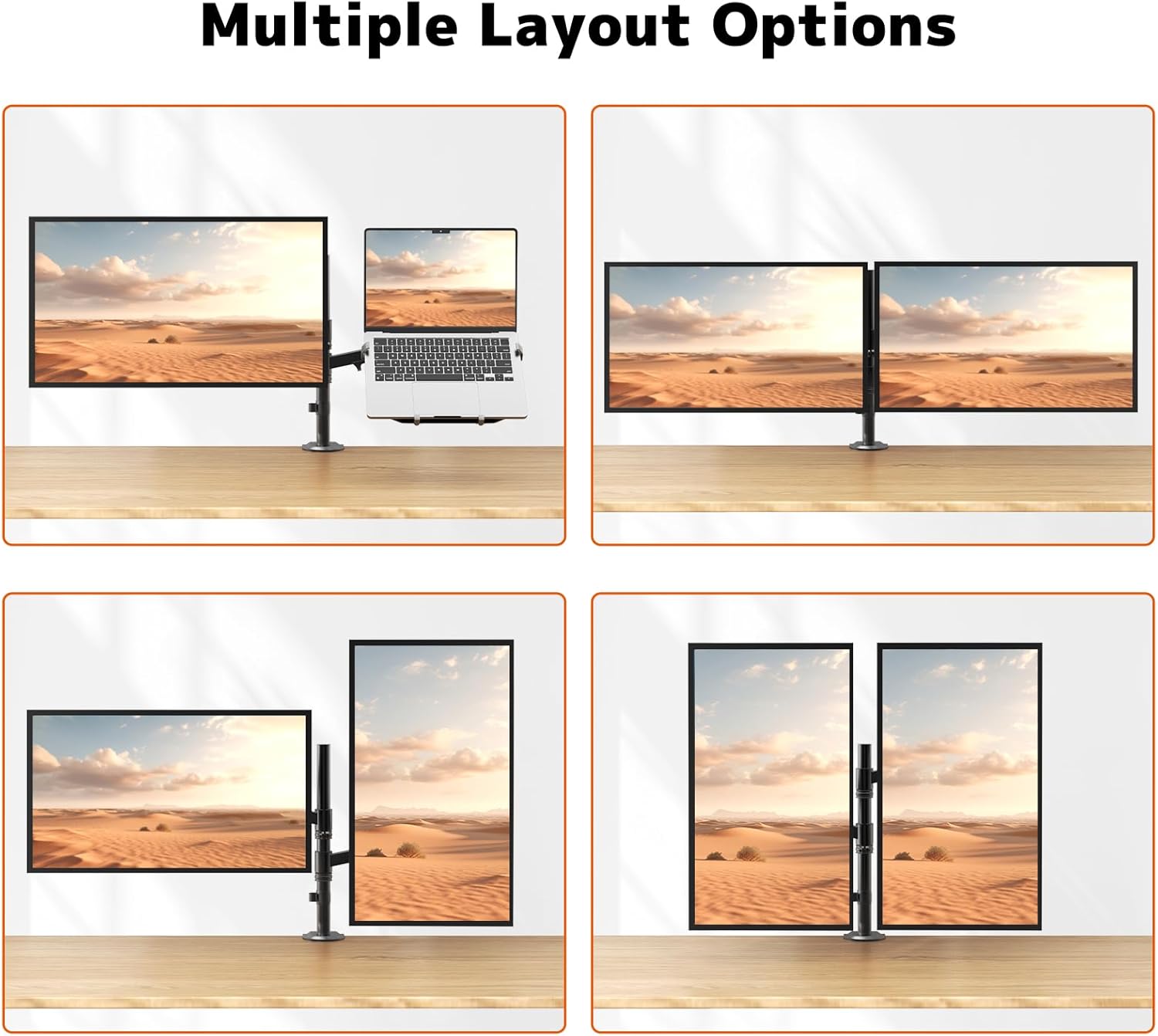
Image 6.3: Examples of different workspace layouts achievable with the PUTORSEN Laptop Arm Mount, demonstrating its versatility.
7. Maintenance
Regular maintenance ensures the longevity and optimal performance of your mount:
- Cleaning: Wipe the mount with a soft, damp cloth. Avoid abrasive cleaners or solvents.
- Inspection: Periodically check all connections and fasteners for tightness. Re-tighten if any looseness is detected.
- Lubrication: No lubrication is typically required for the articulating joints. If movement becomes stiff, contact support.
8. Troubleshooting
If you encounter issues, refer to the following common problems and solutions:
| Problem | Possible Cause | Solution |
|---|---|---|
| Monitor/Laptop sags or does not stay in position. | Gas spring tension is too low for the device weight. | Increase gas spring tension (turn counter-clockwise) using the provided Allen key. Refer to Section 6.3. |
| Arm is too stiff to move. | Gas spring tension is too high. | Decrease gas spring tension (turn clockwise) using the provided Allen key. Refer to Section 6.3. |
| Mount feels unstable on the desk. | Mounting base is not securely tightened. | Ensure the C-clamp or grommet base is fully tightened to the desk. Check desk thickness compatibility. |
| Laptop slides off the tray. | Laptop not properly secured or tray width incorrect. | Adjust the laptop tray width to fit your laptop snugly. Use the included strap to secure the laptop. |
9. Warranty and Support
PUTORSEN products are designed for durability and performance. For warranty information or technical support, please contact PUTORSEN customer service through the retailer where the product was purchased or visit the official PUTORSEN website. Please have your model number (B0F7LNSQV7) available when contacting support.
For additional information and product registration, visit: PUTORSEN Store


