
1. Introduction
The AMHVMU G20 Car Head Up Display (HUD) GPS Speedometer is designed to provide essential driving information directly in your line of sight, enhancing safety and convenience. This device features a clear, large display with intelligent brightness adjustment, a speed alarm function, and a compass display. Its plug-and-play design makes it suitable for all vehicle types, offering precise speed data via GPS/BeiDou dual-mode satellite reception.

Figure 1.1: AMHVMU G20 HUD unit with included suction cup mount and USB power cable.
2. Product Features
- GPS/BeiDou Dual Module: Supports satellite signal reception through GPS/BeiDou two-channel module for accurate speed data and improved driving safety.
- Main Functions: Displays GPS speed, provides speed warnings, shows compass direction, and features automatic brightness adjustment.
- Wide Application: Compatible with domestic, Asian, American, and European car series. Operates with a USB cable (DC 5V-24V).
- Intelligent Brightness Adjustment: Utilizes a light sensor to automatically adjust screen brightness for optimal readability and eye protection. Ensure the light sensor hole on the back of the device is not covered.
- Plug and Play: Ready to use upon connection, requiring minimal setup.
- Large Display: Features a large font for clear and optimal readability of speed and other information.
- Switchable Mileage Display: Allows users to switch between different mileage display modes.

Figure 2.1: Visual representation of key product features.

Figure 2.2: The G20 utilizes a GPS+Beidou dual-mode chip for high refresh rate and accurate speed tracking.
3. Package Contents
Please check the package contents upon opening to ensure all items are present:
- 1 x AMHVMU G20 HUD Unit
- 1 x Rotary Suction Cup Holder
- 1 x Micro USB Cable
- 1 x Non-slip Mat
- 1 x Instruction Manual (this document)
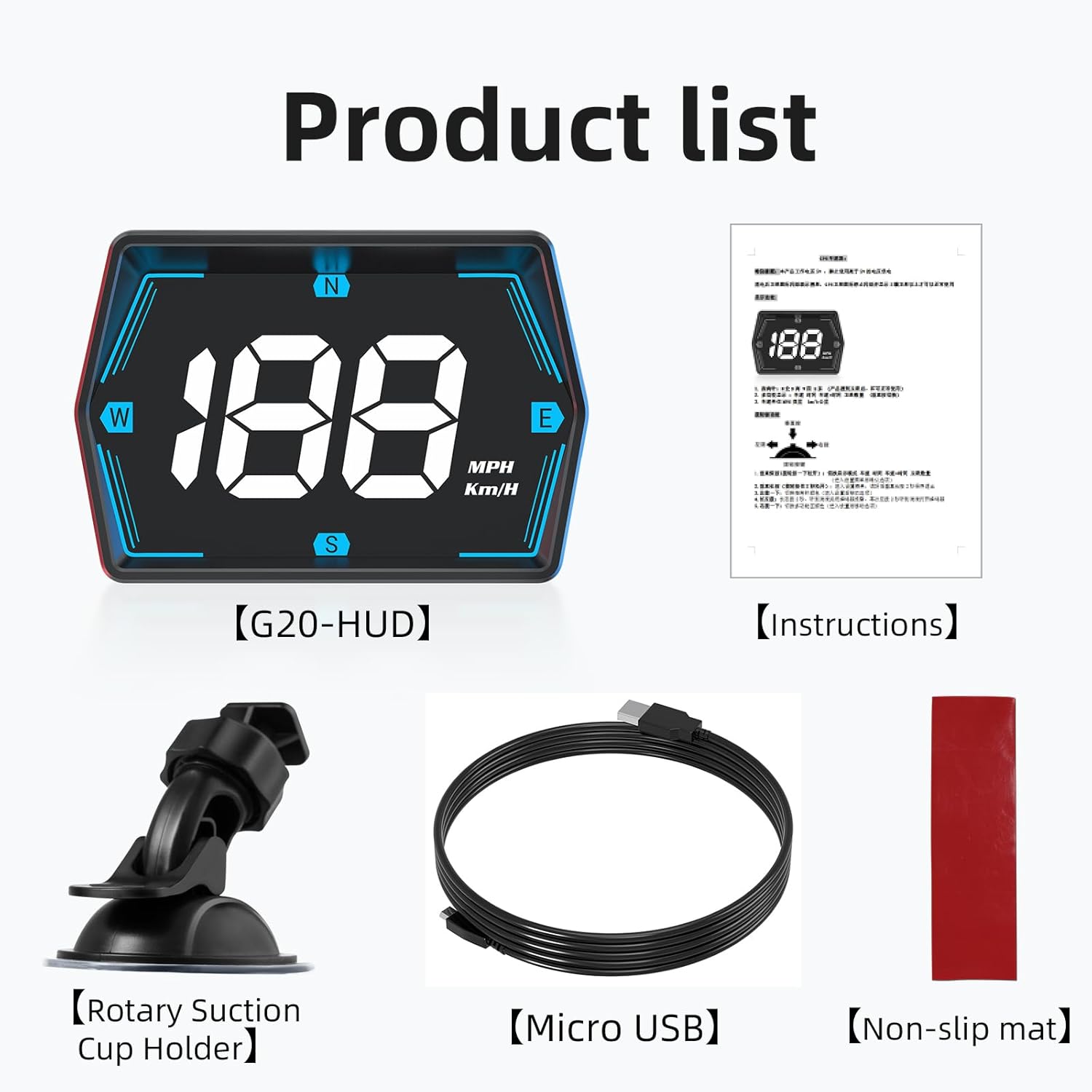
Figure 3.1: All components included in the AMHVMU G20 package.
4. Setup and Installation
- Choose a Location: Select a suitable location on your dashboard or windshield that does not obstruct your view of the road. The device is designed to be compact and not block line of sight.
- Attach the Mount:
- For windshield mounting: Attach the rotary suction cup holder to the desired spot on your windshield. Ensure the surface is clean and dry for optimal suction.
- For dashboard mounting: Use the provided non-slip mat to place the HUD unit directly on your dashboard.
- Connect the HUD Unit: Connect the HUD unit to the rotary suction cup holder via the bracket interface on the back of the device.
- Power Connection: Insert the Micro USB cable into the USB interface on the back of the HUD unit. Connect the other end of the USB cable to a 5V-24V power source in your vehicle (e.g., a USB car charger or a vehicle's USB port).
- Power On and Satellite Acquisition: Once powered, the device will automatically turn on. Place the device in a position where it has a clear view of the sky to acquire GPS/BeiDou satellite signals. This process typically takes a minute or two. The speed display will activate once a stable signal is acquired.

Figure 4.1: Example of optimal placement on a dashboard, ensuring clear visibility without obstruction.
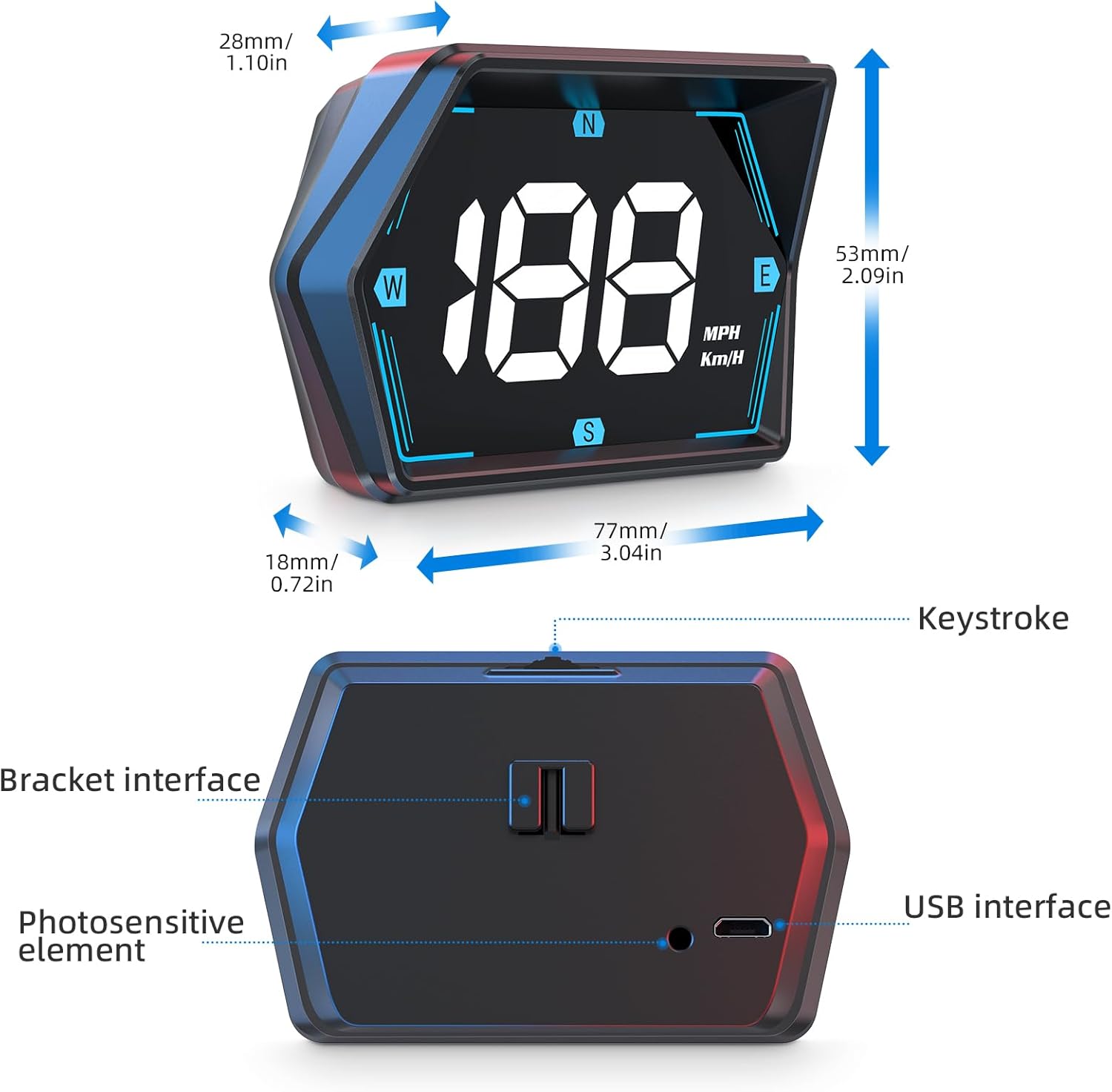
Figure 4.2: Dimensions and interface layout of the AMHVMU G20 HUD unit.
5. Operating Instructions
The AMHVMU G20 is designed for straightforward operation:
- Speed Display: Once powered on and satellite signals are acquired, the large digital display will show your current vehicle speed.
- Compass Display: The unit also displays a compass bearing (N, S, E, W) when the vehicle is in motion, indicating your general direction of travel.
- Automatic Brightness: The built-in light sensor automatically adjusts the display's brightness based on ambient light conditions, ensuring optimal visibility day or night.
- Speed Unit: The display can show speed in either MPH (miles per hour) or Km/H (kilometers per hour). Refer to the "Settings and Customization" section for how to switch units.
6. Settings and Customization
The G20 offers several customizable settings to enhance your driving experience. While specific button functions are not detailed here, the device typically uses the "Keystroke" buttons (refer to Figure 4.2) for navigation and selection within the settings menu.
- Speed Unit Switching: You can switch between MPH and Km/H display modes. Consult the on-screen prompts or the included quick-start guide for the exact button sequence.
- Speed Alarm Setting: Set a desired speed threshold. The device will provide an audible or visual warning when this speed is exceeded. This feature helps in maintaining safe driving speeds.
- Speed Calibration: If you notice a slight discrepancy between the G20's speed reading and your vehicle's speedometer, the device allows for minor calibration adjustments.
- Mileage Display: The device supports switchable mileage display modes.
For detailed instructions on accessing and adjusting specific settings, please refer to the compact instruction manual included in your product package.
7. Troubleshooting
If you encounter any issues with your AMHVMU G20, please refer to the following common troubleshooting steps:
| Problem | Possible Cause | Solution |
|---|---|---|
| No Speed Reading / "0" Display |
|
|
| Inaccurate Speed Reading |
|
|
| Display Too Dim or Too Bright |
|
|
| Device Does Not Power On |
|
|
8. Specifications
| Attribute | Detail |
|---|---|
| Brand | AMHVMU |
| Model Number | G20 |
| Product Dimensions (L x W x H) | 7.7 x 2.8 x 5.3 cm (approx. 3.04 x 1.10 x 2.09 inches) |
| Item Weight | 130 g |
| Material | Plastic |
| Power Input | DC 5V-24V (via USB cable) |
| Display Type | Digital, White Display |
| Satellite System | GPS/BeiDou Dual Module |
| Assembly Required | No |
9. Warranty and Support
AMHVMU is committed to providing high-quality products and customer satisfaction. While specific warranty details are not provided in this manual, we offer 7x24 hours friendly customer service to assist you with any inquiries or issues you may encounter with your G20 GPS Speedometer.
If you have any problems or questions regarding the use, installation, or functionality of your device, please do not hesitate to contact our customer support team through the platform where you purchased the product.