
Samsung QE55QN85FAU
Samsung Neo QLED 4K Vision AI Smart TV 55-inch QE55QN85FAUXZT User Manual
Model: QE55QN85FAU
1. Introduction
This manual provides essential information for the safe and efficient use of your Samsung Neo QLED 4K Vision AI Smart TV, model QE55QN85FAUXZT. Please read these instructions thoroughly before operating your TV and retain them for future reference.
Your new Samsung Neo QLED TV features a 55-inch display with a NQ4 AI Gen2 Processor, offering 4K AI Upscaling for vivid and realistic colors. It includes advanced audio technologies like Dolby Atmos & OTS Lite for an immersive sound experience, and smart features such as Smart Hub, Gaming Hub, and SmartThings for comprehensive entertainment and home management.
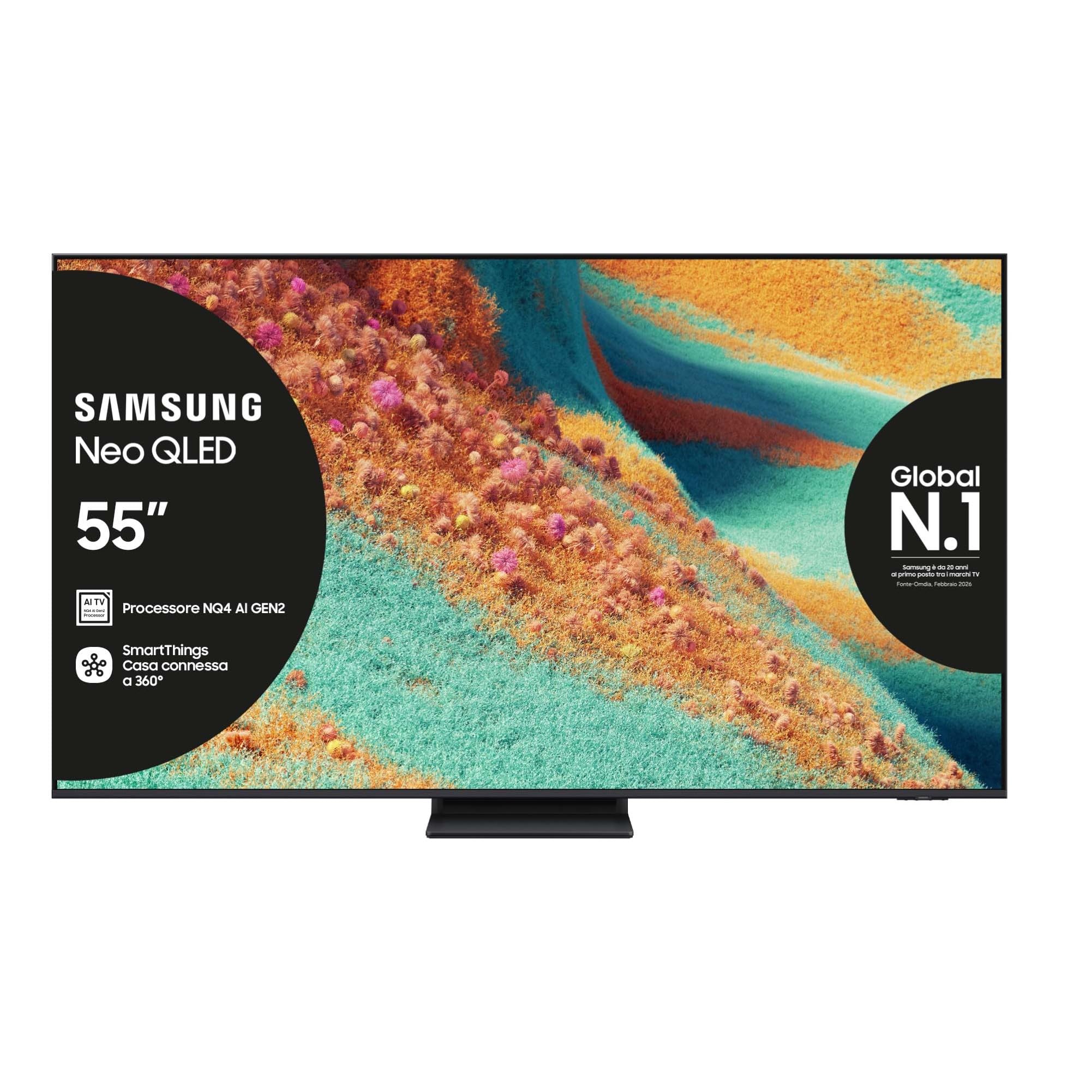
Front view of the Samsung Neo QLED 4K Vision AI Smart TV 55-inch.

Side view of the Samsung Neo QLED 4K Vision AI Smart TV 55-inch, highlighting its slim design.
2. Setup
2.1 Unboxing and Package Contents
Carefully unpack your TV and check that all components are present. The package should include:
- 1x Samsung Smart TV 55" Serie QN85F
- 2x Remote Controls (one solar-powered, one standard)
- Power Cable
- User Manual (this document)

Contents of the TV package, including the power cable, user manual, solar remote, and standard remote.
2.2 Physical Installation
Place the TV on a stable, flat surface or mount it on a wall using a compatible VESA mount (200 x 200 mm). Ensure adequate ventilation around the TV.

Detailed dimensions of the 55-inch TV, including width, height, and depth with stand.
2.3 Connecting Peripherals
Connect your external devices to the appropriate ports on the back of the TV. The TV features multiple connectivity options:
- HDMI Ports: 4 ports for connecting devices like Blu-ray players, game consoles, or set-top boxes. One port supports eARC.
- USB Ports: 2 ports (1x USB 3.0, 1x USB 2.0) for connecting USB storage devices.
- Ethernet (LAN) Port: For wired internet connection.
- Antenna (ANT) Input: For connecting a terrestrial or cable antenna.
- Optical Digital Audio Out: For connecting to a soundbar or audio receiver.

Rear panel of the TV displaying the HDMI, USB, LAN, and antenna input ports.
2.4 Initial Power-On and Network Setup
After connecting the power cable, press the power button on the remote control. Follow the on-screen instructions to complete the initial setup, including language selection, network connection (Wi-Fi or Ethernet), and channel scanning.
3. Operating Instructions
3.1 Remote Control Usage
Your TV comes with two remote controls. The solar-powered remote offers convenient charging via ambient light, while the standard remote provides traditional battery operation. Both remotes allow full control over TV functions, including navigation, volume, channel selection, and smart features.

The remote control interacting with the Samsung Vision AI Companion interface, demonstrating voice command capabilities.
3.2 Smart Features (Smart Hub, Gaming Hub, SmartThings)
Access a world of entertainment and smart home control through your TV's integrated smart features:
- Smart Hub: Your central portal for streaming apps (Disney Plus, Netflix, Prime Video, YouTube), live TV, and connected devices.
- Gaming Hub: Provides access to cloud gaming services and optimizes settings for a smooth gaming experience (Motion Xcelerator 144 Hz).
- SmartThings: Control compatible smart home devices directly from your TV, creating a connected living environment.

The Smart Hub interface displaying various streaming content and navigation options.

The Gaming Hub interface, optimized for gaming with various game titles displayed.

The SmartThings interface showing control options for various smart home devices.
3.3 Picture and Sound Technologies
Your TV incorporates advanced technologies for an enhanced viewing and listening experience:
- NQ4 AI Gen2 Processor & 4K AI Upscaling: Utilizes artificial intelligence to optimize picture quality, enhancing details and colors to near-4K resolution, regardless of the original source.
- Quantum Matrix Plus: Precisely controls the TV's Mini LEDs for ultra-fine light and dark areas, delivering exceptional contrast and detail.
- Neo Quantum HDR+: Provides extraordinary brightness and vivid colors, enhancing the dynamic range of content.
- Dolby Atmos & OTS Lite: Object Tracking Sound Lite creates a 3D audio experience where sound follows the action on screen, complemented by Dolby Atmos for immersive surround sound.
- Adaptive Sound Pro: Automatically calibrates sound based on the content and room acoustics for optimal audio delivery.
- Q-Symphony: Synchronizes the TV's speakers with a compatible Samsung soundbar (not included) for a richer, more expansive soundstage.

The NQ4 AI Gen2 Processor, the brain behind the TV's advanced AI features and 4K upscaling.

Visual representation of 4K AI Upscaling, showing how lower resolution content is enhanced.

Quantum Matrix Plus technology illustrated with a surfing scene, highlighting precise light control.

Comparison showing the enhanced brightness and color of Neo Quantum HDR+ versus standard dynamic range (SDR).

Dolby Atmos and OTS Lite audio technology creating a three-dimensional sound experience with a wave scene.

Object Tracking Sound Lite (OTS Lite) visually represented with sound waves emanating from a train on screen.

Adaptive Sound Pro adjusting audio based on different content types, from nature sounds to sports commentary.
4. Maintenance
4.1 Cleaning the TV
To clean the screen, gently wipe it with a soft, lint-free cloth. For stubborn marks, slightly dampen the cloth with water or a specialized screen cleaner. Avoid using harsh chemicals, abrasive materials, or direct spraying onto the screen.
Clean the TV's frame and stand with a soft, dry cloth. Ensure the TV is unplugged before cleaning.
4.2 General Care
- Avoid placing the TV in direct sunlight or near heat sources.
- Ensure proper ventilation by not blocking the TV's vents.
- Protect the screen from sharp objects or excessive pressure.
- Unplug the TV during lightning storms or when it will be unused for extended periods.
5. Troubleshooting
If you encounter issues with your TV, refer to the following common troubleshooting steps before contacting support.
5.1 No Power / No Picture
- Check if the power cable is securely connected to both the TV and the wall outlet.
- Ensure the wall outlet is functioning by plugging in another device.
- Press the power button on the remote control or directly on the TV.
5.2 Poor Picture Quality
- Verify the input source is correctly selected.
- Check the quality of the signal from your antenna or external device.
- Adjust picture settings (brightness, contrast, sharpness) in the TV menu.
- Note that viewing from extreme horizontal angles may show some image degradation, which is characteristic of certain display technologies.
5.3 No Sound
- Increase the volume using the remote control.
- Check if the TV is muted.
- Ensure external audio devices (soundbars, receivers) are properly connected and powered on.
- Check audio output settings in the TV menu.
5.4 Remote Control Not Working
- For the solar remote, ensure it has sufficient light exposure to charge.
- For the standard remote, replace the batteries if necessary.
- Ensure there are no obstructions between the remote and the TV.
6. Specifications
| Feature | Detail |
|---|---|
| Model Name | QE55QN85FAU |
| Screen Size | 55 Inches |
| Display Technology | QLED |
| Resolution | 4K (3840 x 2160) |
| Refresh Rate | 120 Hz (Motion Xcelerator 144 Hz) |
| Processor | NQ4 AI Gen2 Processor |
| HDR Format Supported | Neo Quantum HDR+ |
| Audio Output Mode | Surround (2.1 Channel) |
| Surround Sound Format | Dolby Atmos |
| Connectivity | Bluetooth, Ethernet, HDMI (4 ports), USB (2 ports), Wi-Fi |
| Operating System | Tizen |
| Control Method | App, Remote, Voice (Amazon Alexa, Google Assistant, SmartThings) |
| VESA Mounting Standard | 200 x 200 mm |
| Product Dimensions (LxWxH) | 122.8P x 24.7l x 76.1H cm (with stand) |
| Item Weight | 18 Kilograms |
| Color | Eclipse Silver |
| Country of Origin | Slovakia |
6.1 Energy Efficiency
The TV's energy efficiency information is provided on the energy label.
EU Energy Label for model QE55QN85FAU. For detailed information, refer to the EPREL database.
7. Warranty
This Samsung TV comes with a 2-year manufacturer's warranty. Please retain your proof of purchase for warranty claims. The warranty covers manufacturing defects under normal use conditions. For full terms and conditions, please refer to the warranty card included in your package or visit the official Samsung support website.
8. Support
For further assistance, technical support, or to download the full user manual, please visit the official Samsung support website or refer to the PDF manual provided:
- Download User Manual (PDF)
- Visit the Samsung Store on Amazon for product information and accessories.
You can also contact Samsung customer service for personalized support.
Ask a question about this manual
Ask about setup, troubleshooting, compatibility, parts, safety, or missing instructions. Manuals+ will review the question and use this page’s manual context to help answer it.