
1. Introduction
This manual provides essential information for the safe and efficient use of your Samsung Full HD Smart TV 27" UE27F6000FU. Please read these instructions carefully before using the product and retain them for future reference. This television features a Hyper Real Processor, HDR and Pur Color technology for enhanced visuals, a Smart Experience with Tizen OS, OTS Lite and Adaptive Sound for immersive audio, and a SlimLook Design.
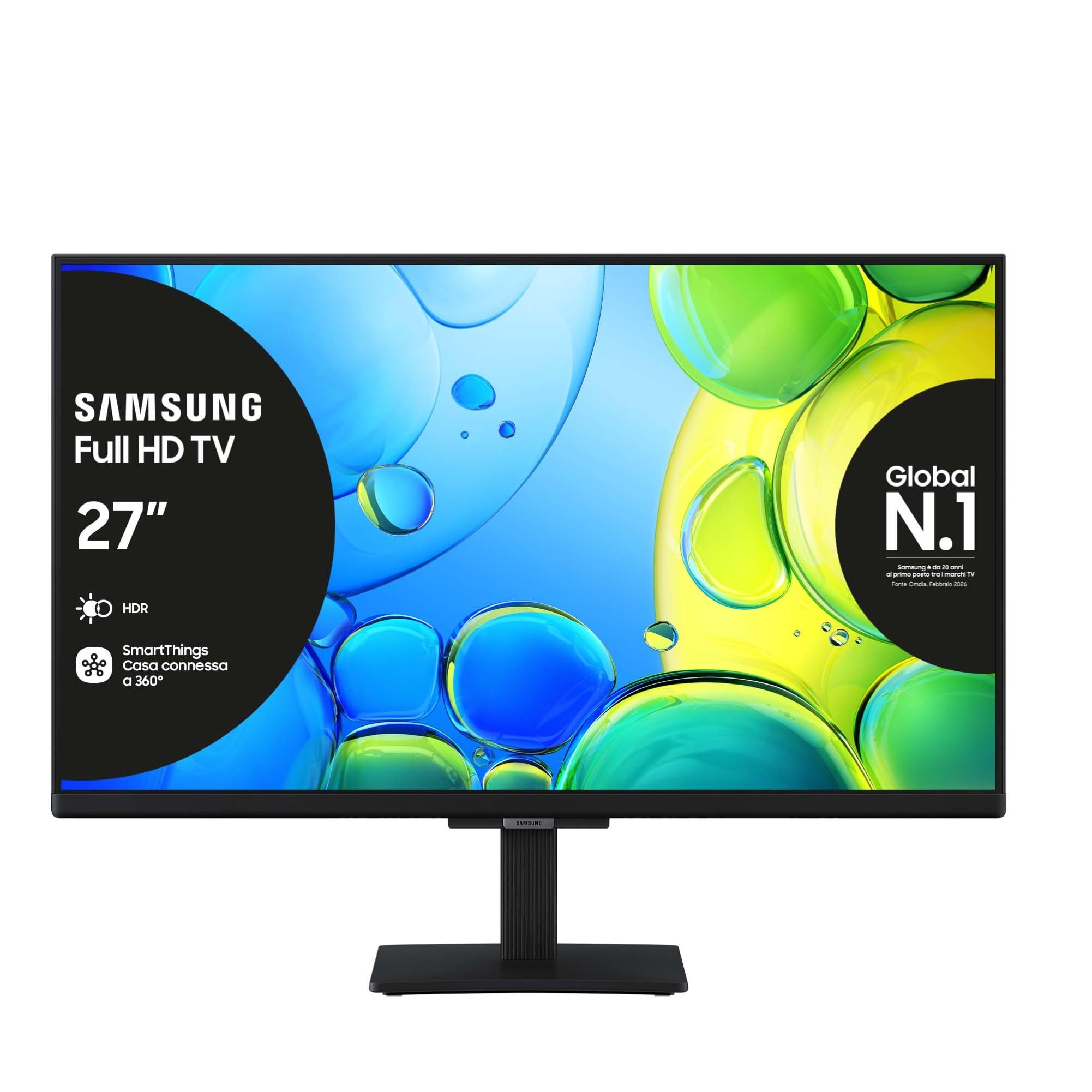
Image 1.1: Front view of the Samsung Full HD Smart TV 27" UE27F6000FU.
2. Safety Information
Always follow basic safety precautions when using this television to reduce the risk of fire, electric shock, and injury. Do not expose the TV to rain or moisture. Do not open the TV casing; refer all servicing to qualified personnel. Ensure proper ventilation and avoid placing the TV near heat sources. Use only the power cord supplied with the unit.
3. Package Contents
Verify that all items are present in the box:
- Samsung Full HD Smart TV (UE27F6000FU)
- Remote Control
- Power Cable
- Instruction Manual (this document)
4. Setup
4.1 Attaching the Stand or Wall Mounting
Carefully place the TV face down on a soft, flat surface. Attach the stand according to the diagrams in the separate quick setup guide, ensuring all screws are tightened securely. For wall mounting, use a VESA-compatible wall mount (200 x 200 mm) and follow the wall mount manufacturer's instructions. Ensure the TV is securely fastened to prevent accidental falls.

Image 4.1: The SlimLook Design of the TV, suitable for stand or wall mounting.
4.2 Connecting Power and External Devices
Connect the power cable to the TV's power input and then to a wall outlet. For external devices such as Blu-ray players, game consoles, or soundbars, use the HDMI ports. USB devices can be connected to the USB port for media playback or software updates.
4.3 Initial Setup and Network Connection
Upon first power-on, the TV will guide you through the initial setup process. This includes language selection, channel scanning, and network configuration. You can connect to the internet via Wi-Fi or an Ethernet cable for access to smart features and online content.
5. Operating Instructions
5.1 Remote Control Overview
The included remote control allows you to navigate the TV's menus, change channels, adjust volume, and access smart features. Familiarize yourself with the buttons for power, volume, channel, input selection, and the Smart Hub button.
5.2 Basic TV Functions
- Power On/Off: Press the power button on the remote.
- Volume Control: Use the Volume Up/Down buttons.
- Channel Selection: Use the Channel Up/Down buttons or the number pad.
- Input Source: Press the Source button to select between HDMI, TV, and other connected devices.
5.3 Picture and Sound Settings
Access the TV's settings menu to customize picture modes (e.g., Standard, Dynamic, Movie), brightness, contrast, and color settings. For audio, adjust sound modes, balance, and utilize features like OTS Lite and Adaptive Sound for an optimized listening experience.

Image 5.1: Pur Color technology provides a wide spectrum of colors for optimal picture quality.

Image 5.2: HDR technology enhances contrast and detail in both bright and dark scenes.

Image 5.3: OTS Lite provides object tracking sound for a more dynamic audio experience.

Image 5.4: Adaptive Sound Pro automatically optimizes audio based on content and environment.

Image 5.5: Q-Symphony allows the TV speakers and a compatible soundbar to operate simultaneously for richer sound.
6. Smart Features
6.1 Samsung Tizen OS and Smart Hub
Your TV runs on Samsung's Tizen operating system, providing a user-friendly interface. The Smart Hub is your gateway to a world of content, including streaming apps like Netflix, Disney Plus, Prime Video, and YouTube, as well as live TV channels.

Image 6.1: The Smart Hub provides easy access to a wide range of entertainment content.
6.2 Gaming Hub
The Gaming Hub consolidates your gaming experience, allowing you to access cloud gaming services and connected consoles directly from your TV. Enjoy a seamless gaming experience with optimized picture and sound settings.

Image 6.2: The Gaming Hub offers a centralized platform for all your gaming needs.
6.3 SmartThings Integration
Connect and control compatible smart home devices using the SmartThings app on your TV. Manage lighting, thermostats, and other smart appliances for a connected home experience.

Image 6.3: SmartThings allows integrated control of your smart home devices.
6.4 Voice Assistant
The TV supports multiple voice assistants, including Amazon Alexa and Google Assistant, allowing you to control your TV and search for content using voice commands.

Image 6.4: The TV is secured by Knox, providing robust security for your smart features and personal data.
7. Maintenance
7.1 Cleaning the TV
To clean the screen, gently wipe it with a soft, lint-free cloth. For stubborn marks, slightly dampen the cloth with water or a specialized screen cleaner. Avoid using harsh chemicals or abrasive materials. Clean the TV frame and stand with a dry, soft cloth.
7.2 Software Updates
Ensure your TV's software is up to date for optimal performance and security. You can check for and install updates through the TV's settings menu, typically found under 'Support' or 'Software Update'.
8. Troubleshooting
If you encounter issues with your TV, refer to the following common troubleshooting steps:
| Problem | Solution |
|---|---|
| No Power | Check if the power cable is securely connected to both the TV and the wall outlet. Ensure the outlet is functional. |
| No Picture / Distorted Picture | Verify the correct input source is selected. Check cable connections to external devices. Try a different HDMI cable. Adjust picture settings. |
| No Sound | Check the volume level and mute status. Ensure external audio devices (soundbar, receiver) are properly connected and powered on. |
| Remote Control Not Working | Replace the batteries. Ensure there are no obstructions between the remote and the TV. |
| Network Connection Issues | Restart your router and modem. Re-enter Wi-Fi password. Try connecting via Ethernet cable if Wi-Fi fails. |
If the problem persists, please refer to the Samsung support website or contact customer service.
9. Specifications
Key technical specifications for the Samsung Full HD Smart TV 27" UE27F6000FU:
- Model Name: UE27F6000FU
- Screen Size: 27 Inches
- Screen Technology: LED
- Resolution: Full HD (FHD)
- Refresh Rate: 50 Hz (100 Hz Motion Enhancement)
- Processor: Hyper Real Processor
- Picture Enhancement: HDR, Pur Color, Contrast Enhancer
- Audio Output Mode: Surround
- Integrated Surround Sound Format: OTS Lite
- Speaker Description: Built-in speaker with 3D surround technology and adaptive sound
- Operating System: Tizen
- Connectivity: Bluetooth, Ethernet, HDMI (3 ports), USB (1 port), Wi-Fi
- Smart Features: Smart Hub, Gaming Hub, SmartThings, Multiple Voice Assistants (Amazon Alexa, Google Assistant)
- VESA Mounting Standard: 200 x 200 mm
- Product Dimensions (with stand): 61.3 cm (D) x 20.1 cm (W) x 46.9 cm (H)
- Item Weight: 3.5 Kilograms
- Color: Black
- Model Year: 2025
10. Warranty and Support
10.1 Warranty Information
This Samsung Smart TV comes with a 2-year manufacturer warranty. Please retain your proof of purchase for warranty claims. The warranty covers manufacturing defects under normal use conditions.
10.2 Customer Support
For further assistance, technical support, or warranty service, please visit the official Samsung support website or contact their customer service department. You can find contact details and FAQs on their website.