
Introduction
This manual provides essential information for the safe and efficient use of your Samsung QLED 4K Vision AI Smart TV, model QE50Q8FAAUXZT. Please read these instructions thoroughly before operating the device and retain them for future reference.
Package Contents
Verify that all components are present in the box:
- 1x Samsung Smart TV 50'' Serie Q8F, QLED 4K
- 1x Power Cable
- 1x Standard Remote Control
- 1x Solar-powered Remote Control
- 1x User Manual (this document)
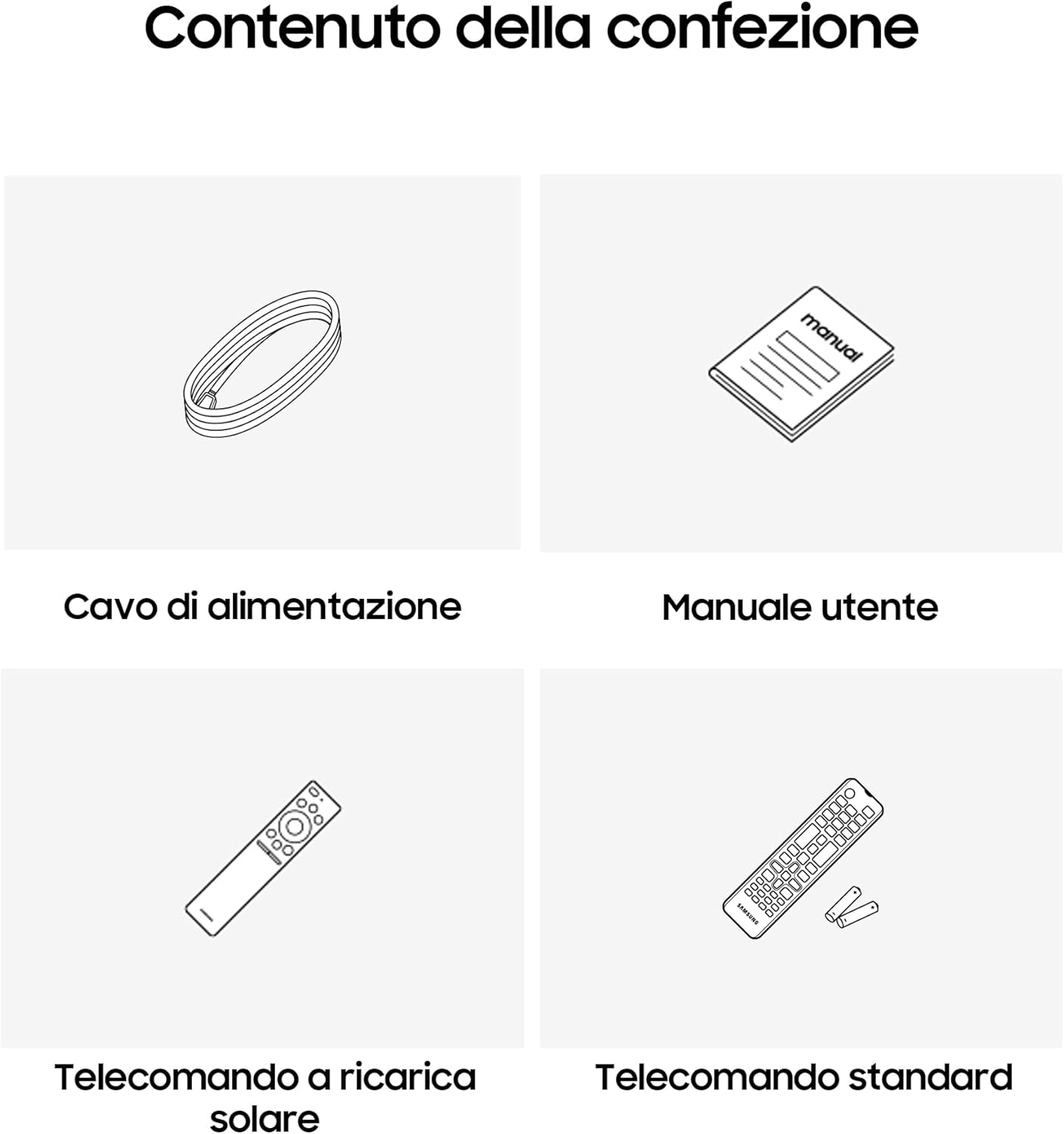
Image: Diagram showing the included items: power cable, user manual, solar-powered remote, and standard remote.
Setup
Unpacking and Placement
Carefully remove the TV from its packaging. Place the TV on a stable, flat surface or mount it on a wall using a compatible VESA mount (sold separately). Ensure adequate ventilation around the TV.
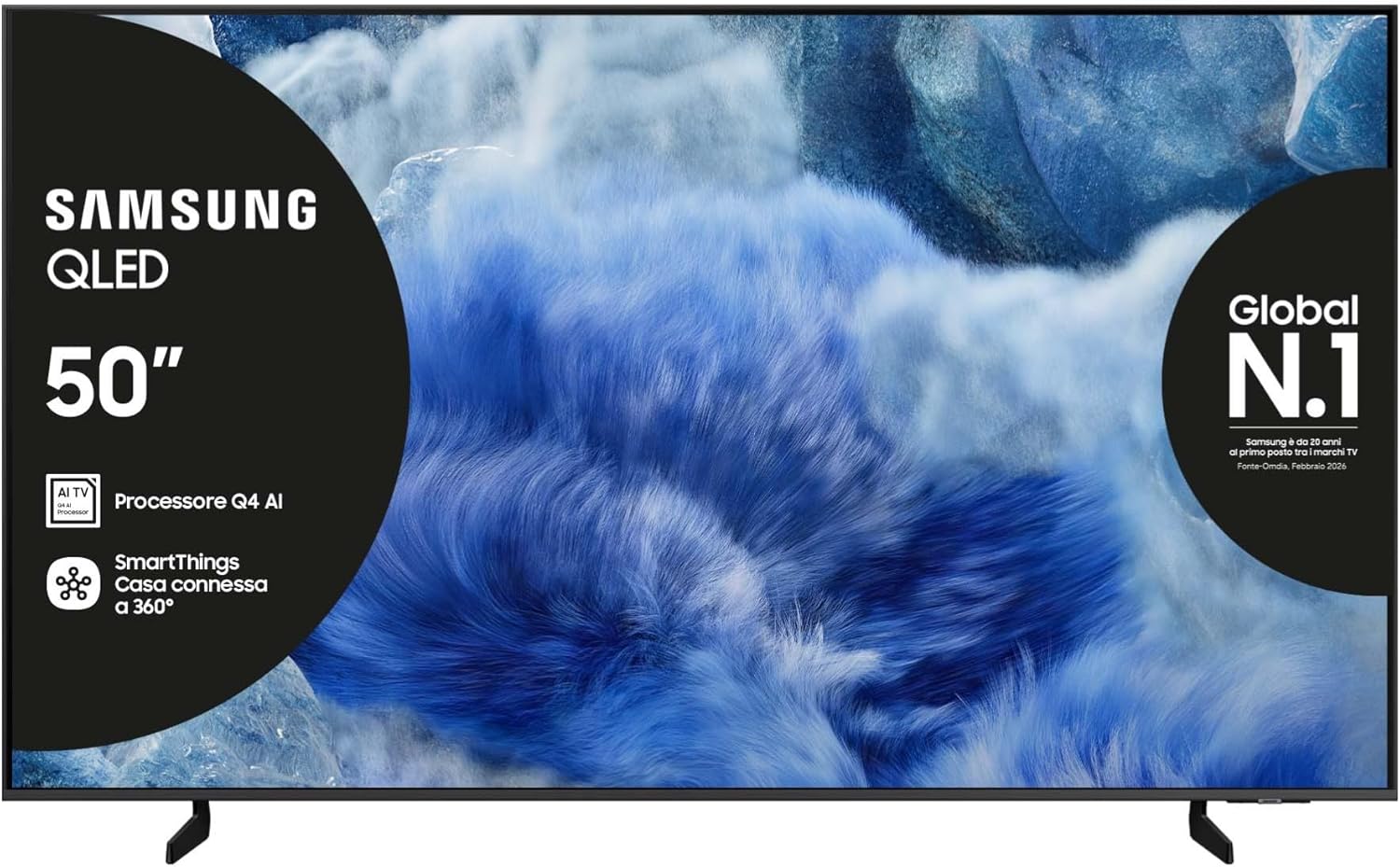
Image: Front view of the Samsung QLED TV with its stand.

Image: Side view of the Samsung QLED TV, showcasing its Air Slim Design.
Connecting Peripherals
Connect your external devices (e.g., cable box, Blu-ray player, gaming console) to the appropriate ports on the back of the TV.

Image: Rear panel connections of the TV, showing HDMI, USB, LAN, and antenna ports.
- HDMI: For high-definition audio and video devices. The TV features multiple HDMI ports, including HDMI 3 with eARC support.
- USB: For connecting USB storage devices.
- LAN: For wired internet connection.
- ANT IN: For connecting an antenna or cable.
Power Connection
Plug the power cable into the TV's power input and then into a wall outlet.
Initial Setup Wizard
Upon first power-on, the TV will guide you through the initial setup process, including language selection, network connection, and channel scanning.
Operating the TV
Remote Control Functions
Your TV comes with two remote controls. The solar-powered remote offers convenience and reduces battery waste. Familiarize yourself with the buttons for power, volume, channel, navigation, and smart features.

Image: The Samsung Vision AI Companion interface displayed on the TV screen, alongside a remote control, illustrating voice command capabilities.
Smart Hub and AI Features
Access the Smart Hub for applications, streaming services, and connected devices. The Q4 AI Processor enhances picture and sound quality through 4K Upscaling and AI Mode. Utilize Vision AI for personalized entertainment and real-time suggestions.

Image: A detailed view of the Samsung Q4 AI Processor chip, emphasizing its role in 4K upscaling and optimizing visual and audio experience.

Image: Icons representing Samsung Knox Security, SmartThings, Samsung Vision AI, and Endless Free Content, highlighting key features of the TV's ecosystem.
Picture and Sound Settings
Adjust picture modes (e.g., Standard, Dynamic, Movie) and sound settings (e.g., Standard, Adaptive Sound, OTS Lite) to suit your preferences. OTS Lite provides 3D surround sound, and Q-Symphony synchronizes TV speakers with a compatible soundbar.

Image: A vibrant image on the QLED screen, illustrating the 100% Color Volume with Quantum Dot technology for optimal viewing.
Gaming Hub
Access the Gaming Hub to play games from various platforms directly on your TV, enhanced by Motion Xcelerator for smooth visuals.
Maintenance
Cleaning the TV
Gently wipe the screen and frame with a soft, dry, lint-free cloth. Do not use abrasive cleaners or solvents. For stubborn marks, lightly dampen the cloth with water.
Software Updates
Ensure your TV's software is up to date for optimal performance and security. Updates can be performed via the TV's settings menu or automatically when connected to the internet.
Troubleshooting
No Power
- Check if the power cable is securely connected to both the TV and the wall outlet.
- Verify the wall outlet is functioning by plugging in another device.
No Picture or Sound
- Ensure the correct input source is selected.
- Check all cable connections (HDMI, antenna, etc.) for looseness.
- Restart the TV and any connected devices.
Remote Control Not Working
- For the solar-powered remote, ensure it has sufficient light exposure to charge.
- For the standard remote, replace the batteries if necessary.
- Ensure there are no obstructions between the remote and the TV.
Network Connection Issues
- Restart your router and modem.
- Check the Wi-Fi password if connecting wirelessly.
- If using a wired connection, ensure the LAN cable is properly connected.
Specifications
| Feature | Specification |
|---|---|
| Screen Size | 50 Inches |
| Display Technology | QLED |
| Resolution | 4K (3840 x 2160) |
| Refresh Rate | 50 Hz |
| Processor | Q4 AI Processor |
| Connectivity | Bluetooth, Ethernet, HDMI (multiple, including eARC), USB, Wi-Fi |
| Special Features | Built-in Speaker, Multi-voice Assistant, Browser, Parental Controls, Flat Panel |
| Aspect Ratio | 16:9 |
| Product Dimensions (WxDxH) | 111.8 cm x 23.9 cm x 70.2 cm (with stand) |

Image: Energy label for the Samsung QE50Q8FAAU, indicating an energy class of E and power consumption details. More details can be found at eprel.ec.europa.eu/qr/2204814.

Image: Detailed product information sheet, including supplier name, model identification, energy efficiency classes, power consumption, display technology, screen dimensions, and other technical data.
Warranty and Support
Your Samsung TV is covered by a manufacturer's warranty. Please refer to the warranty card included in your package for specific terms and conditions. For technical support, service, or warranty claims, please contact Samsung Customer Service.
Contact Information:
- Supplier: Samsung
- Supplier Address: Public Contact, Samsung PO Box 12987, Blackrock, Co Dublin Ireland
- Website: www.samsung.com (general website, specific support link may vary by region)
- Email: eprel@samsung.com (for EPREL related inquiries)
The product information sheet indicates a minimum availability of spare parts for 7 years and minimum support for product software for 7 years.