
Introduction
Thank you for choosing the INFINMIND K618 Wireless Bluetooth TouchPad Keyboard. This manual provides essential information for the proper setup, operation, and maintenance of your new device. Please read it thoroughly before use to ensure optimal performance and longevity.

Image: The INFINMIND K618 Wireless TouchPad Keyboard, showcasing its sleek design and wireless capabilities.

Image: The INFINMIND K618 keyboard being used in various scenarios including home, office, travel, and meetings, highlighting its portability and versatility.
Package Contents
- INFINMIND K618 Wireless Bluetooth TouchPad Keyboard
- 2.4G USB Receiver
- User Manual
- (Batteries not included, requires 2x AAA batteries)
Product Overview
Familiarize yourself with the key components of your INFINMIND K618 keyboard.

Image: Top-down view of the INFINMIND K618 keyboard, highlighting the integrated touchpad and the included 2.4G USB receiver.
- Keyboard Layout: Standard QWERTY layout with function keys.
- Integrated Touchpad: Located on the right side for navigation.
- Connection Mode Indicators: Lights for 2.4G, Bluetooth 1 (BT1), and Bluetooth 2 (BT2).
- Power Switch: On/Off switch (usually on the back or side).
- Battery Compartment: For AAA batteries (on the back).
- USB Receiver Storage: Compartment for the 2.4G USB receiver (on the back).
Setup
1. Powering On/Off
- Insert 2x AAA batteries into the battery compartment on the back of the keyboard, ensuring correct polarity.
- Slide the power switch to the "ON" position. The keyboard will power on.
- To power off, slide the power switch to the "OFF" position.
2. 2.4G Wireless Connection
- Locate the 2.4G USB receiver in the battery compartment or a dedicated slot on the keyboard.
- Plug the USB receiver into an available USB port on your computer, laptop, or smart TV.
- Press the 2.4G connection button on the keyboard (often labeled with a USB icon or 'A'). The indicator light for 2.4G will illuminate.
- The device should automatically recognize the keyboard. No additional drivers are typically required.
3. Bluetooth Connection (BT1 & BT2)
The K618 supports two independent Bluetooth connections, allowing you to switch between two Bluetooth-enabled devices.

Image: Diagram illustrating the multi-device connection capability of the INFINMIND K618 keyboard, showing connections to a laptop, monitor (via 2.4G), and tablet (via Bluetooth).
- Enable Bluetooth on your device: Ensure Bluetooth is turned on for your laptop, tablet, smartphone, or smart TV.
- Select a Bluetooth channel: Press and hold either the BT1 or BT2 connection button on the keyboard for 3-5 seconds until the corresponding indicator light starts blinking rapidly. This indicates pairing mode.
- Pair with your device: On your device, search for Bluetooth devices. You should see "INFINMIND K618" or a similar name appear in the list. Select it to pair.
- Confirm connection: Once paired, the indicator light on the keyboard will stop blinking and remain solid for a few seconds, then turn off to save power. Your keyboard is now connected.
- Repeat these steps for the second Bluetooth channel (BT2) if you wish to connect another device.
Operating Instructions
1. Multi-Device Switching
To switch between connected devices:
- Press the 2.4G button to switch to the device connected via the USB receiver.
- Press the BT1 button to switch to the device connected via Bluetooth channel 1.
- Press the BT2 button to switch to the device connected via Bluetooth channel 2.

Image: Visual representation of the INFINMIND K618 keyboard's ability to switch between three devices (2.4G, BT1, BT2) with a single click.
2. Touchpad Gestures
The integrated touchpad supports multi-touch gestures for enhanced navigation:
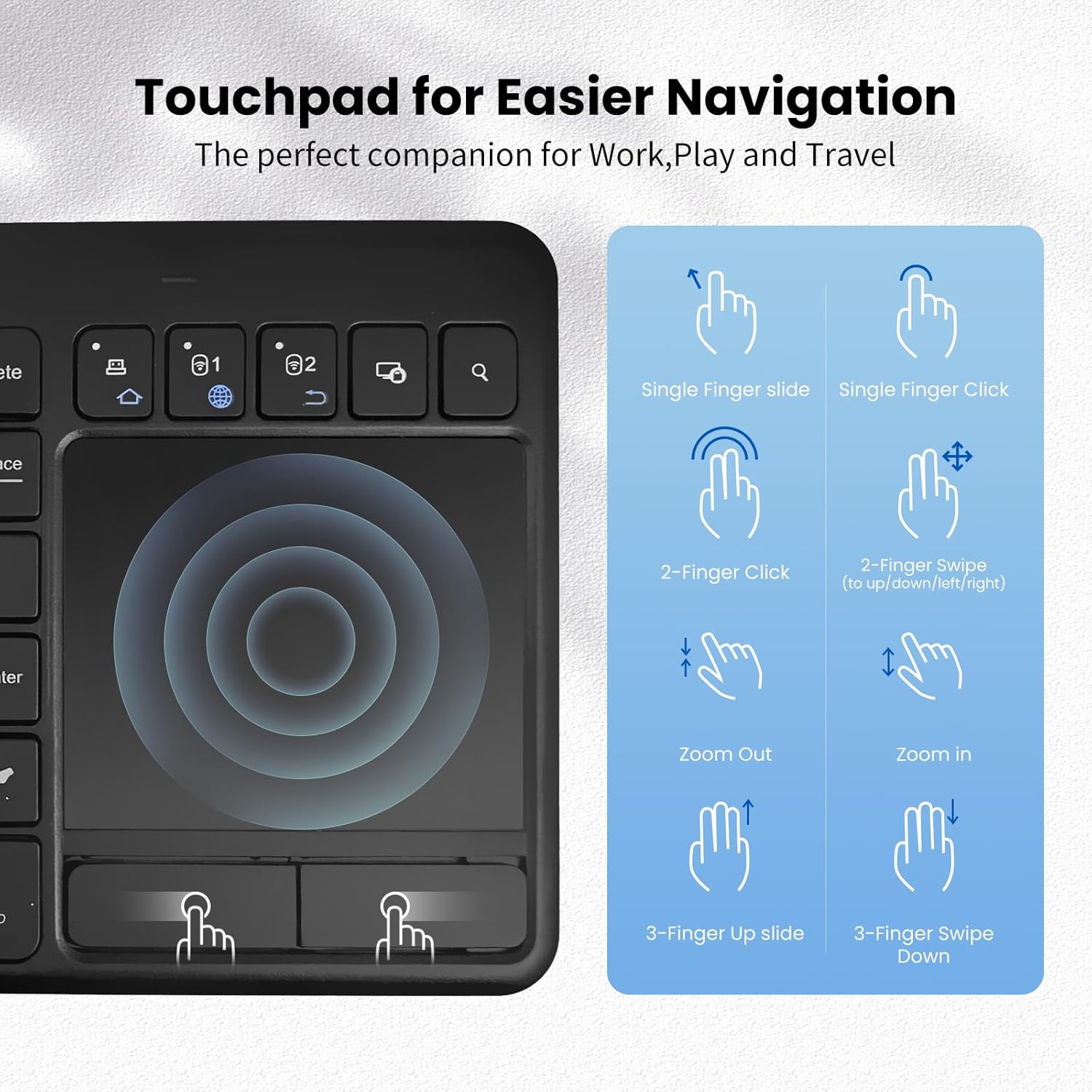
Image: A guide illustrating various touchpad gestures supported by the INFINMIND K618, including single-finger slide/click, two-finger click/swipe, zoom in/out, and three-finger slide/swipe.
- Single Finger Slide: Move the cursor.
- Single Finger Click: Left-click.
- Two-Finger Click: Right-click.
- Two-Finger Swipe (Up/Down/Left/Right): Scroll content or navigate.
- Pinch In/Out: Zoom in or out (if supported by the operating system/application).
- Three-Finger Slide Up: (Specific OS function, e.g., Task View on Windows).
- Three-Finger Slide Down: (Specific OS function, e.g., Show Desktop on Windows).
Note: Specific gesture functionality may vary depending on the operating system and application.
3. Function Keys
The keyboard includes dedicated function keys (F1-F12) and multimedia shortcuts. Use the Fn key in combination with other keys to access secondary functions, if applicable.
Compatibility
The INFINMIND K618 keyboard is designed for broad compatibility across various operating systems and devices.

Image: Chart detailing the wide compatibility of the INFINMIND K618 keyboard with various devices (smartphones, laptops, tablets, PCs, Smart TVs) and operating systems (Mac OS, Windows 7/8/10, iOS, Android).
- Operating Systems: Windows (7/8/10/11), Android, Chrome OS, iOS, Mac OS.
- Compatible Devices: Laptops, Desktop PCs, Tablets (iPad, Android tablets), Smartphones (iPhone, Android phones), Smart TVs.
Note: Full functionality, especially for advanced touchpad gestures, may depend on the specific operating system version and device support.
Maintenance
- Cleaning: Use a soft, dry cloth to clean the keyboard surface. For stubborn dirt, a slightly damp cloth with mild soap can be used, ensuring no liquid enters the device.
- Battery Replacement: Replace AAA batteries when the low battery indicator (if present) illuminates or when performance degrades.
- Storage: When not in use for extended periods, turn off the keyboard and remove the batteries to prevent leakage. Store in a cool, dry place.
- Avoid Extremes: Do not expose the keyboard to extreme temperatures, direct sunlight, or excessive moisture.
Troubleshooting
| Problem | Possible Solution |
|---|---|
| Keyboard not responding |
|
| Touchpad not working correctly |
|
| Difficulty switching between devices |
|
Specifications
| Feature | Detail |
|---|---|
| Model | K618 |
| Connectivity | 2.4G Wireless, Bluetooth (BT1, BT2) |
| Operating Range | Up to 33 feet (10 meters) |
| Power Source | 2 x AAA Batteries |
| Compatible OS | Windows, Android, Chrome OS, iOS, Mac OS |
| Dimensions | 13.39 x 5.12 x 1.18 inches (approx.) |
| Weight | 12.6 ounces (approx.) |
Warranty and Support
INFINMIND products are designed for reliability and performance. For warranty information and technical support, please refer to the warranty card included in your package or visit the official INFINMIND website.
If you encounter any issues not covered in this manual, please contact INFINMIND customer support for assistance.