Introduction
This manual provides detailed instructions for the setup, operation, and maintenance of your Luzarriba Backlit Large Print Wireless Keyboard and Mouse Combo. Please read this manual thoroughly before using the product to ensure proper functionality and longevity. Keep this manual for future reference.
Package Contents
Verify that all items listed below are included in your package:
- 1 x Wireless Keyboard
- 1 x Wireless Mouse
- 1 x USB Receiver (2.4G Dongle)
- 1 x USB Charging Cable
- 1 x User Manual

Image: The complete Luzarriba wireless keyboard and mouse combo, including the USB receiver, as packaged.
Setup
1. Charging the Devices
Before initial use, fully charge both the keyboard and the mouse. Connect the provided USB charging cable to the charging ports on the keyboard and mouse, and then to a USB power source (e.g., computer USB port, USB wall adapter). An indicator light will show charging status and turn off when fully charged.
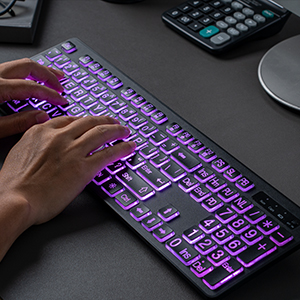
Image: The wireless keyboard and mouse connected via USB cables for charging.
2. Connecting the USB Receiver
Locate the USB receiver (dongle) in the package. Plug the USB receiver into an available USB port on your computer. The system will automatically detect and install the necessary drivers. No additional software installation is required.
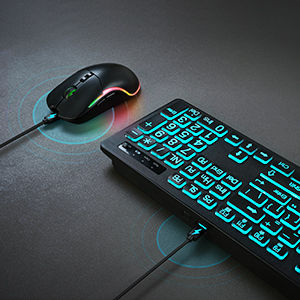
Image: A close-up of the USB receiver inserted into a laptop, demonstrating the wireless connection setup for the keyboard and mouse.
3. Powering On
Turn on the keyboard and mouse using their respective power switches. The power switch for the keyboard is typically located on the top right edge, and for the mouse, it is usually on the bottom. The devices should connect automatically to your computer via the USB receiver.
Operating Instructions
1. Keyboard Functions
The keyboard features a full-size layout with large print keys for enhanced visibility. It operates like a standard keyboard for typing and input.

Image: A detailed view of the keyboard, emphasizing the large print on the keys for improved readability.
2. Backlight Control
The keyboard features adjustable backlighting. Use the following key combinations to control the backlight:
- Turn On/Off Backlight: Press the Light Bulb key (usually near the top right).
- Adjust Brightness: Press Fn + Page Up (PU) to increase brightness. Press Fn + Page Down (PD) to decrease brightness.
- Breathing Light Mode: Press Fn + Light Bulb key to activate or deactivate breathing light mode.
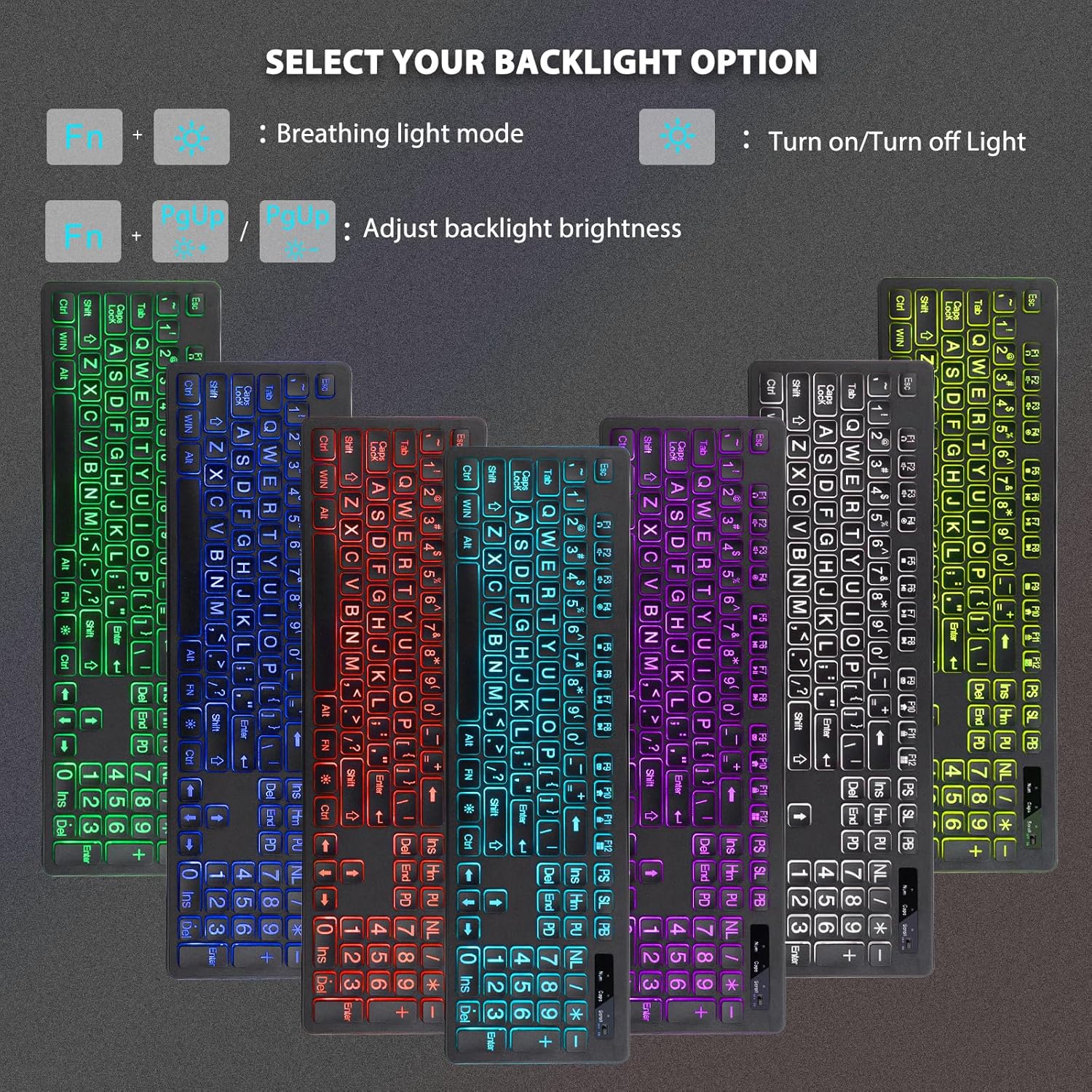
Image: A visual representation of the keyboard's customizable backlighting, showing different color options and brightness settings.
3. Mouse Functions
The mouse is a 6-button device with adjustable DPI settings for cursor speed control.
- Left Button: Standard click function.
- Right Button: Context menu function.
- Scroll Switch (Wheel): Scroll up/down, and click for middle-button function.
- Adjustable DPI: Press the DPI button (usually below the scroll wheel) to cycle through sensitivity settings (e.g., 1000-1200-1600 DPI).
- Forward Button: Navigates forward in web browsers or file explorers.
- Backward Button: Navigates backward in web browsers or file explorers.

Image: An annotated diagram of the wireless mouse, clearly labeling the left button, right button, scroll switch, adjustable DPI button, forward button, and backward button.
Maintenance
Care and Cleaning
To maintain the performance and appearance of your keyboard and mouse, follow these guidelines:
- Use a soft, dry cloth to clean the surfaces.
- For stubborn dirt, slightly dampen the cloth with water or a mild cleaning solution. Avoid harsh chemicals.
- Do not immerse the devices in water or any liquid.
- Keep the USB receiver free from dust and debris.
Battery Management
The keyboard and mouse feature built-in rechargeable batteries and a smart power management system. To optimize battery life:
- Fully charge the devices before first use.
- The devices will enter an auto-sleep mode after a period of inactivity to conserve power. Press any key or move the mouse to wake them up.
- Recharge when the battery indicator light signals low power. You can typically use the devices while they are charging.
Troubleshooting
If you encounter issues with your keyboard and mouse combo, refer to the following solutions:
- No Connection / Devices Not Responding:
• Ensure both the keyboard and mouse are powered on.
• Verify the USB receiver is securely plugged into a working USB port on your computer.
• Recharge both the keyboard and mouse to ensure they have sufficient power.
• Try plugging the USB receiver into a different USB port. - Backlight Not Working or Dim:
• Ensure the keyboard is powered on.
• Press the Light Bulb key to turn on the backlight.
• Adjust brightness using Fn + Page Up/Down. - Mouse Cursor Movement is Erratic or Slow:
• Check the mouse's battery level and recharge if necessary.
• Adjust the DPI setting by pressing the DPI button on the mouse.
• Ensure the mouse is used on a clean, non-reflective surface. - Short Wireless Range:
• Ensure there are no large metal objects or other electronic devices causing interference between the devices and the USB receiver.
• Try moving the USB receiver to a front USB port or closer to the keyboard/mouse.
Specifications
| Brand | Luzarriba |
| Model Number (ASIN) | B0F7LHGW3B |
| Connectivity Technology | 2.4GHz Wireless |
| Special Features | Backlit Keys, Ergonomic Design, Large Print Keys, Wireless |
| Compatible Devices | Laptop, Personal Computer (Windows OS) |
| Batteries | 1 Nonstandard Battery (included, rechargeable) |
| Item Weight | 1.2 pounds |
| Package Dimensions | 17.6 x 8.31 x 2.56 inches |
Warranty and Support
This product comes with a standard manufacturer's warranty. For specific warranty details, please refer to the product packaging or contact Luzarriba customer support. If you require technical assistance or have questions not covered in this manual, please reach out to the seller or manufacturer through your purchase platform.