1. Introduction
This user manual provides comprehensive instructions for the installation, operation, maintenance, and troubleshooting of your JIAN BOLAND USB Fingerprint Reader. Designed for seamless integration with Windows 10/11, this device offers a secure and convenient way to log in and lock your PC using biometric authentication. Please read this manual thoroughly before using the product to ensure optimal performance and longevity.
2. Package Contents
Please verify that all items listed below are included in your package:
- USB Fingerprint Reader (Model: FP100-LK)
3. Product Overview
The JIAN BOLAND USB Fingerprint Reader is a compact and efficient device designed to enhance your PC's security and accessibility. It features a fingerprint sensor for quick biometric login and a dedicated button for one-click screen locking.
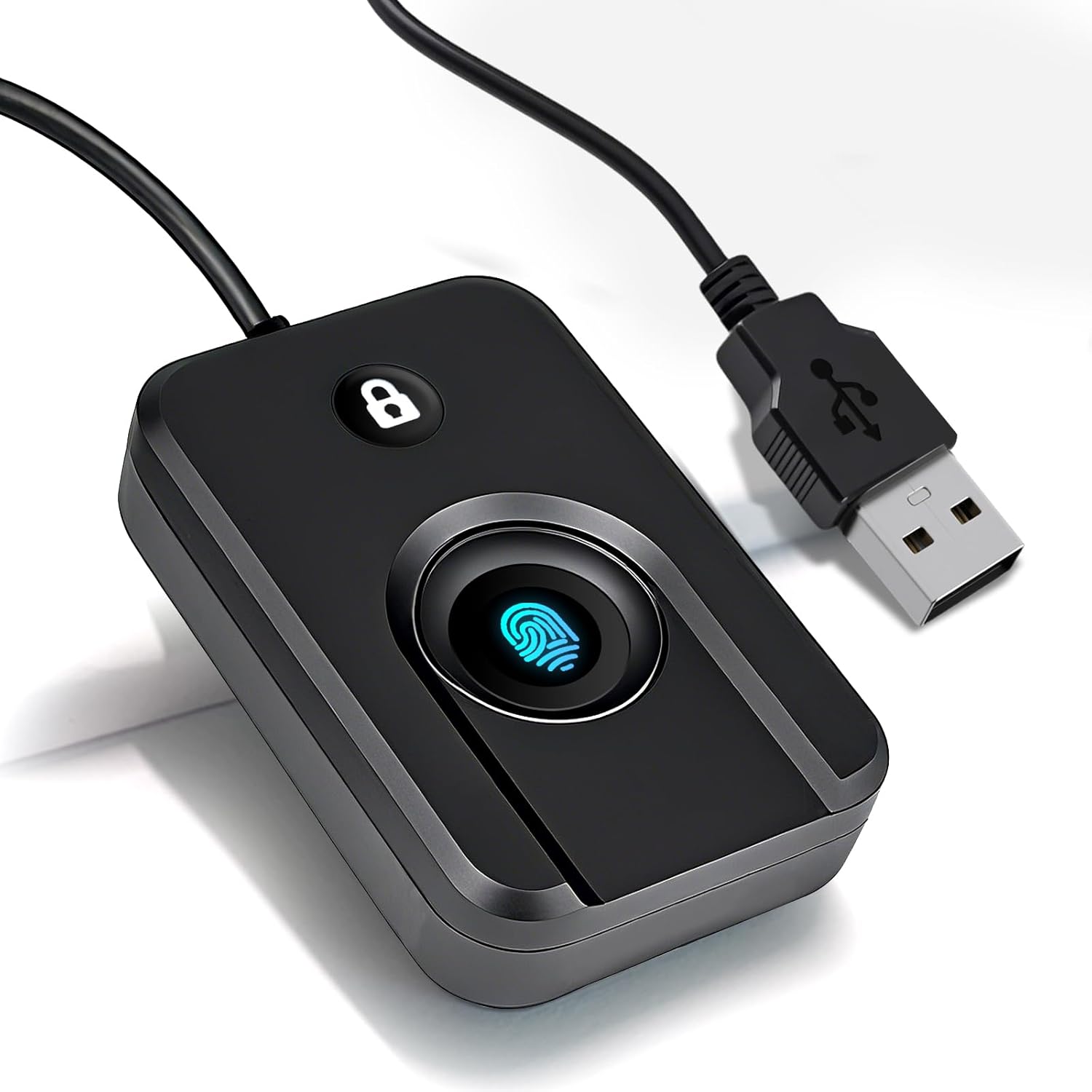
Figure 3.1: JIAN BOLAND USB Fingerprint Reader (Model: FP100-LK)

Figure 3.2: Key features include Windows Hello compatibility, biometric fingerprint login, approximately 1.5M USB cable length, and one-key lock screen functionality.

Figure 3.3: The device measures 40mm (1.57 inches) in width and 60mm (2.4 inches) in length, with a 1.5m (5ft) cable. It features a lock button, fingerprint recognition area, and a standard USB interface.
4. Setup
4.1 Driver Installation
The JIAN BOLAND USB Fingerprint Reader is designed for plug-and-play simplicity on genuine Windows 10/11 systems. In most cases, the driver will install automatically upon connection.

Figure 4.1: The device typically supports automatic driver recognition and installation when connected to a Windows 10/11 PC.
If automatic driver installation fails (e.g., on non-genuine Windows OS), you may need to manually update the driver. Refer to the video below for detailed steps on both automatic and manual driver installation processes.
Video 4.1: This video demonstrates the driver installation process for the JIAN BOLAND USB Fingerprint Reader, including steps for automatic installation via Windows Update and manual installation if required. It also covers troubleshooting tips for driver-related issues.
4.2 Initial Connection
Connect the USB Fingerprint Reader to an available USB port on your Windows 10/11 PC. The system should recognize the device and begin driver installation automatically.

Figure 4.2: The device is plug-and-play, requiring no driver installation for quick and easy login with Windows Hello.
5. Operating Instructions
5.1 Adding Fingerprints with Windows Hello
To use the fingerprint reader for password-free login, you must register your fingerprints through Windows Hello. This device supports up to 10 unique fingerprints, making it suitable for multi-user environments.
- Go to Start > Settings > Accounts > Sign-in options.
- Under "Windows Hello Fingerprint," click Set up or Add another.
- Follow the on-screen prompts. You will be asked to register your PIN first if you haven't already.
- Place your finger on the fingerprint sensor and lift it repeatedly as instructed, ensuring different parts of your finger are scanned to capture a complete print.
- Once registration is complete, you can use your fingerprint to log in to Windows.
For a visual guide on adding fingerprints, please refer to the latter part of Video 4.1 in the Setup section.
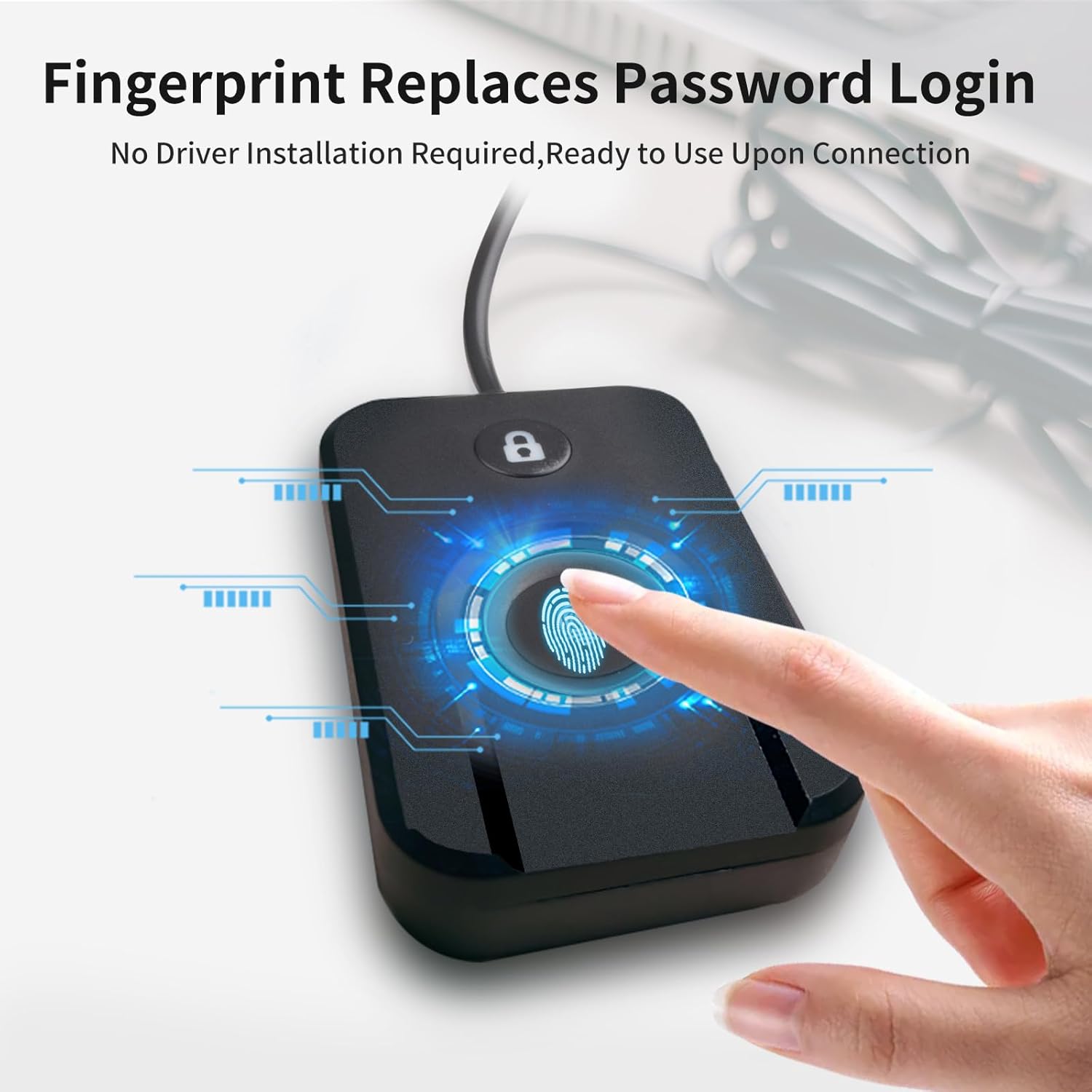
Figure 5.1: The fingerprint reader allows for password-free login, ready to use upon connection and setup with Windows Hello.
5.2 One-Click Lock Screen Function
The device features a convenient one-click lock screen button. Simply press the dedicated lock button on the fingerprint reader to instantly lock your PC.

Figure 5.2: Easily lock your screen with a single press of the dedicated lock button on the device.
6. Maintenance
To ensure the longevity and optimal performance of your fingerprint reader, follow these maintenance guidelines:
- Keep the fingerprint sensor clean and free from dust, dirt, or oils. Use a soft, lint-free cloth to gently wipe the sensor surface.
- Avoid using abrasive cleaners, solvents, or harsh chemicals, as these can damage the device.
- Store the device in a cool, dry place when not in use.
- Do not expose the device to extreme temperatures or direct sunlight.
7. Troubleshooting
If you encounter issues with your JIAN BOLAND USB Fingerprint Reader, please refer to the following common problems and solutions:
| Problem | Possible Cause / Solution |
|---|---|
| Driver not installing automatically. | This can occur on non-genuine Windows systems. Refer to Section 4.1 and Video 4.1 for manual driver installation steps. Ensure your Windows Update service is active. |
| Fingerprint registration fails or is not available in Windows Hello. |
|
| Fingerprint recognition is inconsistent. |
|
| Device not recognized by PC. |
|
If these solutions do not resolve the issue, please contact JIAN BOLAND customer support for further assistance.
8. Specifications
| Feature | Detail |
|---|---|
| Product Dimensions | 1.57 x 0.39 x 2.36 inches |
| Item Weight | 2.39 ounces |
| Model Number | FP100-LK |
| Manufacturer | JIAN BOLAND |
| Compatibility | Windows 10/11 (32-bit and 64-bit systems) |
| Cable Length | 1.5M / 5FT (extension cable included) |
| Authentication Rate | <0.5 second response time |
| Security | 0.001% False Acceptance Rate / 0.1% False Rejection Rate |
9. Warranty & Support
JIAN BOLAND products come with a standard manufacturer's warranty. For specific warranty details, please refer to the product packaging or contact your retailer. If you require technical support or have any questions not covered in this manual, please contact JIAN BOLAND customer service through the retailer's platform or the official brand website.
Contact Information: Please refer to your purchase documentation or the JIAN BOLAND official website for the most up-to-date contact details.


