
1. Product Overview
The Amazon Basics Multi-Touch Trackpad is a wireless input device designed for Windows PCs, offering enhanced navigation and control through multi-touch gestures. It features dual device connectivity and a rechargeable battery for convenience.
Key Features:
- Multi-Touch Gestures: Supports up to four-finger gestures for intuitive control.
- Dual Device Control: Connects to two devices via Bluetooth with easy switching.
- Integrated Buttons: Built-in left and right mouse button functionality.
- Slim Design: Portable and sleek with colored indicator lights for enhanced functionality.
- Rechargeable Battery: Equipped with a lithium battery, rechargeable via USB-C.
- Compatibility: Designed for Windows OS. Not compatible with macOS, Chrome OS, or Linux.

Image 1.1: Top view of the Amazon Basics Multi-Touch Trackpad.
2. Setup and Installation
2.1 Package Contents
Ensure all items are present:
- Amazon Basics Multi-Touch Trackpad
- USB-C Charging Cable
- User Manual (this document)
2.2 Charging the Trackpad
- Locate the USB-C port on the trackpad.
- Connect the provided USB-C cable to the trackpad and the other end to a USB power source (e.g., computer USB port, USB wall adapter).
- The indicator light will show charging status. A full charge typically takes [X] hours (Note: Specific charging time not provided in source data, user should refer to product packaging or quick start guide for exact duration).
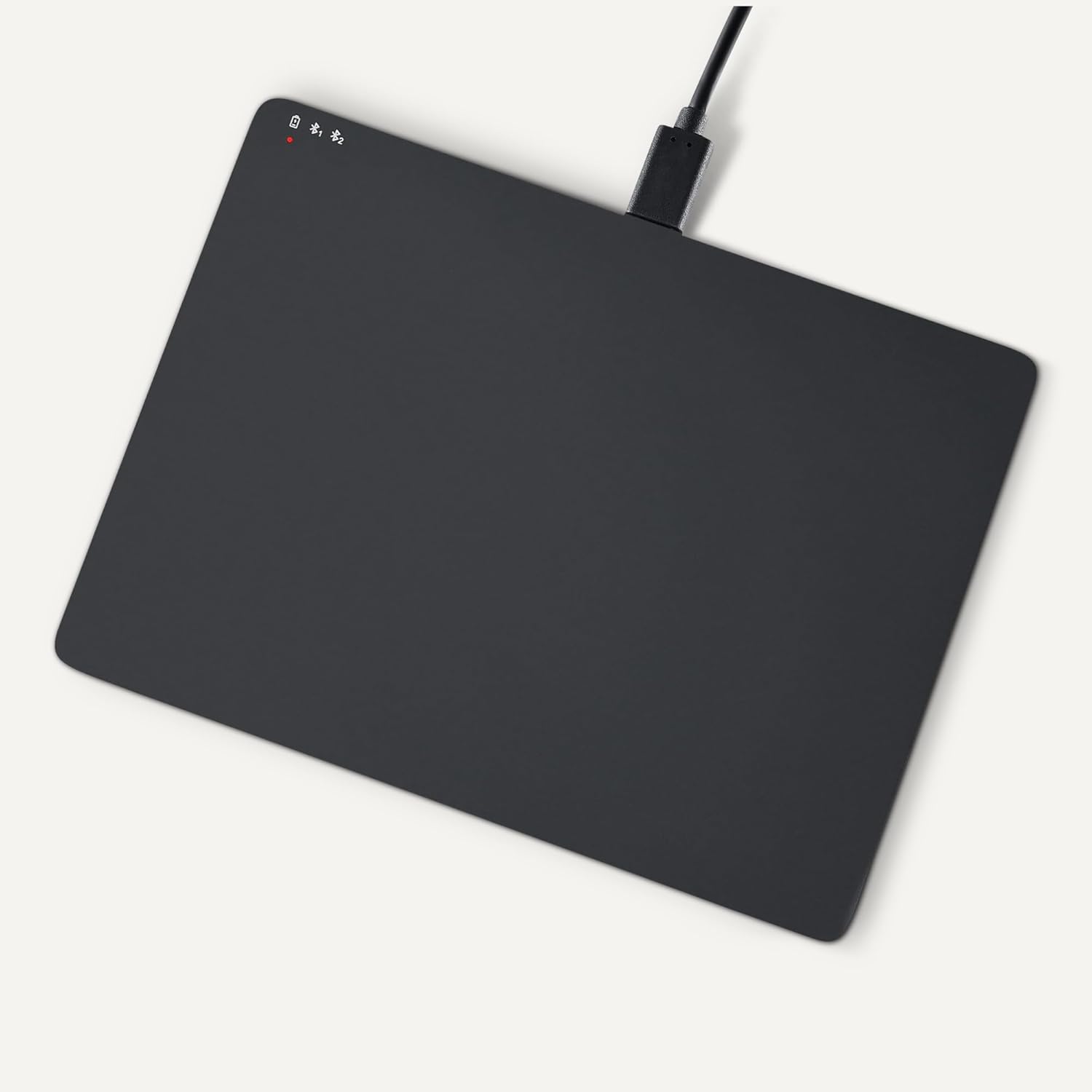
Image 2.1: Trackpad connected for charging via USB-C.
2.3 Powering On/Off
Locate the power switch on the side of the trackpad. Slide it to the "ON" position to power on, and "OFF" to power off.

Image 2.2: Side view illustrating the power switch and USB-C port.
2.4 Bluetooth Pairing
- Ensure the trackpad is powered on.
- On your Windows PC, navigate to Settings > Devices > Bluetooth & other devices.
- Turn on Bluetooth and click "Add Bluetooth or other device".
- Select "Bluetooth" from the options.
- The trackpad should appear in the list of available devices (e.g., "Amazon Basics Trackpad"). Select it to pair.
- Follow any on-screen prompts to complete the pairing process. The indicator light on the trackpad will confirm successful connection.
3. Operating the Trackpad
3.1 Basic Navigation
- Move Cursor: Slide one finger across the trackpad surface.
- Left Click: Press down on the lower-left area of the trackpad or tap with one finger.
- Right Click: Press down on the lower-right area of the trackpad or tap with two fingers (if configured in Windows settings).
3.2 Multi-Touch Gestures (Windows OS)
The trackpad supports various multi-touch gestures for enhanced productivity. These gestures are typically configured within Windows settings (Settings > Devices > Touchpad).
- Scroll: Place two fingers on the trackpad and slide them up or down to scroll vertically, or left or right to scroll horizontally.
- Zoom In/Out: Place two fingers on the trackpad and pinch them together to zoom out, or spread them apart to zoom in.
- Show All Open Windows (Task View): Swipe three fingers upwards.
- Show Desktop: Swipe three fingers downwards.
- Switch Between Open Windows: Swipe three fingers left or right.
- Open Action Center: Tap with four fingers.
- Switch Desktops: Swipe four fingers left or right.
Note: Gesture functionality may vary based on your Windows version and specific settings. Refer to your Windows documentation for detailed customization options.
3.3 Dual Device Control
The trackpad can be paired with two different devices. To switch between connected devices:
- Ensure both devices are paired with the trackpad.
- Press the mode switch button located on the trackpad (refer to Image 2.2 for location).
- The indicator light will change to show which device is currently active.
4. Maintenance and Care
- Cleaning: Use a soft, dry, lint-free cloth to clean the trackpad surface. For stubborn marks, slightly dampen the cloth with water. Avoid harsh chemicals or abrasive materials.
- Storage: When not in use for extended periods, power off the trackpad to conserve battery life. Store in a cool, dry place.
- Battery Care: To prolong battery life, avoid fully discharging the trackpad frequently. Recharge when the low battery indicator appears.
- Avoid Liquids: Keep the trackpad away from liquids and excessive moisture.
5. Troubleshooting
| Problem | Possible Cause | Solution |
|---|---|---|
| Trackpad does not power on. | Battery is discharged. | Charge the trackpad using the provided USB-C cable. |
| Trackpad does not connect via Bluetooth. |
|
|
| Gestures are not working or inconsistent. |
|
|
| Trackpad is unresponsive. |
|
|
If the problem persists after trying these solutions, please refer to the Warranty and Support section.
6. Specifications
| Feature | Detail |
|---|---|
| Brand | Amazon Basics |
| Model Number | TK053 |
| Connectivity | Bluetooth |
| Dimensions (LxWxH) | 6.39 x 4.78 x 0.42 inches |
| Item Weight | 9.2 ounces (261.2 Grams) |
| Color | Black |
| Battery | 1 Lithium Ion battery (included) |
| Charging Port | USB-C |
| Compatibility | Windows OS (Not compatible with macOS, Chrome OS, or Linux) |
| UPC | 840324434217 |
7. Warranty and Support
For warranty information and customer support, please refer to the official Amazon Basics website or the documentation included with your purchase. You can typically find support resources, FAQs, and contact information on the product's dedicated page on Amazon.com.
Online Support: Visit the Amazon Basics Store


