
Pinned Golf The Caddie
Contents
Pinned Portable GPS Golf Tablet
Model: The Caddie
Introduction
This manual provides detailed instructions for the setup, operation, and maintenance of your Pinned Portable GPS Golf Tablet, The Caddie. Please read this manual thoroughly before using the device to ensure optimal performance and longevity.

Image: The Pinned Portable GPS Golf Tablet, The Caddie, shown alongside its protective hard case.
What's in the Box
Verify that all items are present in the packaging:
- The Caddie GPS Golf Tablet
- Hard cover case
- USB-C Cable
- Screen cleaning cloth
- Instruction Manual (this document)
Setup
1. Charging the Device
Before first use, fully charge The Caddie using the provided USB-C cable. Connect the USB-C end to the device's charging port and the other end to a compatible USB power adapter (not included) or computer USB port.

Image: A detailed view of The Caddie highlighting the USB-C charging port, power button, and crystal clear speaker.
2. Initial Power On
Press and hold the Power Button located on the side of the device until the screen illuminates. Follow the on-screen prompts for initial setup, including language selection and Wi-Fi connection.
3. Course Download and Sync
The Caddie comes pre-loaded with maps for over 45,000 courses worldwide. To ensure you have the most up-to-date course data, connect the device to Wi-Fi and allow it to sync. You can search for specific courses directly on the device.

Image: A user's hand holding The Caddie, showing the interface for selecting and searching golf courses.
Operating Instructions
1. Basic Navigation
The Caddie features an 8-inch touchscreen display. Navigate through menus and course information by tapping and swiping. The interface is designed for intuitive use on the golf course.
2. Using GPS Features (FCB Distances)
Once a course is selected and your location is acquired, The Caddie will display live front, center, and back (FCB) distances to the green from your current position. These distances update in real-time as you move.

Image: The Caddie screen showing a detailed golf course map with real-time front, center, and back yardage information.
3. Course Maps and Full Hole View
The device provides detailed maps for over 45,000 courses. You can view the full layout of each hole, including hazards and doglegs, to assist with shot planning.
4. Super Strong Built-In Magnet
The Caddie is equipped with a powerful magnet on its back, allowing it to securely attach to the metal frame of a golf cart or other magnetic surfaces. This keeps the device easily accessible throughout your round.

Image: A side profile of The Caddie, emphasizing the integrated strong magnet designed for secure attachment to golf carts.
5. IPX7 Waterproof Rating
The Caddie is designed with an IPX7 waterproof rating, meaning it can withstand immersion in water up to 1 meter for 30 minutes. This provides protection against rain and splashes during your golf round.

Image: The Caddie securely mounted on a golf cart handle, demonstrating its IPX7 waterproof capability in light rain.
6. Bright 700-nit Screen
The device features a bright 700-nit screen, optimized for outdoor visibility even in direct sunlight. This ensures clear readability of course maps and distances under various lighting conditions.
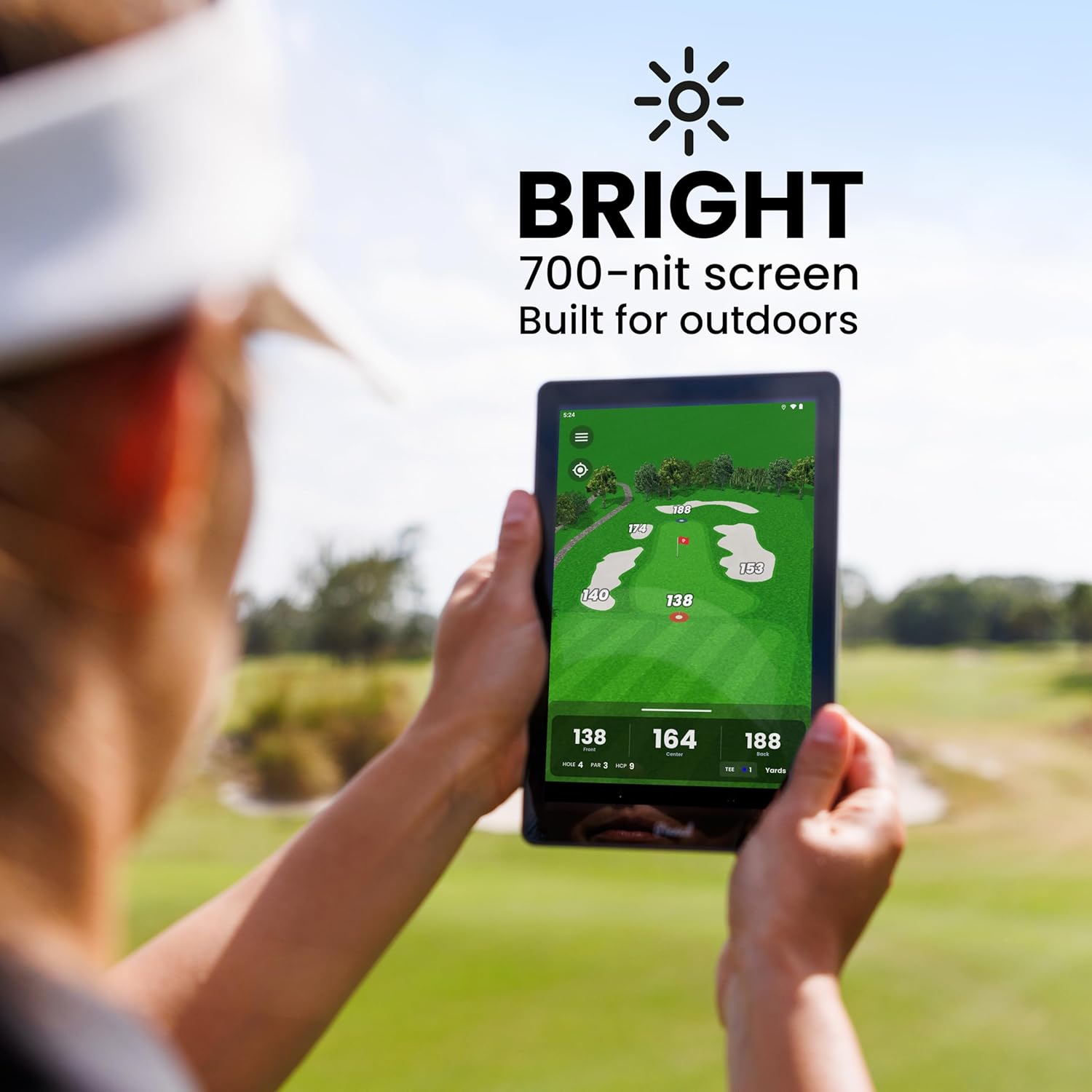
Image: A person holding The Caddie outdoors, showcasing the device's bright screen and its clear visibility in daylight.
Maintenance
1. Cleaning
Use the provided screen cleaning cloth to gently wipe the display. For the device body, use a soft, damp cloth. Avoid abrasive cleaners or solvents that may damage the finish or screen.
2. Storage
When not in use, store The Caddie in its hard cover case to protect it from scratches and impacts. Store in a cool, dry place away from direct sunlight and extreme temperatures.
3. Battery Care
To maximize battery life, avoid fully discharging the device regularly. Charge the device when the battery level is low. If storing for an extended period, charge the battery to approximately 50% before storage.
Troubleshooting
Device Not Powering On
- Ensure the device is fully charged. Connect it to a power source for at least 30 minutes.
- Perform a soft reset by holding the power button for 10-15 seconds.
GPS Signal Issues
- Ensure you are in an open area with a clear view of the sky.
- Verify that location services are enabled in the device settings.
- Check for available course map updates via Wi-Fi.
Screen Unresponsive
- Clean the screen with the provided cloth to remove any dirt or debris.
- Restart the device.
If issues persist, please contact Pinned Golf customer support.
Specifications
| Feature | Specification |
|---|---|
| Model Name | The Caddie |
| Item Model Number | The Caddie |
| Product Dimensions | 6 x 6 x 6 inches |
| Item Weight | 1.21 pounds |
| Display Size | 8 Inches |
| Screen Brightness | 700-nit |
| Battery Life | 12 Hours |
| Waterproof Rating | IPX7 |
| Connectivity Technology | Wi-Fi |
| Map Type | Worldwide (45,000+ courses) |
| Special Feature | Built-in Magnet, Adjustable Strap |
| ASIN | B0F7J55ZZS |
Warranty and Support
Warranty Information
The Pinned Portable GPS Golf Tablet, The Caddie, comes with a 1 Year Manufacturer Warranty from the date of purchase. This warranty covers defects in materials and workmanship under normal use. It does not cover damage caused by misuse, accidents, unauthorized modifications, or normal wear and tear.
Please retain your proof of purchase for warranty claims.
Customer Support
For technical assistance, warranty claims, or any questions regarding your Pinned Golf product, please visit the official Pinned Golf website or contact their customer support team directly.
You can find more information and support resources at the Pinned Golf Store on Amazon.
Ask a question about this manual
Ask about setup, troubleshooting, compatibility, parts, safety, or missing instructions. Manuals+ will review the question and use this page’s manual context to help answer it.