
D-Link AC13U
D-Link AC1300 USB WiFi Adapter User Manual
Model: AC13U
1. Introduction
The D-Link AC1300 USB WiFi Adapter (AC13U) is designed to provide fast and reliable wireless connectivity for your desktop PC or laptop. This adapter supports dual-band Wi-Fi 5 (802.11ac) technology, offering speeds up to 400 Mbps on the 2.4 GHz band and 867 Mbps on the 5 GHz band. Its compact design makes it ideal for travel and everyday use, ensuring a seamless internet experience for streaming, gaming, and productivity.

Image: The D-Link AC1300 USB WiFi Adapter, a compact white USB device.
Key Features:
- Easy Wi-Fi Upgrade: Adds AC1300 Wi-Fi speeds to your PC or laptop for blazing-fast, stable connectivity.
- Dual-Band Speeds: Up to 400 Mbps (2.4 GHz) and 867 Mbps (5 GHz) for optimal performance.
- MU-MIMO Technology: Delivers smoother Wi-Fi by reducing network congestion and lag, ensuring stable performance even in busy networks.
- Compact & Portable Design: Sleek, lightweight USB design (34.2 x 17.17 x 9.7 mm) for on-the-go connectivity.
- Enhanced Security: Features WPA3 encryption for safer connections.
- Plug & Play: Easy setup with pre-loaded Windows 10/11 drivers.
2. Setup and Installation
The D-Link AC1300 USB WiFi Adapter is designed for simple plug-and-play installation on compatible Windows operating systems. Follow these steps to get your adapter up and running:
- Unpack the Adapter: Carefully remove the AC1300 USB WiFi Adapter from its packaging.
- Insert into USB Port: Plug the adapter into an available USB port on your desktop PC or laptop. For optimal performance, use a USB 3.0 port if available, though it is backward compatible with USB 2.0.
- Automatic Driver Installation: For Windows 10 and Windows 11, the necessary drivers are typically pre-loaded and will install automatically upon insertion. Wait for the operating system to recognize the device and complete the driver installation.
- Connect to a Wi-Fi Network: Once the driver installation is complete, you can connect to your desired Wi-Fi network through your computer's network settings. Select your network name (SSID) and enter the password if prompted.

Image: The D-Link AC1300 USB WiFi Adapter plugged into a laptop's USB port, illustrating easy Wi-Fi upgrade.
Manual Driver Installation (If Needed):
In rare cases, if the drivers do not install automatically, you may need to download them manually from the official D-Link support website. Navigate to the support section for the AC13U model and follow the provided instructions for driver installation.
3. Operating the Adapter
Once installed, the D-Link AC1300 USB WiFi Adapter operates seamlessly in the background, providing a stable wireless connection. Here's how to optimize its performance:
Dual-Band Connectivity:
The adapter supports both 2.4 GHz and 5 GHz Wi-Fi bands. The 2.4 GHz band offers wider coverage and better penetration through walls, suitable for general browsing and tasks that don't require high bandwidth. The 5 GHz band provides faster speeds and less interference, ideal for high-bandwidth activities like HD video streaming, online gaming, and large file transfers. Ensure your router supports dual-band operation to utilize both frequencies.

Image: Visual representation of AC1300 Dual Band Speeds, showing 400 Mbps on 2.4 GHz and 867 Mbps on 5 GHz.
MU-MIMO Technology:
The AC13U adapter incorporates MU-MIMO (Multi-User, Multiple-Input, Multiple-Output) technology. When paired with a MU-MIMO compatible router, this technology allows the router to communicate with multiple devices simultaneously, rather than sequentially. This significantly improves network efficiency, reduces buffering, and enhances overall Wi-Fi performance, especially in environments with many connected devices.
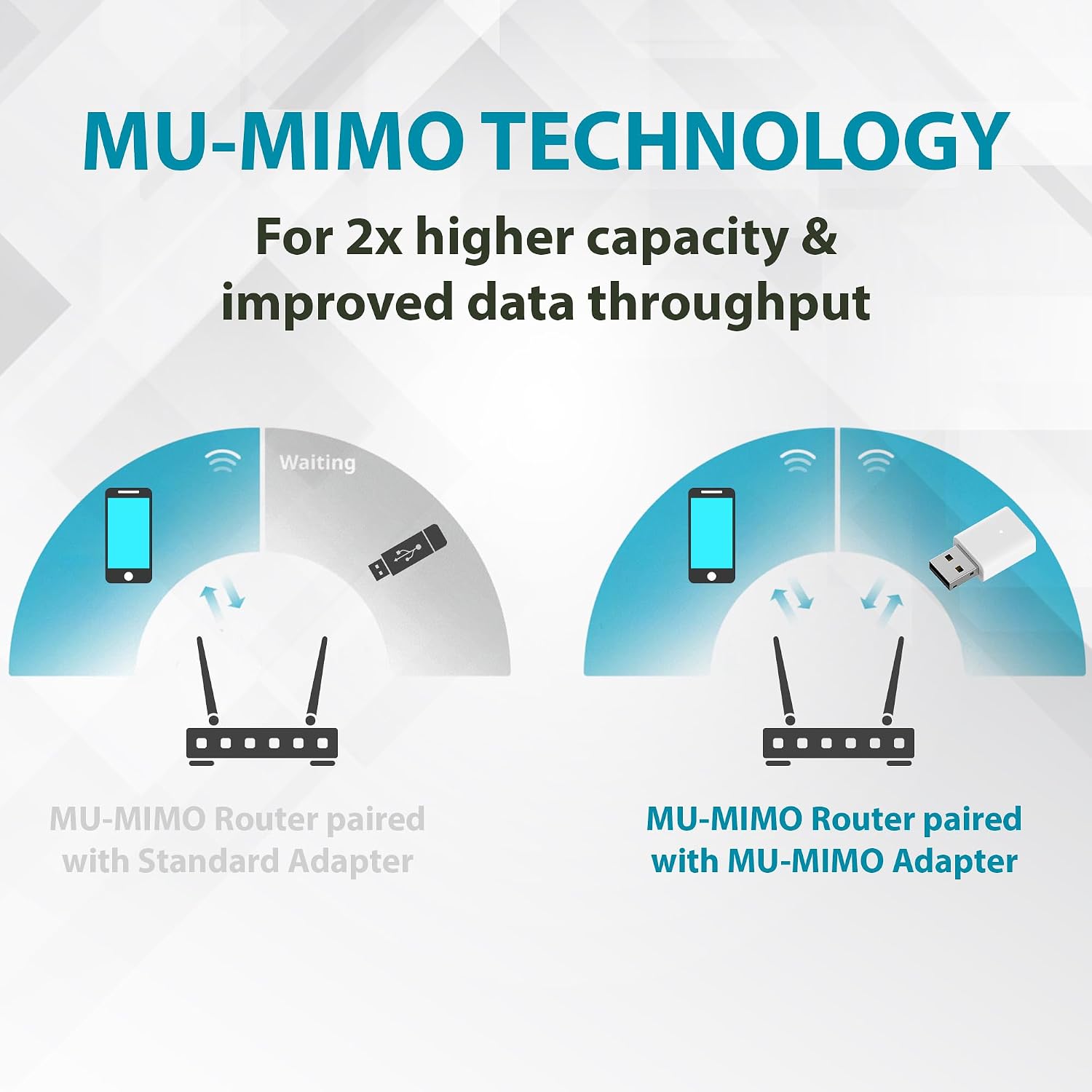
Image: Diagram illustrating the benefits of MU-MIMO technology, showing improved data throughput compared to standard adapters.
WPA3 Enhanced Security:
The adapter supports WPA3, the latest Wi-Fi security protocol. WPA3 provides stronger encryption and enhanced protection against security threats compared to older protocols like WPA2. For maximum security, ensure your wireless router also supports WPA3 and configure your network to use it.
4. Maintenance
The D-Link AC1300 USB WiFi Adapter requires minimal maintenance to ensure optimal performance and longevity.
- Keep Clean: Periodically wipe the adapter with a soft, dry cloth to remove dust or debris. Avoid using liquid cleaners or solvents.
- Proper Handling: Avoid dropping the adapter or exposing it to extreme temperatures or humidity.
- Firmware Updates: While the adapter primarily relies on driver updates, occasionally D-Link may release firmware updates for enhanced performance or security. Check the official D-Link support website for any available updates for your model.
- Safe Removal: When removing the adapter from your computer, it is recommended to safely eject it through your operating system's hardware removal options to prevent data corruption or damage.
5. Troubleshooting
If you encounter issues with your D-Link AC1300 USB WiFi Adapter, try the following troubleshooting steps:
No Internet Connection:
- Check Adapter Connection: Ensure the adapter is firmly seated in the USB port. Try a different USB port.
- Verify Wi-Fi Network: Confirm that your Wi-Fi network is active and broadcasting. Try connecting other devices to the same network.
- Restart Devices: Restart your computer and your wireless router/modem.
- Check Drivers: Go to Device Manager (Windows) and ensure the D-Link adapter drivers are installed correctly and there are no error symbols. Reinstall drivers if necessary.
- Network Settings: Ensure your computer's Wi-Fi is enabled and you are connected to the correct network with the correct password.
Slow Connection Speed:
- Distance from Router: Move closer to your wireless router to improve signal strength.
- Interference: Avoid placing the adapter near other electronic devices that may cause interference (e.g., microwaves, cordless phones).
- 5 GHz Band: If your router supports it, try connecting to the 5 GHz band for faster speeds and less interference.
- Router Settings: Ensure your router's firmware is up to date and its settings are optimized for performance.
- Driver Update: Check for the latest drivers for the adapter on the D-Link support website.
Adapter Not Detected:
- Try Different USB Port: Test the adapter in another USB port on your computer.
- Test on Another Computer: If possible, try the adapter on a different computer to determine if the issue is with the adapter or your computer.
- Reinstall Drivers: Uninstall any existing drivers for the adapter from Device Manager, then re-insert the adapter to trigger a fresh installation.
6. Specifications
Detailed technical specifications for the D-Link AC1300 USB WiFi Adapter (AC13U):

Image: The D-Link AC1300 USB WiFi Adapter showing its compact dimensions.
| Feature | Description |
|---|---|
| Model Number | AC13U |
| Wireless Standard | Wi-Fi 5 (802.11ac/a/b/g/n) |
| Wireless Speed | Up to 400 Mbps (2.4 GHz), Up to 867 Mbps (5 GHz) |
| Frequency Band | Dual Band (2.4 GHz & 5 GHz) |
| Interface | USB 2.0 (Backward compatible with USB 2.0) |
| Security | WPA3, WPA2, WPA |
| Dimensions (L x W x H) | 0.78 x 0.9 x 0.31 inches (34.2 x 17.17 x 9.7 mm) |
| Item Weight | 1.13 ounces |
| Compatible Devices | Desktop, Laptop, Tablet |
| Operating Systems | Windows 10/11 (Drivers pre-loaded) |
| Color | White |
| UPC | 790069801426 |
7. Warranty and Support
Warranty Information:
The D-Link AC1300 USB WiFi Adapter (AC13U) comes with a 1 Year Limited Warranty. This warranty covers defects in materials and workmanship under normal use. For specific terms and conditions, please refer to the warranty card included with your product or visit the official D-Link website.
Technical Support:
For technical assistance, driver downloads, firmware updates, or further troubleshooting, please visit the official D-Link support website. You can typically find support resources by searching for your product model (AC13U) on their support page. D-Link also provides customer service contact options for direct assistance.
D-Link Official Website: www.dlink.com
Ask a question about this manual
Ask about setup, troubleshooting, compatibility, parts, safety, or missing instructions. Manuals+ will review the question and use this page’s manual context to help answer it.