
Introduction
This manual provides detailed instructions for the setup, operation, and maintenance of your PILSAMAS WiFi Caregiver Pager System CF100-3P. This system is designed to provide reliable wireless alerts for caregivers, featuring app notifications and a flexible design for various home environments. Please read this manual thoroughly before using the product to ensure proper function and safety.
Package Contents
Verify that all items listed below are included in your package:
- 2 x Call Buttons
- 1 x Wristband Panic Button
- 1 x Receiver (WiFi Hub)
- USB Power Cables (Note: Power supplies may not be included)

Image: Components of the PILSAMAS Caregiver Pager System.
Product Overview
The PILSAMAS WiFi Caregiver Pager System provides a multi-channel alert solution. It includes a WiFi-enabled receiver and multiple call buttons. When a button is pressed, the receiver emits an audible alarm and flashing lights, while simultaneously sending an instant notification to your smartphone via the dedicated app. The system operates on a 2.4GHz WiFi network and offers a wireless range of up to 230 feet (70 meters) through walls.

Image: System range and signal penetration.
Setup
1. App Installation
Download the companion application from your smartphone's app store. Search for "Tuya Smart" or refer to the QR code provided in the quick start guide (if applicable). Follow the on-screen instructions to create an account and log in.
2. Receiver Connection (WiFi Hub)
- Connect the receiver to a power source using the provided USB cable.
- Ensure your home WiFi network is 2.4GHz. The receiver does not support 5GHz networks.
- Open the app and follow the instructions to add a new device. Select the "Caregiver Pager" or similar option.
- During the setup process, you will be prompted to connect the receiver to your 2.4GHz WiFi network. Enter your WiFi password carefully.
- Place the receiver within 15 meters (approximately 50 feet) of your WiFi router for optimal signal strength.
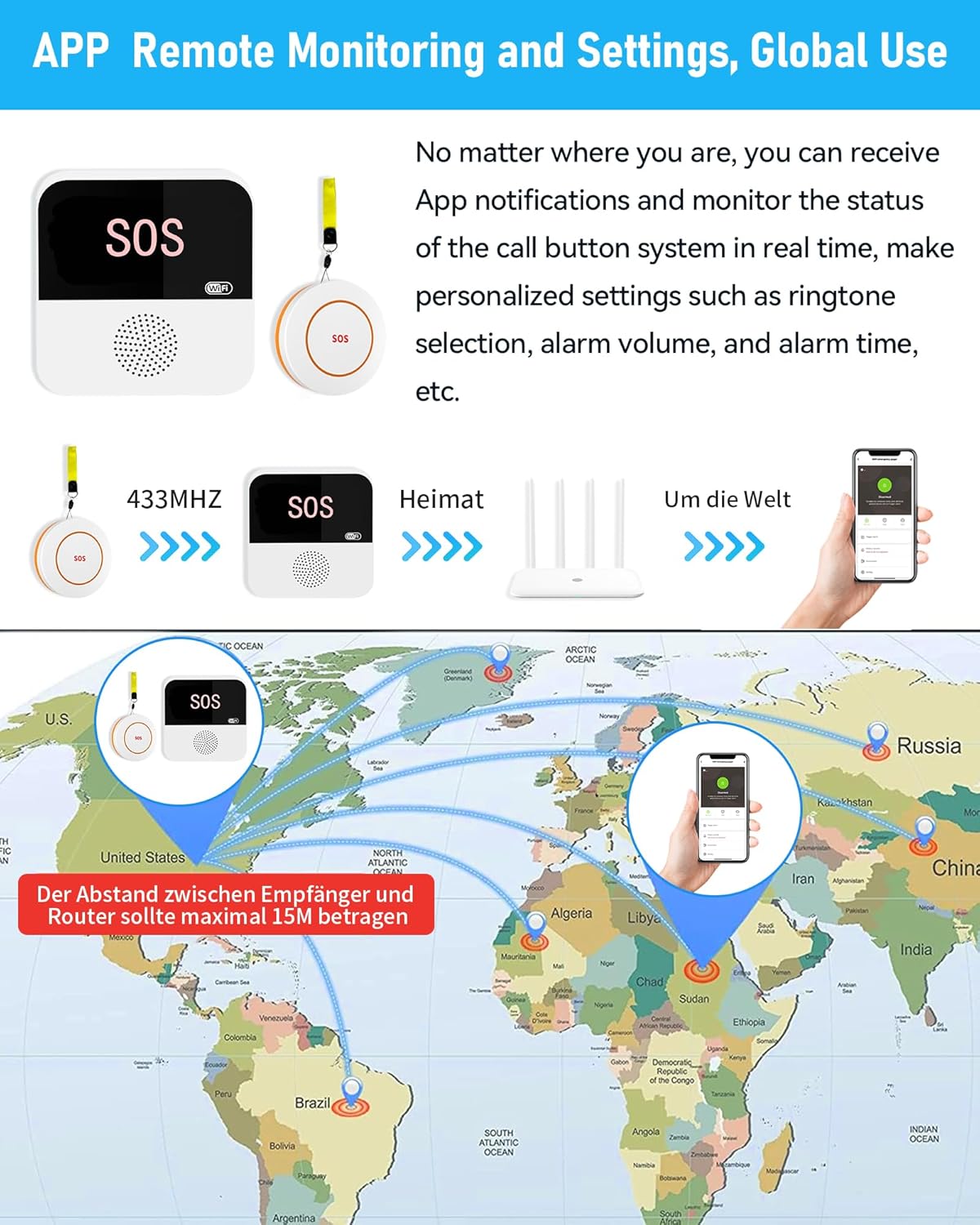
Image: App remote monitoring and global connectivity setup.
3. Pairing Buttons
The call buttons and wristband panic button are pre-paired with the receiver at the factory. No additional pairing steps are typically required for initial use.
- To test pairing: Press any call button. The receiver should emit an alarm and flash lights, and you should receive an app notification.
- Adding additional buttons or re-pairing: Refer to the app's device settings for instructions on how to add new buttons or re-pair existing ones if necessary.

Image: Versatile placement options for the call buttons and receiver.
Operating Instructions
1. Using Call Buttons
To activate an alert, simply press the large SOS button on any of the call buttons or the wristband panic button. Upon activation:
- The receiver will sound an alarm and flash its lights.
- An instant notification will be sent to your smartphone via the app.

Image: Multi-channel alert system in action.
2. App Functions and Settings
The app provides comprehensive control and monitoring capabilities:
- Custom Tones & Volume: Select from 18 ringtones and adjust the receiver's volume across 4 levels (Mute, Low, Middle, High) directly from the app. Each call button can be assigned a unique ringtone.
- Real-Time Monitoring: Track the battery status and signal strength of each button within the app.
- Device Naming: Assign custom names to each device (e.g., "Bedroom Button") for easier identification of alert locations.
- Family Sharing: Share access to the system and receive notifications with multiple family members or caregivers through the app's sharing feature.

Image: Adjustable ringtones and volume settings.
Maintenance
1. Battery Replacement
The call buttons and wristband panic button are powered by 12V batteries (included). When the app indicates low battery for a specific button, replace the battery promptly to ensure continuous operation. Refer to the button's casing for specific battery type and replacement instructions.
2. Cleaning
Wipe the receiver and buttons with a soft, dry cloth. Do not use liquid cleaners or abrasive materials, as these can damage the devices.
Troubleshooting
- No App Notifications:
- Ensure your smartphone is not in "Do Not Disturb" (DND) mode, as this may silence app alerts.
- Verify the receiver is connected to WiFi and has a stable internet connection.
- Check app notification settings on your phone and within the Tuya Smart app.
- Receiver Not Connecting to WiFi:
- Confirm your WiFi network is 2.4GHz. The system does not support 5GHz.
- Ensure the receiver is within range of your WiFi router (ideally within 15 meters).
- Double-check the WiFi password entered during setup.
- Restart your WiFi router and the receiver, then attempt connection again.
- Buttons Not Triggering Alerts:
- Check the battery status of the buttons in the app. Replace batteries if low.
- Ensure the buttons are within the 230ft (70m) range of the receiver. Obstacles like thick walls can reduce range.
- Verify the buttons are properly paired with the receiver. If not, follow the re-pairing instructions in the app.
- App Interface Difficult to Navigate:
Familiarize yourself with the app by exploring its various sections. Many settings, such as custom tones and volume, are found within the device's specific settings page in the app.
Specifications
| Model Number | CF100-3P |
| Brand | PILSAMAS |
| Power Source | Battery Powered (Buttons), USB Powered (Receiver) |
| Battery Type (Buttons) | 12V (included) |
| Control Method | App, Remote, Touch |
| Wireless Technology | 433MHz (Button to Receiver), 2.4GHz WiFi (Receiver to Internet/App) |
| Maximum Range | 230 Feet (approx. 70 meters) |
| Mounting Type | Wall Mount (Receiver), Wearable/Tabletop (Buttons) |
| Receiver Dimensions | 3.1"L x 0.8"W x 3.1"H (approx.) |
| Item Weight | 9.1 ounces (total package approx.) |
| Color | White |
Warranty Information
Specific warranty details are typically provided with your product packaging or on the manufacturer's official website. Please refer to these resources for information regarding warranty coverage, duration, and claims procedures.
Support
For technical assistance, troubleshooting not covered in this manual, or further inquiries, please contact PILSAMAS customer support. Contact information can usually be found on the product packaging, the manufacturer's website, or within the "About" or "Help" section of the Tuya Smart application.
When contacting support, please have your product model number (CF100-3P) and purchase details readily available.