
CMF BY NOTHING A001
CMF Phone 2 Pro User Manual
Model: A001
Introduction
Welcome to the official user manual for your CMF Phone 2 Pro. This guide provides comprehensive instructions on how to set up, operate, maintain, and troubleshoot your device. Please read this manual carefully to ensure optimal performance and longevity of your smartphone.
Safety Information
Always follow these basic safety precautions when using your device:
- Do not expose the device to extreme temperatures, direct sunlight, or high humidity.
- Avoid dropping or subjecting the device to severe impact.
- Use only approved chargers and accessories to prevent damage and ensure safety.
- Do not attempt to disassemble or repair the device yourself. Refer to qualified service personnel.
- Keep the device away from medical devices, as it may interfere with their operation.
Package Contents
Verify that all items are present in your product package:
- CMF Phone 2 Pro Handset
- USB Type-C Cable (Charging adapter not included)
- SIM Ejector Tool
- Quick Start Guide
Product Overview
Familiarize yourself with the physical components of your CMF Phone 2 Pro.
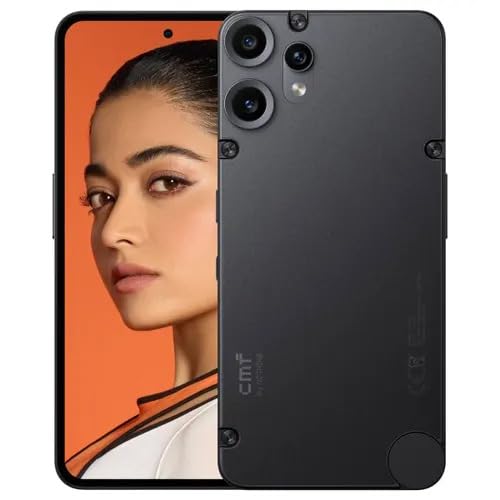
Image: The CMF Phone 2 Pro in Black, showcasing its sleek front display with a punch-hole camera and the distinctive rear panel featuring a triple camera setup and the CMF logo. The phone has a flat-edge design with visible screws on the back, indicating a robust build.
Key Components:
- Front Display: Large AMOLED screen for vibrant visuals.
- Front Camera: Located in the punch-hole cutout for selfies and video calls.
- Rear Camera Module: Multiple lenses for versatile photography, including wide-angle and macro.
- Power Button: On the side, used for power on/off and screen lock.
- Volume Buttons: On the side, for adjusting audio levels.
- USB Type-C Port: At the bottom, for charging and data transfer.
- Speaker Grille: For audio output.
- SIM Card Tray: For inserting SIM and/or microSD cards.
- 3.5 mm Audio Jack: For connecting wired headphones.
Setup
1. Inserting SIM Card
- Locate the SIM card tray on the side of the device.
- Insert the SIM ejector tool into the small hole next to the tray and press gently until the tray pops out.
- Place your Nano-SIM card(s) and/or microSD card into the tray with the gold contacts facing down.
- Carefully push the tray back into the slot until it clicks into place.
2. Charging the Device
- Connect the USB Type-C cable to the charging port at the bottom of the phone.
- Connect the other end of the cable to a compatible USB power adapter (sold separately) and plug it into a power outlet.
- Allow the device to charge fully before first use. The battery indicator on the screen will show charging status.
3. First Power On
- Press and hold the Power button on the side of the phone until the CMF logo appears.
- Follow the on-screen instructions to complete the initial setup, including language selection, Wi-Fi connection, and Google account setup.
Operating
Power On/Off and Restart
- To Power On: Press and hold the Power button until the device vibrates and the logo appears.
- To Power Off: Press and hold the Power button until the power menu appears, then tap "Power off".
- To Restart: Press and hold the Power button until the power menu appears, then tap "Restart".
Screen Navigation
- Tap: Select an item or open an app.
- Swipe: Move between screens, scroll through lists, or dismiss notifications.
- Pinch: Zoom in or out on photos and web pages.
- Long Press: Access contextual menus or move app icons.
Calls and Messaging
- Making a Call: Open the Phone app, enter the number, and tap the call icon.
- Sending a Message: Open the Messages app, tap "Start chat", enter recipient and message, then send.
Camera Usage
- Open the Camera app from the home screen or app drawer.
- Select desired mode (Photo, Video, Portrait, etc.).
- Tap the shutter button to capture a photo or start/stop video recording.
- Use the zoom controls on the screen to adjust magnification.
Connectivity
- Wi-Fi: Go to Settings > Network & internet > Wi-Fi. Turn on Wi-Fi and select a network to connect.
- Bluetooth: Go to Settings > Connected devices > Bluetooth. Turn on Bluetooth and pair with desired devices.
- GPS: Location services are enabled by default. Manage settings under Settings > Location.
Maintenance
Proper care ensures the longevity and optimal performance of your CMF Phone 2 Pro.
- Cleaning: Use a soft, lint-free cloth to clean the screen and body. Avoid harsh chemicals.
- Battery Care: Avoid fully discharging the battery frequently. Charge the device regularly and avoid leaving it plugged in for extended periods after it's fully charged.
- Software Updates: Regularly check for and install system updates to ensure your device has the latest features and security patches. Go to Settings > System > System update.
- Storage Management: Periodically clear unnecessary files and apps to free up storage space and improve performance.
Troubleshooting Common Issues
This section addresses common problems you might encounter and their solutions.
| Problem | Possible Cause | Solution |
|---|---|---|
| Device not turning on | Low battery, software crash | Charge the device for at least 30 minutes. Perform a forced restart (press and hold Power button for 10-15 seconds). |
| Apps crashing or freezing | Insufficient RAM, app bug, outdated software | Close background apps. Clear app cache. Update the app or system software. Restart the device. |
| Poor battery life | High screen brightness, excessive background app usage, old battery | Reduce screen brightness. Disable unnecessary features (GPS, Bluetooth, Wi-Fi when not in use). Limit background app activity. |
| Cannot connect to Wi-Fi | Incorrect password, router issue, device Wi-Fi bug | Verify Wi-Fi password. Restart router and phone. Forget and reconnect to the network. |
| Camera not working | App permissions, software glitch | Check camera permissions in Settings. Clear camera app cache. Restart the device. |
Technical Specifications
Detailed specifications for the CMF Phone 2 Pro (Model: A001).
| Operating System | Android 15 |
| RAM | 8 GB |
| Storage | 256 GB (Expandable Upto 2 TB) |
| Product Dimensions | 16.4 x 7.8 x 0.78 cm |
| Item Weight | 185 g |
| Battery | 5000 Milliamp Hours (1 Lithium Ion battery included) |
| Resolution | 1080 x 2392 pixels |
| Connectivity | Wi-Fi, Bluetooth, GPS |
| Audio Jack | 3.5 mm |
| Colour | Black |
| CPU Speed | 2.3 GHz |
Warranty and Support
Your CMF Phone 2 Pro comes with a standard manufacturer's warranty. For specific terms and conditions, please refer to the warranty card included in your package or visit the official CMF BY NOTHING website.
Customer Support:
For product-related queries or customer support, you can contact the manufacturer:
- Manufacturer: Padget Electronics Private Limited
- Address: 7th Floor, Tower-B, Golf View Towers, Sector-42, Gurgaon, Haryana – 122002, India
- Toll-Free Customer Care: 1800-202-2132
- Email: india@cmf.tech
Please have your device model number (A001) and purchase details ready when contacting support.
Related documentsA001


Ask a question about this manual
Ask about setup, troubleshooting, compatibility, parts, safety, or missing instructions. Manuals+ will review the question and use this page’s manual context to help answer it.