
1. Introduction
The HP OfficeJet Pro 9125e is an All-in-One Printer designed for small to medium business environments, offering print, scan, copy, and fax functionalities. This renewed product has been tested and certified to function like new, with minimal signs of wear. It features a touchscreen interface, Smart Advance Scan capabilities, and supports 2-sided prints and scans. This manual provides essential information for setting up, operating, and maintaining your printer.

Figure 1: HP OfficeJet Pro 9125e All-in-One Printer, front view.
2. Setup
2.1 Unpacking and Initial Ink Installation
Carefully remove the printer from its packaging. Install the provided ink cartridges into their designated slots. The printer comes with 3 months of Instant Ink for free upon activation.

Figure 2: Rear view of the printer, highlighting connectivity ports.
2.2 Connectivity
The HP OfficeJet Pro 9125e offers multiple connectivity options:
- Ethernet: Connect directly to your network using an Ethernet cable.
- Hi-Speed USB 2.0: Two USB ports are available (one device, one host) for direct connection or external storage.
- Wi-Fi 802.11 a/b/g/n/ac (dual band): Connect wirelessly to your network. The printer features self-healing Wi-Fi for reliable connection.
- RJ-11 Fax/Modem port/phone line: Two ports for fax functionality.
For wireless setup, download the HP Smart app on your mobile device or computer and follow the on-screen instructions. The HP+ printing system, if activated, provides advanced productivity features and requires an HP account, internet connection, and use of original HP ink.
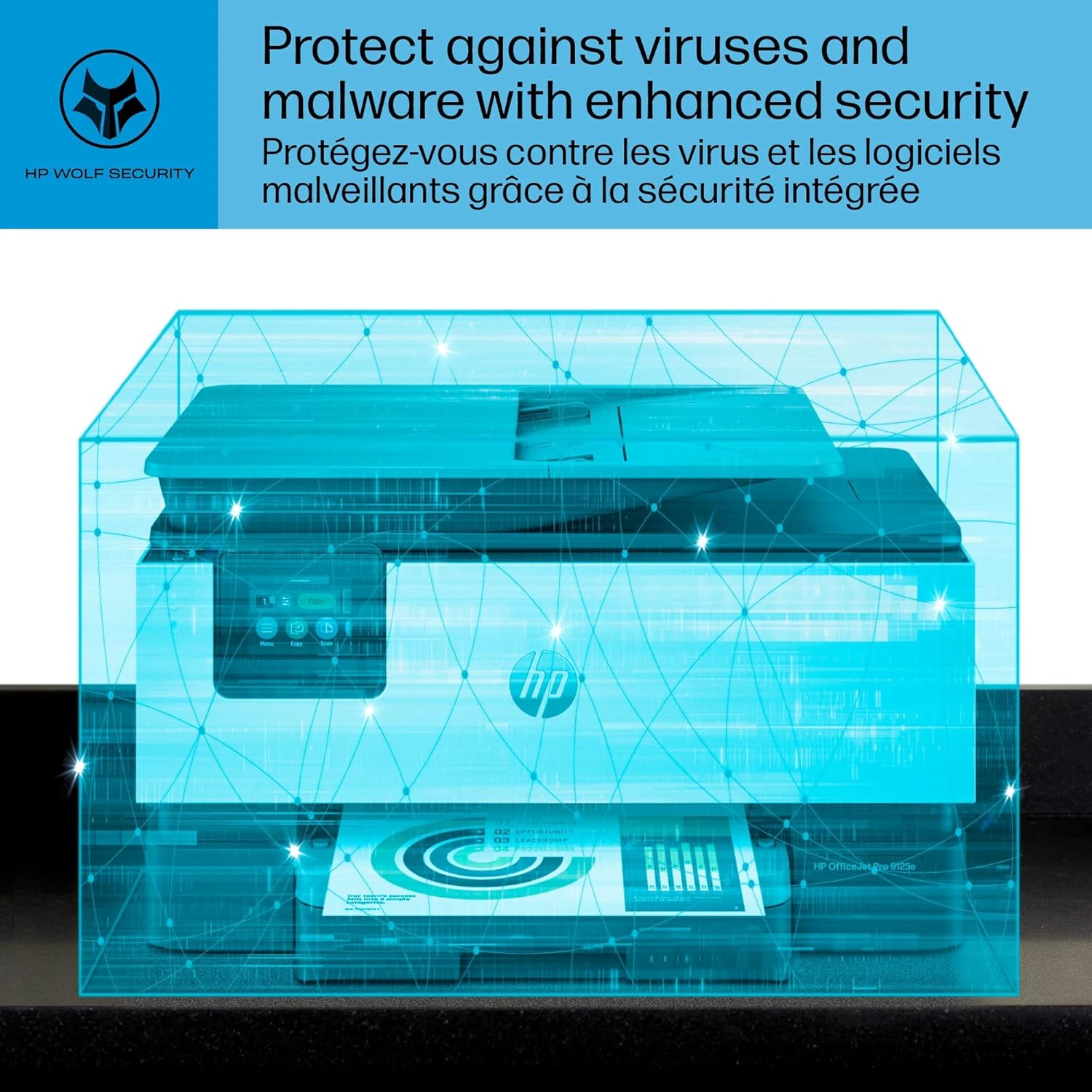
Figure 3: HP Wolf Pro Security helps protect your network from cyber threats.
3. Operating the Printer
3.1 Touchscreen Interface
The printer features a 2.7" (6.86 cm) Capacitive Touchscreen CGD for easy navigation and control of all functions.
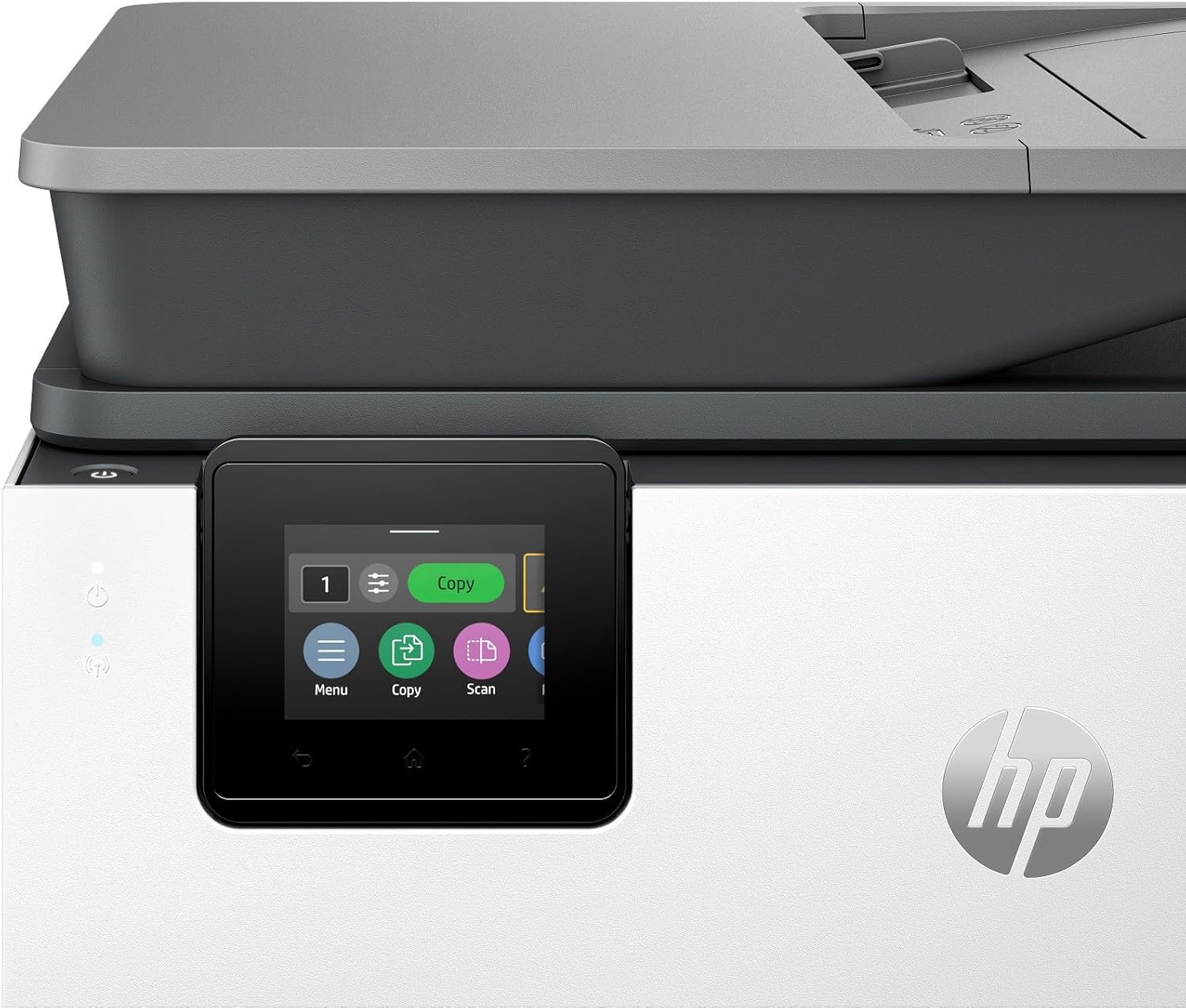
Figure 4: The intuitive touchscreen allows direct access to printer functions.
3.2 Printing
The printer supports various media types and sizes, including plain paper, glossy photo paper, envelopes, cardstock, and labels. It features a 250-page input tray and a built-in photo tray for convenient photo printing.
- Print Speed: Up to 22 ppm for black, up to 18 ppm for color (normal).
- Print Resolution: 1200 x 1200 rendered dpi for black, up to 4800 x 1200 optimized dpi for color.
- Duplex Printing: Automatic 2-sided printing is supported.
3.3 Scanning
The printer is equipped with an easy slide-off glass flatbed scanner and a dual pass 2-sided Automatic Document Feeder (ADF) for efficient multi-page scanning.

Figure 5: The ADF allows for quick scanning of multiple documents.
3.4 Copying
Utilize the flatbed or ADF for copying documents. The maximum copy resolution is 1200 x 1200 dpi for black and 4800 x 1200 dpi for color.
3.5 Faxing
The printer supports color faxing with a transmission speed of 4 seconds per page and a resolution of 300 x 300 dpi.
3.6 Mobile Printing
Print and scan from your mobile devices using:
- HP Smart app: Offers easy multi-tasking from any device.
- Apple AirPrint: For seamless printing from Apple devices.
- Wi-Fi Direct Printing: Print directly from your mobile device without a network.
- Mopria Certified: Ensures compatibility with Android devices.
- Chrome OS: Supports printing from Chrome OS devices.
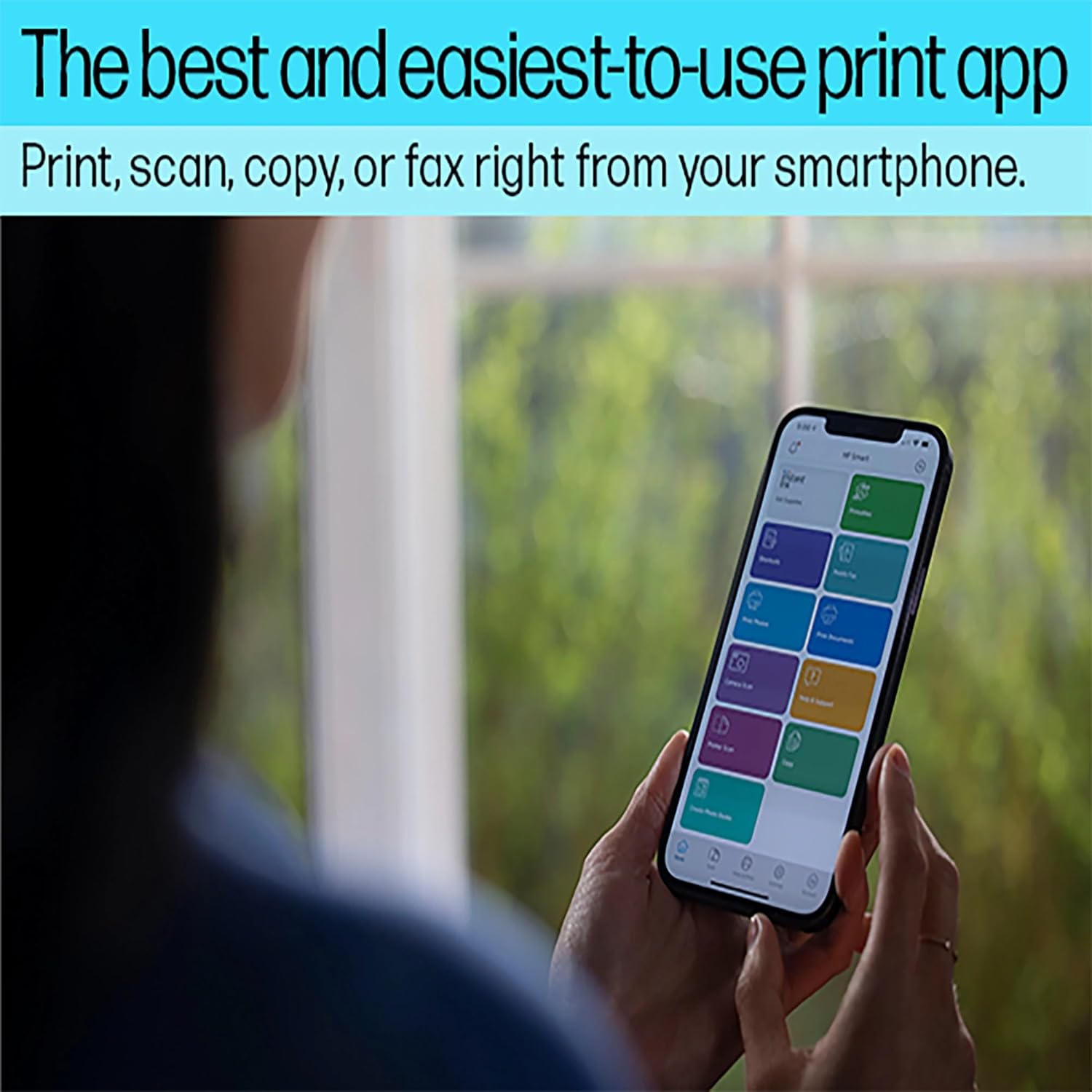
Figure 6: The HP Smart app provides convenient mobile printing and scanning.
4. Maintenance
4.1 Ink Cartridge Replacement
The printer uses HP Instant Ink Compatible Cartridges. When ink levels are low, the printer will notify you. Follow the on-screen instructions or refer to the HP Smart app for replacement procedures. Ensure to use original HP ink for optimal performance, especially if utilizing the HP+ system.
4.2 Paper Management
The main input tray has a capacity of 250 sheets. Regularly check paper levels to avoid interruptions during large print jobs. Adjust paper guides to fit the specific media size being used.
4.3 General Cleaning
To maintain print quality and prevent paper jams, periodically clean the exterior of the printer with a soft, lint-free cloth. Avoid using abrasive cleaners. For scanner glass, use a soft cloth dampened with glass cleaner, applying the cleaner to the cloth first, not directly to the glass.
5. Troubleshooting
5.1 Connectivity Issues
If you experience issues with wireless connectivity, the printer's self-healing Wi-Fi feature will attempt to automatically reconnect. If problems persist, check your network settings, router, and ensure the printer is within range. For wired connections, verify Ethernet or USB cable integrity.
5.2 Paper Jams
In the event of a paper jam, the printer's display will provide instructions on how to clear it. Always turn off the printer and unplug it before attempting to clear any jams. Carefully remove jammed paper to avoid damaging internal components.
5.3 Print Quality Problems
If print quality is poor (streaks, faded colors, missing lines), check ink levels and ensure genuine HP cartridges are installed correctly. Run a printhead cleaning cycle or alignment from the printer's control panel or HP Smart app.
5.4 Further Assistance
For more detailed troubleshooting steps or persistent issues, refer to the HP Printer Software documentation or visit the official HP support website.
6. Specifications
| Feature | Detail |
|---|---|
| Brand | HP |
| Model | OfficeJet Pro 9125e |
| Functions | All-in-One (Print, Scan, Copy, Fax) |
| Print Technology | HP Thermal Inkjet |
| Print Speed (Black) | Up to 22 ppm |
| Print Speed (Color) | Up to 18 ppm |
| Print Resolution (Black) | 1200 x 1200 rendered dpi |
| Print Resolution (Color) | Up to 4800 x 1200 optimized dpi |
| Duplex Printing | Automatic |
| Scanner Type | Easy slide-off glass, dual pass 2-sided ADF |
| Faxing | Yes, color (300 x 300 dpi, 4 sec/page) |
| Display | 2.7" (6.86 cm) Capacitive Touchscreen CGD |
| Connectivity | Ethernet, 2x Hi-Speed USB 2.0, Wi-Fi 802.11 a/b/g/n/ac (dual band), 2x RJ-11 Fax/Modem |
| Mobile Printing Capability | Chrome OS, HP Smart app, Apple AirPrint, Wi-Fi Direct Printing, Mopria Certified |
| Max Input Sheet Capacity | 250 sheets |
| Product Dimensions (W x D x H) | 17.3 x 13.48 x 10.94 inches |
| Item Weight | 20.48 lb |
7. Warranty & Support
7.1 Product Warranty
This renewed product comes with a 90-day warranty. For specific terms and conditions, please refer to the warranty documentation included with your purchase or contact the seller.
7.2 Customer Support
For technical assistance, driver downloads, or additional product information, please visit the official HP support website or utilize the HP Smart app. The HP Smart app provides access to troubleshooting tools, printer status, and ordering supplies.