
1. Introduction
This manual provides essential information for the safe and efficient operation of your new TCL 55P89K 55-inch QLED 4K Google TV. Please read this manual thoroughly before using the television and retain it for future reference. Your TCL 55P89K television features a 55-inch QLED display with 4K Ultra HD resolution, Google TV operating system, HDR, Dolby Vision, Wi-Fi, and Bluetooth connectivity.
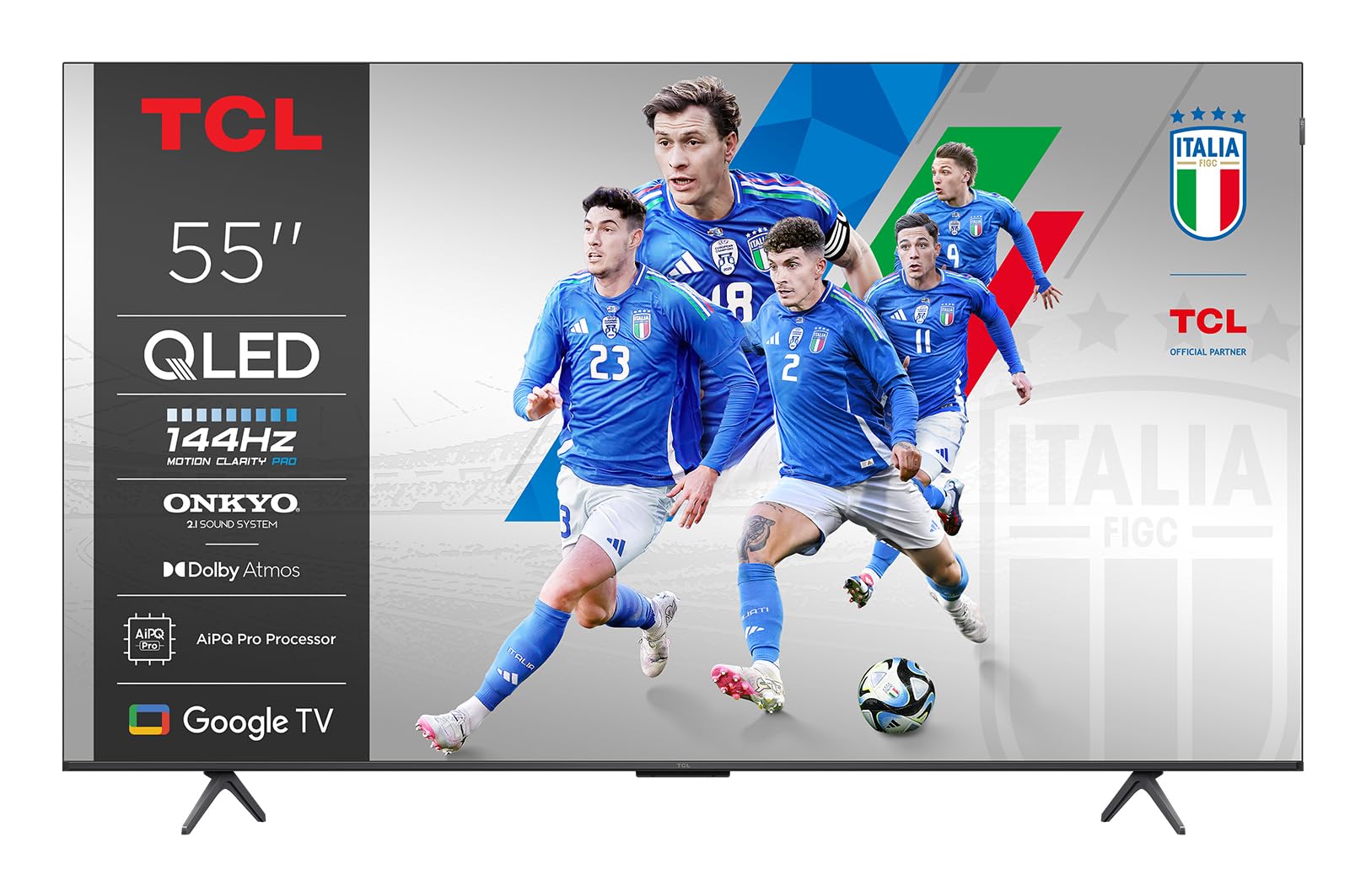
Figure 1.1: Front view of the TCL 55P89K 55-inch QLED 4K Google TV. This image displays the television's slim bezel design and central stand, highlighting its modern aesthetic.
2. Safety Information
Always observe the following safety precautions to prevent fire, electric shock, or injury.
- Power Source: Connect the TV only to an AC power outlet of the specified voltage. Ensure the power cord is not damaged or pinched.
- Ventilation: Do not block ventilation openings. Allow adequate space around the TV for proper airflow.
- Water and Moisture: Do not expose the TV to rain or moisture. Do not place objects filled with liquids, such as vases, on the TV.
- Heat: Keep the TV away from heat sources such as radiators, heat registers, stoves, or other apparatus (including amplifiers) that produce heat.
- Cleaning: Unplug the TV from the wall outlet before cleaning. Use a soft, dry cloth. Do not use liquid cleaners or aerosol cleaners.
- Mounting: When mounting the TV on a wall, ensure the wall mount is compatible with the TV's weight and VESA standards. Follow the wall mount manufacturer's instructions carefully.
- Children: Do not allow children to climb on the TV or stand. Ensure the TV is securely installed to prevent tipping.
3. Package Contents
Before setting up your new television, please check the box for the following items:
- TCL 55P89K 55-inch QLED 4K Google TV
- Remote Control
- Power Cord
- TV Stand (2 pieces)
- Screws for TV Stand
- Quick Start Guide
- Warranty Card
Note: The actual contents may vary slightly depending on the region. Please refer to the packaging for exact details.
Figure 3.1: Illustration of typical package contents for the TCL 55P89K TV. This image would typically show the TV, remote control, power cord, and stand components laid out.
4. Setup
4.1 Attaching the TV Stand
- Place the TV face-down on a soft, flat surface (e.g., a blanket or foam) to prevent screen damage.
- Align each stand piece with the corresponding slots on the bottom of the TV.
- Secure each stand piece with the provided screws. Ensure they are tightened firmly.
Figure 4.1: Diagram illustrating the process of attaching the stand to the TCL 55P89K television. This image would show the stand pieces being screwed into the TV's base.
4.2 Wall Mounting (Optional)
The TCL 55P89K is compatible with VESA wall mounts. Refer to your wall mount's instructions for installation. Ensure the wall mount can support the TV's weight of approximately 14.8 kg (32.6 lbs).
- Remove the TV stand if already attached.
- Attach the wall mount bracket to the TV's VESA mounting holes on the back.
- Mount the TV to the wall according to the wall mount manufacturer's instructions.
4.3 Connecting Peripherals
Connect your external devices to the TV using the appropriate ports.
- HDMI: For Blu-ray players, game consoles, cable/satellite boxes.
- USB: For USB drives to play media or connect accessories.
- Power: Connect the power cord to the TV's power input and then to a wall outlet.
Figure 4.2: Close-up view of the rear connection ports on the TCL 55P89K TV, showing HDMI, USB, and power input locations.
4.4 Initial Power On and First-Time Setup
- Plug the TV into a power outlet.
- Press the Power button on the remote control or on the TV.
- Follow the on-screen instructions to complete the initial setup, including language selection, network connection (Wi-Fi), and Google account sign-in.
5. Operating
5.1 Remote Control Overview
The remote control allows you to navigate the TV's features. Familiarize yourself with the buttons:
- Power: Turns the TV on or off.
- Google Assistant: Activates voice commands.
- Navigation Pad (Up/Down/Left/Right/OK): Navigates menus and selects items.
- Back: Returns to the previous screen.
- Home: Accesses the Google TV home screen.
- Volume +/-: Adjusts the volume.
- Channel +/-: Changes TV channels.
- Input: Selects input sources (HDMI 1, HDMI 2, etc.).
- App Buttons: Direct access to popular streaming services (e.g., Netflix, YouTube).
Figure 5.1: Layout of the TCL 55P89K remote control, indicating key buttons and their functions.
5.2 Google TV Interface Navigation
The Google TV interface organizes your content from various apps and subscriptions. Use the navigation pad and OK button on your remote to browse:
- Home Screen: Displays personalized recommendations, recently watched content, and installed apps.
- Apps: Access the Google Play Store to download and manage applications like Netflix, YouTube, and Google Play Movies & TV.
- Library: Find your purchased movies and shows.
- Search: Use the search function or Google Assistant for voice search to find content across all your services.
5.3 Connectivity Features
- Wi-Fi: Connect to your home wireless network for internet access and streaming. Navigate to Settings > Network & Internet to configure.
- Bluetooth: Pair Bluetooth devices such as headphones, soundbars, or game controllers. Go to Settings > Remotes & Accessories to manage Bluetooth connections.
- Chromecast Built-in: Cast content from your compatible mobile devices or computer directly to the TV.
6. Maintenance
6.1 Cleaning the TV
- Always unplug the TV before cleaning.
- Use a soft, dry, lint-free cloth to wipe the screen and cabinet.
- For stubborn marks on the screen, lightly dampen the cloth with water or a specialized screen cleaner (ensure it's safe for QLED displays) and wipe gently. Do not spray liquid directly onto the screen.
- Avoid using abrasive cleaners, waxes, or solvents.
6.2 Software Updates
Your TCL Google TV may receive software updates to improve performance and add new features. Ensure your TV is connected to the internet. Updates are typically downloaded and installed automatically. You can manually check for updates by going to Settings > System > About > System update.
7. Troubleshooting
If you encounter issues with your TV, refer to the following common problems and solutions:
| Problem | Possible Solution |
|---|---|
| No power | Ensure the power cord is securely plugged into both the TV and a working wall outlet. Try a different outlet. Check if the power indicator light is on. |
| No picture, but sound is present | Check the input source. Press the Input button on the remote to cycle through sources. Ensure external devices are powered on and connected correctly. |
| No sound, but picture is present | Check the volume level. Ensure the TV is not muted. Check audio cables for external sound systems. If using an external sound system, ensure the TV's audio output is correctly configured in settings. |
| Remote control not working | Replace the batteries. Ensure there are no obstructions between the remote and the TV's IR sensor. Re-pair the Bluetooth remote if applicable (refer to the remote's specific instructions). |
| Cannot connect to Wi-Fi | Ensure your router is on and working. Check the Wi-Fi password. Try restarting your router and the TV. Go to Settings > Network & Internet to re-scan for networks. |
| Picture is distorted or blurry | Check the resolution settings of the input source. Ensure the cables are securely connected. Try adjusting picture settings in the TV menu. |
For more detailed troubleshooting, please refer to the full user manual available on the TCL support website.
8. Specifications
| Feature | Specification |
|---|---|
| Model Name | 55P89K |
| Screen Size | 55 Inches |
| Display Technology | QLED |
| Resolution | 4K Ultra HD (3840 x 2160) |
| Refresh Rate | 120 Hz |
| Operating System | Google TV |
| HDR Support | HDR, Dolby Vision |
| Connectivity | Wi-Fi, Bluetooth, HDMI, USB |
| Audio Output | 5.1 or 7.1 Surround Sound Channel Configuration (via external system) |
| Weight (Product) | 14.8 kg (approx. 32.6 lbs) |
| Mounting Compatibility | Wall Mount (VESA compatible) |
| Supported Internet Services | Netflix, YouTube, Google Play Movies & TV |
9. Warranty and Support
Warranty Information: Your TCL 55P89K television comes with a limited manufacturer's warranty. Please refer to the warranty card included in your package for specific terms, conditions, and duration applicable to your region. Keep your proof of purchase for warranty claims.
Customer Support: For technical assistance, troubleshooting beyond this manual, or warranty service, please contact TCL Customer Support. You can find contact information (phone numbers, email, or live chat) on the official TCL website for your country or region.
Online Resources: Visit the official TCL support website for updated manuals, FAQs, software downloads, and additional support resources. www.tcl.com/global/en/support


