
1. Introduction
This manual provides essential information for the proper setup, operation, maintenance, and troubleshooting of your Zebra DS3608-ER Ultra-Rugged Handheld Corded Barcode Scanner. Designed for demanding industrial environments, this scanner offers reliable 1D and 2D barcode scanning capabilities over an extended range.
Please read this manual thoroughly before using the device to ensure safe and efficient operation.
2. Product Overview
The Zebra DS3608-ER is an ultra-rugged corded barcode scanner built for extreme conditions. It is capable of scanning both 1D and 2D barcodes from near contact to distances up to 70 ft (21.4 m). Its design ensures durability and performance in challenging environments, including freezing temperatures.
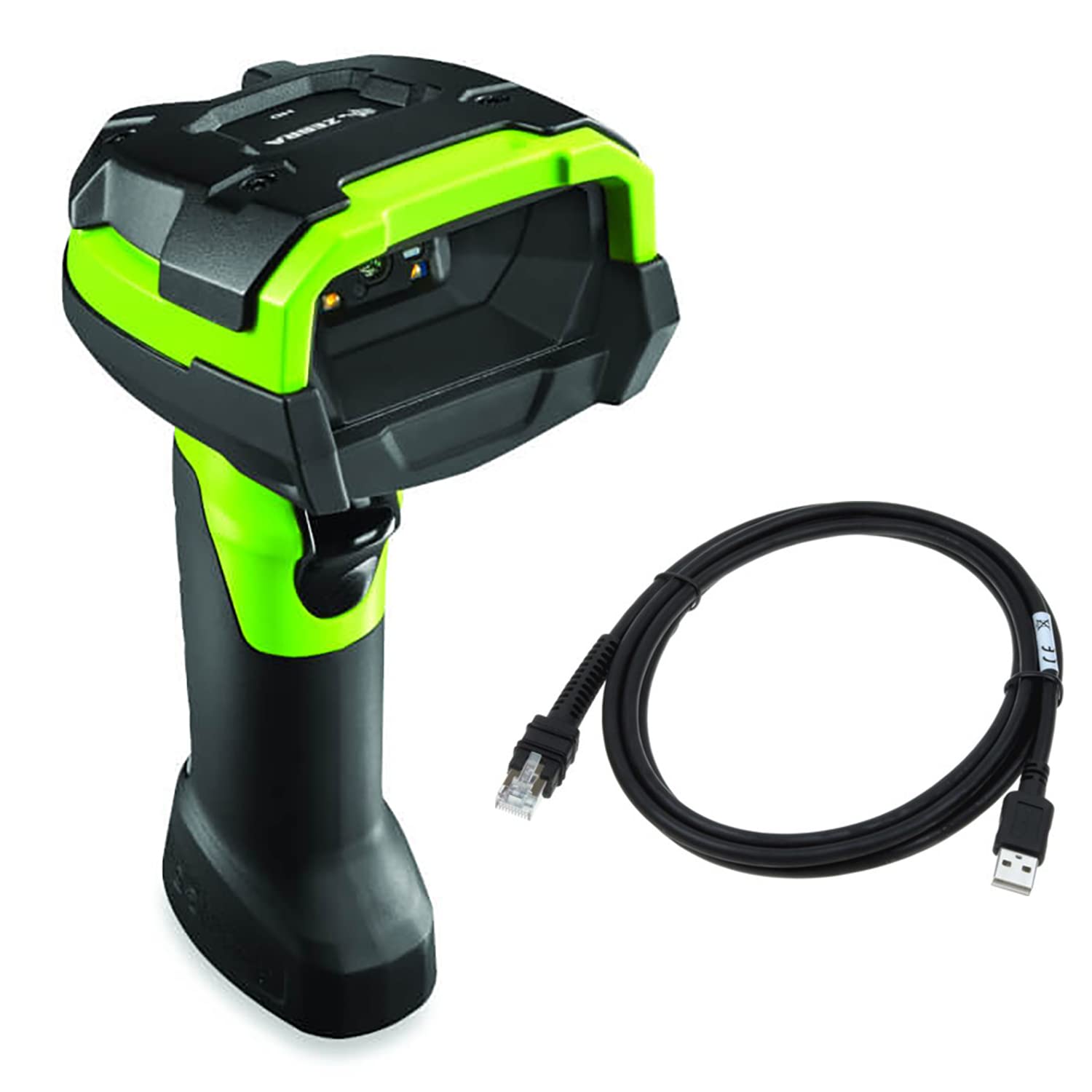
Figure 2.1: Front view of the Zebra DS3608-ER Ultra-Rugged Handheld Corded Barcode Scanner, showcasing its industrial green and black design.
Key Features:
- Ultra-Rugged Design: Built to withstand harsh industrial environments, including extreme cold.
- Extended Range Scanning: Captures 1D and 2D barcodes from near contact up to 70 ft (21.4 m).
- Versatile Connectivity: Supports Serial and USB-A connections.
- High Performance: Ensures reliable and fast barcode capture for improved throughput and accuracy.
3. Setup
3.1 What's in the Box
Verify that the following items are included in your package:
- Zebra DS3608-ER Barcode Scanner
- USB Cable (7-foot)
3.2 Connecting the Scanner
The DS3608-ER scanner supports USB and Serial connectivity. The included USB cable facilitates a straightforward connection to your host system.
- Locate the connectivity port at the base of the scanner handle.
- Connect the smaller end of the provided USB cable to the scanner's port. Ensure a secure fit.
- Connect the larger USB-A end of the cable to an available USB port on your computer or host system.
- The scanner will typically power on and perform a self-test. Your operating system may automatically install necessary drivers.
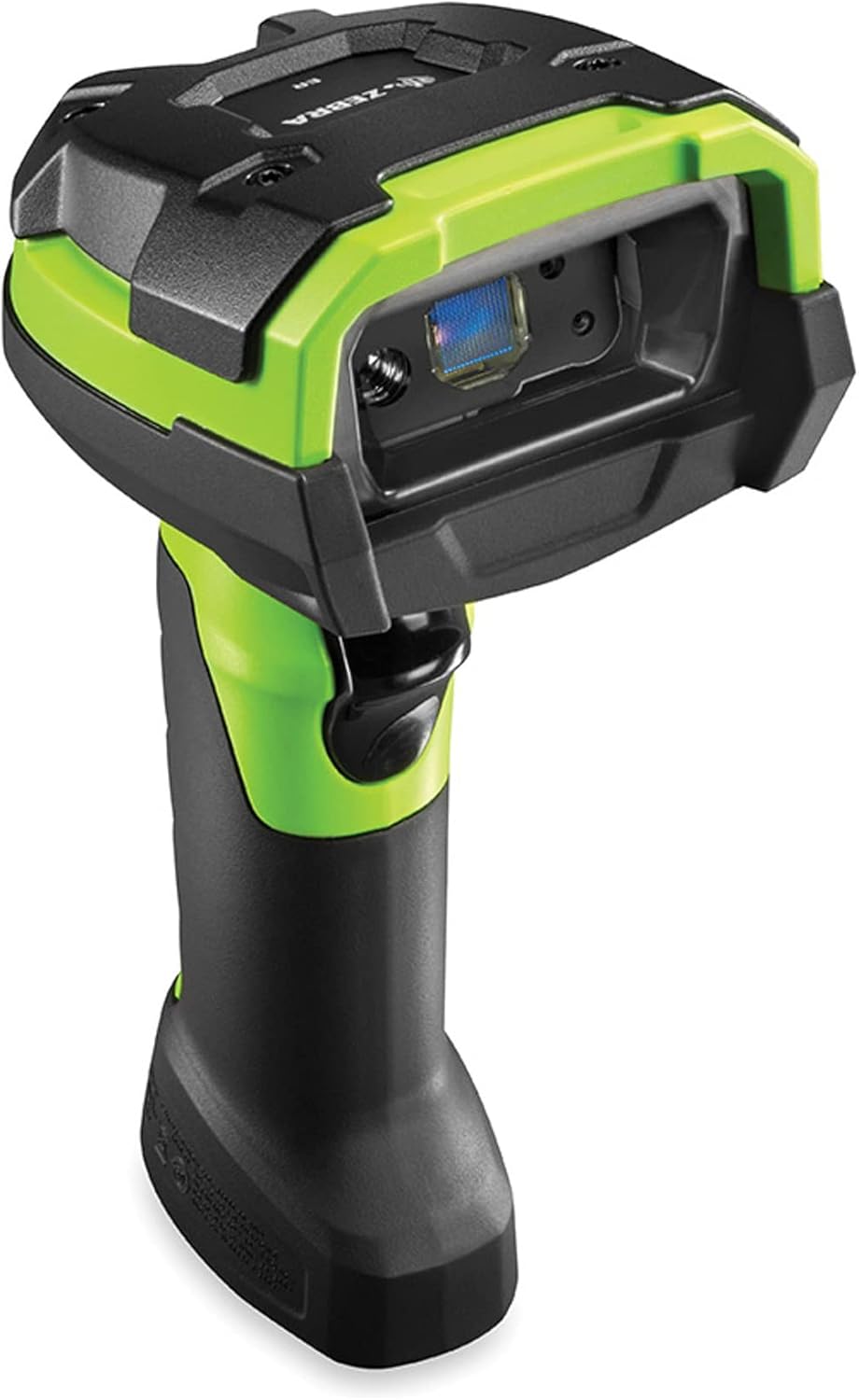
Figure 3.1: Side view of the Zebra DS3608-ER scanner, highlighting the cable connection point at the base of the handle.
For serial connections, a compatible serial cable (sold separately) and appropriate driver installation may be required. Refer to your system's documentation for serial port configuration.
4. Operating Instructions
4.1 Basic Scanning Operation
To scan a barcode:
- Ensure the scanner is properly connected to your host system and powered on.
- Point the scanner's window at the barcode you wish to scan.
- Press and hold the trigger button located on the handle. An aiming pattern will project from the scanner.
- Center the aiming pattern over the barcode. The scanner will emit a successful scan beep and/or flash an indicator light upon successful capture.
- Release the trigger button.

Figure 4.1: Top-down view of the Zebra DS3608-ER scanner, showing the scanning window and trigger button.
4.2 Extended Range Scanning
The DS3608-ER is designed to capture barcodes across a wide range of distances. For barcodes at a distance, ensure the aiming pattern fully encompasses the barcode. For very small or very close barcodes, adjust the distance slightly to allow the scanner's imager to focus properly.
5. Maintenance
5.1 Cleaning the Scanner
Regular cleaning helps maintain optimal scanning performance.
- Scanning Window: Use a soft, clean, lint-free cloth dampened with a mild cleaning solution (e.g., isopropyl alcohol or a non-abrasive glass cleaner) to gently wipe the scanning window. Avoid harsh chemicals or abrasive materials that could scratch the surface.
- Housing: Wipe the exterior housing with a soft, damp cloth. Do not immerse the scanner in any liquid.
5.2 Durability and Environmental Considerations
The DS3608-ER is built with unique plastics, cables, and components to withstand extreme conditions, including freezing temperatures. While designed for rugged use, avoid unnecessary drops or impacts. Ensure the cable connection is secure to prevent damage to the port.

Figure 5.1: Angled view of the Zebra DS3608-ER scanner, illustrating its robust construction.
6. Troubleshooting
If you encounter issues with your DS3608-ER scanner, refer to the following common troubleshooting steps:
- Scanner Not Powering On: Ensure the USB cable is securely connected to both the scanner and the host system. Try a different USB port or cable if available.
- Scanner Not Scanning:
- Verify the scanner is powered on and emitting an aiming pattern when the trigger is pressed.
- Ensure the barcode is clean, undamaged, and within the scanner's read range.
- Check if the barcode type is enabled in the scanner's configuration (if applicable, refer to Zebra's programming guides for advanced settings).
- Confirm that the host application is ready to receive input from the scanner.
- Incorrect Data Output: Ensure the correct keyboard layout or serial communication settings are configured on your host system.
- Intermittent Connectivity: Check the USB cable for damage and ensure it is not loose. Avoid routing the cable near sources of strong electromagnetic interference.
For persistent issues, consult the official Zebra support resources or contact your vendor.
7. Specifications
| Feature | Specification |
|---|---|
| Model | DS3608-ER |
| Brand | Zebra |
| Connectivity Technology | USB Cable, Serial |
| Power Source | Corded Electric |
| Barcode Compatibility | 1D and 2D |
| Scanning Range | Near contact to 70 ft (21.4 m) |
| Product Dimensions | 7.3 x 3 x 5.2 inches |
| Item Weight | 12.8 ounces |
| Manufacturer | Zebra |
| UPC | 659135016303 |
8. Warranty and Support
8.1 Warranty Information
For specific warranty details regarding your Zebra DS3608-ER scanner, please refer to the warranty documentation provided by Zebra or the retailer at the time of purchase. As this product may be an Amazon Renewed item, warranty terms may differ from new products. Please consult your purchase documentation for applicable warranty coverage.
8.2 Technical Support
For technical assistance, driver downloads, or advanced configuration guides, please visit the official Zebra Technologies support website. You may also contact your product reseller for support.
- Zebra Technologies Official Website: www.zebra.com
- Support Section: Look for a 'Support' or 'Downloads' section on the Zebra website for product-specific resources.


