
1. Introduction
Welcome to the realme GT 7T experience. This manual provides essential information to help you set up, operate, and maintain your new smartphone. The realme GT 7T combines powerful performance with advanced features, designed for an exceptional user experience.

Figure 1.1: realme GT 7T in Racing Yellow, showcasing its design and key features.
2. What's in the Box
Upon unboxing your realme GT 7T, please ensure all the following items are present:
- realme GT 7T Smartphone
- Power Adapter (120W)
- USB Cable (Type-C)
- SIM Tray Ejector
- Phone Case
- Quick Start Guide (this document)
- Warranty Card
3. Device Overview
Familiarize yourself with the physical components of your realme GT 7T.

Figure 3.1: Front view of the realme GT 7T, highlighting the immersive display.

Figure 3.2: Back view of the realme GT 7T, featuring the camera array and distinctive Racing Yellow design with a speed stripe.

Figure 3.3: Top and bottom side views of the realme GT 7T, illustrating the USB Type-C port, speaker grille, and microphone.
Physical Components:
- Power Button: Located on the right side. Press and hold to power on/off or restart.
- Volume Buttons: Located on the right side, above the power button. Use to adjust media volume and ringtone volume.
- USB Type-C Port: Located at the bottom. Used for charging, data transfer, and audio output.
- SIM Card Tray: Located on the left side. Insert your SIM card(s) here.
- Camera Module: Located on the rear. Houses the main, wide-angle, and other camera sensors.
- Front Camera: Located on the display.
- Speakers: Located at the top and bottom for stereo sound.
4. Setup
4.1 Inserting the SIM Card
- Locate the SIM card tray on the left side of the device.
- Insert the SIM tray ejector tool into the small hole next to the tray and press firmly until the tray pops out.
- Place your Nano-SIM card(s) into the designated slots on the tray. Ensure the gold contacts face downwards.
- Carefully reinsert the SIM tray into the phone until it clicks into place.
4.2 Powering On and Initial Setup
- Press and hold the Power button until the realme logo appears.
- Follow the on-screen instructions to complete the initial setup, including selecting your language, connecting to Wi-Fi, and signing in to your Google account.
- You can transfer data from an old device during this process or set up as a new device.
5. Operating Your Device
5.1 Performance and Chipset
The realme GT 7T is powered by the MediaTek Dimensity 8400 MAX flagship chipset, ensuring blazing-fast performance and next-generation efficiency for multi-tasking and demanding applications. It achieves a high AnTuTu score, indicating its robust processing capabilities.

Figure 5.1: MediaTek Dimensity 8400 MAX Chipset, designed for high performance.
5.2 Battery and Charging
Equipped with a 7000mAh battery and 120W fast charging, the realme GT 7T offers extended usage and rapid power replenishment. You can charge up to 50% in approximately 15 minutes.

Figure 5.2: Visual representation of the 7000mAh battery and 120W Ultra Charge technology.
5.3 Camera System
The AI-enhanced 4K 60FPS Travel Camera allows for ultra-smooth, cinematic video capture. The versatile camera setup includes:
- IMX 896 OIS Main Camera
- 8MP Wide-Angle Camera
- 32MP Front Camera

Figure 5.3: Breakdown of the AI Travel Snap Camera system.
5.4 Cooling System
The advanced 360° IceSense Cooling with Graphene ensures optimal thermal control, maintaining peak performance even during intensive use. This design helps to dissipate heat efficiently.
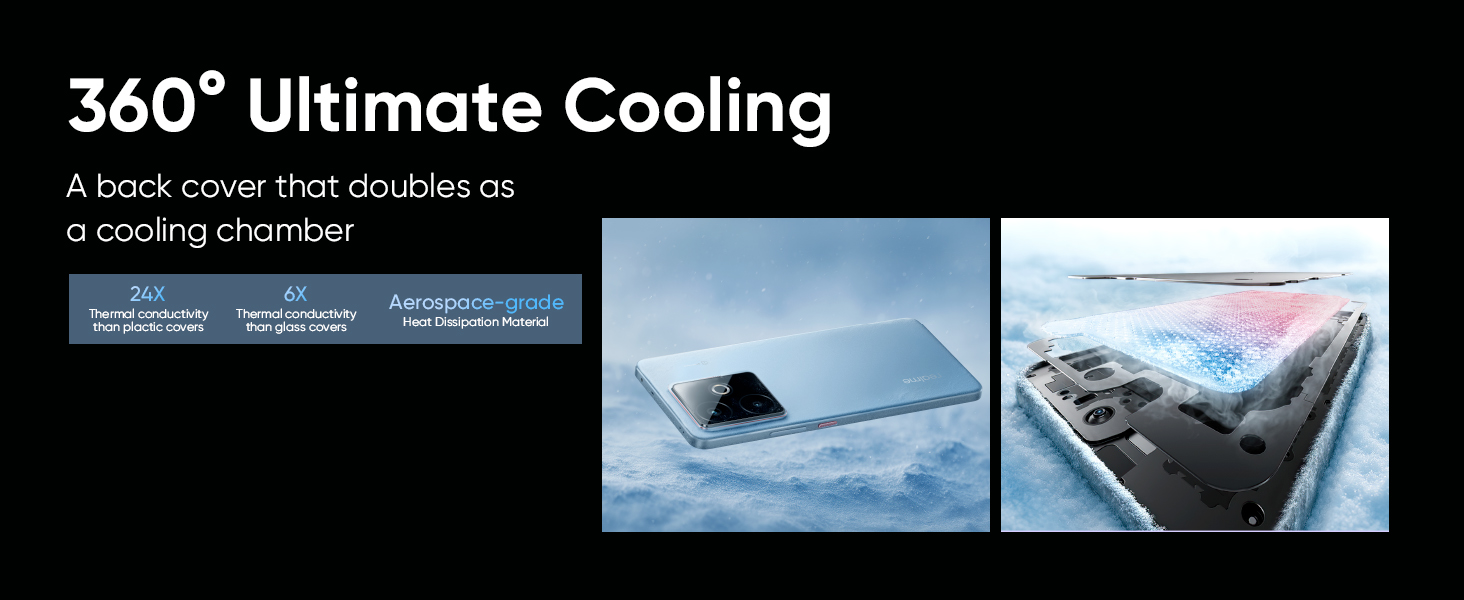
Figure 5.4: Illustration of the 360° Ultimate Cooling system.
5.5 AI Features and Software
The realme GT 7T integrates several AI features to enhance user experience:
- Smart AI Planner: Organizes your day with intelligent, real-time suggestions.
- AI Edit Genie: Provides advanced photo editing capabilities.
- AI Eraser: Allows for easy removal of unwanted objects from photos.
- AI Travel Snap & AI 2K Livephoto: Enhances photography for travel and dynamic moments.
- Google Gemini Integration: Access advanced AI assistance for various tasks.
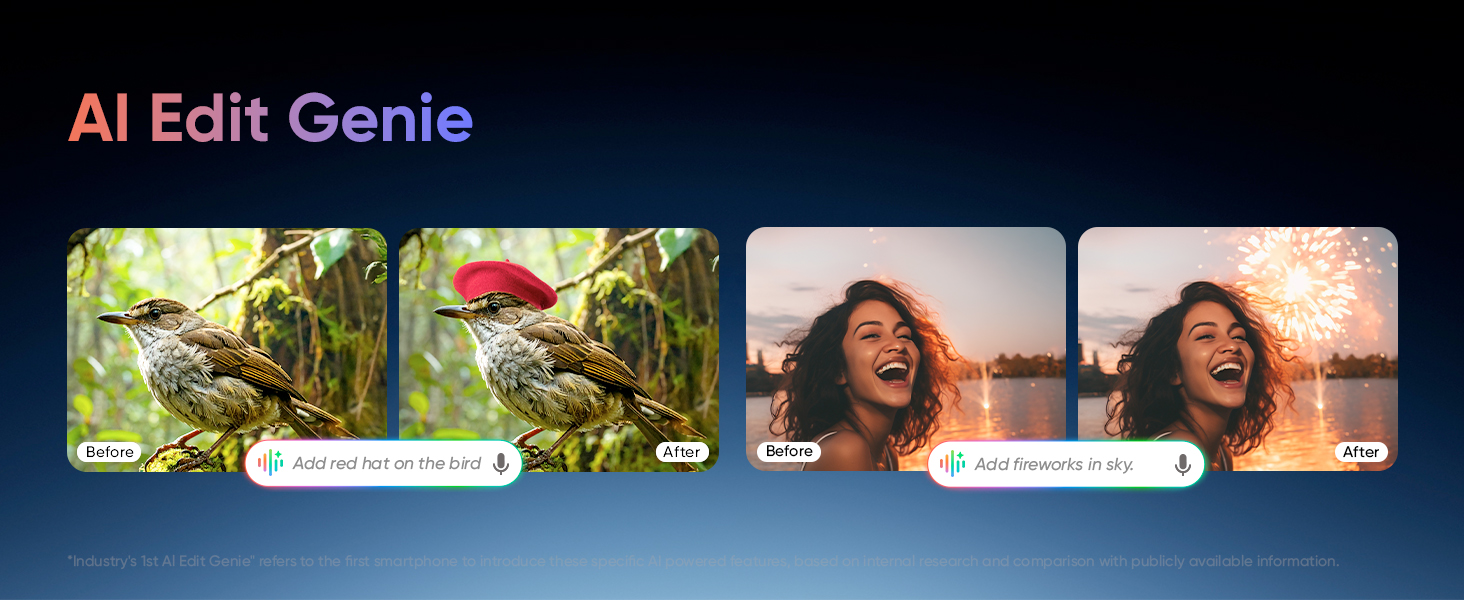
Figure 5.5: Example of AI Edit Genie functionality.
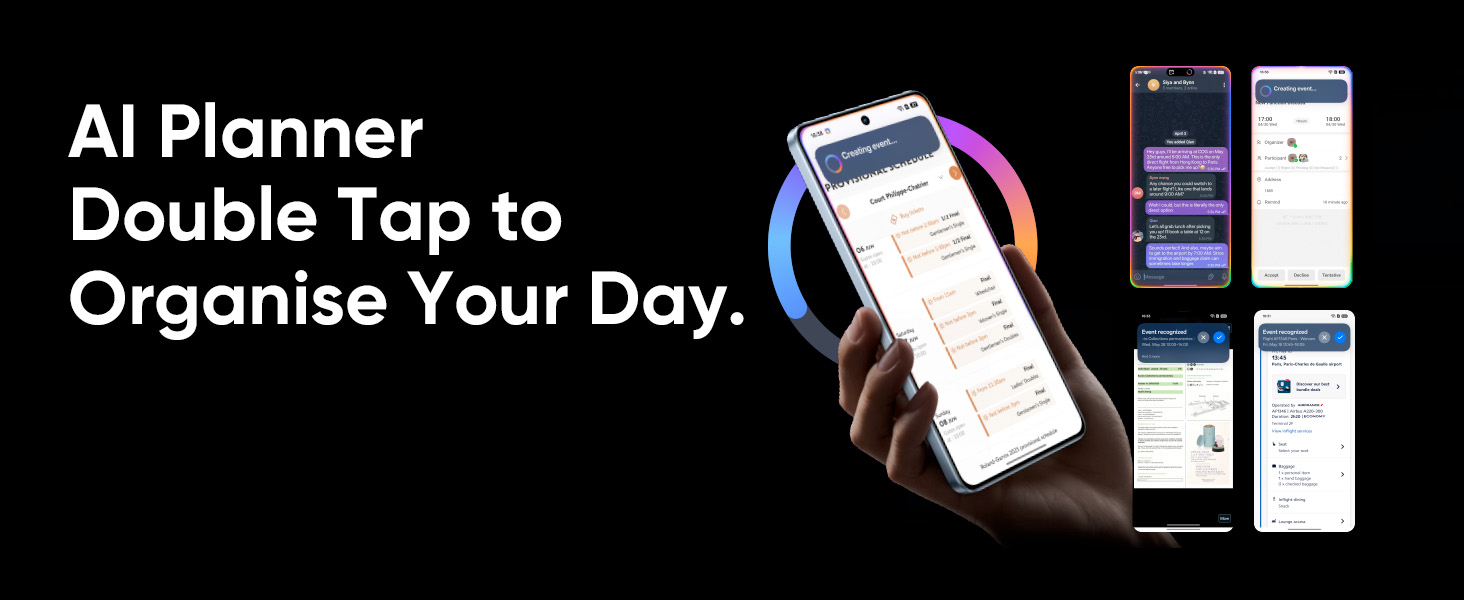
Figure 5.6: AI Planner interface for daily organization.
5.6 Display
The device features a 6000 nits ultra-bright display for vivid visuals and an immersive viewing experience with a high contrast ratio. It supports Dolby Vision and HDR 10+ for enhanced color and detail, along with Rain Water Smart Touch for improved usability in wet conditions.

Figure 5.7: The 6000 nits ultra-bright display in action.
5.7 Durability and Connectivity
The realme GT 7T is built with IP69 Ultimate Water-proof rating and ArmorShell™ Glass for enhanced durability. The SignalCatcher Algorithm improves network performance, ensuring strong signal even in weak network areas.

Figure 5.8: Durability features: IP69 water resistance and ArmorShell™ Glass.
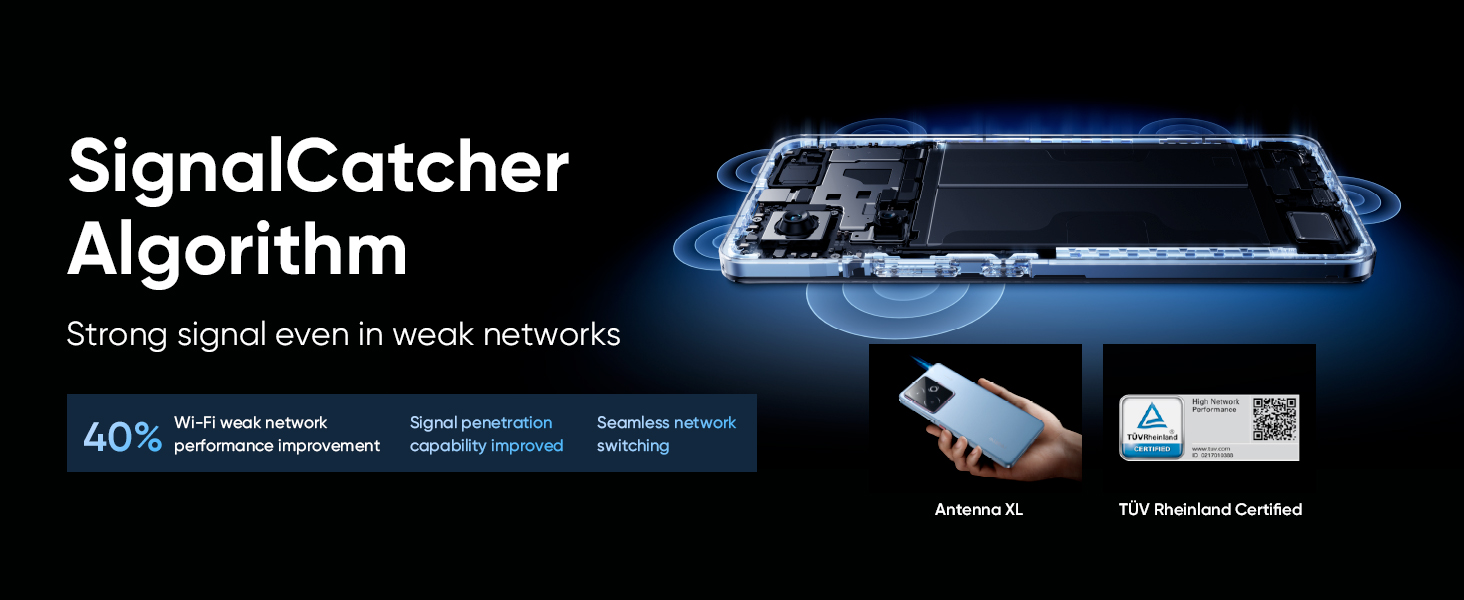
Figure 5.9: SignalCatcher Algorithm for enhanced connectivity.
5.8 Official Product Video
Watch the official product video for a visual overview of the realme GT 7T's features and design.
Video 5.1: Official realme GT 7T Product Overview. This video highlights the phone's design, performance, and key functionalities.
5.9 Key Features Video
A quick look at the essential features of the realme GT 7T.
Video 5.2: realme GT 7T Key Features. This short video provides a summary of the device's main selling points.
6. Maintenance and Care
- Cleaning: Use a soft, lint-free cloth to clean the screen and body. Avoid harsh chemicals.
- Software Updates: Regularly check for and install system updates to ensure optimal performance and security. Go to Settings > About phone > Software update.
- Battery Health: To prolong battery life, avoid extreme temperatures and do not leave the device fully charged or fully discharged for extended periods.
- Storage Management: Periodically clear unnecessary files and apps to free up storage space and maintain device speed.
7. Troubleshooting
If you encounter issues with your realme GT 7T, try the following common solutions:
- Device Unresponsive: Press and hold the Power button for about 10 seconds to force a restart.
- App Crashing: Clear the app's cache and data (Settings > Apps > [App Name] > Storage > Clear cache/Clear data) or reinstall the app.
- Battery Draining Quickly: Check battery usage in settings (Settings > Battery) to identify power-hungry apps. Reduce screen brightness and disable unnecessary features like GPS or Bluetooth when not in use.
- Network Issues: Toggle Airplane Mode on and off. Reset network settings (Settings > System > Reset options > Reset Wi-Fi, mobile & Bluetooth).
- Factory Reset: As a last resort, you can perform a factory reset (Settings > System > Reset options > Erase all data (factory reset)). Warning: This will erase all data on your phone. Back up important data before proceeding.
If problems persist, please contact realme customer support.
8. Specifications
Detailed technical specifications for the realme GT 7T (Model RMX5085):
| Feature | Specification |
|---|---|
| Operating System | Android 15 |
| RAM | 12 GB |
| Memory Storage Capacity | 256 GB |
| Processor | MediaTek Dimensity 8400 MAX (CPU Speed: 3.25 GHz) |
| Battery Capacity | 7000 mAh (Lithium Ion) |
| Charging | 120W Fast Charging |
| Main Camera | IMX 896 OIS |
| Wide-Angle Camera | 8 MP |
| Front Camera | 32 MP |
| Display Brightness | 6000 nits |
| Connectivity | USB, Wi-Fi, GPS |
| Audio Jack | USB Type C |
| Special Features | Advanced 360° IceSense Cooling with Graphene, Smart AI Planner Built-In, IP69 Water-proof, ArmorShell™ Glass |
| Product Dimensions | 16.2 x 7.6 x 0.8 cm |
| Item Weight | 202 g |
| Color | Racing Yellow |
| Manufacturer | OPPO MOBILES INDIA PRIVATE LIMITED |
| Country of Origin | India |
9. Warranty and Support
Your realme GT 7T comes with a commitment to long-term support:
- OS Updates: Expect 4 major OS updates to keep your device current with the latest features and improvements.
- System Maintenance: Benefit from 6 years of system maintenance, ensuring long-term stability, security, and performance.
For further assistance, warranty claims, or technical support, please visit the official realme support website or contact their customer service.