
FAKJANK F417-D
Contents
FAKJANK F417-D Drone User Manual
Model: F417-D
1. Introduction
This manual provides essential instructions for the safe operation, setup, and maintenance of your FAKJANK F417-D Drone. Please read this manual thoroughly before operating the drone to ensure proper function and to prevent damage or injury.
Key Features:
- 1080P HD Camera: Captures high-resolution photos and videos with a 90° electrically adjustable lens for diverse perspectives.
- Optical Flow Positioning: Enhances stability and provides precise hovering for clear footage.
- Brushless Motors: Offers powerful and efficient flight performance with reduced noise and increased durability.
- Colorful LED Lighting: Integrated LEDs provide enhanced visibility and visual appeal during nighttime flights.
- App Control & WiFi Transmission: Connects to a smartphone app for real-time FPV viewing and control, transmitting media directly to your device.
- Modular Battery: Designed for easy replacement and extended flight times.
- Beginner-Friendly Functions: Includes One Key Takeoff/Landing, Altitude Hold, Headless Mode, and Tap Fly for simplified operation.

Image: The FAKJANK F417-D drone, remote control, and a smartphone displaying the FPV feed.
2. Package Contents
Verify that all items listed below are present in your package:
- Drone x 1
- Remote Control x 1
- Battery x 1
- Propeller x 4 (spare)
- Protective Frame x 4
- Screwdriver x 1
- USB Cable x 1
- Carrying Case x 1
- Instruction Manual x 1

Image: All components included in the FAKJANK F417-D drone package.
3. Drone Components Overview
Familiarize yourself with the main parts of the F417-D drone:
- Propellers: Four rotating blades for lift and propulsion.
- Motors: Brushless motors drive the propellers.
- Camera Module: Front-facing 1080P camera with adjustable angle.
- LED Lights: Integrated lights for visibility and aesthetic effects.
- Battery Compartment: Located on the drone's body for the modular battery.
- Optical Flow Sensor: Located on the underside for stable hovering.
- Foldable Arms: Allows for compact storage and transport.
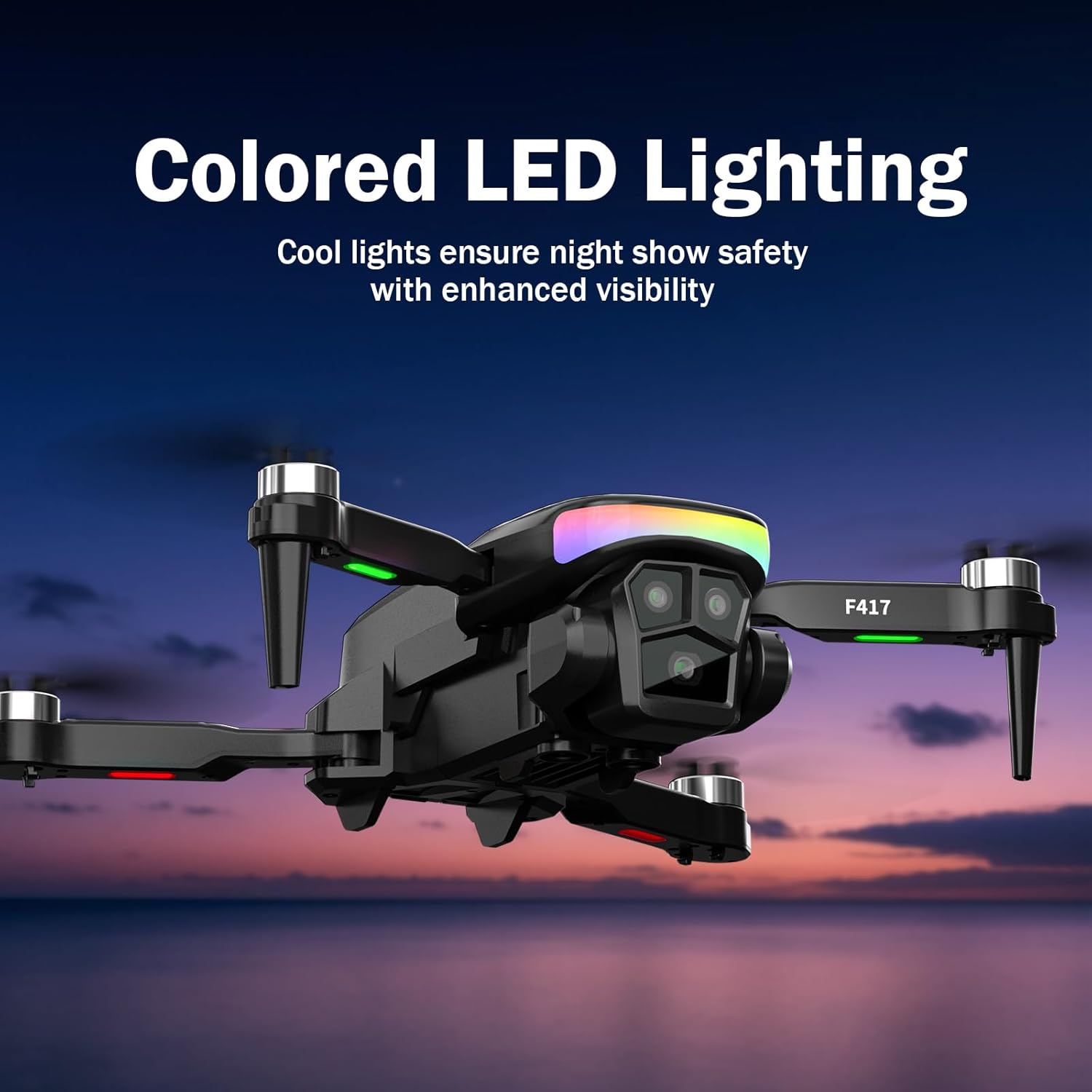
Image: The FAKJANK F417-D drone showcasing its colored LED lighting.
4. Setup Guide
4.1. Battery Installation and Charging
- Insert the modular battery into the drone's battery compartment until it clicks securely.
- To charge, remove the battery from the drone. Connect the USB charging cable to the battery and a suitable USB power source (e.g., computer, USB wall adapter).
- The charging indicator light on the battery will show its status (refer to battery instructions for specific light patterns). A full charge typically takes approximately 3 hours.
4.2. Remote Control Setup
- Install 3 AAA batteries (not included) into the remote control, observing correct polarity.
- Extend the phone holder on the remote control and securely place your smartphone.
4.3. Propeller Installation (if necessary)
If propellers are not pre-installed or need replacement:
- Match the 'A' and 'B' markings on the propellers with the corresponding 'A' and 'B' markings on the drone's motor arms.
- Attach the propeller guards by snapping them onto the drone's motor arms for added protection.

Image: The FAKJANK F417-D drone equipped with propeller guards.
4.4. App Installation and Connection
- Download the designated FAKJANK drone app from your smartphone's app store (iOS or Android).
- Power on the drone and the remote control.
- On your smartphone, go to Wi-Fi settings and connect to the drone's Wi-Fi network (usually named 'FAKJANK-F417-D' or similar).
- Open the FAKJANK app. The live video feed from the drone's camera should appear, indicating a successful connection.
5. Operating Instructions
5.1. Pre-Flight Checklist
- Ensure the drone battery and remote control batteries are fully charged.
- Check that propellers are securely attached and undamaged.
- Verify that the drone's Wi-Fi is connected to your smartphone.
- Choose an open, clear area free from obstacles, people, and animals.
- Be aware of local drone regulations and weather conditions.
5.2. Basic Flight Controls
- Pairing: Turn on the drone, then the remote. Push the left joystick up then down to pair.
- One Key Takeoff/Landing: Press the dedicated One Key Takeoff/Landing button on the remote or in the app. The drone will automatically ascend to a stable height or descend and land.
- Throttle (Left Joystick): Push up to ascend, pull down to descend.
- Directional Control (Right Joystick): Push forward to fly forward, pull back to fly backward, push left to fly left, push right to fly right.
- Yaw (Left Joystick Left/Right): Push left to rotate counter-clockwise, push right to rotate clockwise.

Image: Visual representation of beginner-friendly features like One Key Takeoff/Landing, Headless Mode, and Altitude Hold.
5.3. Advanced Flight Modes
- Altitude Hold: The drone maintains a stable altitude automatically, allowing you to focus on directional control.
- Headless Mode: In this mode, the drone's orientation is relative to the pilot, eliminating the need to adjust for the drone's front direction.
- Tap Fly: Use the app to draw a path on your screen, and the drone will follow it automatically.
- 3 Speed Modes: Adjust the drone's speed (low, medium, high) to suit your skill level and flying environment.

Image: The Tap Fly feature in action, illustrating the drone following a pre-drawn path on a smartphone screen.

Image: An illustration demonstrating the three available speed modes for the FAKJANK F417-D drone.
5.4. Camera Operation
- Photo/Video Capture: Use the dedicated buttons on the remote control or the app interface to take photos or start/stop video recording.
- FPV (First Person View): The live video feed is displayed on your connected smartphone via the app.
- Camera Angle Adjustment: The camera's 90° electric tilt can be adjusted via the remote control or app to capture different angles.
- Smart Gesture Control: Perform specific hand gestures in front of the camera to trigger photo or video recording (refer to app instructions for specific gestures).

Image: Detailed view of the FAKJANK F417-D drone's camera, highlighting 1080P HD resolution, 90° electric adjustment, 110° FOV, and LED lighting.

Image: A user demonstrating smart gesture control to activate photo or video capture with the FAKJANK F417-D drone.
6. Maintenance
6.1. Battery Care
- Do not overcharge or over-discharge the battery.
- Store batteries in a cool, dry place away from direct sunlight and heat.
- If not used for an extended period, charge the battery to approximately 50% capacity every three months.

Image: Illustration of the FAKJANK F417-D drone's modular battery, indicating a 17-minute flight time from a 1600mAh, 3.7V Lithium battery.
6.2. Propeller Replacement
If a propeller is damaged, replace it with a new one from the spare parts. Ensure the correct 'A' or 'B' propeller is installed on the corresponding motor arm.
6.3. Cleaning and Storage
- Clean the drone with a soft, dry cloth. Do not use solvents or harsh chemicals.
- Store the drone in its carrying case in a cool, dry environment when not in use.
7. Troubleshooting
| Problem | Possible Cause | Solution |
|---|---|---|
| Drone does not respond to remote control. | Low battery in drone or remote; Not paired; Interference. | Charge batteries; Re-pair drone and remote; Move to an area with less interference. |
| Drone drifts during flight. | Not calibrated; Uneven propellers; Wind interference. | Perform gyroscope calibration; Check/replace propellers; Fly in calm conditions. |
| No FPV video feed on smartphone. | Wi-Fi not connected; App not open; Interference. | Reconnect to drone's Wi-Fi; Open the app; Reduce distance to drone. |
| Poor camera image quality. | Dirty lens; Low light; Fast movement. | Clean camera lens; Fly in well-lit conditions; Reduce drone speed for photos/videos. |
| Short flight time. | Battery not fully charged; Old battery; Aggressive flying. | Ensure full charge; Consider replacing old batteries; Fly more conservatively. |
8. Specifications
| Feature | Detail |
|---|---|
| Brand | FAKJANK |
| Model Name | F417-D |
| Color | Black |
| Video Capture Resolution | 1080p |
| Effective Still Resolution | 2.1 MP |
| Connectivity Technology | Wi-Fi |
| Skill Level | Beginner |
| Item Weight | 147 Grams (5.2 ounces) |
| Video Capture Format | MP4 |
| Battery Cell Composition | Lithium Ion |
| Operating Temperature | 20 Degrees Celsius |
| Supported Image Format | JPEG |
| Video Output Resolution | 1080 pixels |
| Product Dimensions | 8"L x 6"W x 2.13"H |
| Special Features | Adjustable, Foldable, Lightweight |
9. Safety Guidelines
Adhere to the following safety guidelines to prevent accidents and ensure responsible drone operation:
- Always operate the drone in open areas, away from people, buildings, and obstacles.
- Maintain a safe distance from the drone during flight.
- Do not fly near airports or restricted airspace.
- Avoid flying in strong winds or adverse weather conditions.
- Keep fingers and loose clothing away from rotating propellers.
- Supervise children during drone operation.
- Regularly inspect the drone for any damage before and after each flight.
10. Warranty and Support
For warranty information, technical support, or any inquiries regarding your FAKJANK F417-D drone, please contact our customer service team.
Customer Support Email: fakjank@gmail.com

Image: FAKJANK customer support contact information.
Documents and downloads
Ask a question about this manual
Ask about setup, troubleshooting, compatibility, parts, safety, or missing instructions. Manuals+ will review the question and use this page’s manual context to help answer it.