
OSALO OS 991ES Plus 2nd
Contents
OSALO Scientific Calculator User Manual
Model: OS 991ES Plus 2nd | Brand: OSALO
Product Overview
The OSALO Scientific Calculator OS 991ES Plus 2nd is an advanced scientific calculator designed for a wide range of mathematical and scientific applications. It features 417 essential functions, a 2-line display, and a natural textbook-like input/output system. This calculator is powered by both solar energy and a battery, ensuring reliable operation in various environments. Its intuitive design and comprehensive capabilities make it suitable for students in high school and college, covering subjects from Algebra II to Differential Equations.

Image: Front view of the OSALO Scientific Calculator OS 991ES Plus 2nd in blue.
Setup and Power
Your OSALO Scientific Calculator is designed for dual power supply, utilizing both solar energy and a pre-installed LR44 battery. This ensures continuous operation even in low-light conditions.
Power Source
- Solar Power: The calculator is equipped with a solar panel that provides power in well-lit environments.
- Battery Power: An LR44 battery is included and provides power when solar energy is insufficient or unavailable.

Image: Illustration showing the dual power supply system, highlighting solar and battery power.
Operating Instructions
Key Functions and Modes
This calculator is equipped with 417 essential functions, covering a broad spectrum of mathematical operations. It supports 8 primary calculation modes:
- COMP: General calculations
- CMPLX: Complex number calculations
- STAT: Statistical calculations
- BASE-N: Base-N calculations
- TABLE: Table generation
- VECTOR: Vector calculations
- Equation Solution: Solving equations
- Matrix Calculations: Performing matrix operations

Image: Visual representation of the 417 functions and the 8 calculation modes available on the calculator.

Image: Overview of advanced functions including Linear Algebra, Matrix Operations, Complex Number Operations, Variable Statistics, Equation Solving, Trigonometric Functions, Integration, Differentiation, and Function Analysis.
Efficient Calculations
The calculator is optimized to reduce keystrokes by approximately 50% through intelligent design. This includes shortcut keys, editable expressions, and streamlined matrix operations that support table-based input and viewing, significantly enhancing calculation efficiency.

Image: Graphic illustrating the reduction in key presses and the boost in calculation efficiency.
Textbook-Like Written Display
The calculator features a written display format that mimics expressions found in textbooks, making complex equations easier to read and input. It supports natural input and output, seamlessly converting between fractions and decimals for precise handling of exact values.
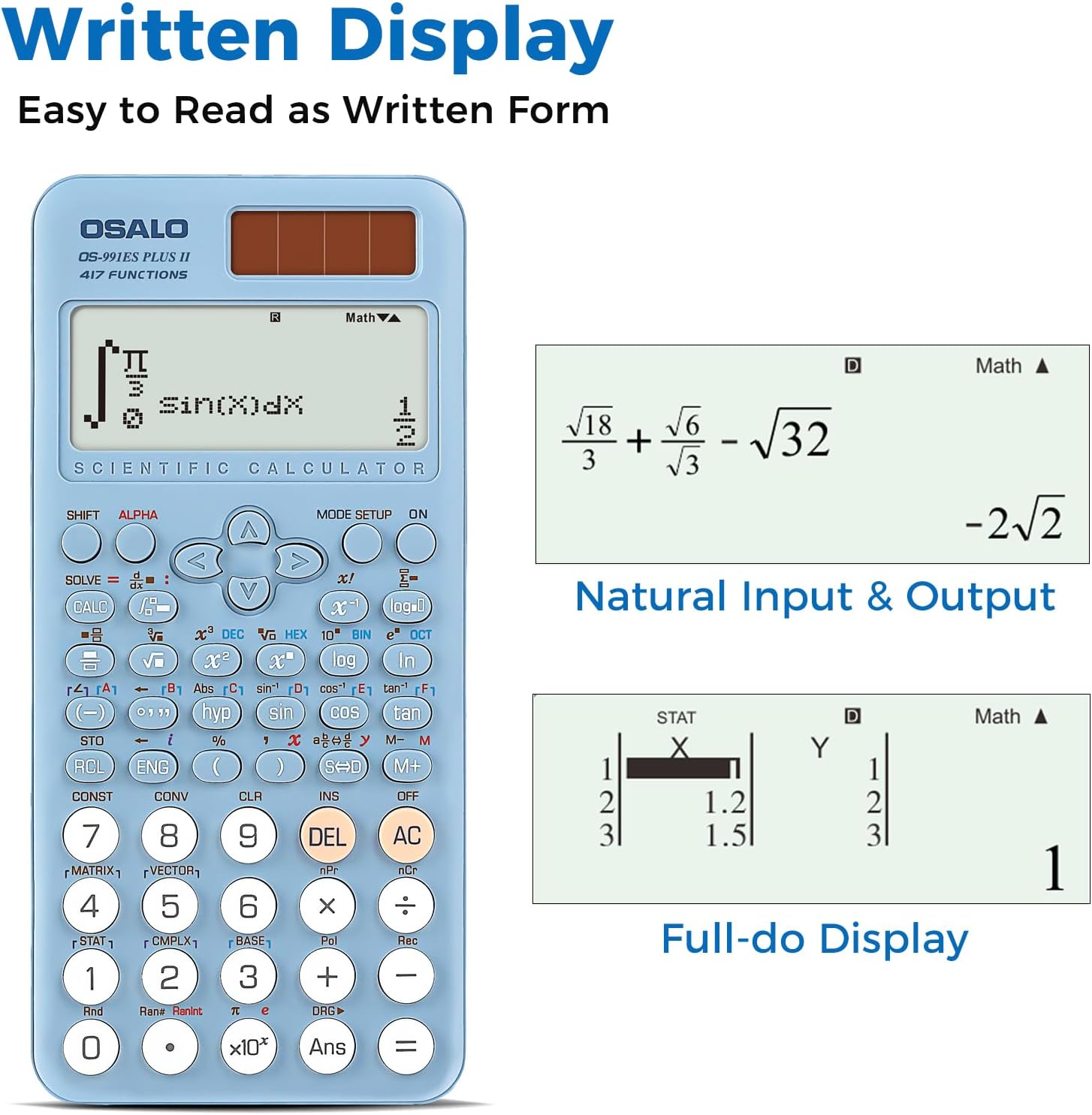
Image: Examples of the written display, showing natural input and output for mathematical expressions and full-do display for data tables.
Smart History and Quick Recall
The smart history feature allows users to quickly retrieve, reuse, or edit previous formulas. This streamlines the workflow for both complex equations and common calculations, eliminating the need for repeated input.
Brightness Adjustment Function
The display brightness can be adjusted to suit different lighting conditions, reducing visual fatigue in dark environments and ensuring clear visibility in bright settings. This feature allows for optimal viewing results.

Image: Comparison showing the calculator display in dark and bright modes, illustrating the brightness adjustment function.
Keypad Layout
Familiarize yourself with the key components of the calculator:
- Solar Panel: Located at the top, for solar power.
- Extra Large Display: Shows calculations and results.
- Control Keys: Navigation and mode selection.
- SHIFT Key: Accesses secondary functions.
- Mode Key: Changes calculation modes.
- Power On: Turns the calculator on.
- Function Keys: For various mathematical operations (sin, cos, tan, log, etc.).
- Delete Key (DEL): Deletes the last entered character.
- Last Answer Key (Ans): Recalls the result of the previous calculation.

Image: Diagram of the calculator highlighting key components such as the solar panel, display, control keys, SHIFT key, Mode key, Power On, function keys, Delete key, and Last Answer key.
Protective Cover
The calculator comes with a protective cover designed to provide all-round protection against damage. The cover slides on and off easily.

Image: Views of the calculator with and without its protective cover, demonstrating how the cover slides on.
Highly Sensitive Keys
The calculator features highly sensitive keys that provide a responsive and tactile feedback, ensuring accurate and comfortable input during calculations.

Image: Close-up view of the calculator keys, emphasizing their sensitive and responsive design.
Care and Maintenance
- Cleaning: Use a soft, dry cloth to clean the calculator's exterior. Do not use abrasive cleaners or solvents.
- Storage: Store the calculator in a cool, dry place away from direct sunlight and extreme temperatures. Always use the protective cover when not in use.
- Avoid Impact: Protect the calculator from drops and impacts, which can damage internal components or the display.
- Liquid Exposure: Keep the calculator away from liquids. If it gets wet, turn it off immediately and allow it to dry completely before attempting to use it again.
Troubleshooting
- Calculator not turning on: Ensure there is sufficient light for the solar panel or that the LR44 battery is properly installed and not depleted. Replace the battery if necessary.
- Display is dim or blank: Check the lighting conditions. If using battery power, replace the LR44 battery. Adjust the display brightness setting if applicable.
- Incorrect calculations: Verify that the calculator is in the correct mode for your desired operation (e.g., COMP, STAT, etc.). Double-check your input values and formula syntax.
- Keys are unresponsive: Ensure no debris is lodged under the keys. If the issue persists, try resetting the calculator (refer to the full manual for reset instructions, typically a small reset button on the back).
Technical Specifications
| Specification | Detail |
|---|---|
| Product Dimensions | 6.4 x 3.15 x 0.1 inches |
| Item Weight | 7.8 ounces |
| Item Model Number | OS 991ES Plus 2nd |
| Batteries | 1 LR44 batteries required (included) |
| Brand | OSALO |
| Color | OS-991ES PLUS-2-Blue |
| Calculator Type | Engineering/Scientific |
| Power Source | Solar and Battery |
| Screen Size | 2.4 Inches |

Image: Diagram illustrating the dimensions and weight of the calculator.
Warranty and Support
For warranty information and technical support, please refer to the documentation included with your purchase or visit the official OSALO website. You may also contact OSALO customer service directly for assistance with product inquiries, troubleshooting, or warranty claims.
Online Support: Visit the OSALO Store on Amazon
Ask a question about this manual
Ask about setup, troubleshooting, compatibility, parts, safety, or missing instructions. Manuals+ will review the question and use this page’s manual context to help answer it.