
1. Introduction
This manual provides detailed instructions for setting up and operating your BIGASUO Digital Picture Frame Frameo 15.6". This device allows you to display photos and videos, share moments instantly with family and friends via the Frameo app, and enjoy a high-resolution visual experience.
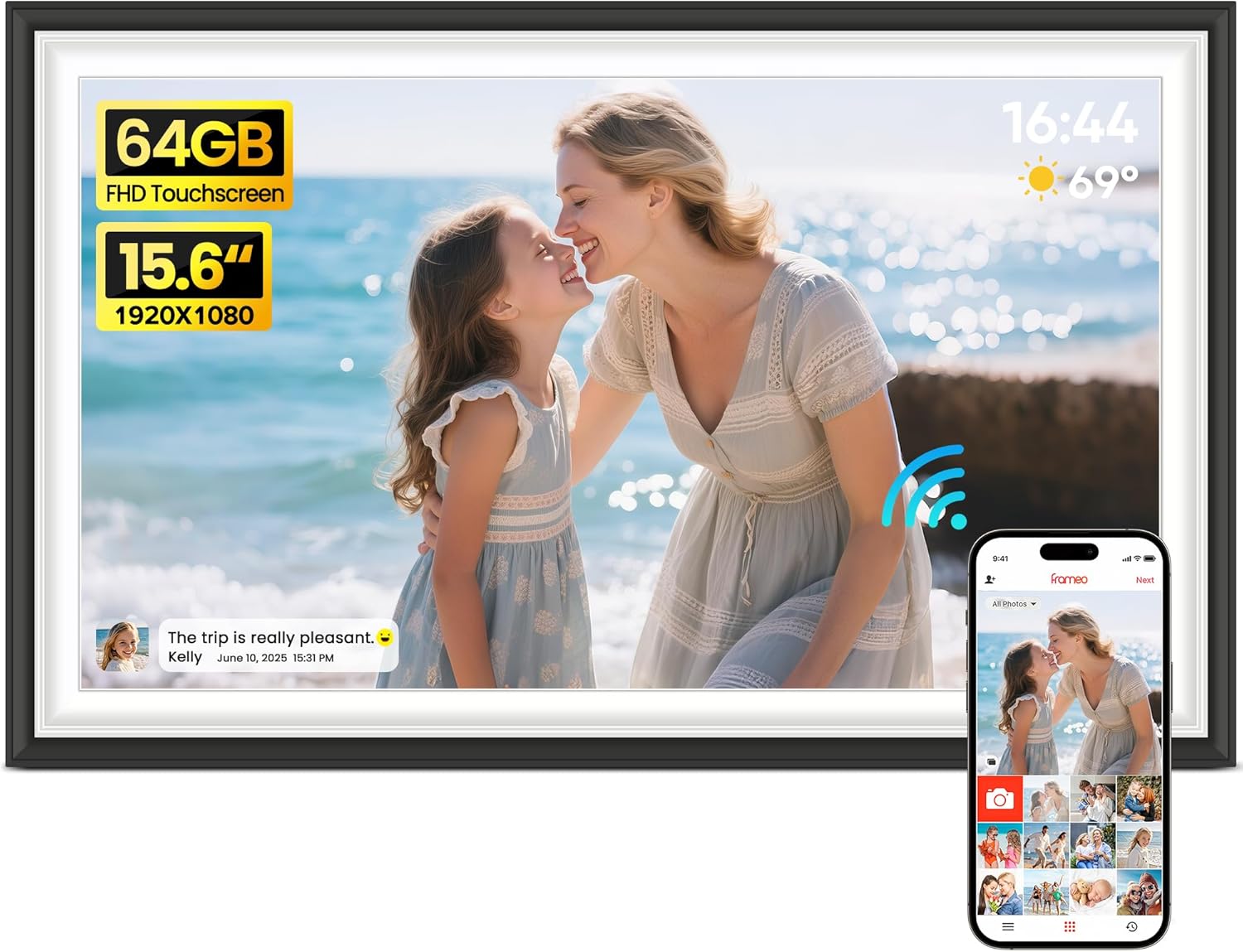
Image: The BIGASUO 15.6-inch digital picture frame showcasing a vibrant image of a mother and child, alongside a smartphone demonstrating the Frameo app's photo sharing capabilities.
2. Package Contents
Verify that all items are present in your package:
- BIGASUO 15.6" Digital Picture Frame
- AC Adapter
- Frame Stand
- Wall Mounting Screws
- User Manual

Image: A visual representation of the items included in the product packaging: the digital photo frame, AC adapter, frame stand, and user manual.
3. Product Overview
The BIGASUO Digital Picture Frame features a 15.6-inch IPS FHD touch screen with 1920x1080 resolution, offering vivid colors and exquisite details. It includes 64GB of internal memory and supports external storage via SD card or USB flash drive.
3.1. Key Features
- 15.6 Inch IPS FHD Touch Screen: 1920x1080 resolution for clear and detailed image display.
- 64GB Large Internal Memory: Stores approximately 100,000 photos.
- SD Card/USB Flash Drive Support: Expand storage and import/export media. (Note: SD card/USB flash drive must be in FAT32 format. 32GB recommended for better compatibility.)
- Wi-Fi Connectivity: Connects to your home network for app-based sharing.
- Frameo App: Share photos and videos instantly from anywhere via the dedicated iOS/Android app.
- Multi-User Connection: Allows multiple users to send photos and videos to the frame.
- Video Playback: Plays videos with sound. (Frameo app allows 15-second videos; SD card/USB allows longer videos).
- Auto Rotation: Automatically adjusts photo orientation based on frame placement.
- Wall Mountable: Can be placed on a desk using the stand or mounted on a wall.
- Interactive Features: Send reactions (emojis) and greetings to senders.
- Custom Functions: Adjust slideshow display, play order, brightness, title display, and sleep mode.
- Private & Secure: Frameo app is GDPR/CCPA compliant and Intertek Cyber Assured.
3.2. Ports and Buttons

Image: The back of the digital picture frame, highlighting the SD card slot, USB port, Type-C port (for charging only), power input, speakers, wall mounting holes, and desk stand hole.
Refer to the diagram above for the location of the following:
- SD Card Slot: Insert SD cards for media import/export.
- USB Port: Connect USB flash drives for media import/export.
- Type-C Port: For charging only, not for data transfer.
- POWER Input: Connect the AC adapter here.
- Speakers: For audio playback with videos.
- Wall Mounting Holes: For mounting the frame on a wall.
- Desk Stand Hole: Insert the detachable stand for desktop use.
4. Initial Setup
4.1. Powering On
- Connect the provided AC adapter to the POWER input port on the back of the frame.
- Plug the AC adapter into a power outlet. The frame will automatically power on.
- Follow the on-screen prompts to select your language and time zone.
4.2. Connecting to Wi-Fi
The frame requires a Wi-Fi connection to use the Frameo app and receive photos/videos remotely.
- On the initial setup screen, select your Wi-Fi network from the list.
- Enter your Wi-Fi password using the on-screen keyboard.
- Tap 'Connect' to establish the connection.
4.3. Frameo App Installation
The Frameo app is essential for sharing photos and videos to your digital picture frame.
- Download the 'Frameo' app from the App Store (iOS) or Google Play Store (Android) on your smartphone or tablet.
- Install and open the app.
- Create a new Frameo account or log in if you already have one.

Image: A visual guide demonstrating how to download the Frameo app from an app store, create a user profile, and connect to a digital frame using a unique code.
4.4. Adding Your Frame
To send photos and videos, you need to connect your app to the frame.
- On your digital picture frame, tap 'Add Friend' to reveal a unique 6-digit code.
- In the Frameo app on your smartphone, tap the 'Add Friend' icon (usually a person with a plus sign).
- Enter the 6-digit code displayed on your frame into the app.
- Your frame is now connected and ready to receive media.
Video: An official product video demonstrating the setup and basic features of the Frameo 15.6" Digital Picture Frame, including app connectivity and photo display.
5. Using Your Digital Picture Frame
5.1. Sending Photos and Videos via Frameo App
Share your precious moments instantly with connected frames.
- Open the Frameo app on your smartphone.
- Select the photos or videos you wish to send from your gallery.
- Choose the recipient frame(s).
- Add an optional caption to your media.
- Adjust the important part of the photo/video for optimal display.
- Tap 'Send' to upload. The media will appear on the frame within seconds.

Image: An illustration depicting the remote sharing functionality of the Frameo app, allowing users to send photos and videos to digital frames located anywhere in the world.
5.2. Using SD Card and USB Drive
You can directly play media or import/export files using external storage.
- Direct Playback: Insert a FAT32 formatted SD card or USB flash drive into the respective port. The frame can directly play photos and videos from these devices.
- Import/Export: Navigate to the frame's settings to import media from the SD card/USB drive to the internal 64GB memory, or export internal media to the external storage.
Note: Ensure your SD card/USB flash drive is formatted to FAT32. For optimal compatibility, a 32GB SD card/USB flash drive is recommended.

Image: The digital picture frame with an SD card and USB flash drive inserted into its side ports, indicating support for batch import of photos and videos.
5.3. Touch Screen Navigation
The intuitive touch screen allows for easy interaction with your frame.
- Swipe: Swipe left or right to browse through photos and videos.
- Tap: Tap on the screen to access options like reactions, hiding photos, or adjusting settings.

Image: A close-up of a hand interacting with the high-sensitivity touchscreen of the digital picture frame, demonstrating the ease of use for both children and the elderly.
5.4. Display Modes and Settings
Customize your viewing experience.
- Slideshow: Set the duration for each photo display and choose play order (sequential or shuffle).
- Brightness: Adjust screen brightness to suit your environment.
- Auto-Rotation: The frame automatically rotates photos horizontally or vertically based on its physical orientation.
- Sleep Mode: Schedule the frame to automatically turn on/off at specified times to conserve energy.

Image: The digital picture frame displayed in both landscape and portrait modes, illustrating its auto-rotation capability and how it can be used on a desk or wall-mounted.
5.5. Special Features
- Reactions: Click 'React' on a photo to send emojis to the sender, providing instant feedback.
- Greetings: Send personalized greetings to loved ones through the frame.

Image: A smartphone screen showing various emoji reactions within the Frameo app, with the digital frame displaying a photo and a heart emoji indicating a reaction received.
6. Care and Maintenance
- Proper Power Down: Always turn off the frame using the power button before unplugging it from the wall. Unplugging directly can damage the frame.
- Cleaning: Use a soft, dry cloth to clean the screen and frame. Avoid abrasive cleaners or solvents.
- Storage Media: Ensure SD cards and USB drives are formatted to FAT32 for optimal performance and compatibility.
7. Troubleshooting
- Frame Not Turning On: Ensure the AC adapter is securely connected to both the frame and a working power outlet.
- Wi-Fi Connection Issues: Double-check your Wi-Fi password. Ensure the frame is within range of your Wi-Fi router. Restarting both the frame and your router may resolve the issue.
- Cannot Send Photos via App: Verify that your smartphone has an active internet connection and the Frameo app is updated to the latest version. Confirm the frame is online and correctly linked in the app.
- SD Card/USB Drive Not Recognized: Ensure the storage device is formatted to FAT32. Try a different SD card or USB drive (32GB recommended for compatibility).
- Screen Freezes or Delays: Restart the frame. If the issue persists, consider performing a factory reset (refer to settings for this option), but be aware this will erase all data.
8. Specifications
| Feature | Detail |
|---|---|
| Screen Size | 15.6 Inches |
| Resolution | 1920x1080 FHD |
| Display Type | IPS Touch Screen |
| Internal Memory | 64GB |
| External Storage | SD Card, USB Flash Drive (FAT32 format) |
| Connectivity | WiFi |
| Compatible Devices | Smartphone (via Frameo App) |
| Supported Picture Formats | JPG/JPEG/BMP/PNG |
| Supported Video Format | MP4 |
| Product Dimensions | 15.75 x 7.87 x 0.99 inches |
| Item Weight | 3.23 pounds |
9. Support and Warranty
For any product-related inquiries, including damaged or missing accessories, please contact BIGASUO customer support. Refer to the product packaging or the official BIGASUO website for contact information.
Please retain your proof of purchase for warranty claims. Specific warranty details may vary and are typically provided with the product documentation.