
Introduction
The Womier SK71 PRO is a versatile 75% mechanical gaming keyboard designed for performance and customization. It features multiple connection modes (Wired, 2.4G Wireless, Bluetooth), hot-swappable switches, vibrant RGB lighting, and VIA compatibility for advanced configuration. This manual provides detailed instructions for setting up, operating, and maintaining your keyboard.
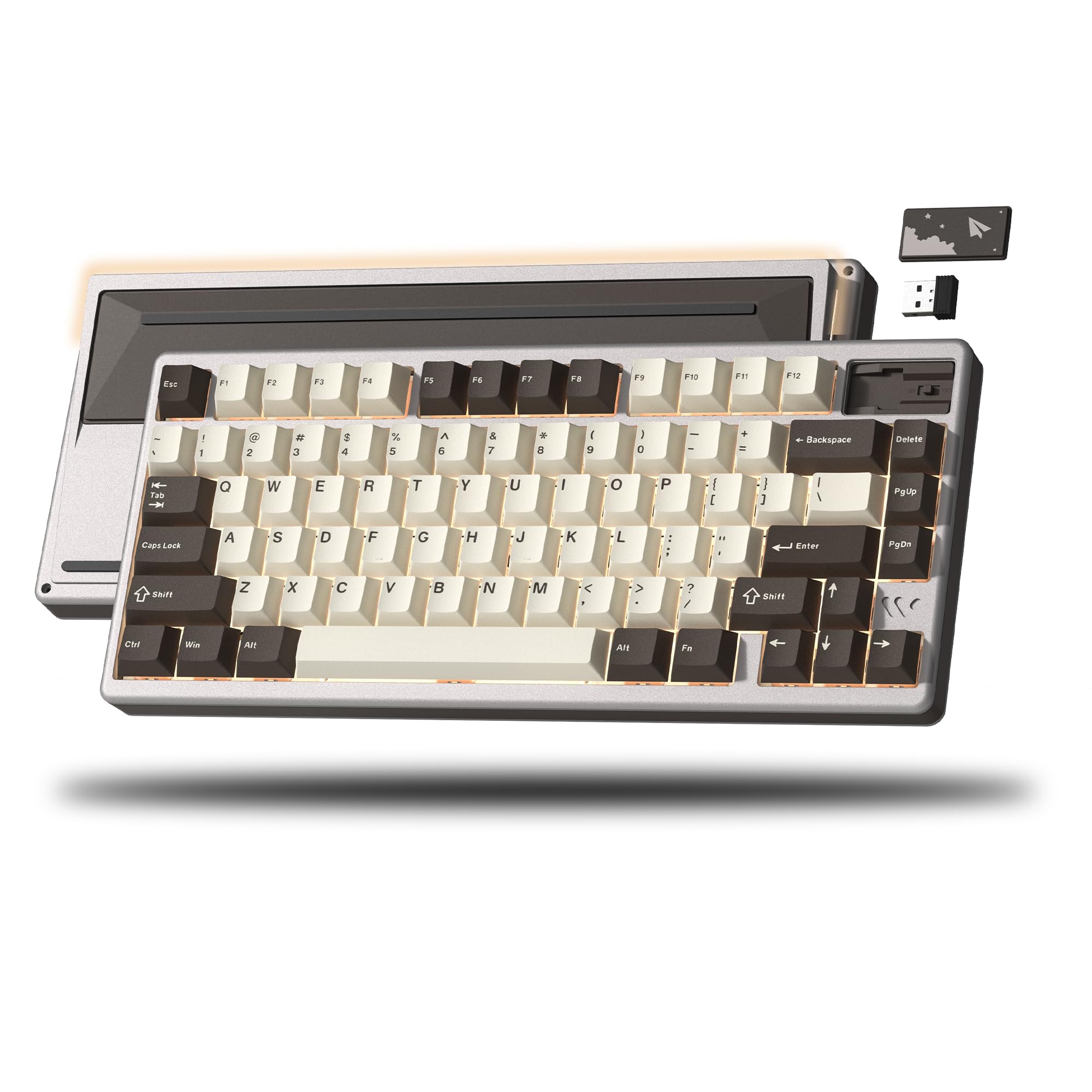
Image: The Womier SK71 PRO keyboard highlighting its tri-mode connectivity (Type-C Wired, 2.4GHz Wireless, Bluetooth) and an 8000mAh battery for extended use.
Setup
1. Unboxing and Initial Inspection
Carefully remove the keyboard and all accessories from the packaging. Inspect for any visible damage. The package should include the Womier SK71 PRO keyboard, a USB-C cable, a 2.4G wireless receiver, and a keycap/switch puller.
2. Charging the Battery
Before first use, connect the keyboard to a USB power source using the provided USB-C cable. The keyboard features an 8,000 mAh battery, providing long usage times. A full charge ensures optimal wireless performance.
3. Connecting the Keyboard
The SK71 PRO supports three connection methods:
- Wired Mode: Connect the USB-C cable from the keyboard to your computer. Press Fn + Tab to switch to wired mode.
- 2.4G Wireless Mode: Plug the 2.4G wireless receiver into an available USB port on your computer. Press Fn + R to switch to 2.4G wireless mode. The keyboard will automatically pair with the receiver.
- Bluetooth Mode: Press Fn + Q, Fn + W, or Fn + E to select one of three Bluetooth channels. The keyboard will enter pairing mode (indicated by a flashing light). On your device, search for "SK71 PRO" in the Bluetooth settings and connect.

Image: A close-up of the Womier SK71 PRO keyboard illustrating the three connection modes: Type-C Wired, 2.4GHz Wireless, and Bluetooth, along with their respective shortcut keys.
Operating Instructions
1. Switching Connection Modes
As described in the setup, use the following key combinations to switch between modes:
- Fn + Tab: Wired Mode
- Fn + R: 2.4G Wireless Mode
- Fn + Q/W/E: Bluetooth Mode (for pairing or switching between paired devices)
2. RGB Backlight Control
The SK71 PRO features a 16 million color RGB lighting system with customizable effects and south-facing underglow. The Womier POM series switches are equipped with an LED diffuser for enhanced brightness and even light distribution.
- Use Fn + \| to cycle through different RGB lighting effects.
- Use Fn + [ { and Fn + ] } to adjust brightness.
- Use Fn + ; : and Fn + ' " to adjust effect speed.

Image: The Womier SK71 PRO keyboard showcasing its 16.8 million RGB backlight with dynamic and cool lighting effects, illuminating the keyboard's design.
3. VIA Customization
The SK71 PRO is VIA compatible, allowing for extensive customization of key mappings, macros, and settings. VIA is an open-source firmware that provides full control over your keyboard's functionality.
- Download the VIA software from the official VIA website (www.caniusevia.com).
- Connect your keyboard in wired mode to ensure stable communication with the software.
- Launch the VIA software. It should automatically detect your SK71 PRO keyboard.
- Use the intuitive interface to remap keys, create complex macros, and fine-tune various keyboard settings to suit your preferences.

Image: A visual representation of the VIA/Open Source support, showing the software interface for customizing key mappings, macros, and fine-tuning keyboard settings.
4. Hot-Swappable Switches
The keyboard features an upgraded hot-swap socket design, compatible with both 3-pin and 5-pin mechanical switches. This allows you to easily change switches without soldering, customizing your typing feel and sound.
- To remove a switch, use the provided switch puller to gently grip the top and bottom clips of the switch and pull upwards.
- To install a new switch, align the pins of the new switch with the holes on the PCB. Gently press down until the switch clicks into place. Ensure the pins are not bent.

Image: The Womier SK71 PRO keyboard demonstrating its upgraded hot-swap feature, with several keycaps and switches removed to reveal the PCB sockets, compatible with 3-pin or 5-pin mechanical switches.
Maintenance
1. Cleaning the Keyboard
Regular cleaning helps maintain the keyboard's appearance and functionality.
- Disconnect the keyboard from your computer before cleaning.
- Use a keycap puller to remove keycaps for thorough cleaning.
- Use compressed air to remove dust and debris from between the keys.
- Wipe keycaps and the keyboard body with a soft, damp cloth. Avoid harsh chemicals.
2. Battery Care
To prolong battery life:
- Avoid fully discharging the battery frequently.
- Store the keyboard in a cool, dry place if not used for extended periods.
- Do not expose the keyboard to extreme temperatures.
Troubleshooting
- Keyboard not connecting in wireless mode: Ensure the keyboard is charged. Check if the 2.4G receiver is properly plugged in or if Bluetooth is enabled on your device. Try re-pairing the device.
- Keys not responding: Check if the keyboard is in the correct connection mode. If using hot-swappable switches, ensure they are fully seated in their sockets.
- RGB lighting not working: Ensure the keyboard is powered on. Cycle through RGB effects using Fn + \|. If using VIA, check your lighting settings.
- VIA software not detecting keyboard: Ensure the keyboard is connected via USB-C cable and is in wired mode (Fn + Tab). Restart the VIA software and/or your computer.
- Short battery life: Reduce RGB brightness or turn off RGB lighting when not needed. Ensure the keyboard is fully charged.
Specifications
- Brand: Womier
- Model: SK71 PRO
- Connectivity: Bluetooth, 2.4G Wireless, USB Type-C Wired
- Keyboard Type: 75% Mechanical
- Switch Type: Hot-Swappable (3-pin/5-pin compatible)
- Keycaps: PBT Material
- Layout: QWERTY, 71 Keys
- Battery Capacity: 8,000 mAh
- Backlight: 16 Million Color RGB, South-facing LEDs, LED Diffuser
- Customization: VIA Compatible, Open Source Firmware
- Construction: Gasket Mount, Aluminum + Plastic Shell, Multi-Layer Filling
- Dimensions (L x W x H): 34L x 17W x 3.5H Centimeters
- Material: POM (switches), Aluminum + Plastic (shell)

Image: An overview of the Womier SK71 PRO keyboard highlighting its core features including Aluminum + Plastic Shell, VIA/Open Source support, Magnetic Metal Badge, PBT Keycaps, Hot Swappable switches, Tri-Mode Connection, Gasket Structure, Multi-Layer Filling, 8000mAh Battery, and Full RGB Backlight.
Warranty and Support
For warranty information and technical support, please refer to the documentation provided with your purchase or visit the official Womier website. Keep your proof of purchase for warranty claims.


