
1. Introduction
Thank you for choosing the MINISO Wireless Silent Mouse M5Ag. This manual provides essential information for setting up, operating, and maintaining your new wireless mouse. Please read these instructions carefully to ensure optimal performance and longevity of your device.
The MINISO M5Ag is designed for efficient computing with its ergonomic form factor, silent clicking mechanism, and reliable wireless connectivity. Its energy-efficient design contributes to extended battery life, making it a versatile peripheral for various operating systems.
2. Product Overview
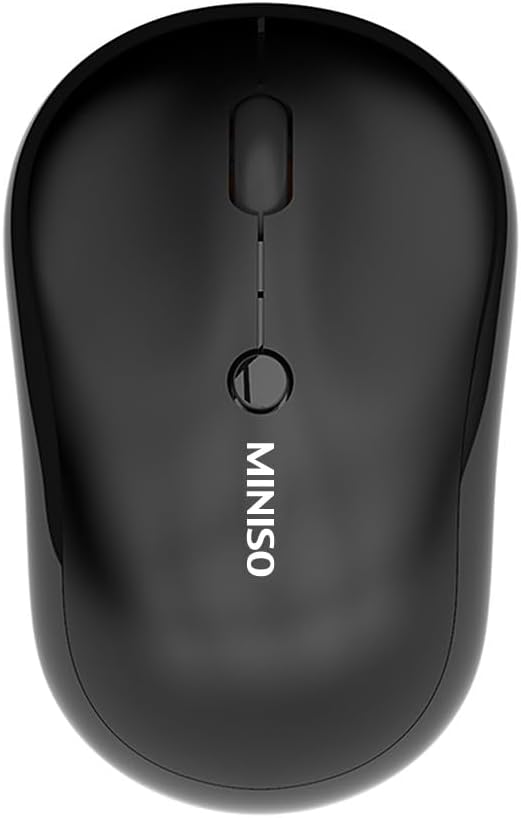
This image displays the MINISO Wireless Silent Mouse M5Ag from a top-down perspective. It features a smooth, ergonomic black casing with distinct left and right click buttons separated by a scroll wheel. The MINISO brand logo is visible on the palm rest area.
Key Features:
- Ergonomic Design: Shaped for comfortable use during extended periods.
- Silent Clicking: Reduces operational noise, suitable for quiet environments.
- Wireless Connectivity: Provides freedom of movement without cable clutter.
- Energy-Efficient: Designed for long battery life.
- Wide Compatibility: Works with various operating systems.
3. Setup Instructions
3.1 Battery Installation
- Locate the battery compartment cover on the underside of the mouse.
- Gently slide or lift the cover to open the compartment.
- Insert one AA battery (not included) into the compartment, ensuring the positive (+) and negative (-) terminals align correctly with the indicators.
- Replace the battery compartment cover until it clicks securely into place.
3.2 Connecting the USB Receiver
- Locate the small USB receiver, typically stored within a slot near the battery compartment on the underside of the mouse.
- Carefully remove the USB receiver from its storage slot.
- Plug the USB receiver into an available USB port on your computer.
- Your computer should automatically detect the mouse and install the necessary drivers. This process may take a few moments.
4. Operating Instructions
4.1 Powering On/Off
Locate the power switch on the underside of the mouse. Slide the switch to the 'ON' position to activate the mouse. To conserve battery life, slide the switch to the 'OFF' position when the mouse is not in use for an extended period.
4.2 Basic Functions
- Left Click: Primary action, typically used for selecting items, opening links, or executing commands.
- Right Click: Opens context menus, providing additional options for selected items.
- Scroll Wheel: Roll the wheel up or down to navigate through documents and web pages. The scroll wheel can also be pressed down for a middle-click function, depending on software configuration.
5. Maintenance
5.1 Cleaning
To maintain optimal performance and hygiene, regularly clean your mouse. Use a soft, dry, lint-free cloth to wipe the surface. For stubborn dirt, slightly dampen the cloth with water. Avoid using harsh chemicals, abrasive cleaners, or solvents, as these can damage the mouse's finish or internal components.
5.2 Battery Replacement
When the mouse's performance degrades, the cursor becomes erratic, or it stops responding, it may be time to replace the battery. Follow the battery installation steps outlined in Section 3.1.
5.3 Storage
When not in use, store the mouse in a dry, dust-free environment. If you plan to store the mouse for an extended period, it is recommended to remove the battery to prevent potential leakage and damage to the device.
6. Troubleshooting
6.1 Mouse Not Responding
- Ensure the mouse is powered on (check the switch on the underside).
- Check the battery level and replace it if necessary.
- Verify that the USB receiver is securely plugged into a working USB port on your computer. Try a different USB port.
- Restart your computer.
6.2 Erratic Cursor Movement
- Clean the optical sensor on the underside of the mouse with a soft, dry cloth.
- Ensure the mouse is being used on a suitable surface. Highly reflective, transparent, or uneven surfaces can interfere with tracking. A mouse pad is recommended.
- Check for any potential sources of wireless interference (e.g., other wireless devices, large metal objects).
6.3 Connection Issues
- Unplug the USB receiver from your computer and then plug it back in.
- Ensure the mouse is within the effective operating range of the USB receiver (typically up to 10 meters).
7. Specifications
| Feature | Specification |
|---|---|
| Brand | MINISO |
| Model | M5Ag |
| Product Dimensions | 5 x 5 x 5 cm |
| Item Weight | 5 Grams |
| Special Features | Ergonomic Design |
| Number of Buttons | 1 |
Note: The 'Number of Buttons' specification refers to additional programmable buttons, excluding standard left/right click and scroll wheel functions.
8. Warranty and Support
For warranty information, technical assistance, or customer support regarding your MINISO Wireless Silent Mouse M5Ag, please refer to the warranty card included with your purchase or visit the official MINISO website. It is recommended to retain your purchase receipt as proof of purchase for any warranty claims.