1. Introduction
This manual provides essential information for the safe and efficient operation of your Acer Nitro KG271 X1biip 27-inch Full HD Gaming Monitor. Please read this manual thoroughly before using the product and retain it for future reference.
2. Package Contents
Verify that all items listed below are present in your product package:
- Acer Nitro KG271 X1biip Monitor
- Monitor Stand (Base and Neck)
- Power Cord
- HDMI Cable
- User Manual (this document)

Image: The Acer Nitro KG271 X1biip monitor with its stand, power cord, and HDMI cable.
3. Setup Instructions
3.1 Assembling the Monitor Stand
- Carefully remove the monitor and stand components from the packaging. Place the monitor face down on a soft, clean surface to prevent scratches.
- Attach the stand neck to the monitor panel. Ensure it clicks securely into place or is fastened with screws if provided (refer to quick start guide for specific screw details).
- Connect the stand base to the stand neck. Tighten the thumb screw or screws at the bottom of the base until the stand is firm.
- Carefully lift the assembled monitor and place it on a stable, flat surface.

Image: Front-left view of the assembled Acer Nitro KG271 X1biip monitor.
3.2 Connecting the Monitor
The Acer Nitro KG271 X1biip monitor supports DisplayPort 1.2 and HDMI 2.0 connections.
- Power Connection: Connect the power cord to the monitor's power input and then to a power outlet.
- Video Connection:
- For optimal performance, connect one end of the provided HDMI cable to the monitor's HDMI 2.0 port and the other end to the HDMI output port on your computer's graphics card.
- Alternatively, use a DisplayPort 1.2 cable (not included) to connect the monitor's DisplayPort to your computer's DisplayPort output.
- Audio Connection (Optional): If your computer supports audio over HDMI/DisplayPort, the monitor will receive audio. For external speakers or headphones, connect them to your computer's audio output. Note: This monitor does not feature a 3.5mm audio jack.
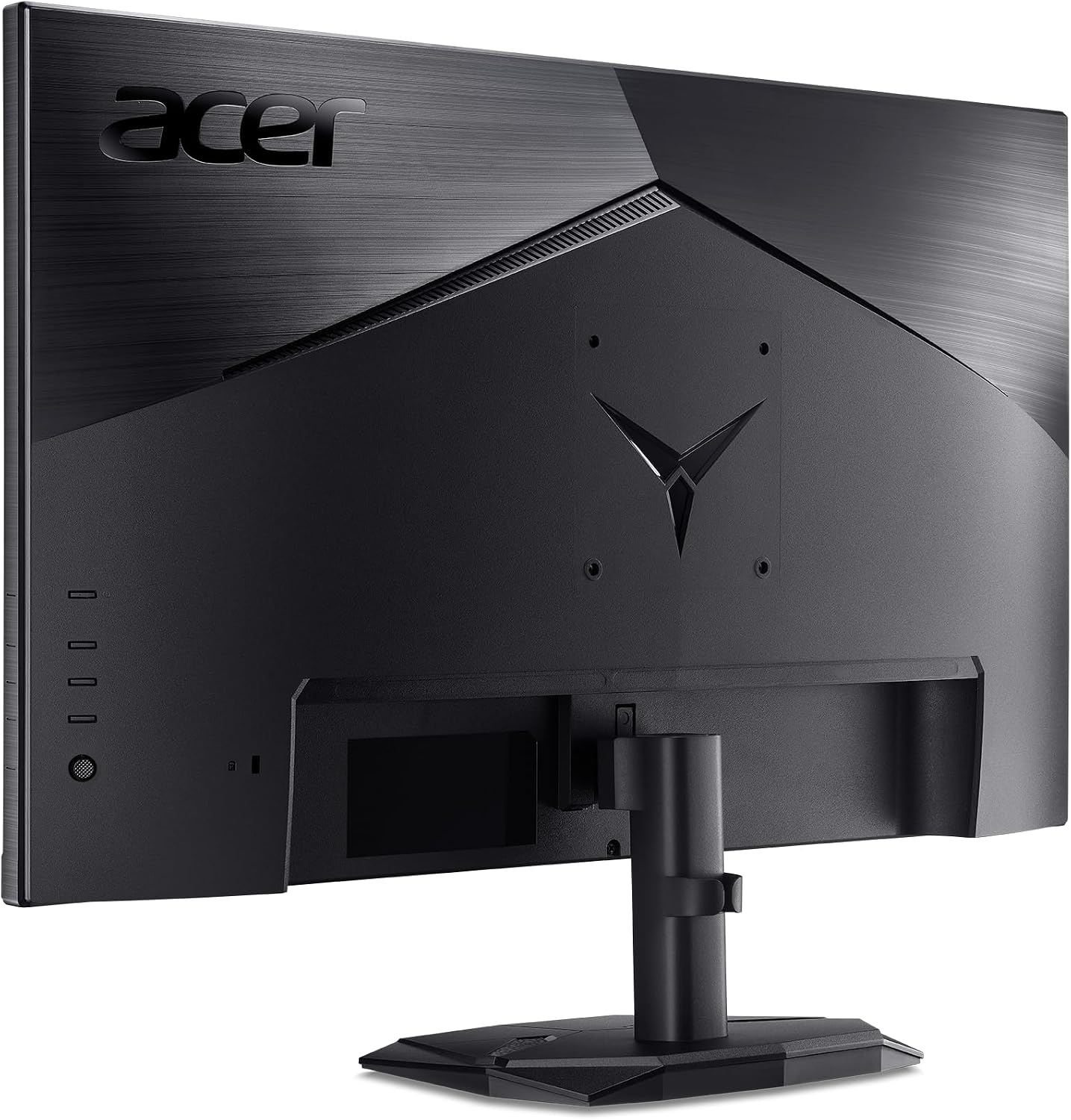
Image: Rear view of the monitor highlighting the power and video input ports.
4. Operating Instructions
4.1 Powering On/Off
Press the power button, usually located on the bottom right side or rear of the monitor, to turn the monitor on or off. The power indicator light will illuminate when the monitor is on.
4.2 On-Screen Display (OSD) Menu
The OSD menu allows you to adjust various monitor settings. Access it using the control buttons or joystick typically found on the back or bottom edge of the monitor.
- Navigation: Use the directional buttons or joystick to navigate through menu options.
- Selection: Press the select button (often the center of the joystick) to confirm a selection.
- Exit: Use the 'Exit' or 'Back' button to return to the previous menu or exit the OSD.
4.3 Key Settings and Features
- Resolution: The monitor supports Full HD (1920 x 1080) resolution. Ensure your computer's display settings are configured to this resolution for optimal clarity.

Image: Visual comparison demonstrating the clarity of 1080p Full HD resolution.
- Refresh Rate: This monitor features a 200Hz refresh rate. To enable this, ensure your graphics card and connection cable (DisplayPort recommended for highest refresh rates) support it, and configure the refresh rate in your operating system's display settings.

Image: Illustration of the smooth motion provided by a 200Hz refresh rate.
- AMD FreeSync Premium: This technology synchronizes the monitor's refresh rate with your graphics card's frame rate to eliminate screen tearing and stuttering. Ensure your graphics card supports AMD FreeSync Premium and enable it in both your graphics card software and the monitor's OSD menu.

Image: Demonstration of how AMD FreeSync Premium eliminates screen tearing.
- Response Time: The monitor offers up to 0.5ms GTG (Gray to Gray) response time, reducing motion blur and ghosting. This setting is typically enabled by default or can be adjusted in the OSD for different overdrive levels.

Image: Visual comparison illustrating the reduction of blur with a 0.5ms response time.
- HDR10 Support: This monitor supports HDR10 for enhanced contrast and color depth. To utilize HDR, ensure your content, graphics card, and operating system settings are configured for HDR output.

Image: Visual comparison showing the enhanced contrast and color with HDR10 support.
- Color Settings: Adjust brightness, contrast, gamma, and color temperature. The monitor supports sRGB 99% for accurate color reproduction.
- Picture Modes: Select from various preset picture modes (e.g., Standard, Gaming, Movie, User) to optimize display settings for different content types.
- Input Select: Manually switch between DisplayPort and HDMI inputs if auto-detection does not work.
5. Maintenance
5.1 Cleaning the Monitor
- Always power off the monitor and unplug the power cord before cleaning.
- Use a soft, lint-free cloth lightly dampened with water or a specialized screen cleaner to wipe the screen. Do not spray liquid directly onto the screen.
- For the monitor casing, use a soft, dry cloth. Avoid abrasive cleaners or solvents.
5.2 General Care
- Avoid placing heavy objects on the monitor or its cables.
- Do not expose the monitor to direct sunlight, excessive heat, or extreme cold.
- Ensure adequate ventilation around the monitor to prevent overheating.
6. Troubleshooting
| Problem | Possible Cause | Solution |
|---|---|---|
| No image on screen |
|
|
| Image is blurry or distorted |
|
|
| Screen tearing or stuttering |
|
|
| No audio (if using HDMI/DP audio) |
|
|
7. Specifications
| Feature | Detail |
|---|---|
| Model Name | KG271 X1biip |
| Screen Size | 27 Inches |
| Panel Type | IPS |
| Resolution | Full HD (1920 x 1080) |
| Aspect Ratio | 16:9 |
| Refresh Rate | Up to 200Hz |
| Response Time | Up to 0.5ms GTG (Gray to Gray) |
| Adaptive Sync Technology | AMD FreeSync Premium |
| Color Gamut | sRGB 99% |
| HDR Support | HDR10 |
| Video Inputs | 1 x DisplayPort 1.2, 2 x HDMI 2.0 |
| Dimensions (LxWxH) | 8.28 x 24.11 x 18.03 inches (with stand) |
| Weight | 12.97 pounds (with stand) |
| Manufacturer | Acer |
8. Warranty and Support
8.1 Warranty Information
Please refer to the warranty card included in your product packaging or visit the official Acer website for detailed warranty terms and conditions specific to your region. Keep your proof of purchase for warranty claims.
8.2 Customer Support
For technical assistance, product inquiries, or service requests, please contact Acer customer support through their official website or the contact information provided in your product documentation. You may need your monitor's serial number, which is typically located on a label on the back of the monitor.
Acer Official Website: www.acer.com


