
OnRetul CY3001 / V310
OnRetul CY3001 OBD2 Diagnostic Tool User Manual
Model: CY3001 / V310
Engine Light Diagnostic Tool, Battery Voltage Tester
Introduction
The OnRetul CY3001 OBD2 Diagnostic Tool is designed to assist vehicle owners and technicians in quickly and accurately diagnosing engine and transmission issues. This compact and user-friendly device provides real-time data, reads and clears diagnostic trouble codes (DTCs), and performs various system tests to help identify problems and ensure your vehicle is operating efficiently. It is compatible with most OBD2 compliant vehicles manufactured after 1996 (USA), 2002 (EU), and 2008 (Asia).
Note: This tool is not compatible with new energy vehicles, hybrid models, or vehicles that do not follow the OBD2 protocol.
Safety Information
- Always perform diagnostic tests in a well-ventilated area.
- Do not wear loose clothing or jewelry when working near engine components.
- Ensure the vehicle is in Park (P) or Neutral (N) with the parking brake engaged before connecting or disconnecting the tool.
- Avoid touching hot engine parts or exhaust pipes.
- Keep the tool dry and clean. Do not expose it to moisture or extreme temperatures.
- Refer to your vehicle's service manual for specific diagnostic procedures and safety precautions.
Product Overview
The OnRetul CY3001 is a handheld diagnostic scanner featuring a color LCD display and intuitive button controls. Its robust design ensures durability for both home and workshop use.
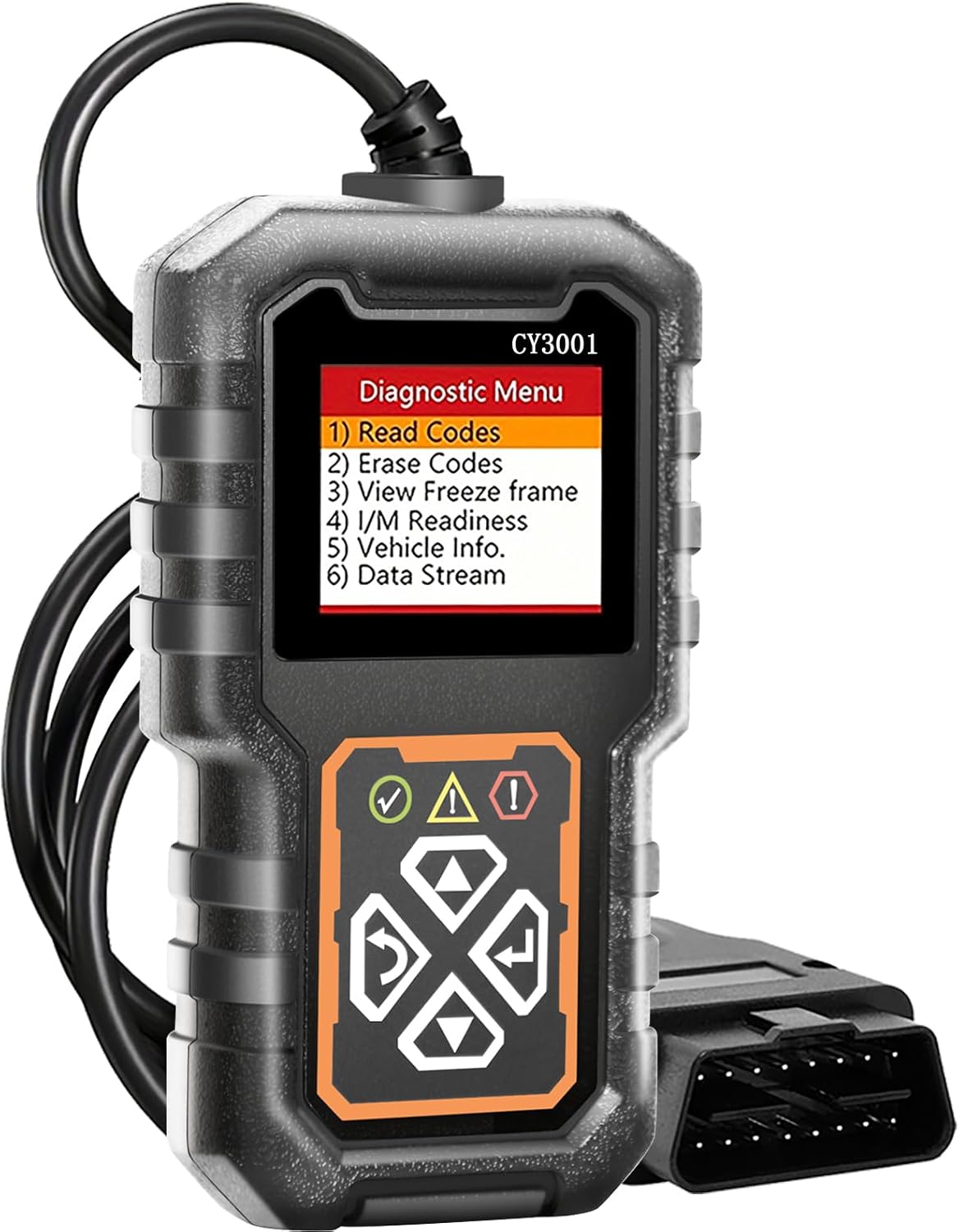
Figure 1: CY3001 Diagnostic Tool with Main Menu Display
This image displays the OnRetul CY3001 OBD2 diagnostic tool, highlighting its compact form factor and the main diagnostic menu on its screen. The menu lists options such as "Read Codes," "Erase Codes," "View Freeze frame," "I/M Readiness," "Vehicle Info.," and "Data Stream."

Figure 2: CY3001 Product Dimensions and Controls
This image illustrates the physical dimensions of the CY3001 tool (approximately 11.89cm/4.68 inches in height and 6.86cm/2.70 inches in width) and labels its control buttons: UP, CONFIRM, BACK, and DOWN. It also shows LED indicators for Clear DTC success (green), Pending Fault (yellow), and Current Fault (red).

Figure 3: Handheld Design and Key Features
This image emphasizes the handheld and compact design of the CY3001. Key features listed include a 1.86" Full Color LCD-TFT Screen, Bright Acrylic Screen Protective Cover, High Resilience Buttons, 16PIN Heavy-duty Lead Standard OBDII Plug, and an Upgraded CPU for High-speed Processing.
Components:
- Main Unit: The diagnostic tool with LCD display and control buttons.
- OBDII Cable: Integrated cable for connecting to the vehicle's OBDII port.
- User Manual: This document.
Setup
1. Locating the OBDII Port:
The OBDII (On-Board Diagnostics II) port is typically located under the dashboard on the driver's side of the vehicle. It may be covered by a small plastic flap.
2. Connecting the Tool:
- Ensure the vehicle's ignition is OFF.
- Plug the OBDII connector of the CY3001 tool firmly into the vehicle's OBDII port.
- Turn the vehicle's ignition to the ON position (do not start the engine). The tool will power on automatically.
- Observe the indicator lights on the tool:
- Green Light: Successful connection.
- Yellow Light: Incompatibility or connection failure.
- Red Light: Fault detected.

Figure 4: Connecting to OBDII Port and Main Menu Navigation
This image provides a visual guide for connecting the CY3001 scanner to a vehicle's OBDII port and navigating through its main menu. It also illustrates various diagnostic functions available, such as reading and erasing codes, viewing live data, and performing I/M readiness tests.
Operating Instructions
Once connected and powered on, the CY3001 will display the main diagnostic menu. Use the UP and DOWN buttons to navigate through the options and the CONFIRM button to select.
1. Read Codes (DTCs)
This function retrieves Diagnostic Trouble Codes (DTCs) from the vehicle's onboard computer. These codes indicate specific issues detected by the vehicle's systems.
- From the main menu, select "Read Codes" and press CONFIRM.
- The tool will scan the vehicle's systems and display any detected DTCs along with their descriptions.
- Use the UP and DOWN buttons to scroll through multiple codes if present.

Figure 5: Check Engine Light Diagnosis and Clearing
This image demonstrates the CY3001's ability to read engine faults and turn off the abnormal engine fault light (MIL). It visually represents the process of reading codes and then erasing them to clear the check engine light, often caused by issues like three-way catalysis, carbon deposition, or poor fuel quality.
2. Erase Codes
This function clears all Diagnostic Trouble Codes (DTCs) from the vehicle's computer and turns off the Check Engine Light (MIL). Warning: Clearing codes does not fix the underlying problem. Ensure the issue is resolved before clearing codes, or the light may reappear.
- From the main menu, select "Erase Codes" and press CONFIRM.
- Confirm your choice when prompted.
- The tool will clear the codes, and the Check Engine Light should turn off.
3. View Freeze Frame
When an emission-related fault occurs, the vehicle's computer stores certain vehicle operating conditions (Freeze Frame Data) at the time of the fault. This data can help diagnose the cause of the problem.
- From the main menu, select "View Freeze frame" and press CONFIRM.
- The tool will display various parameters such as engine RPM, vehicle speed, coolant temperature, and fuel system status at the moment the fault occurred.
4. I/M Readiness
I/M Readiness (Inspection/Maintenance Readiness) indicates whether the various emission-related systems on the vehicle are operating correctly and have completed their self-tests. This is crucial for emissions testing.
- From the main menu, select "I/M Readiness" and press CONFIRM.
- The tool will display the status of various monitors (e.g., Misfire Monitor, Fuel System Monitor, Catalyst Monitor) as "OK" (completed) or "INC" (incomplete).

Figure 6: Detailed Diagnostic Menu Screens
This image provides a closer look at several detailed screens on the CY3001 scanner, including DTC Lookup (allowing manual code entry), Monitor Status (showing readiness and protocol type), I/M Readiness (displaying status of various monitors like Misfire and Fuel System), and Datastream (showing live sensor data like SHRTFT22 and O2S23).
5. Vehicle Information
This function retrieves various vehicle information, including Vehicle Identification Number (VIN), Calibration ID (CALID), and Calibration Verification Number (CVN).
- From the main menu, select "Vehicle Info." and press CONFIRM.
- The tool will display the available vehicle information.
6. Data Stream
The Data Stream function displays real-time live data from the vehicle's sensors and modules. This can be very useful for diagnosing intermittent problems.
- From the main menu, select "Data Stream" and press CONFIRM.
- The tool will display a list of available data parameters. Select the ones you wish to view.
- The data will be displayed in numerical or graphical format, updating in real-time.
Additional Functions:
The CY3001 also supports other diagnostic tests, which can be accessed through the menu:
- O2 Sensor Test: Retrieves O2 sensor monitoring test results.
- EVAP System Test: Initiates a test of the Evaporative Emission Control System.
- Misfire Test: Monitors engine misfires.
- DTC Lookup: Allows manual input of a DTC to view its definition.

Figure 7: CY3001 Scanner Capabilities
This image visually summarizes the extensive capabilities of the CY3001 scanner, including O2 Sensor Test, Live Data, Lookup DTC Code, Vehicle Info, EVAP System Test, Erase Codes, View Freeze Frame, Read Codes, and I/M Readiness. It highlights the comprehensive diagnostic functions available to the user.
Maintenance
Cleaning:
Wipe the tool's casing with a clean, damp cloth. Do not use abrasive cleaners or solvents. Ensure the OBDII connector pins are clean and free of debris.
Storage:
Store the CY3001 in a dry, cool place, away from direct sunlight and extreme temperatures. Keep it in its original packaging or a protective case to prevent damage.
Troubleshooting
| Problem | Possible Cause | Solution |
|---|---|---|
| Tool does not power on. | Loose connection; Vehicle ignition not ON; Vehicle not OBDII compliant. | Ensure the OBDII cable is securely connected. Turn vehicle ignition to ON. Verify vehicle is OBDII compliant (post-1996 USA, post-2002 EU, post-2008 Asia). |
| Cannot connect to vehicle / Yellow indicator light. | Vehicle not OBDII compliant; Faulty OBDII port; Tool malfunction. | Confirm vehicle compatibility. Check vehicle's OBDII port for damage. Try the tool on another compatible vehicle if possible. |
| Incorrect data readings (e.g., -40F IAT). | Connection issue; Tool malfunction; Vehicle sensor issue. | Ensure secure connection. Restart the tool and vehicle. If problem persists, consult a professional mechanic to check vehicle sensors. |
| Tool beeps annoyingly. | Audible beep notifications are enabled. | Refer to the tool's settings menu to disable audible beep notifications. |
| Buttons unresponsive (e.g., "Up button would not work"). | Physical damage; Software glitch. | Inspect buttons for physical damage. Try restarting the tool. If unresponsive, contact customer support. |
Specifications
| Feature | Detail |
|---|---|
| Model | CY3001 / V310 |
| Display | 1.86" Full Color LCD-TFT Screen |
| Dimensions (L x W x H) | 3.54" x 0.79" x 5.91" (approx. 9cm x 2cm x 15cm) |
| Item Weight | 5.6 ounces (approx. 158.7 grams) |
| Connectivity | 16-Pin OBDII Standard Plug |
| Operating System (for compatibility) | Windows 10 (likely refers to software compatibility for updates, not the device's OS) |
| Automotive Fit Type | Universal Fit (for OBD2 compliant vehicles) |
| Supported Protocols | SAE J1850 PWM (41.6Kbaud), SAE J1850 VPW (10.4Kbaud), ISO9141-2 (5 baud init, 10.4Kbaud), ISO14230-4 KWP (5 baud init, 10.4 Kbaud), ISO14230-4 KWP (fast init, 10.4 Kbaud), ISO15765-4 CAN (11bit ID, 500 Kbaud), ISO15765-4 CAN (29bit ID, 500 Kbaud), ISO15765-4 CAN (11bit ID, 250 Kbaud), ISO15765-4 CAN (29bit ID, 250 Kbaud) |
| Supported Languages | English, Spanish, French, German, Italian, Japanese, Portuguese, Dutch, and more. |

Figure 8: Wide Compatibility and Language Support
This image highlights the broad compatibility of the CY3001 scanner, noting its support for US vehicles after 1996, EU vehicles after 2002, and Asian vehicles after 2008. It explicitly states that the product does not support ABS, SRS, or TPMS detection and advises checking protocol support for diesel vehicles. A list of 9 supported OBDII protocols and 9 languages (German, Italian, English, Spanish, French, Japanese, Portuguese, Dutch) is also displayed.
Warranty and Support
OnRetul products are manufactured to high-quality standards. For specific warranty details, please refer to the warranty card included with your product or visit the official OnRetul website. In case of any issues or questions regarding the operation of your CY3001 OBD2 Diagnostic Tool, please contact OnRetul customer support.
Customer Support: Please refer to the contact information provided on the product packaging or the official OnRetul website for assistance.
Online Resources: For additional information, FAQs, or software updates (if applicable), visit the official OnRetul support page.
Ask a question about this manual
Ask about setup, troubleshooting, compatibility, parts, safety, or missing instructions. Manuals+ will review the question and use this page’s manual context to help answer it.