
Samsung UN40F6000F
Samsung UN40F6000F 40-inch Class FHD LCD Smart TV User Manual
Introduction
This manual provides essential information for the safe and efficient use of your Samsung UN40F6000F 40-inch Class FHD LCD Smart TV. Please read it thoroughly before operating the device and retain it for future reference.
What's in the Box
- Samsung UN40F6000F 40-inch Class FHD LCD Smart TV
- Power Cable
- Remote Controller (Model TM1240A) with Batteries (2 AAA)
- User Manual (this document)

Image: Contents of the Samsung UN40F6000F TV box, showing the TV, remote control (TM1240A), power cable, and user manual. Key dimensions are also illustrated: TV without stand (35.7" W x 20.4" H x 2.9" D), TV with stand (35.7" W x 21.5" H x 6.2" D), and stand footprint (0.7" x 2.2" x 6.2").
Setup
1. Unpacking and Placement
Carefully remove the TV and all accessories from the packaging. Place the TV on a stable, flat surface or mount it on a wall using a compatible VESA 200 x 200 mm mount (sold separately). Ensure adequate ventilation around the TV.

Image: Front view of the Samsung UN40F6000F 40-inch Class FHD LCD Smart TV, showcasing its slim bezels and vibrant display.
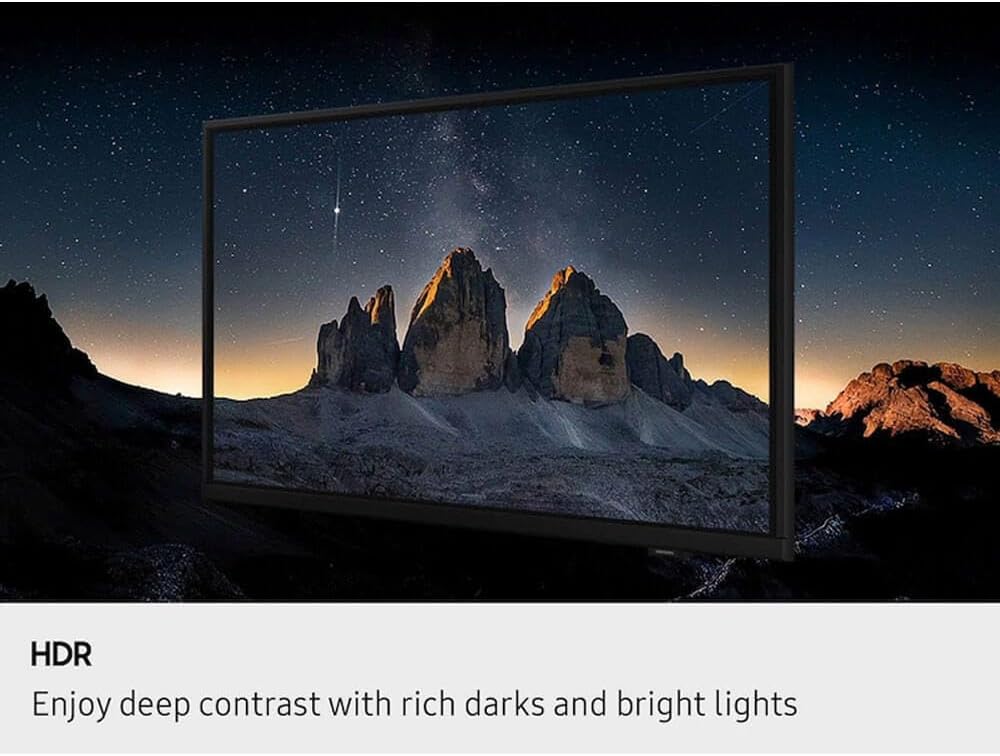
Image: Side profile of the Samsung UN40F6000F 40-inch Class FHD LCD Smart TV, emphasizing its slim look.
2. Connecting Power
Connect the power cable to the TV's power input and then plug it into a wall outlet.
3. Connecting External Devices
Use HDMI, USB, or Ethernet ports to connect external devices such as Blu-ray players, gaming consoles, or sound systems. The TV features 2 HDMI ports and 2 USB ports.
4. Initial Setup
Upon first power-on, the TV will guide you through the initial setup process, including language selection (English, French, Spanish), network connection (Wi-Fi or Ethernet), and channel scanning.
Operating Your TV
Remote Control
Use the included remote control (TM1240A) to navigate the TV's menus and functions. Insert the two AAA batteries into the remote control, ensuring correct polarity.
Smart TV Features (One UI Tizen OS)
Your Samsung TV runs on the One UI Tizen OS, providing access to various streaming applications like Netflix, Prime Video, and YouTube. Connect to the internet via Wi-Fi or Ethernet to utilize these features.

Image: The Samsung Tizen OS smart TV interface, showing a personalized home screen with recommended content and various streaming applications such as Prime Video, Netflix, YouTube, and Hulu.
Picture and Sound Settings
Adjust picture settings (e.g., brightness, contrast, color) and sound settings (e.g., volume, sound mode) through the TV's menu. The TV features Object Tracking Sound Lite for virtual 3D sound and supports HDR10 for enhanced contrast.

Image: A television screen displaying a high dynamic range (HDR) image, illustrating deep contrast with rich darks and bright lights, such as mountains under a starry night sky.

Image: A television screen displaying a dynamic scene with visual representations of sound waves emanating from the action, illustrating the Object Tracking Sound Lite feature for immersive virtual 3D sound.
Samsung Knox Security
Your TV is equipped with Samsung Knox Security, offering triple-layer protection for your personal data and device information.

Image: A television screen displaying the Samsung Knox Security logo, a stylized shield, against a digital background, signifying triple-layer protection for personal data.
Maintenance
Cleaning the Screen
Gently wipe the screen with a soft, dry, lint-free cloth. For stubborn marks, slightly dampen the cloth with water or a specialized screen cleaner. Avoid using harsh chemicals or abrasive materials.
Cleaning the TV Body
Wipe the exterior of the TV with a soft, dry cloth. Do not spray cleaning liquids directly onto the TV.
Troubleshooting
No Power
- Ensure the power cable is securely connected to both the TV and the wall outlet.
- Check if the wall outlet is functioning by plugging in another device.
No Picture, But Sound
- Verify the correct input source is selected.
- Check cable connections (HDMI, RCA) to external devices.
No Sound, But Picture
- Increase the volume on both the TV and any connected external audio devices.
- Check audio cable connections.
- Ensure the TV is not muted.
Remote Control Not Working
- Replace the batteries (2 AAA).
- Ensure there are no obstructions between the remote and the TV's sensor.
Network Connection Issues
- Restart your router and modem.
- Check Wi-Fi password if connecting wirelessly.
- If using Ethernet, ensure the cable is securely connected.
Specifications
| Feature | Detail |
|---|---|
| Model Name | UN40F6000F |
| Screen Size | 40 inches |
| Display Technology | LCD |
| Resolution | 1080p (Full HD) |
| Refresh Rate | 60 Hz (Display Refresh Rate in Hertz) / 120 (Motion Enhancement Technology) |
| Operating System | Tizen (One UI Tizen OS) |
| Connectivity | Wi-Fi, Bluetooth, Ethernet, 2x HDMI, 2x USB |
| Audio Output | 2.0 channel, 20W total power, Object Tracking Sound Lite |
| HDR Support | HDR10 |
| Mounting Type | Wall Mount (VESA 200 x 200 mm) |
| Product Dimensions (D x W x H) | 38"D x 4"W x 24"H (TV without stand) |
| Item Weight | 19 pounds |
| Color | Black |
| Included Components | TV, Power Cable, Remote Controller, User Manual |
Warranty Information
This Samsung UN40F6000F Smart TV comes with a 90-day limited warranty. Please retain your proof of purchase for warranty claims. For detailed terms and conditions, refer to the warranty card included with your product or visit the official Samsung support website.
Support
For further assistance, technical support, or service requests, please contact Samsung Customer Service:
- Online Support: Visit the official Samsung support website for FAQs, troubleshooting guides, and software updates.
- Phone Support: Refer to the contact information provided in your region's warranty documentation or on the Samsung website.
When contacting support, please have your TV's model number (UN40F6000F) and serial number ready.
Related documentsUN40F6000F


Ask a question about this manual
Ask about setup, troubleshooting, compatibility, parts, safety, or missing instructions. Manuals+ will review the question and use this page’s manual context to help answer it.