
1. Important Safety Instructions
Please read these instructions carefully before using the Audizio Canzo DAB+ Internet Radio. Keep this manual for future reference.
- Do not expose the device to rain or moisture to prevent fire or electric shock.
- Do not open the casing. There are no user-serviceable parts inside. Refer all servicing to qualified personnel.
- Only use the power adapter supplied with the device.
- Ensure proper ventilation around the unit. Do not block ventilation openings.
- Avoid placing the unit near heat sources or in direct sunlight.
- Clean the unit only with a dry, soft cloth. Do not use liquid cleaners.
2. Product Overview
The Audizio Canzo is a versatile DAB+ Internet Radio designed for high-quality audio reception and playback. It features multiple connectivity options including Wi-Fi, Bluetooth 5.3, AUX, and USB, along with a remote control for convenient operation. The elegant wooden finish and clear display make it suitable for various home environments.
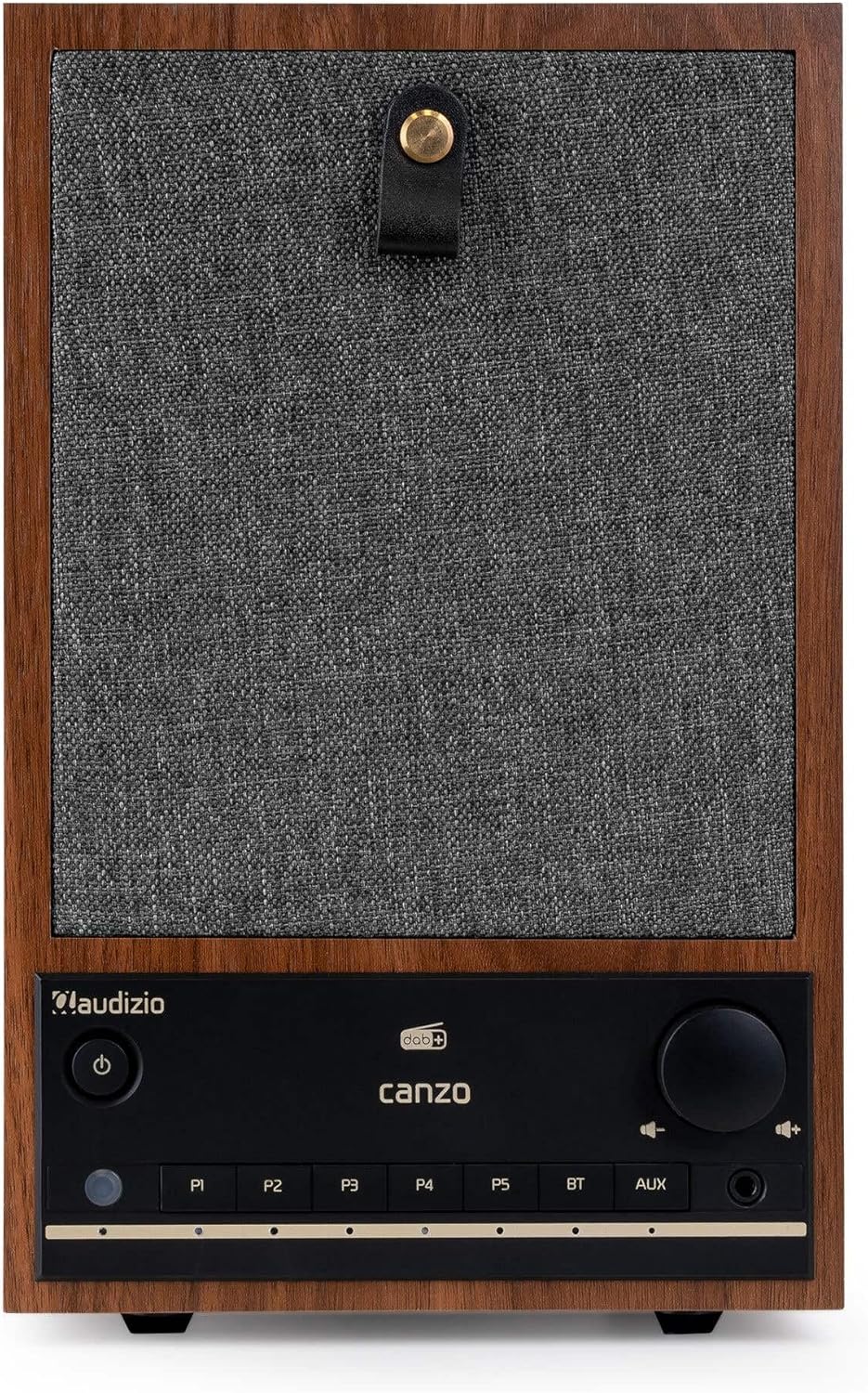
Figure 2.1: Front view of the Audizio Canzo DAB+ Internet Radio in walnut finish.

Figure 2.2: Front view with speaker grille removed, highlighting the speaker, display, and control panel.
3. What's in the Box
Carefully unpack the box and ensure all items are present:
- Audizio Canzo DAB+ Internet Radio
- Power Adapter
- Remote Control
- Quick Start Guide
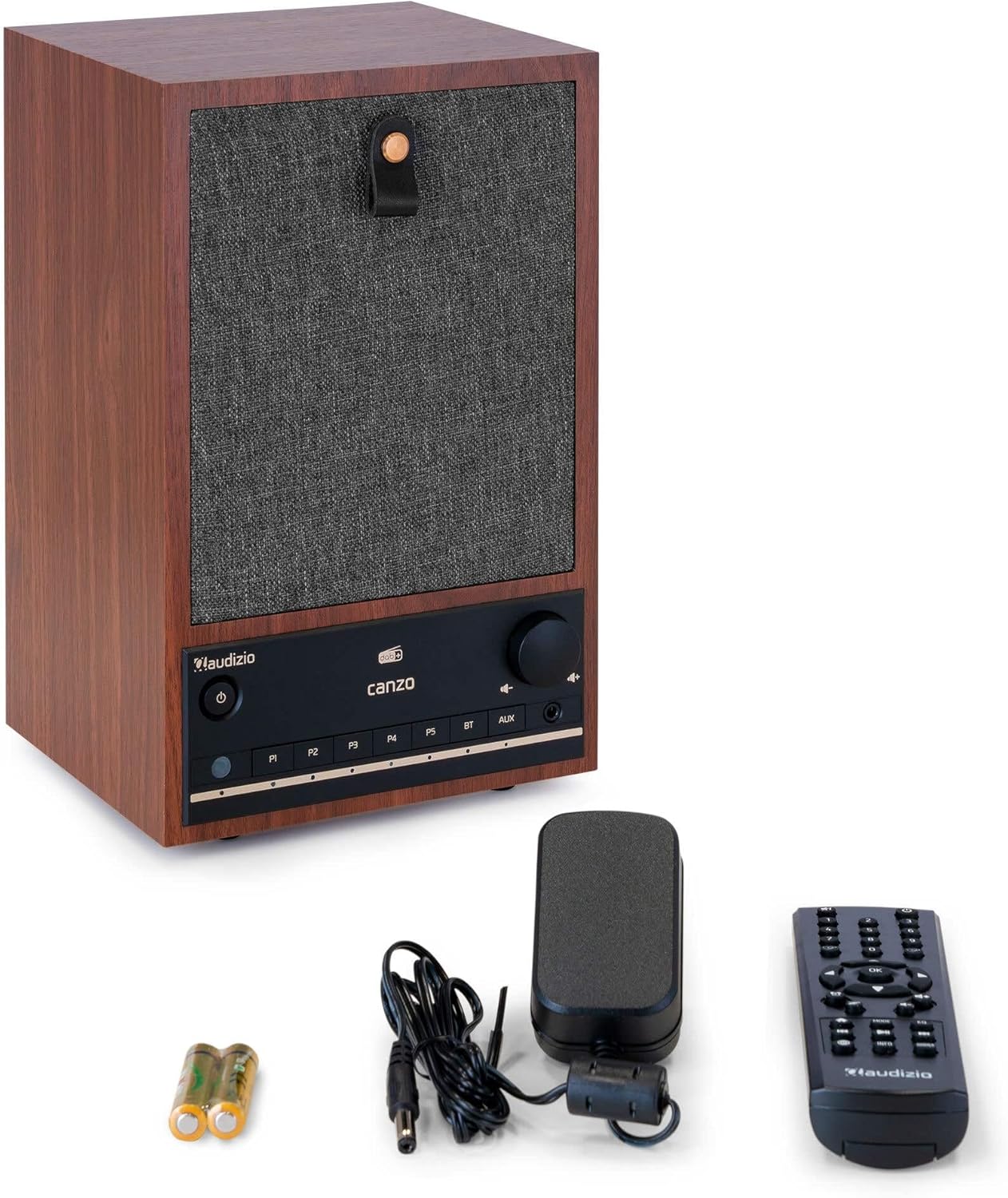
Figure 3.1: Audizio Canzo radio with its accessories.
4. Setup
4.1 Connecting Power
- Insert the DC plug of the power adapter into the DC IN port on the back of the radio.
- Plug the power adapter into a standard wall outlet (220V).
- Flip the ON/OFF switch on the back of the unit to the ON position.
4.2 Antenna Connection
For optimal DAB+ and FM reception, extend the telescopic antenna located on the back of the unit. Adjust its position for the best signal.

Figure 4.1: Rear panel with power input, audio ports, USB, LAN, and antenna.
4.3 Initial Power On and Network Setup
- Press the Power button on the front panel or remote control to turn on the radio.
- The display will show the Audizio logo and then guide you through the initial setup wizard.
- Select your preferred language.
- The radio will prompt you to connect to a network. Choose Wi-Fi or LAN.
- For Wi-Fi: Select your Wi-Fi network from the list and enter the password using the navigation buttons and OK button.
- For LAN: Connect an Ethernet cable from your router to the LAN port on the back of the radio. The connection should be established automatically.
- Once connected, the radio will update the time and date automatically.
5. Operating Instructions
5.1 Basic Controls
The front panel features a power button, preset buttons (P1-P5), Bluetooth (BT) and AUX input buttons, a volume knob, and navigation controls. The remote control provides full access to all functions.
5.2 Mode Selection
Press the MODE button on the radio or remote control to cycle through available modes: Internet Radio, DAB+, FM, Bluetooth, AUX, and USB Playback.
5.3 Internet Radio
- Select Internet Radio mode.
- Use the navigation buttons to browse stations by location, genre, or search.
- Press OK to select a station.
- To save a station as a preset, press and hold one of the P1-P5 buttons until the display confirms.
5.4 DAB+ Radio
- Select DAB+ mode.
- The radio will automatically scan for available DAB+ stations.
- Use the navigation buttons to scroll through the list of found stations.
- Press OK to select a station.
- To save a station as a preset, press and hold one of the P1-P5 buttons.
5.5 FM Radio
- Select FM mode.
- Press and hold the Scan button (usually on the remote or via menu) to auto-scan for FM stations.
- Use the navigation buttons to tune manually or select from scanned stations.
- To save a station as a preset, press and hold one of the P1-P5 buttons.
5.6 Bluetooth Playback
- Select Bluetooth mode. The radio will enter pairing mode, indicated on the display.
- On your smartphone or tablet, enable Bluetooth and search for available devices.
- Select "Audizio Canzo" from the list to pair.
- Once paired, you can play audio from your device through the radio.
5.7 AUX Input
- Connect an external audio device (e.g., MP3 player) to the AUX IN port on the back of the radio using a 3.5mm audio cable.
- Select AUX mode.
- Audio from the connected device will now play through the radio.
5.8 USB Playback
- Insert a USB flash drive containing audio files into the USB PLAYBACK port on the back of the radio.
- Select USB mode.
- Use the navigation buttons to browse and select audio files for playback.
5.9 Alarm Clock and Sleep Timer
- Alarm: Access the Alarm settings via the menu. Set up to two alarms with desired time, source (buzzer, radio), and volume.
- Sleep Timer: Access the Sleep Timer settings via the menu. Set a duration (e.g., 15, 30, 60 minutes) after which the radio will automatically turn off.
- Snooze: When an alarm sounds, press the Snooze button on the remote or radio to temporarily silence it.
6. Maintenance
6.1 Cleaning
To clean the radio, use a soft, dry, lint-free cloth. Do not use abrasive cleaners, waxes, or solvents as they may damage the finish or internal components.
6.2 Storage
If storing the unit for an extended period, disconnect it from the power outlet and store it in a cool, dry place away from direct sunlight and extreme temperatures.
7. Troubleshooting
| Problem | Possible Cause | Solution |
|---|---|---|
| No power | Power adapter not connected; ON/OFF switch is OFF. | Ensure power adapter is securely connected and ON/OFF switch is ON. |
| No sound | Volume too low; incorrect source selected; headphones connected. | Increase volume; select correct input mode; disconnect headphones. |
| Cannot connect to Wi-Fi | Incorrect password; router too far; network issue. | Verify Wi-Fi password; move radio closer to router; restart router. |
| Poor DAB+/FM reception | Antenna not extended; weak signal area. | Fully extend and adjust the telescopic antenna; try repositioning the radio. |
| Remote control not working | Batteries depleted; obstruction between remote and radio. | Replace remote control batteries; ensure clear line of sight to the radio's sensor. |
8. Specifications
| Feature | Specification |
|---|---|
| Model Number | Canzo |
| Product Dimensions | 22.5 x 20.5 x 34 cm |
| Item Weight | 2.9 Kilograms |
| Color | Walnut |
| Screen Size | 2.4 Inches |
| Connectivity Technology | Aux, Bluetooth, Wi-Fi, LAN |
| Bluetooth Version | 5.3 |
| Supported Radio Bands | DAB+, FM, Internet Radio |
| Power Source | Corded Electric (220 Volt) |
| Special Features | Integrated Clock, Sleep Timer, Alarm, Remote Control, Preset Stations |
| Compatible Devices | Smartphone, Tablet, Headphones, MP3 Player, USB Storage Device |
9. Warranty and Support
For warranty information and technical support, please refer to the warranty card included with your product or contact your retailer. Keep your proof of purchase for any warranty claims.


