1. Introduction
This manual provides detailed instructions for the setup, operation, and maintenance of your eppfun 2-in-1 USB Optical Bluetooth Transmitter Adapter. Please read this manual thoroughly before using the device to ensure proper functionality and to maximize your user experience.
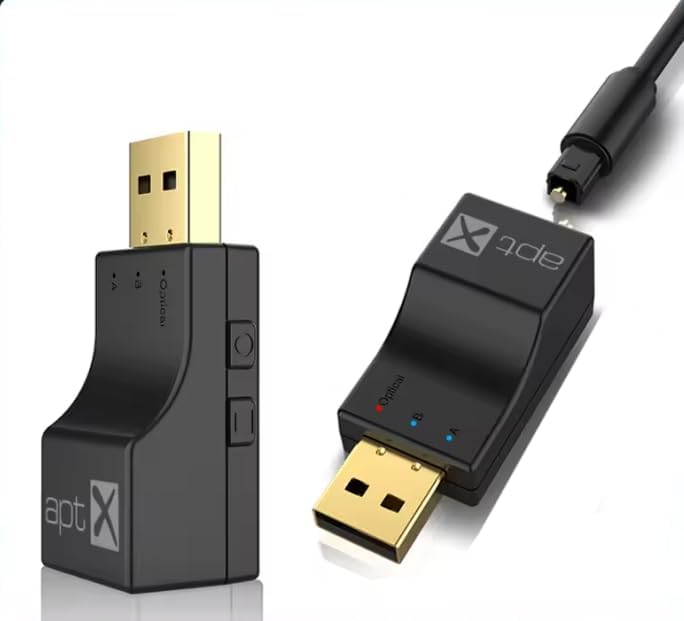
Image 1.1: The eppfun 2-in-1 USB Optical Bluetooth Transmitter Adapter, showing its compact design and USB connector.
2. Product Overview
The eppfun 2-in-1 USB Optical Bluetooth Transmitter Adapter is designed to add Bluetooth transmission capabilities to devices lacking built-in Bluetooth. It supports both USB and Optical audio input, allowing you to connect Bluetooth headphones or speakers to various audio sources such as TVs, PCs, gaming consoles (PS3/PS4, Xbox), and mobile phones. It features Bluetooth 5.0 for stable, low-latency audio transmission and supports aptX-Adaptive/HD/LL codecs for high-fidelity sound.
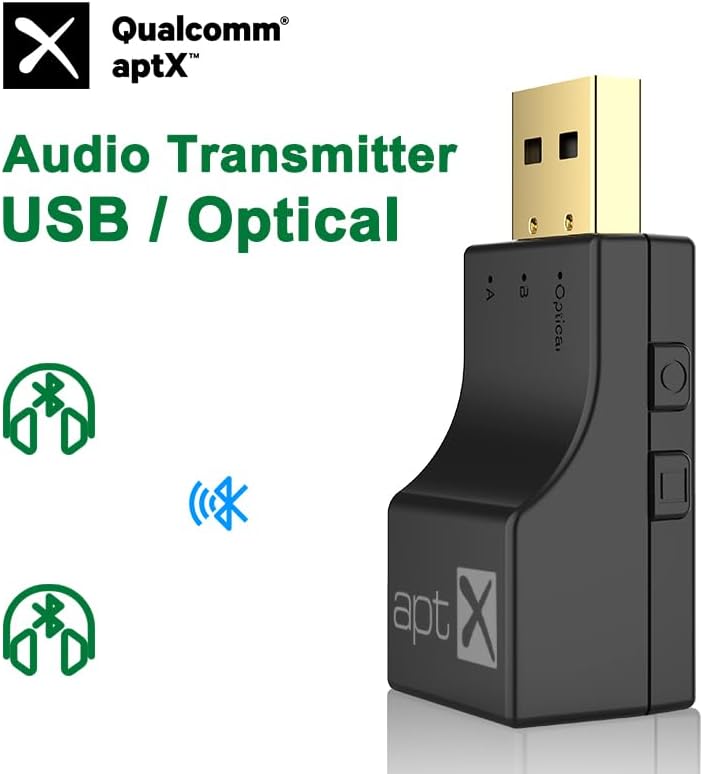
Image 2.1: Front view of the transmitter highlighting Qualcomm aptX audio technology.
3. Features
- Dual Channel Multi-device Expansion: Supports both Optical fiber and USB interfaces for versatile connectivity with TVs, computers, mobile phones, audio systems, and game consoles.
- Bluetooth 5.0 with Low Latency: Utilizes an ATS Bluetooth 5.0 chip for fast, stable, and low-latency audio transmission, ensuring lossless sound quality.
- Gaming Compatibility: Enables wireless audio for gaming consoles like PS3, PS4, and Xbox Series (requires optical audio output or HDMI audio extractor for Xbox Series X/S). Connect Bluetooth headsets/speakers for an immersive gaming experience without disturbing others.
- Wireless Music Listening: Adds Bluetooth functionality to computers, allowing connection to Bluetooth headsets for wireless audio enjoyment.
- 10-Meter Transmission Range: Features a built-in independent antenna to enhance Bluetooth signal, providing wide signal coverage up to 10 meters (barrier-free).
- Multipoint Connection: Supports connecting two Bluetooth audio devices simultaneously.
- Adaptive aptX Encoding: Supports aptX-Adaptive, aptX-HD, aptX-LL, and SBC codecs, indicated by different LED colors.
4. Package Contents
Please check the package contents upon unboxing. If any items are missing or damaged, contact customer support.
- eppfun 2-in-1 USB Optical Bluetooth Transmitter Adapter
- Optical Audio Cable (TOSLink)
- User Manual (this document)
- (Potentially) USB-C Adapter Cable (if required for Switch compatibility, not included)
5. Device Layout and Key Functions

Image 5.1: Diagram illustrating the key functions and indicators on the eppfun transmitter.
- USB / Optical Audio Input Switch Key: Toggles between USB and Optical input modes.
- Multi-function Button:
- Short Press: Connects the second Bluetooth device.
- Double Click: Disconnects all currently connected devices.
- Long Press: Restores factory settings.
- Fiber Optic Mode Indicator Light: Indicates when the device is in Optical mode.
- Device Indicator Lights (A & B): Indicate connection status for the first (A) and second (B) connected Bluetooth devices. These lights also show the active audio codec by color.

Image 5.2: LED indicator color codes corresponding to different aptX audio codecs.
LED Codec Color Correspondence:
- SBC: Blue
- APTX: Purple
- APTX-LL (Low Latency): Green
- APTX-HD (High Definition): Yellow
- APTX-AD (Adaptive): Cyan
6. Setup and Operation
6.1. USB Mode Setup (Plug and Play)
This mode is suitable for devices with a USB audio output, such as PCs, laptops, and Nintendo Switch (requires a Type-C adapter cable, not included).
- Ensure the transmitter is switched to USB mode using the USB/Optical switch key.
- Plug the eppfun transmitter into an available USB port on your computer or compatible device. The device will be recognized as a USB sound card.
- Place your Bluetooth headphones or speaker into pairing mode.
- The transmitter will automatically search for and connect to nearby Bluetooth audio devices. The indicator light (A) will illuminate once connected.
- If connecting a second device, short press the multi-function button and put the second device into pairing mode. Indicator light (B) will illuminate upon successful connection.

Image 6.1: USB Mode connection diagram for various devices.
6.2. Optical Mode Setup (USB Powered)
This mode is ideal for devices with an optical audio output (TOSLink), such as TVs, PS3/PS4, Xbox Series (requires an HDMI audio extractor for Series X/S), and TV boxes/Android boxes. The transmitter requires USB power in this mode.
- Ensure the transmitter is switched to Optical mode using the USB/Optical switch key. The Fiber Optic Mode Indicator Light will illuminate.
- Connect the provided optical audio cable from your audio source's optical output to the optical input port on the eppfun transmitter.
- Plug the eppfun transmitter into a USB port for power. This can be a USB port on your TV, console, or a standard USB power adapter (5V/1A).
- Place your Bluetooth headphones or speaker into pairing mode.
- The transmitter will automatically search for and connect to nearby Bluetooth audio devices. The indicator light (A) will illuminate once connected.
- If connecting a second device, short press the multi-function button and put the second device into pairing mode. Indicator light (B) will illuminate upon successful connection.

Image 6.2: Optical Mode connection diagram for various devices.

Image 6.3: Example of the transmitter connected to a gaming console for optical audio input and USB power.
7. Compatibility
- Audio Sources: Devices with USB audio output (PC, Laptop, Nintendo Switch with adapter) or Optical audio output (TV, PS3, PS4, Xbox Series with HDMI audio extractor, TV Box, Android Box).
- Audio Receivers: Bluetooth headphones, Bluetooth speakers.
- Codecs Supported: SBC, aptX, aptX-LL, aptX-HD, aptX-Adaptive.
8. Troubleshooting
- No Sound:
- Ensure the transmitter is correctly connected and powered on.
- Verify the correct input mode (USB or Optical) is selected on the transmitter.
- Check that your Bluetooth headphones/speakers are paired and connected to the transmitter.
- Confirm the audio output settings on your source device (TV, PC, console) are configured to send audio via USB or Optical as appropriate.
- For Optical mode, ensure the optical cable is securely connected and not damaged.
- Cannot Pair Devices:
- Ensure your Bluetooth headphones/speakers are in pairing mode.
- Double-click the multi-function button on the transmitter to disconnect all devices and try pairing again.
- Move the devices closer to each other.
- Long press the multi-function button to restore factory settings on the transmitter, then attempt pairing.
- Audio Latency/Delay:
- Ensure your receiving Bluetooth device (headphones/speakers) supports aptX Low Latency (aptX-LL) for the best performance. The transmitter will automatically use the best available codec.
- Reduce the distance between the transmitter and the receiving device, and remove any obstacles.
- Only One Device Connected in Multipoint:
- After connecting the first device, short press the multi-function button to initiate pairing for the second device.
- Ensure both Bluetooth devices are in pairing mode when attempting to connect them.
9. Specifications
| Brand | eppfun |
| Model | eppfun 2-in-1 USB Optical Bluetooth Transmitter Adapter |
| Hardware Interface | USB, Optical |
| Data Link Protocol | Bluetooth 5.0 |
| Supported Codecs | SBC, aptX, aptX-LL, aptX-HD, aptX-Adaptive |
| Compatible Devices | Audio Device, Desktop, Game Console, Headphone, Smartphone, Speaker, TV |
| Color | Black |
| Item Weight | 10.6 ounces (0.3 Kilograms) |
| Package Dimensions | 4.72 x 3.54 x 0.59 inches |
| Sampling Frequency Range (Optical) | 32KHz to 192KHz |
| UPC | 710421188118 |
| ASIN | B0F6TL3DPZ |
10. Maintenance
To ensure the longevity and optimal performance of your eppfun Bluetooth Transmitter Adapter, follow these maintenance guidelines:
- Cleaning: Use a soft, dry cloth to clean the device. Avoid using liquid cleaners or solvents, as they may damage the finish or internal components.
- Storage: Store the device in a cool, dry place away from direct sunlight and extreme temperatures.
- Handling: Handle the device with care. Avoid dropping it or subjecting it to strong impacts.
- Connectivity: Ensure all cables (USB, Optical) are connected securely but without excessive force to prevent damage to ports.
11. Warranty and Support
eppfun products are designed for reliability and performance. For warranty information, technical support, or customer service inquiries, please refer to the contact information provided with your purchase or visit the official eppfun website. Please retain your proof of purchase for warranty claims.
Online Support: Visit the eppfun Store on Amazon


