
1. Introduction
The FUNSNAP CM8 SE is a 3-axis gimbal stabilizer designed for smartphones, compatible with both iPhone and Android devices. It provides stable and shake-free footage for video recording, vlogging, and content creation. Key features include a remote control, long battery life, horizontal and vertical screen switching, AI tracking, and gesture control.
2. Package Contents
Verify that all items listed below are included in your package:
- CM8 Gimbal x 1
- Remote Controller x 1
- Mini Tripod x 1
- Type C Charging Cable x 1
- User Manual x 1

Image: The package contents of the FUNSNAP CM8 SE gimbal stabilizer, showing the gimbal, remote controller, mini tripod, USB-C charging cable, and user manual.
3. Product Overview
Familiarize yourself with the main components of your FUNSNAP CM8 SE gimbal stabilizer.
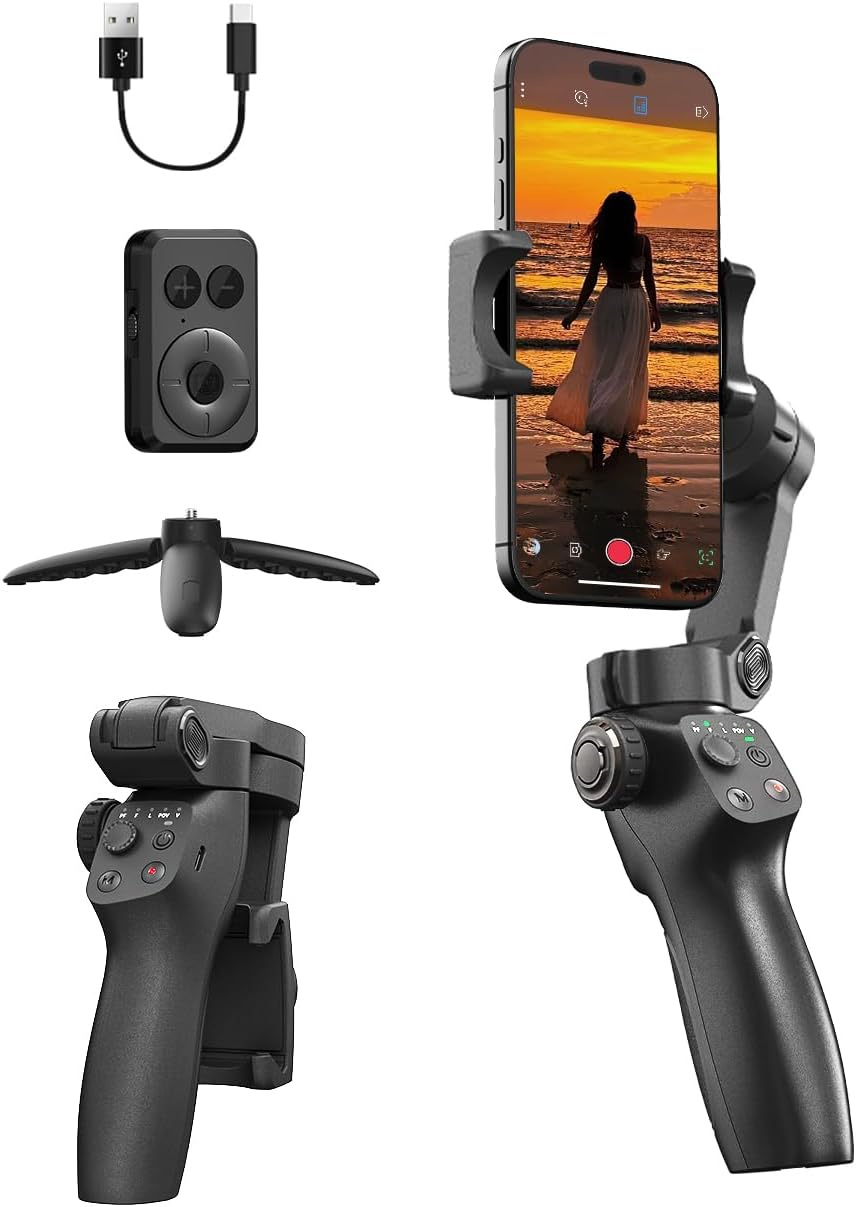
Image: An overview of the FUNSNAP CM8 SE gimbal stabilizer, displaying the main unit with a smartphone mounted, the detachable remote control, a mini tripod, and a USB charging cable.
4. Setup
4.1 Charging the Gimbal
Before first use, fully charge the gimbal. A full charge takes approximately 2 hours and provides up to 12 hours of operation.
- Connect the provided Type-C charging cable to the gimbal's charging port and a USB power adapter (not included).
- The indicator light will show charging status and turn off when fully charged.

Image: Visual representation of the gimbal's charging time (3.5 hours for fast charge) and extended battery life (12 hours), shown with the gimbal set up outdoors.
4.2 Mounting Your Smartphone
- Extend the phone clamp arms.
- Carefully place your smartphone into the clamp, ensuring it is centered and secure.
- Ensure the phone's camera is not obstructed.
4.3 Balancing the Gimbal
Proper balancing is crucial for optimal performance and battery life.
- With the phone mounted, adjust the phone clamp position until the phone remains level when the gimbal is powered off.
- Slight adjustments may be needed to achieve perfect balance.
4.4 App Installation and Bluetooth Connection
For full functionality, download the Capture2 app from your smartphone's app store.
- Download and install the "Capture2" app.
- Enable Bluetooth on your smartphone.
- Power on the CM8 SE gimbal.
- Open the Capture2 app and follow the on-screen instructions to connect to the gimbal via Bluetooth.
- Pair the remote control with the gimbal if it is not automatically connected.
5. Operating Instructions
5.1 Power On/Off
- Power On: Press and hold the power button for 3 seconds.
- Power Off: Press and hold the power button for 3 seconds.
5.2 Gimbal Modes
The CM8 SE offers various stabilization modes to suit different shooting scenarios:
- Pan Follow (PF): The camera pans left/right following your movement, while tilt and roll axes are locked.
- Follow (F): The camera follows your pan and tilt movements, with the roll axis locked.
- POV: All three axes (pan, tilt, roll) follow your movement, providing a first-person perspective.
- Lock (L): All three axes are locked, keeping the camera pointing in a fixed direction.
- Inception Mode: Creates a spinning camera effect.

Image: An illustration of various gimbal modes including Pan Follow (PF), Follow (F), POV, and Lock (L), demonstrating how each mode contributes to steady and controlled video visuals.

Image: The 180-degree Inception Mode in action, showing a smartphone capturing a spiraling effect on a staircase, indicating the gimbal's ability to create dynamic, rotating shots.
5.3 Horizontal and Vertical Switching
Easily switch between horizontal (landscape) and vertical (portrait) orientations with a single button press, ideal for different social media platforms.

Image: A visual demonstrating the quick switch functionality between landscape and portrait modes on the gimbal, allowing for flexible content creation.
5.4 Remote Control Functions
The included remote control allows for convenient operation from a distance of up to 32.81 feet (10 meters).
- Record/Shutter Button: Start/stop video recording or take photos.
- Mode Button: Cycle through gimbal modes.
- Joystick: Control gimbal pan and tilt movements.
5.5 AI Tracking
The gimbal features AI-powered tracking for both faces and objects, ensuring your subject remains in focus and centered within the frame.
- Activate AI tracking through the Capture2 app.
- Select the face or object you wish to track.

Image: A snowboarder being tracked by the gimbal's AI, demonstrating both AI Face Tracking and AI Object Tracking capabilities to keep the subject in focus.
5.6 Gesture Control
Control recording and photo capture using simple hand gestures, enhancing convenience for solo content creators.
- Stop Gesture: A flat open palm.
- Start Gesture: An 'OK' sign.
- These gestures can also be used to trigger phone photo/video and customize composition.

Image: A person demonstrating hand gestures for Smart AI Gesture Control, including 'Stop' (open palm) and 'Start' (OK sign) for initiating recording or taking photos.
5.7 Creative Features (via Capture2 App)
The Capture2 app unlocks additional creative shooting modes:
- Panorama: Capture wide, sweeping panoramic shots with ease.
- Hitchcock (Dolly Zoom): Create a dramatic effect by zooming in or out on a target while simultaneously moving the camera, maintaining the subject's size in the frame.

Image: A screenshot of the Capture2 app interface showing the Panorama mode, designed to capture wide, consistent shots of cityscapes.

Image: A screenshot of the Capture2 app interface demonstrating the Hitchcock mode, which allows zooming in and out on a target to create a cinematic effect.
6. Maintenance
6.1 Cleaning
- Wipe the gimbal body with a soft, dry cloth.
- Do not use liquid cleaners or solvents.
6.2 Storage
- Store the gimbal in a cool, dry place, away from direct sunlight.
- Ensure the gimbal is powered off before storage.
- For long-term storage, charge the battery to approximately 50% every three months to maintain battery health.

Image: The FUNSNAP CM8 SE gimbal stabilizer shown folded and stored in a small bag, highlighting its compact and portable design for easy transport.
7. Troubleshooting
If you encounter issues with your FUNSNAP CM8 SE gimbal, refer to the following common problems and solutions:
| Problem | Possible Cause | Solution |
|---|---|---|
| Gimbal does not power on | Low battery; Power button not held long enough | Charge the gimbal fully; Press and hold the power button for 3 seconds |
| Footage is shaky/unstable | Improper phone balancing; Gimbal not calibrated | Ensure phone is perfectly balanced; Perform gimbal calibration via the Capture2 app |
| Cannot connect to smartphone via Bluetooth | Bluetooth off; App not open; Gimbal not in pairing mode | Ensure Bluetooth is on; Open Capture2 app; Restart gimbal and try pairing again |
| Remote control not working | Remote battery low; Not paired with gimbal | Replace remote battery (if applicable); Re-pair remote with gimbal |
| AI Tracking not functioning | Poor lighting; Subject too far/close; App issue | Ensure adequate lighting; Maintain optimal distance from subject; Restart Capture2 app |

Image: A visual comparison showing the difference between stabilized footage captured with the FUNSNAP CM8 SE and unstable footage from handheld recording, highlighting the gimbal's effectiveness.
8. Specifications
| Feature | Specification |
|---|---|
| Product Dimensions | 2.5 x 3.5 x 8 inches (Folded: 8.0 x 3.5 x 2.5 inches) |
| Item Weight | 12.8 ounces (0.8 Pounds) |
| Battery Life | Up to 12 hours |
| Charging Time | Approx. 2 hours (3.5 hours for fast charge) |
| Payload Capacity | 0.66 lbs |
| Compatible Devices | Android, iPhone |
| Remote Control Range | Up to 32.81 feet (10 meters) |
| Color | Black |
9. Warranty and Support
FUNSNAP products are manufactured to high-quality standards. For warranty information, technical support, or customer service inquiries, please refer to the official FUNSNAP website or contact their customer support directly.
You can visit the official FUNSNAP store for more information: FUNSNAP Store


