
Introduction
This manual provides detailed instructions for the setup, operation, maintenance, and troubleshooting of your BlueFinger K98 Wireless Gaming Keyboard. Please read this manual thoroughly before using the product to ensure optimal performance and longevity.
The BlueFinger K98 is a versatile 98-key keyboard featuring tri-mode connectivity (Bluetooth, 2.4GHz wireless, USB-C wired), customizable RGB backlighting, a smart display screen, and a multi-function control knob. It is designed for comfort and durability with ergonomic features and PBT keycaps.
Package Contents
- BlueFinger K98 Wireless Gaming Keyboard
- USB-C Cable
- 2.4GHz USB Receiver
- User Manual (this document)
Setup
Charging the Keyboard
The keyboard is equipped with a built-in 4000mAh rechargeable battery. Before first use, it is recommended to fully charge the keyboard using the provided USB-C cable. Connect the USB-C end to the keyboard and the USB-A end to a power source (e.g., computer USB port, USB wall adapter).
The smart screen will display the battery level. A full charge provides approximately 16 hours of use with backlighting on, or up to 53 hours with backlighting off.
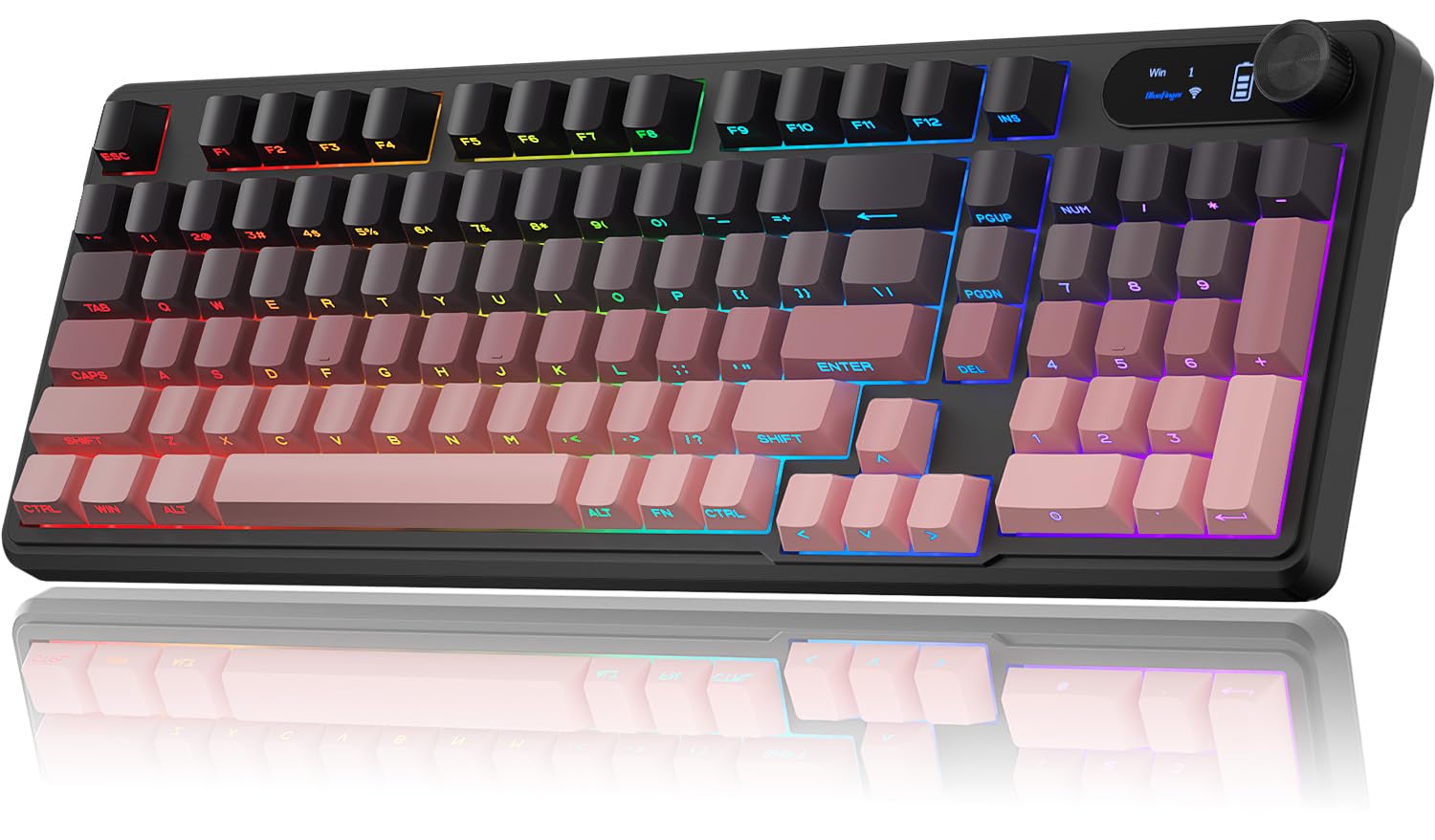
Image: BlueFinger K98 Wireless Gaming Keyboard. This image shows the overall design of the keyboard with its RGB backlighting and smart screen.

Image: High Capacity Battery. This image illustrates the 4000mAh battery capacity and estimated usage times with backlighting on and off.
Connecting the Keyboard
The K98 keyboard supports three connection modes: 2.4GHz wireless, Bluetooth, and USB-C wired.
2.4GHz Wireless Connection
- Locate the 2.4GHz USB receiver, usually stored in a compartment on the keyboard.
- Turn on the keyboard using the power switch.
- Plug the 2.4GHz USB receiver into an available USB port on your computer.
- Press Fn + 1 to switch the keyboard to 2.4GHz mode. The smart screen will indicate the connection status.

Image: Tri-Mode Connection. This image demonstrates the 2.4GHz wireless connection method with the USB receiver.
Bluetooth Connection
The keyboard supports connecting to up to two Bluetooth devices (BT1 and BT2).
- Turn on the keyboard using the power switch.
- To enter Bluetooth pairing mode for BT1, press Fn + 2. The smart screen will show "BT1" and an icon indicating pairing mode.
- On your device (computer, tablet, phone), enable Bluetooth and search for "BlueFinger K98" (or similar). Select it to pair.
- To pair a second device, press Fn + 3 to enter pairing mode for BT2. Repeat step 3.
- To switch between paired Bluetooth devices, press Fn + 2 (for BT1) or Fn + 3 (for BT2).
Video: K98 How to Switch Connection Modes. This video demonstrates how to switch between different connection modes on the K98 keyboard, including Bluetooth.
USB-C Wired Connection
- Connect the USB-C cable to the keyboard's USB-C port.
- Connect the other end of the USB-C cable to an available USB port on your computer.
- Press Fn + 4 to switch the keyboard to USB-C wired mode. The smart screen will indicate "USB Wired".

Image: Tri-Mode Connection. This image illustrates the USB-C wired connection method.
Operating Instructions
RGB Backlighting Control
The K98 keyboard features 16.8 million color RGB backlighting with various dynamic modes and customization options.
- Fn + INS: Switch between 14+ dynamic lighting modes.
- Fn + PG UP / PG DN: Adjust backlight brightness (5 levels).
- Fn + = / -: Adjust breathing speed or animation speed of dynamic modes.
- The multi-function knob can also be used to adjust backlight effects (see "Smart Screen & Multi-Function Control Knob" section).

Image: Dynamic RGB Keyboard. This image highlights the various RGB lighting effects and key combinations for control.
Video: BlueFinger RGB Wireless Keyboard. This video showcases the RGB lighting features of the keyboard.
Smart Screen & Multi-Function Control Knob
The integrated digital display provides real-time information, and the knob offers quick adjustments.
- Smart Screen Display: Shows current connection mode (2.4G, BT1, BT2, USB Wired), battery level, and system status (WIN/MAC).
- Knob Functionality:
- Rotate to adjust volume (default mode) or backlight brightness.
- Press to mute/unmute audio (default mode) or switch backlight effects.
- Press Fn + Knob to toggle between volume control and backlight control modes for the knob.

Image: Multi-Function Control Knob. This image details the functions of the control knob for brightness and volume, and how to switch between them.
Ergonomic Design
The keyboard features an ergonomic stepped layout and two-level adjustable tilt stands to enhance typing comfort and reduce wrist strain during extended use.

Image: 98 Keys Compact Keyboard with 2-Stage Adjustable Feet. This image illustrates the adjustable feet for ergonomic positioning.
Maintenance
To ensure the longevity and optimal performance of your BlueFinger K98 keyboard, follow these maintenance guidelines:
- Cleaning: Use a soft, dry cloth to wipe down the keyboard surface. For deeper cleaning, gently remove keycaps (if applicable and designed for removal) and use compressed air to clear debris from underneath. Avoid using harsh chemicals or abrasive materials.
- PBT Keycaps: The durable PBT keycaps are wear-resistant and designed to prevent legends from fading. Regular cleaning will maintain their appearance.
- Storage: When not in use for extended periods, store the keyboard in a cool, dry place away from direct sunlight and extreme temperatures.
- Battery Care: Avoid fully discharging the battery frequently. For long-term storage, charge the battery to about 50% to prolong its lifespan.
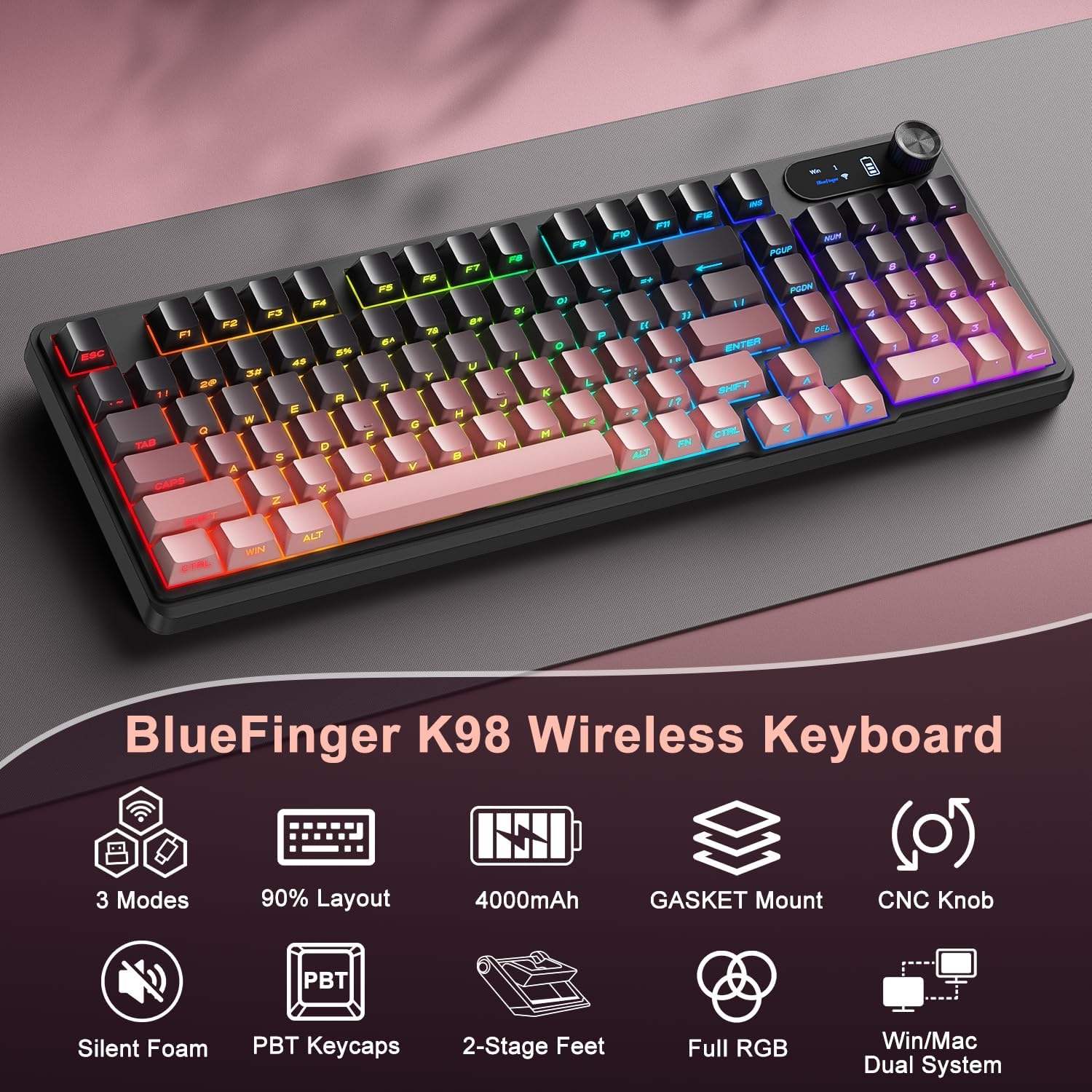
Image: Durable PBT Keycaps. This image emphasizes the quality and durability of the PBT keycaps.
Troubleshooting
If you encounter issues with your BlueFinger K98 keyboard, please refer to the following common solutions:
Keyboard Not Responding / Not Turning On
- Check Battery: Ensure the keyboard is sufficiently charged. Connect it via USB-C cable to a power source and check the smart screen for battery level.
- Power Switch: Verify that the power switch on the keyboard is in the "ON" position.
- Wired Mode Test: Connect the keyboard directly to your computer using the USB-C cable and switch to USB-C wired mode (Fn + 4). If it works in wired mode, the issue might be with wireless connectivity or battery.
Wireless Connection Issues (2.4GHz / Bluetooth)
- Re-pair Device:
- For 2.4GHz: Ensure the USB receiver is securely plugged in and press Fn + 1.
- For Bluetooth: On your device, remove the keyboard from the list of paired Bluetooth devices. Then, put the keyboard into pairing mode (Fn + 2 or Fn + 3) and re-pair.
- Interference: Move the keyboard closer to the receiver/device. Avoid obstacles and other wireless devices that might cause interference.
- Driver Issues: Ensure your computer's Bluetooth drivers are up to date.
Backlighting Not Working or Incorrect
- Brightness Adjustment: Increase brightness using Fn + PG UP or the control knob.
- Mode Switching: Cycle through lighting modes using Fn + INS to see if the issue is with a specific mode.
- Battery Level: Low battery can affect backlighting performance. Charge the keyboard fully.
Keys Not Registering or Double Typing
- Clean Keys: Dust or debris under the keycaps can cause issues. Refer to the Maintenance section for cleaning instructions.
- Connection Stability: Ensure a stable connection, especially in wireless modes.
Specifications
| Brand | BlueFinger |
| Model Number | K98 |
| Connectivity Technology | Bluetooth, 2.4GHz Wireless, USB-C Wired |
| Number of Keys | 98 |
| Keycap Material | PBT (Side Printed) |
| Switch Type | Membrane (Cushioned with Silicone Padding) |
| Backlighting | RGB (14+ modes, 7 solid colors, 5 brightness levels) |
| Battery Capacity | 4000mAh |
| Special Features | Smart Digital Display, Multi-Function Control Knob, 2-Stage Adjustable Feet |
| Compatible Operating Systems | Windows, Mac, Android, iOS, Xbox, PS4, PS5 |
| Material | Plastic |
Warranty and Support
Your BlueFinger K98 Wireless Gaming Keyboard comes with a 2-year warranty from the date of purchase.
For technical support, warranty claims, or any questions regarding your product, please contact our professional after-sales team. We aim to provide fast and reliable support with responses within 24 hours.
Please refer to the contact information provided on the product packaging or the official BlueFinger website for the most up-to-date support channels.

