
1. Introduction
The Seeed Studio reCamera 2002w is a compact, modular AI camera designed for developers. It integrates a RISC-V System-on-Chip (SoC) running Linux, offering 1 TOPS @INT8 performance and a 5-megapixel camera. This device is engineered to facilitate rapid deployment of AI vision applications into various systems, supporting built-in YOLOv11, custom AI models, and Node-RED workflows.
2. Package Contents
Verify that all items listed below are present in your reCamera 2002w package:
- reCamera 2002w Unit
- USB-C Cable (for power and data)
- Ethernet Cable with RJ45 and JST connectors (for network and additional power options)
- User Manual
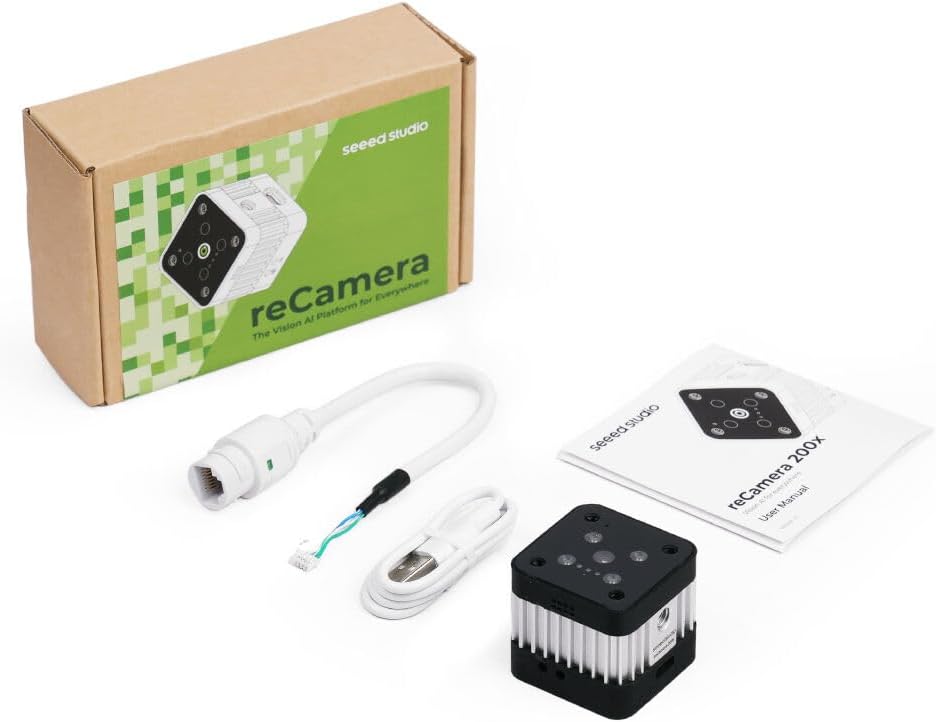
Image 1: Contents of the reCamera 2002w package. Shown are the reCamera unit, a USB-C cable, an Ethernet cable with an additional connector, and the printed user manual, alongside the product packaging.
3. Product Features
- Integrated AI Models: Includes built-in YOLOv11 with a commercial license, and supports Roboflow & SenseCraft AI.
- Simplified Deployment: Enables quick YOLO model deployment using a single command.
- Compact and Expandable: Features a pocket-sized design with Power over Ethernet (PoE) and CAN-bus support for expansion. Includes magnetic and 1/4" thread mounting options.
- Optimized Performance: Designed with optimized heat dissipation for stable operation.
- Flexible Development: Supports both code-based and no-code workflows, including Node-RED for custom automation and C++ SDK with OpenCV C++ APIs for advanced users.
- Modular Design: Allows for combination and mixing of sensor, base, and core boards for diverse configurations.
4. Setup Guide
4.1 Powering the reCamera
- Connect the provided USB-C cable to the USB-C port on the reCamera.
- Connect the other end of the USB-C cable to a compatible 5V power adapter (not included) or a computer's USB port.
- Note: While the reCamera features an RJ45 port, it does not support Power over Ethernet (PoE) for primary power. USB-C power is required for operation. The RJ45 port is for network connectivity.
4.2 Network Connection
The reCamera 2002w supports both Wi-Fi and Ethernet connectivity.
4.2.1 Wi-Fi Connection
Upon initial boot, the reCamera may create a Wi-Fi hotspot or attempt to connect to a pre-configured network. Refer to the official Seeed Studio documentation for specific instructions on configuring Wi-Fi settings, typically involving a web interface or command-line tools.
4.2.2 Ethernet Connection
- Connect the provided Ethernet cable (RJ45 end) to the RJ45 port on the reCamera.
- Connect the other end of the Ethernet cable to your network router or switch.
- Ensure the reCamera is also powered via USB-C.
4.3 Initial Access
Once powered and connected to the network, you can typically access the reCamera via SSH or a web interface. Consult the official Seeed Studio reCamera documentation for default IP addresses, usernames, and passwords.
5. Operating Instructions
5.1 Basic Operation
The reCamera runs a Linux-based operating system, allowing for flexible control and application deployment. Interaction is primarily through command-line interface (SSH) or a web-based management portal.
5.2 AI Model Deployment
The reCamera supports various methods for deploying AI models:
- Built-in YOLOv11: Utilize the pre-installed YOLOv11 model for object detection tasks. Activation and configuration details are available in the developer documentation.
- Custom Models: Convert standard ONNX models into the compatible CVIMODEL format. This process may involve several steps and specialized tools. Refer to Seeed Studio's developer resources for detailed conversion guides.
- One-Line Deployment: For compatible YOLO models, a simplified one-line command can be used for quick deployment.
5.3 Node-RED Integration
For users preferring a visual programming approach, the reCamera supports Node-RED. This allows for the creation of custom workflows by dragging and dropping nodes to connect hardware devices, APIs, and online services.
5.4 Advanced Development
For experienced developers, the reCamera offers:
- C++ SDK: A Software Development Kit for C++ allows for direct programming and integration.
- OpenCV C++ APIs: Leverage the power of OpenCV for advanced computer vision tasks within your C++ applications.
6. Maintenance
6.1 Cleaning
To clean the reCamera, gently wipe the exterior with a soft, dry cloth. Avoid using liquid cleaners or abrasive materials, as these can damage the device. Ensure the camera lens is free of dust and smudges for optimal image quality.
6.2 Firmware Updates
Periodically check the official Seeed Studio website for firmware updates. Keeping your reCamera's firmware up-to-date ensures optimal performance, security, and access to new features. Follow the provided instructions carefully when performing updates.
7. Troubleshooting
- Device Not Powering On: Ensure the USB-C cable is securely connected to both the reCamera and a functional 5V power source. Try a different USB-C cable or power adapter.
- No Network Connection:
- Ethernet: Verify the Ethernet cable is properly connected and your network is active. Remember that the RJ45 port does not provide PoE; separate USB-C power is required.
- Wi-Fi: Check Wi-Fi configuration settings. If the device is not connecting, try reconfiguring the Wi-Fi credentials or restarting the reCamera.
- AI Model Deployment Issues: Ensure your custom models are correctly converted to the CVIMODEL format. Verify that all necessary dependencies and libraries are installed on the reCamera. Consult the Seeed Studio developer documentation for specific error codes and solutions.
- Overheating: While the reCamera has optimized heat dissipation, ensure it is operating in a well-ventilated environment. Avoid obstructing the heat sink fins.
For further assistance, refer to the Seeed Studio community forums or contact their technical support.
8. Specifications
| Feature | Specification |
|---|---|
| Brand | seeed studio |
| Model Name | reCamera 2002w |
| Item Model Number | 2002w |
| Effective Still Resolution | 5 MP |
| Video Capture Resolution | 1440p |
| Video Capture Format | MP4 |
| Photo Sensor Technology | CMOS |
| Camcorder Type | Video Camera |
| Compatible Devices | Personal Computer, Smartphone |
| Image Stabilization | No |
| Item Weight | 7.8 ounces |
| Package Dimensions | 5.2 x 3.39 x 1.65 inches |
9. Warranty and Support
The Seeed Studio reCamera 2002w comes with a standard manufacturer's warranty. For detailed warranty terms, technical support, and additional resources, please visit the official Seeed Studio website or contact their customer service directly.
Official Seeed Studio Store: Seeed Studio on Amazon


