
1. Introduction
The OSCOO T10 External SSD Hard Drive is a high-performance portable storage device designed for fast data transfer and reliable storage across various platforms. Featuring dual USB-C and USB-A connectivity, it offers broad compatibility with smartphones, tablets, laptops, and gaming consoles. Its robust zinc alloy construction ensures durability and efficient heat dissipation.
Key Features:
- Blazing-Fast Performance: Experience lightning-speed transfers up to 1100MB/s, ideal for 4K videos, RAW photos, and large design files.
- 4K ProRes Recording Support: Supports 4K 120fps ProRes recording on compatible iPhone series (15/16/17), enabling direct high-quality video capture.
- Ultimate Connectivity: Dual USB-C and USB-A ports provide seamless compatibility with a wide range of devices without needing adapters.
- Rugged & Reliable: Constructed from premium zinc alloy for shock resistance, effective heat dissipation, and silent operation, protecting your data in various environments.
- Smart & User-Friendly: Incorporates advanced features like TRIM support, SMART monitoring, LDPC ECC error correction, and wear leveling for long-lasting performance.
2. What's in the Box
Please check the contents of your package. If any items are missing or damaged, contact customer support.
- OSCOO T10 External SSD Hard Drive (2TB)
- USB Cable (integrated or separate, depending on model variation)
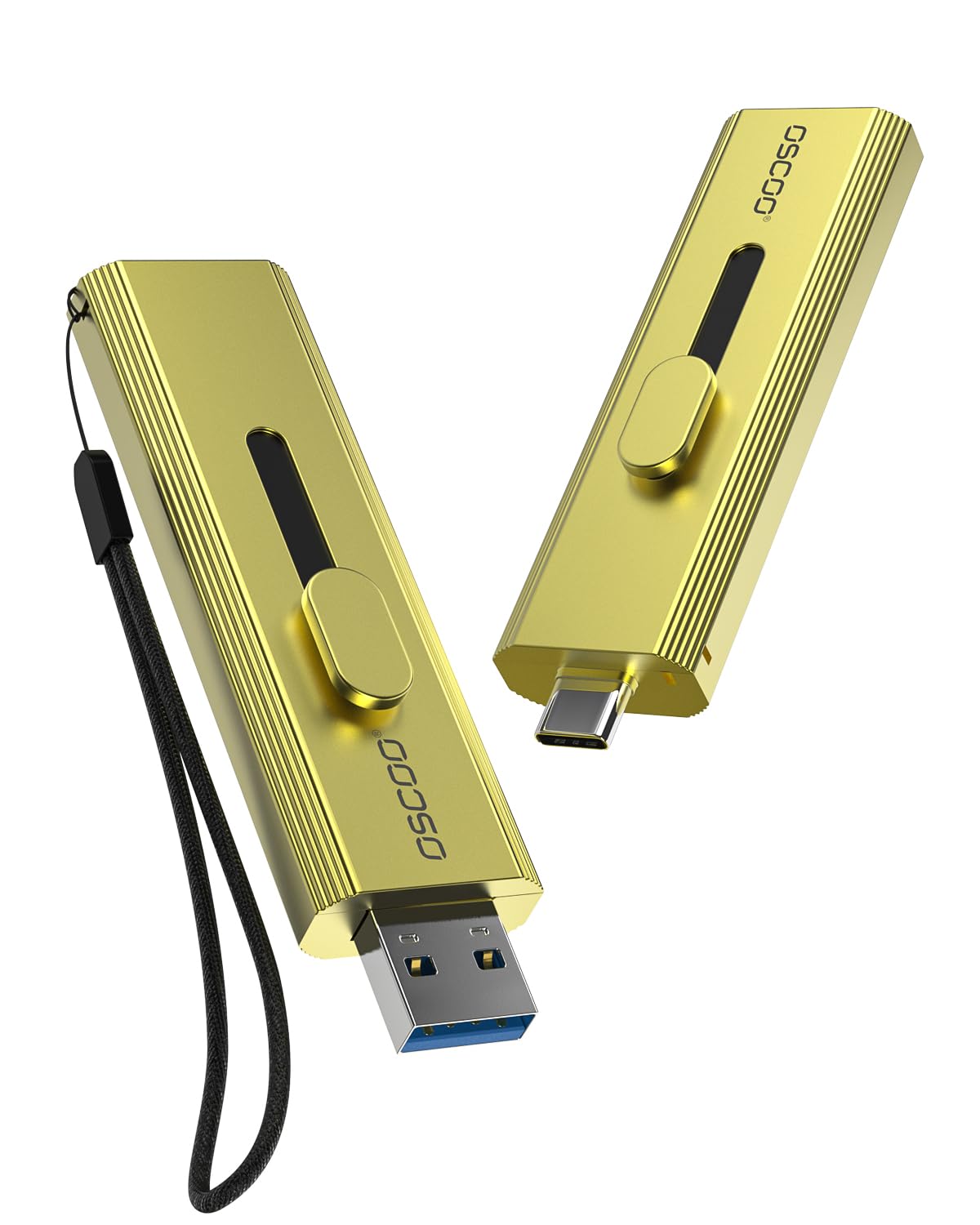
Image: The OSCOO T10 External SSD Hard Drive, showcasing its compact design.
3. Setup
The OSCOO T10 is designed for plug-and-play functionality. No drivers are typically required for most operating systems.
3.1 Connecting to a Device
- Identify the appropriate port on your device:
- For USB-C compatible devices (e.g., iPhone 15/16/17, modern laptops, tablets), extend the USB-C connector from the SSD.
- For USB-A compatible devices (e.g., older laptops, desktops, gaming consoles), extend the USB-A connector from the SSD.
- Gently insert the extended connector into the corresponding port on your device.
- The device should automatically detect the OSCOO T10. You may see a notification indicating a new storage device has been connected.
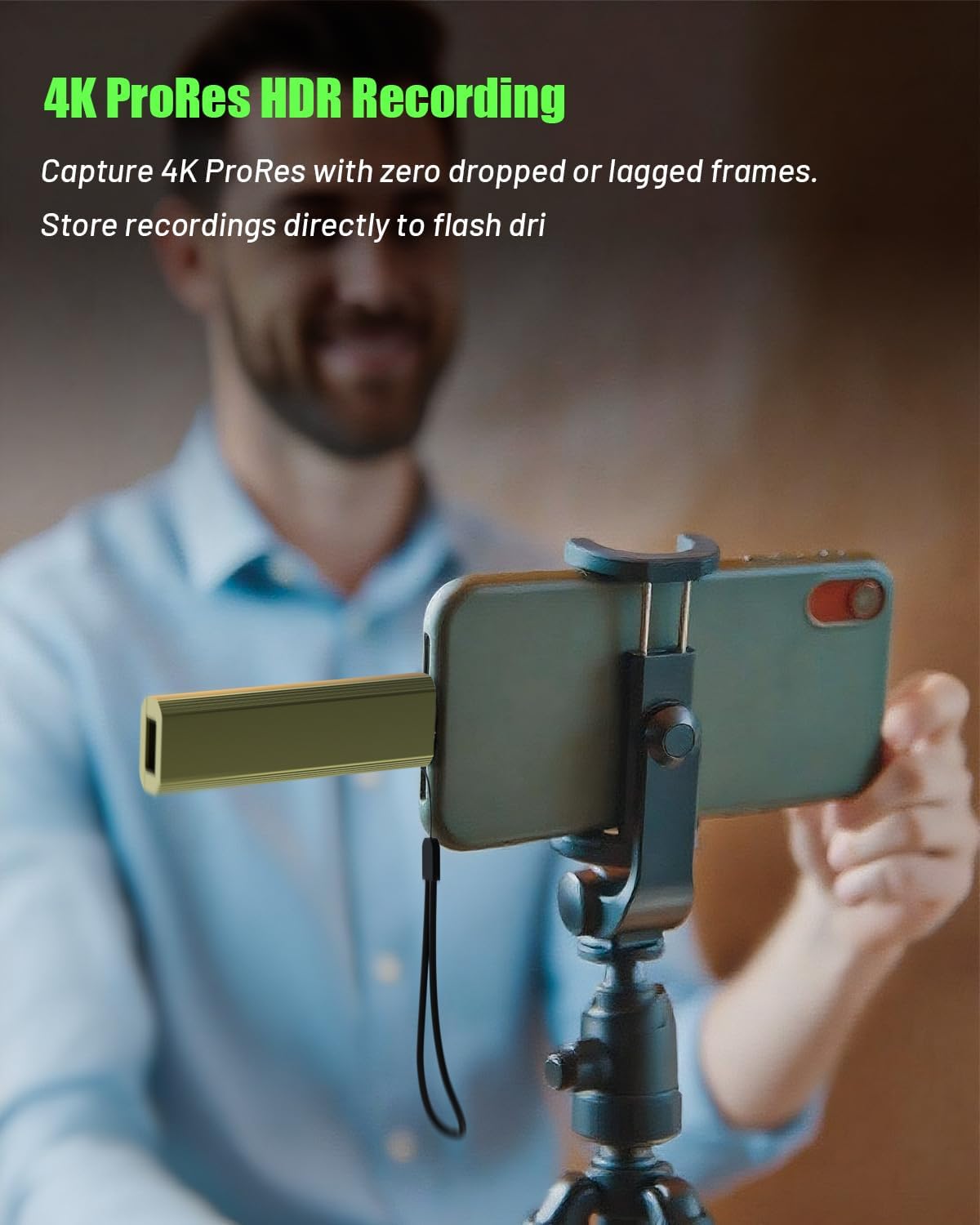
Image: The OSCOO T10 showing its dual USB-A and USB-C connectors, ready for connection.
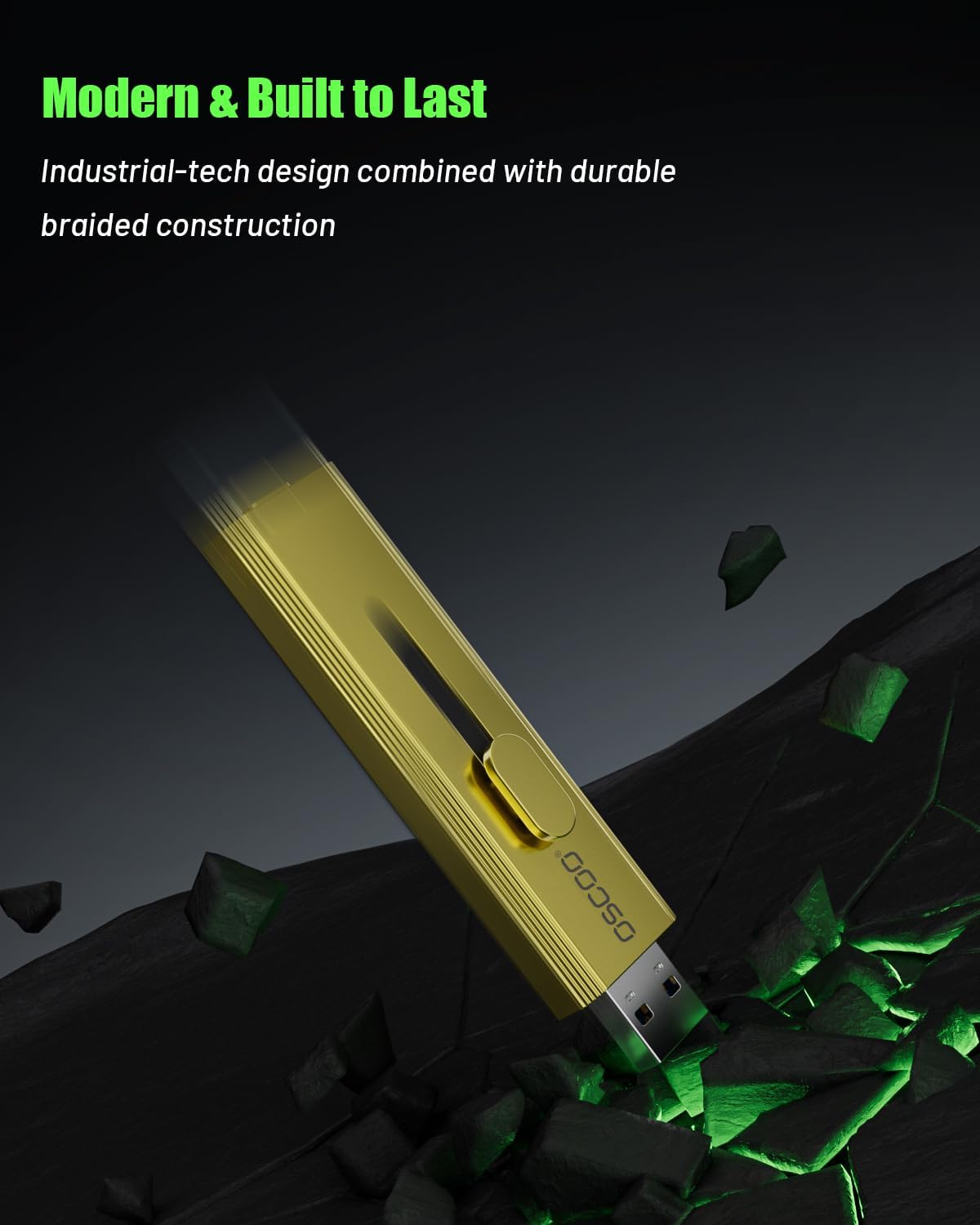
Image: The OSCOO T10 connected to an iPhone via its USB-C port.

Image: The OSCOO T10 connected to a laptop via its USB-A port.
4. Operating Instructions
The OSCOO T10 allows for easy file transfer and direct recording. Ensure your device's operating system is up-to-date for optimal compatibility and performance.
4.1 File Transfer (General)
Once connected, the OSCOO T10 will appear as an external drive in your device's file manager (e.g., File Explorer on Windows, Finder on Mac, Files app on iOS/Android). You can drag and drop files to and from the drive as you would with any other external storage.

Image: The OSCOO T10 being used for mobile data backup with a smartphone.
4.2 Direct 4K ProRes Recording (iPhone 15/16/17 Series)
For compatible iPhone models, the OSCOO T10 can be used for direct 4K 120fps ProRes video recording. Connect the SSD to your iPhone via the USB-C port. Open the Camera app, select video mode, and ensure ProRes recording is enabled. The iPhone will automatically detect the external SSD as the recording destination.

Image: The OSCOO T10 connected to a smartphone, illustrating its use for storage expansion and direct recording.
4.3 Video Tutorial: Product Usage Guidance
For a visual guide on how to use the OSCOO T10 with various devices, please watch the official product usage video below.
Video: Official OSCOO T10 Product Usage Guidance. This video demonstrates how to connect the SSD to iOS and Android devices and transfer files.
5. Maintenance
Proper care ensures the longevity and optimal performance of your OSCOO T10 SSD.
- Physical Protection: While the zinc alloy casing offers durability, avoid dropping the device or subjecting it to extreme physical impact.
- Temperature: Operate and store the SSD within recommended temperature ranges (typically 0°C to 70°C operating, -40°C to 85°C storage). Avoid prolonged exposure to direct sunlight or extreme heat/cold.
- Cleaning: Use a soft, dry cloth to clean the exterior. Do not use liquid cleaners or solvents. Ensure the connectors are free from dust and debris.
- Safe Ejection: Always safely eject the SSD from your device before disconnecting it to prevent data corruption.
- Firmware Updates: Periodically check the OSCOO official website for any available firmware updates to ensure optimal performance and compatibility.
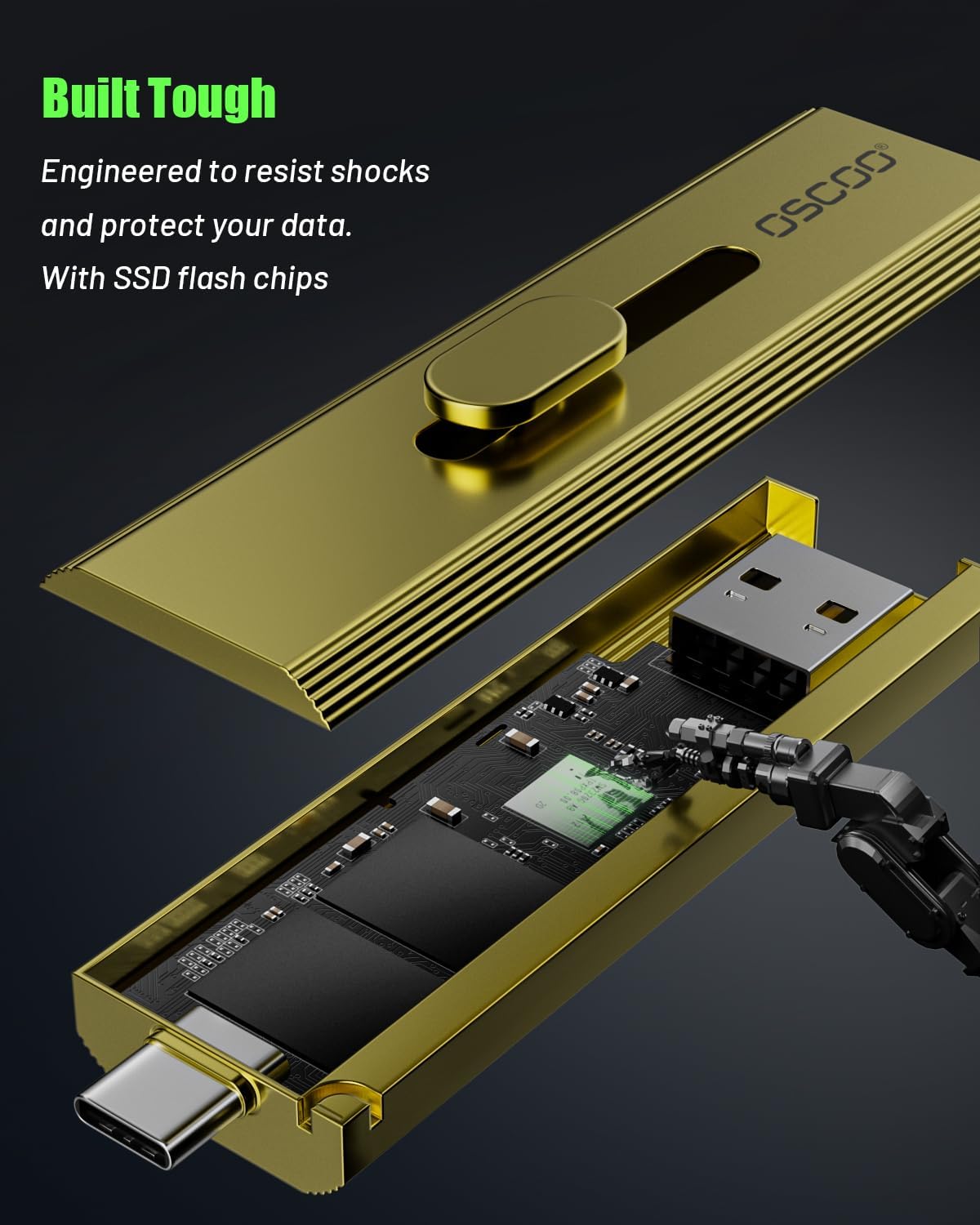
Image: An exploded view of the OSCOO T10, highlighting its internal SSD flash chips and robust construction.
6. Troubleshooting
If you encounter issues with your OSCOO T10, refer to the following common solutions:
| Problem | Possible Solution |
|---|---|
| SSD not recognized by device. |
|
| Slow transfer speeds. |
|
| SSD gets warm during use. |
Related documentsT10Ask a question about this manualAsk about setup, troubleshooting, compatibility, parts, safety, or missing instructions. Manuals+ will review the question and use this page’s manual context to help answer it. |
